In standard Microsoft Dynamics Business Central, it is not possible to perform data modification operations on a table. This feature provides the ability to load any table, view, insert, modify, and or delete data. It also provides the ability to sort, update columns, Find & Replace, export, and import data.
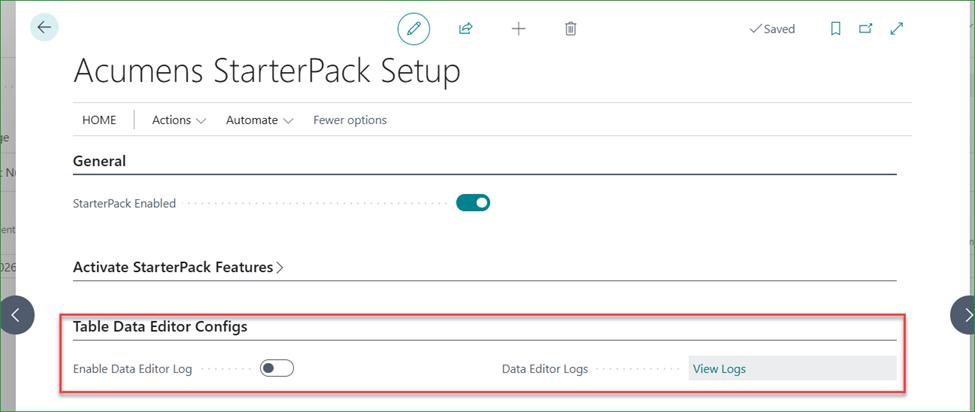
Install and enable Acumens Starterpack to onboard the feature. If you desire to log all table changes executed through the editor, go to Acumens StarterPack Setup, scroll to Table Data Editor Configs and “Enable Data Editor Log”. You can click “View Logs” to see logs if any.
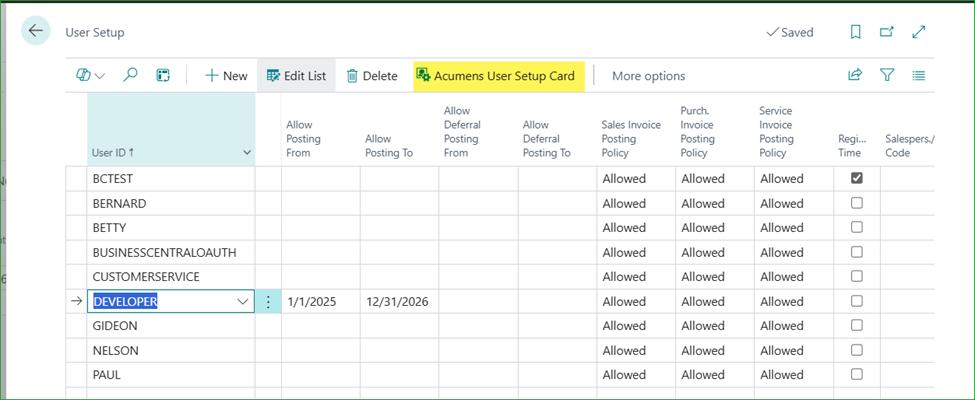
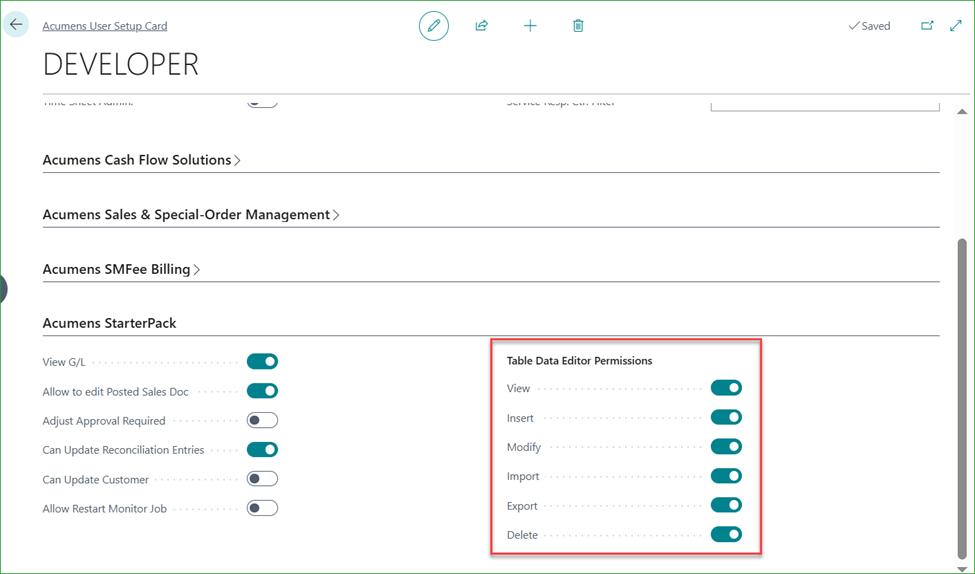
Since Table Data modification is sensitive, access is controlled. Go to User Setup, select the desired user, open Acumens User Setup card and scroll to “Acumens StarterPack” fasttab then assign the relevant permissions under “Table Data Editor Permissions”. The assigned permissions will determine the actions performed by the user.
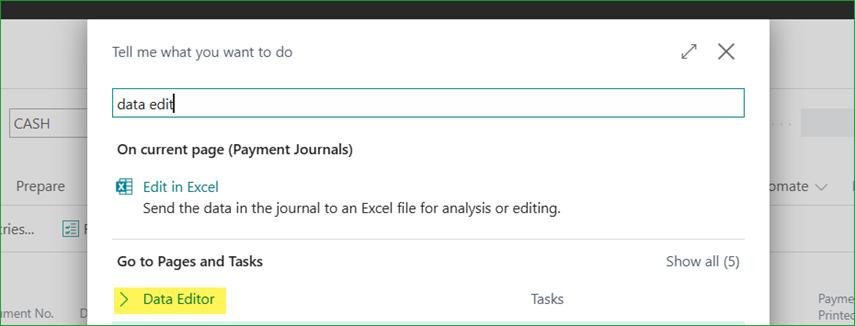
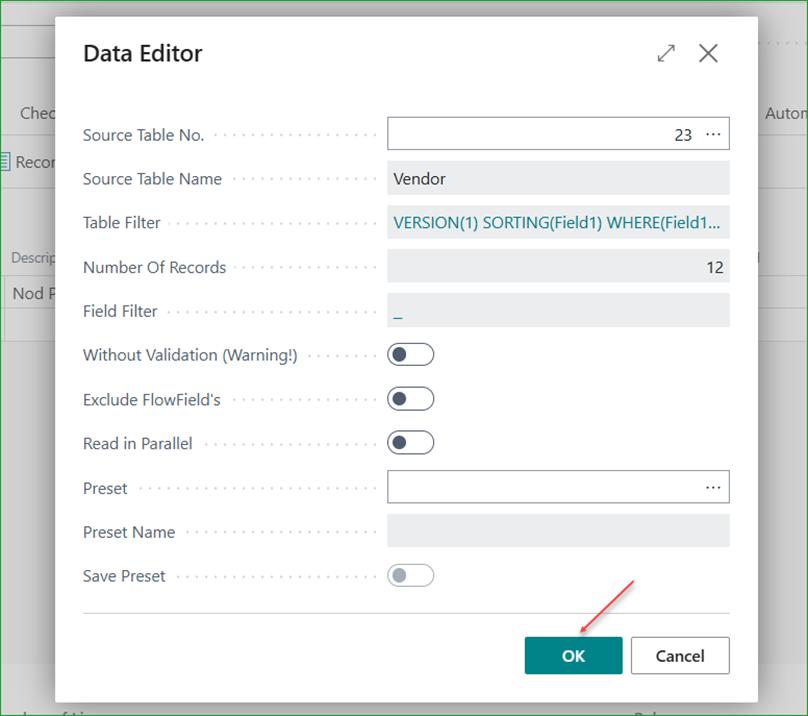
Search and open "Data Editor".
Enter the target Table No. You can use the AssistEdit button (…) to search for the table from list.
Use the Table Filter to narrow down the search to the desired records.
Decide whether to show or hide Flowfields, then click OK.
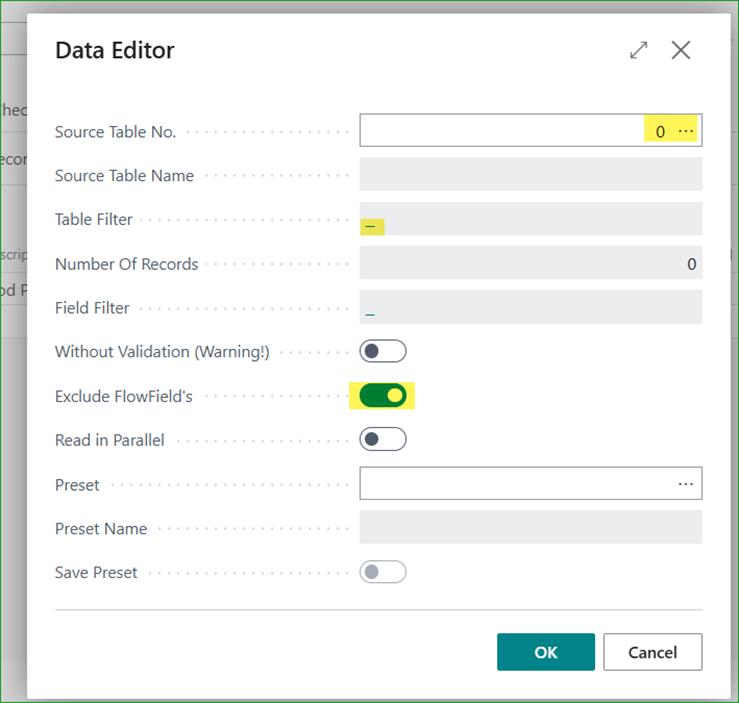
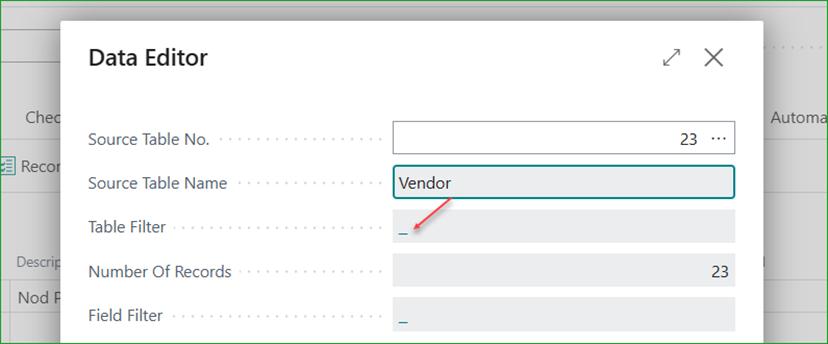
Sample – opening vendors missing Email.
After selecting table, click the (–) to load filters page.
Add as many filters as desired then click OK.
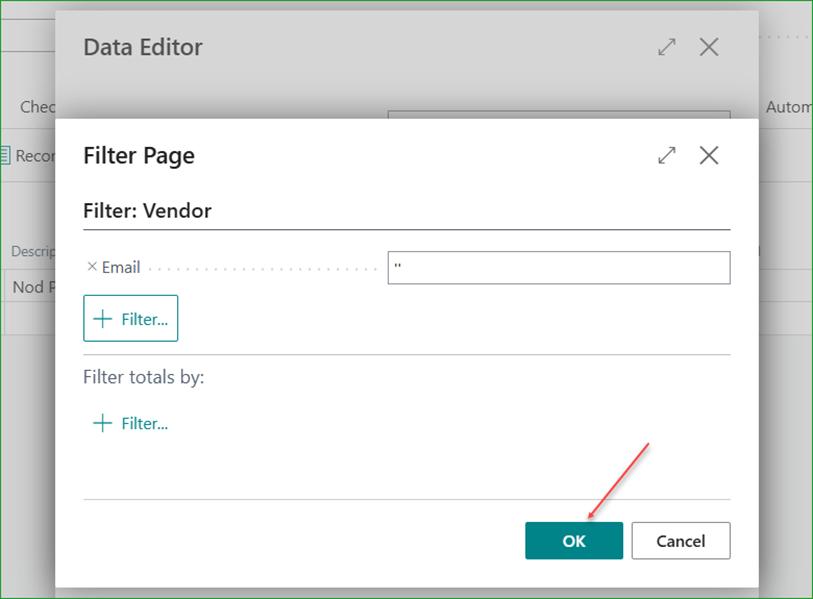
Click OK when done with the filters.
The records will be loaded then page below opened, showing the records found – if any.
You can review the data, scrolling horizontally to access all columns.
You can also use the highlighted actions to perform the relevant tasks – if granted permission for it.

Delete and Delete All
Delete will delete the selected record (line) while Delete All will delete all entries displayed on the page (as per the applied filter).
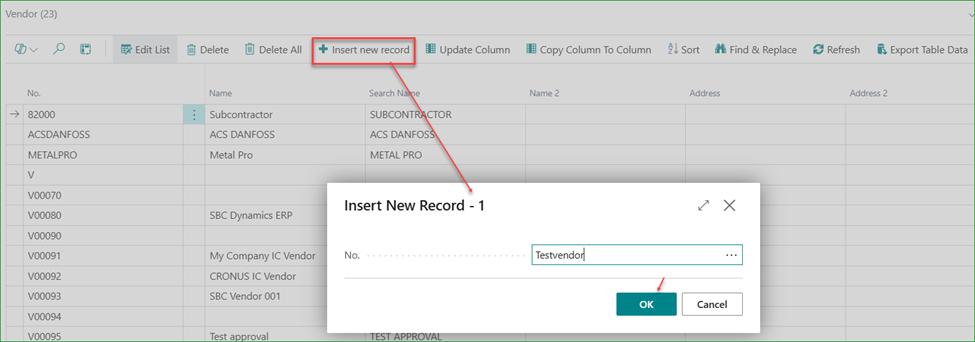
Insert New Record
Loads a page with the primary key fields. Type the values then click OK.
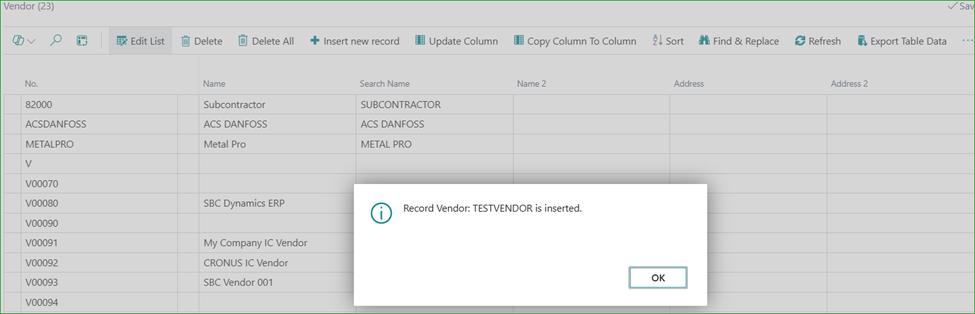
Update any other fields directly or using "Update Column".

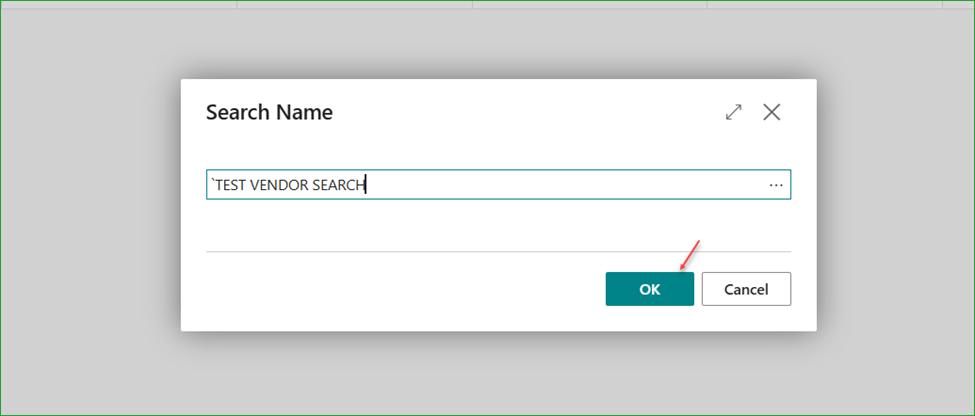
Update Column
Select a specific column to change value.

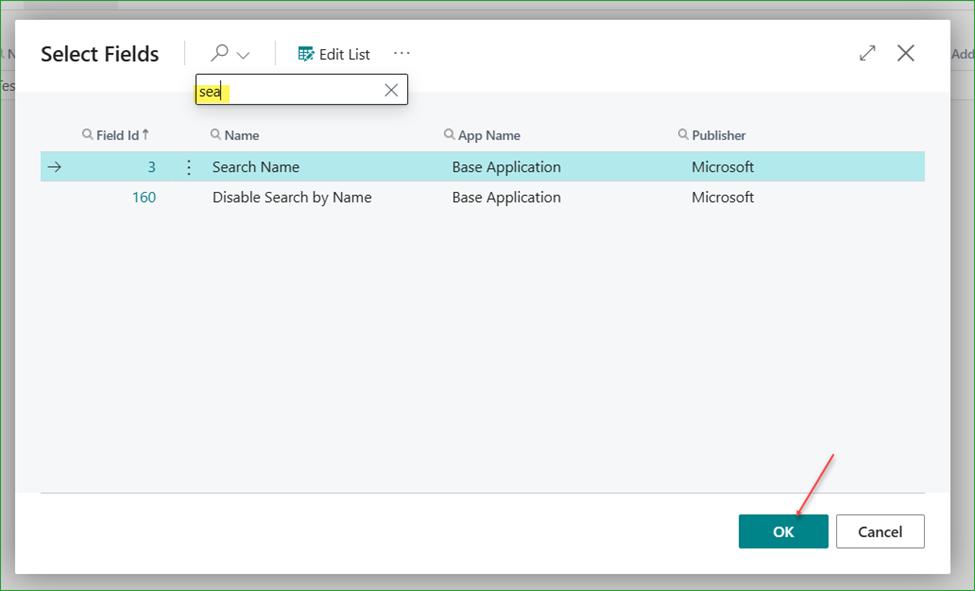

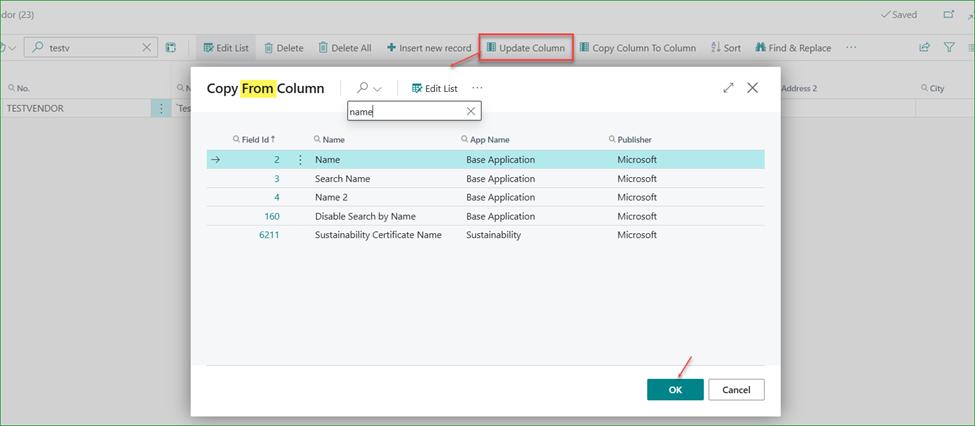
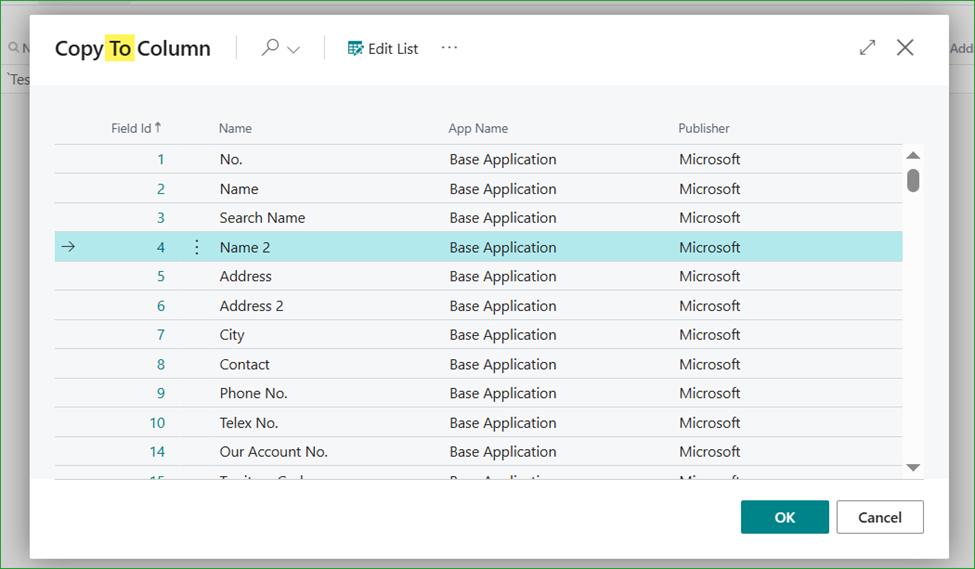
Copy Column to Column
Select from and to columns to copy data from one column to another.

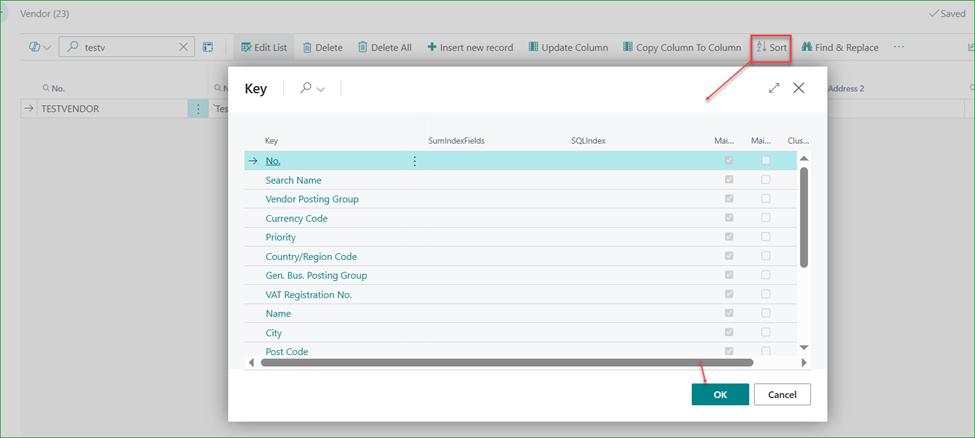
Sort
Loads a list of key fields, select the one to sort with then click OK to sort the displayed data.
Find & Replace
Apply filters for the specific records to find then provide the replacement value.
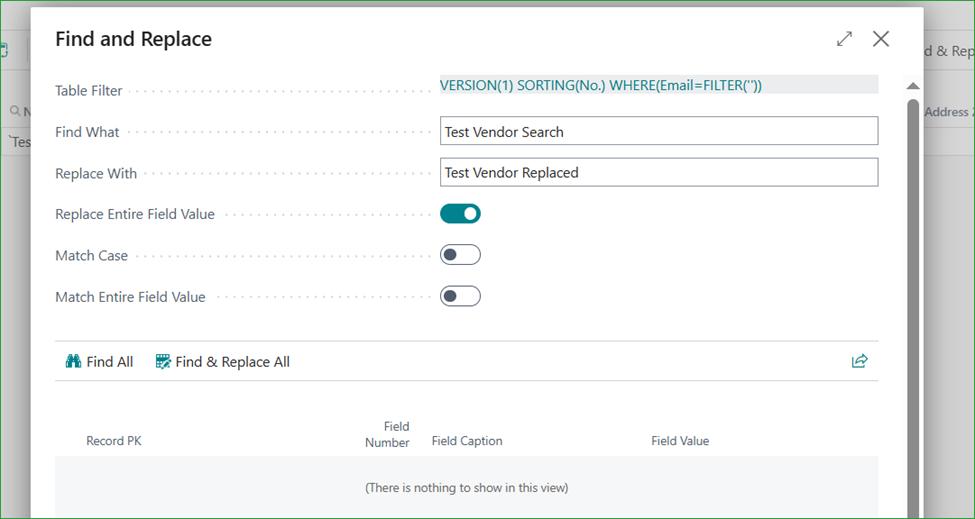
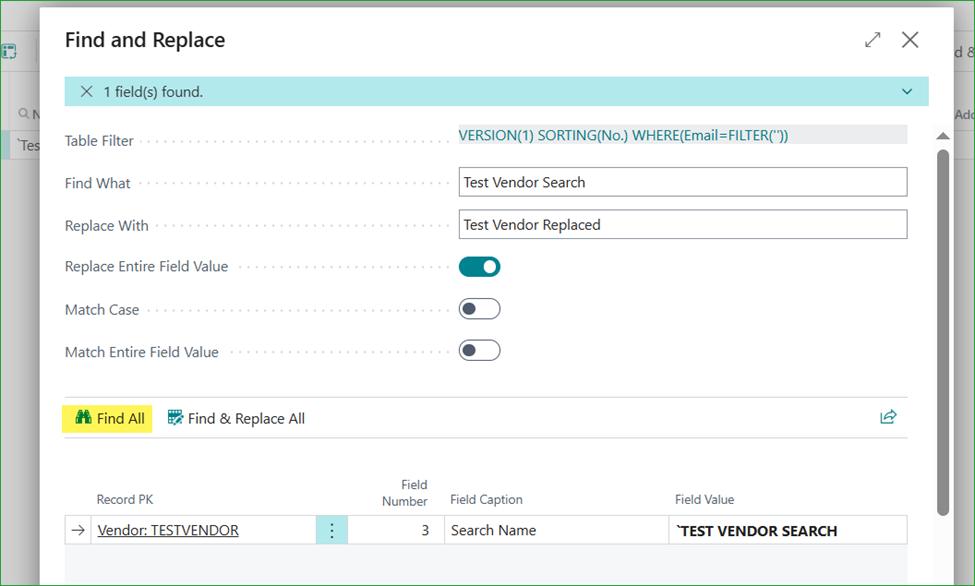
Use "Find All" to just load the matching entries.
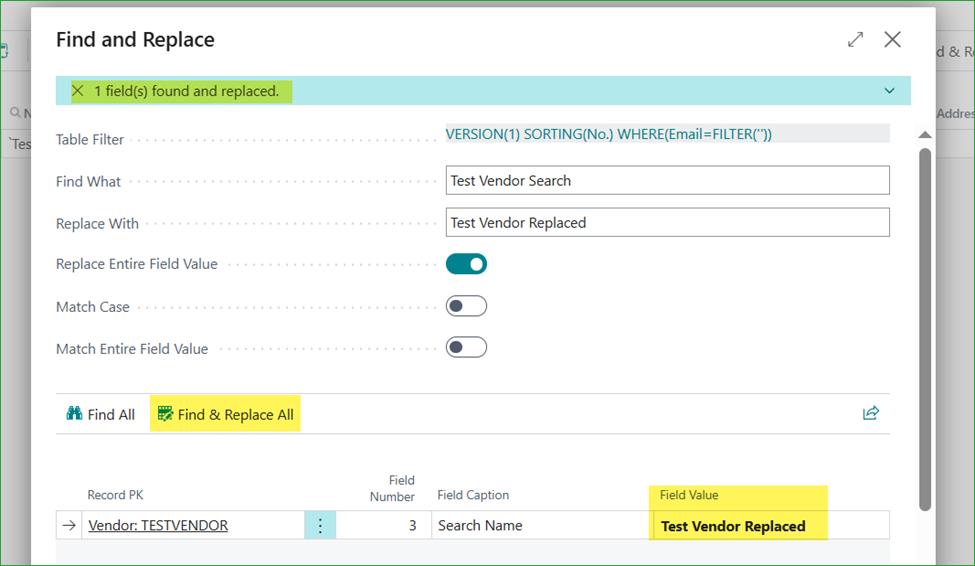
Use "Find & Replace All" to replace the matching records.

Refresh
Reload filtered page data.
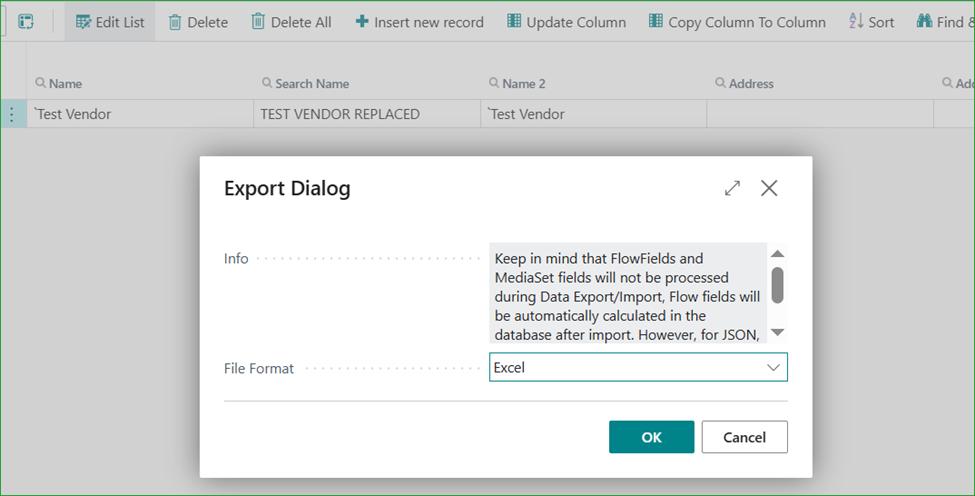
Export Table Data
Export page data to Excel or Json.
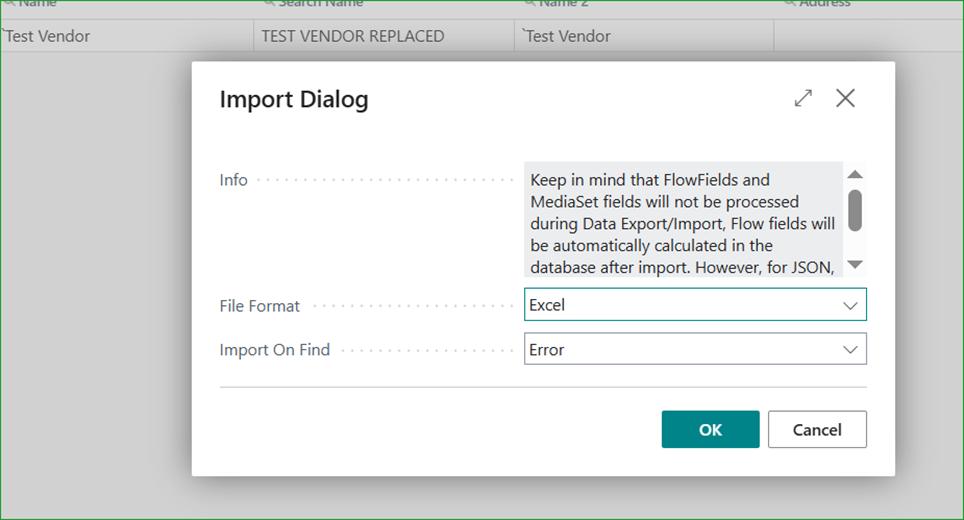
Import Table Data
Import data from Excel or Json to the table.