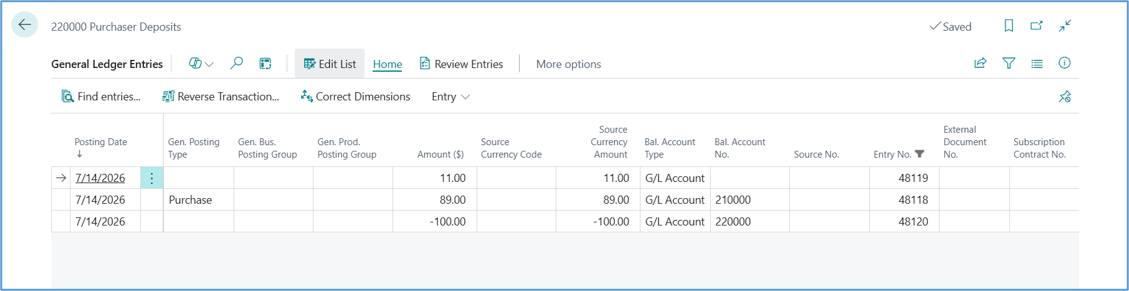
This feature allows for manual adjustment of the calculated tax amount on purchase invoices and purchase credit memo documents. It is primarily intended to handle small rounding differences between Business Central's calculation and the tax amount shown on a vendor's invoice.
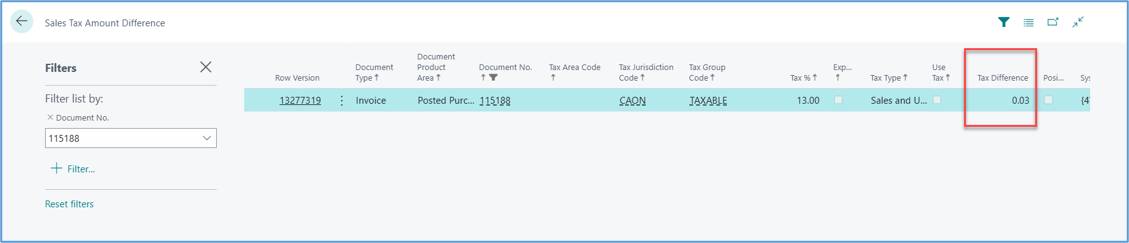
By default, Business Central calculates tax automatically based on tax group setup and tax percentage. If the calculated amount differs slightly from the vendor's invoice for example, due to different rounding methods, you can override it to match the vendor’s invoice. The tax difference will be recorded on sales tax amount difference.
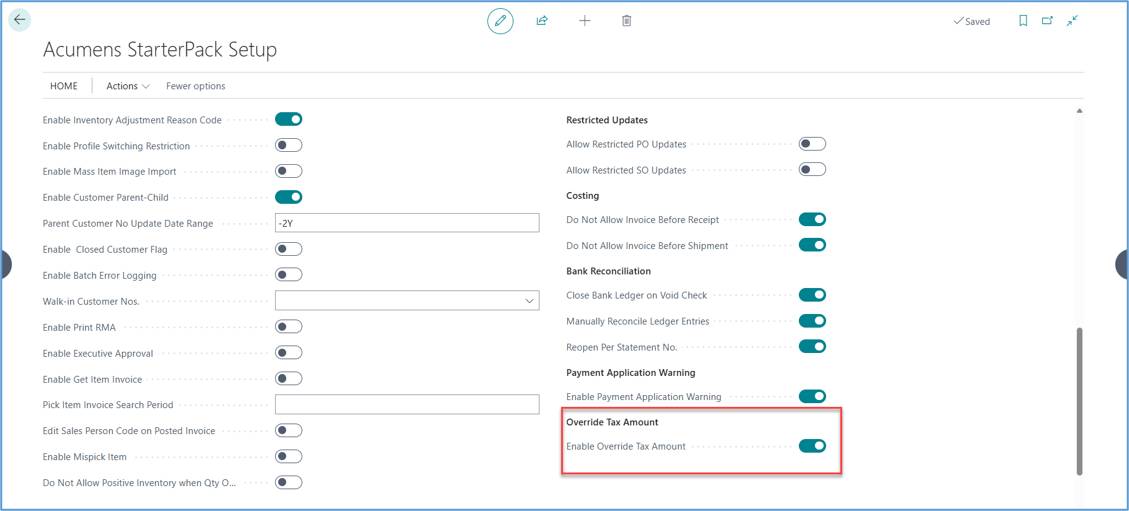
The Acumens Starter Pack Setup introduces the Enable Override Amount feature, which automatically configures the required tax difference settings by:
Enabling Allow Tax Difference on both sales & receivables and purchase & payables setups.
Setting Max. Tax Difference Allowed default value on general ledger setup (this value can be adjusted to your preferred value).
Enabling the Tax Difference field in General Journals, allowing users to view the calculated tax difference when entering the tax amount directly.
This feature simplifies the setup process and ensures the necessary configurations are in place to support tax amount overrides.
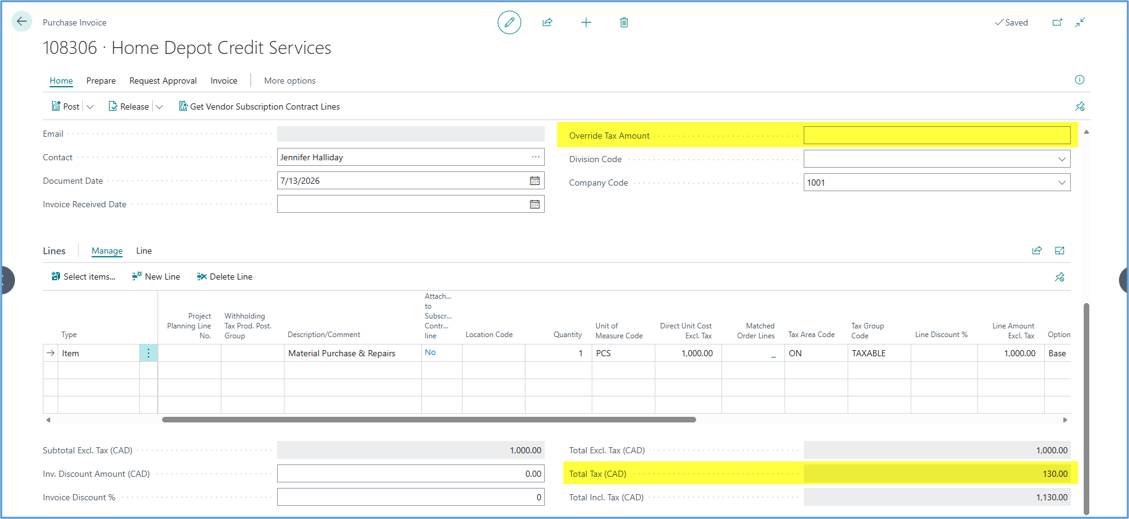
For example, suppose a purchase invoice contains:
Purchase invoice amount = 1,000
Tax Rate Percentage = 13%
Calculated Tax = 130
Vendor Invoice = 130.03 – This is the amount you’re supposed to enter on the override tax mount on the purchase invoice.
Before Override tax amount applied.
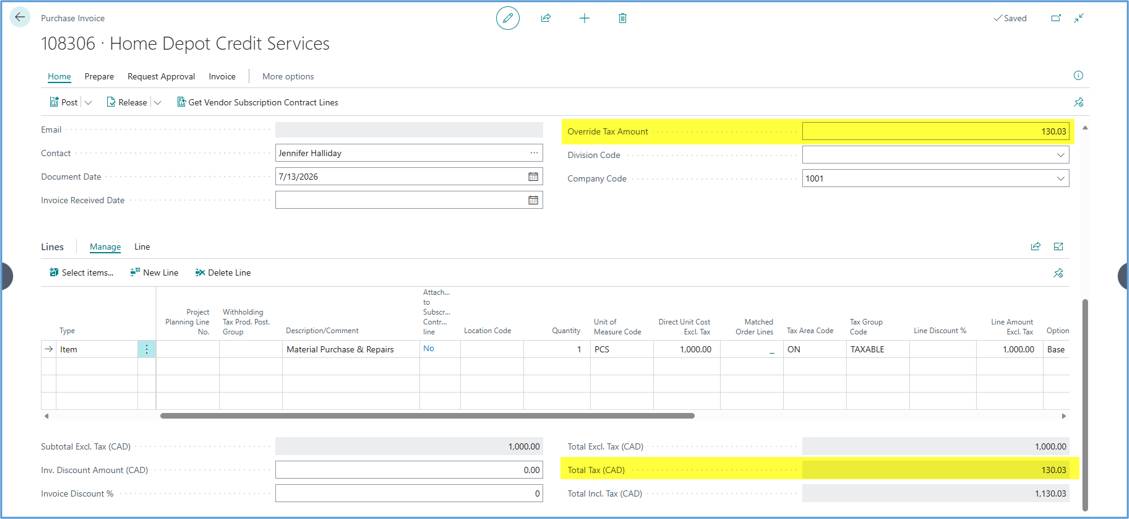
When you enter Override Tax Amount of 130.03 on the purchase invoice header, the original tax amount 130 will be auto overridden as shown below.
Posted Purchase Invoice
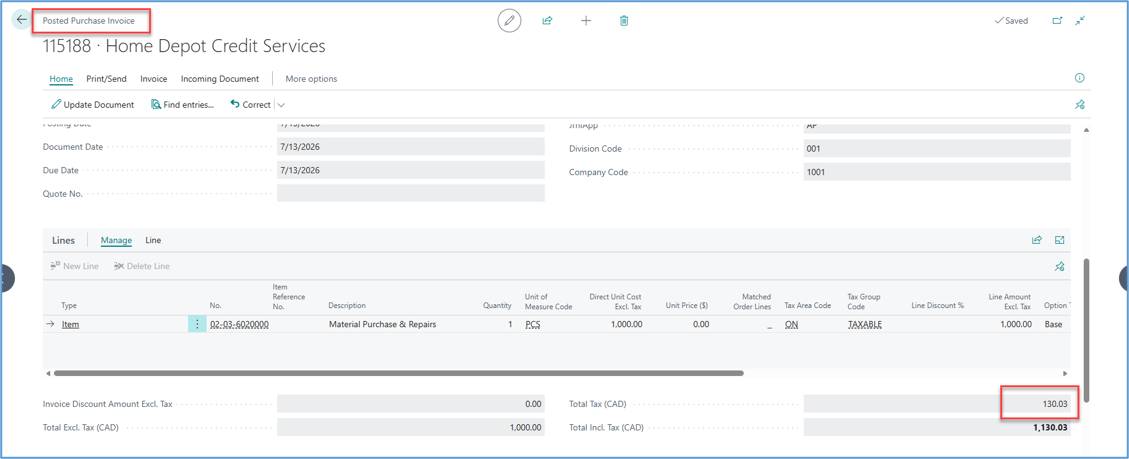
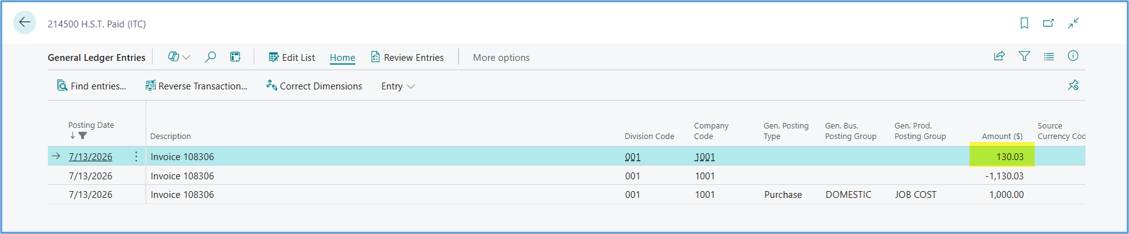
General Ledger Entries and tax amount.
Tax amount difference
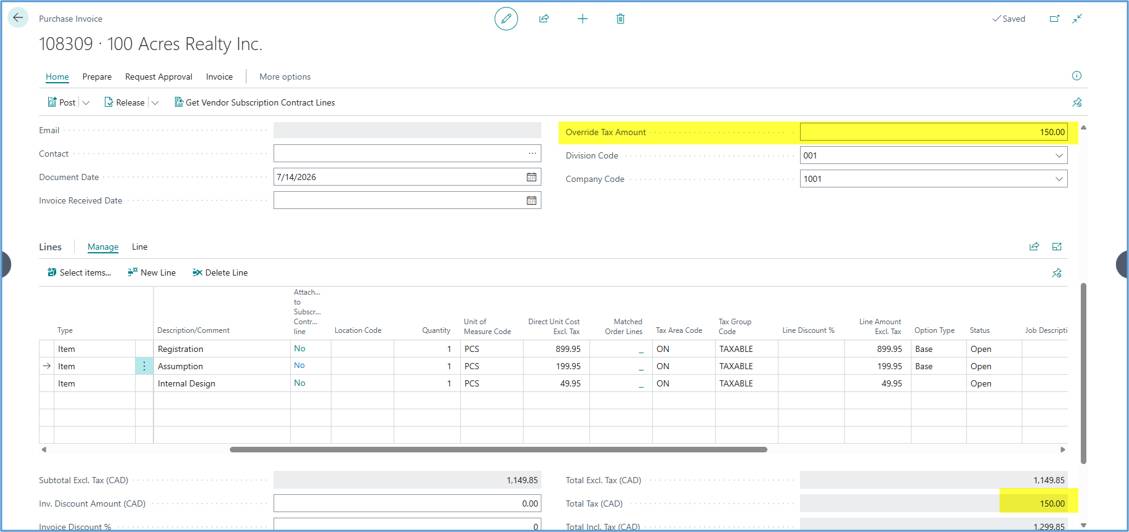
Business Central calculates tax per line (depending on the tax calculation setup)
Item 1: 899.95 × 13% = 116.99
Item 2: 199.95 × 13% = 25.99
Item 3: 49.95 × 13% = 6.49
Total Tax = CAD 149.48
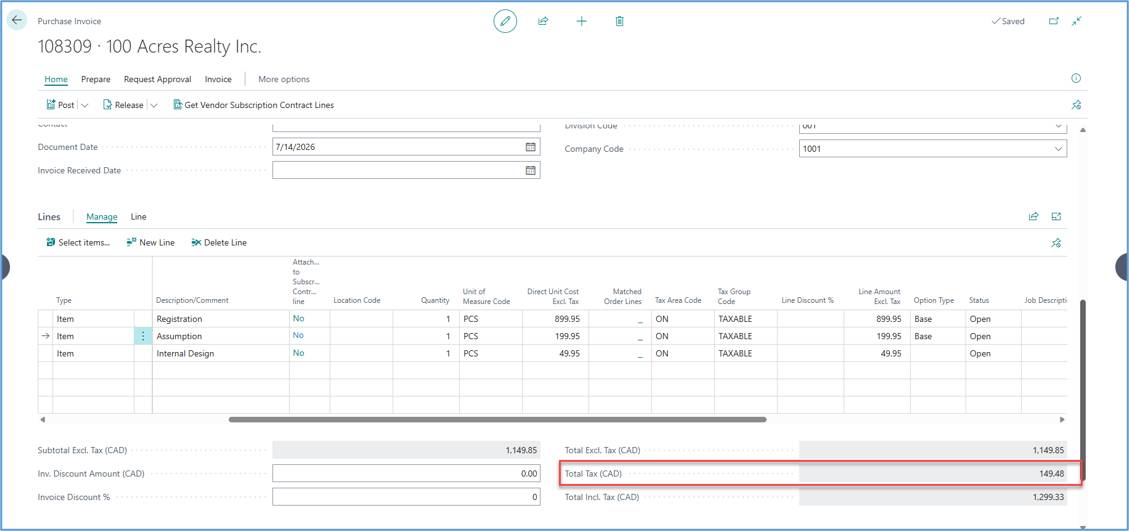
The supplier calculates tax on the invoice subtotal instead of individual lines and rounds the invoice total and tax amount to the nearest whole amount.
Total Invoice = CAD 1150.00
Total Tax = CAD 150.00
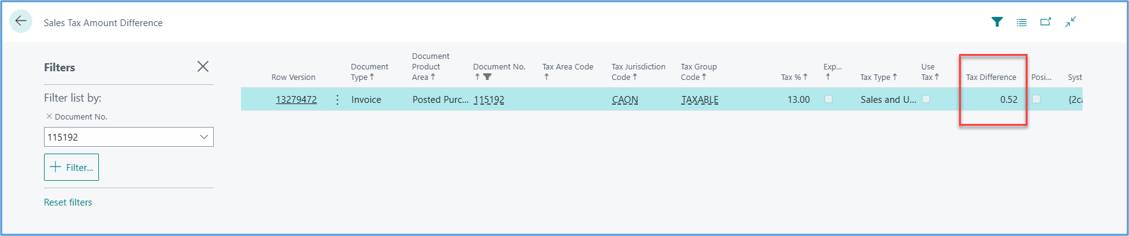
Tax amount difference
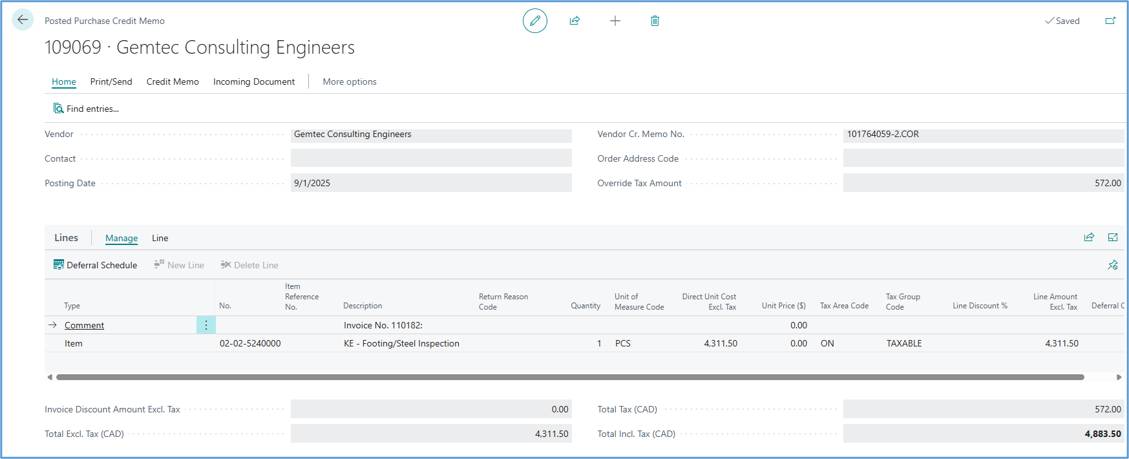
Tax percentage (13%) of purchase credit amount 4,311.50 = 560.495
Override tax amount = 572 will be entered on purchase credit memo.
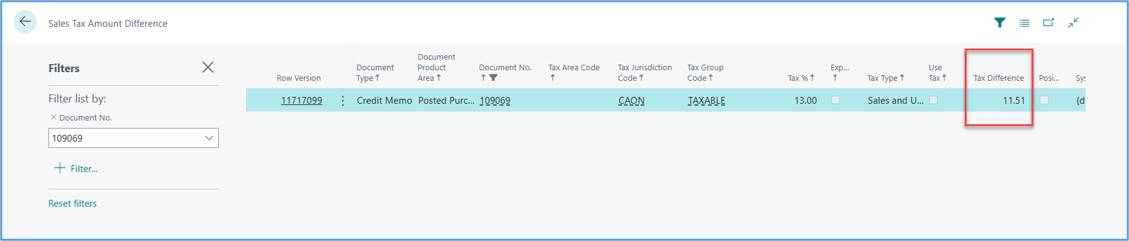
Tax difference after posting credit memo = 11.51
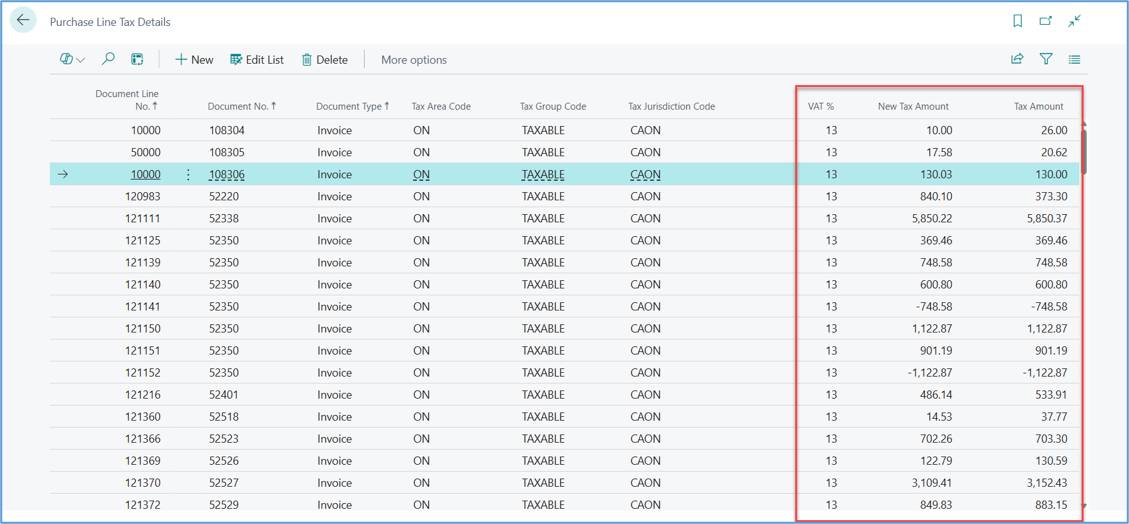
Below stores the tax calculation details for each purchase document line. It records the applicable tax jurisdiction, tax area, tax group, Tax percentage, system-calculated tax amount and any user-entered override tax amount. It enables the system to retain both the original calculated tax and the manually overridden tax value, ensuring accurate tax processing, posting, auditing and reporting.
With most businesses operating globally, and different countries have different Tax rates, you face a situation where the tax amount in purchase or sales invoices need to be adjusted when posting.
The following process is tailored to show how to adjust the Tax amount in Dynamics 365 Business Central (Tax Difference).
These setups are automatically initialized when Enable Override Tax Amount is enabled in the Acumens Starter Pack Setup. No additional configuration is required unless you want to customize the default values.
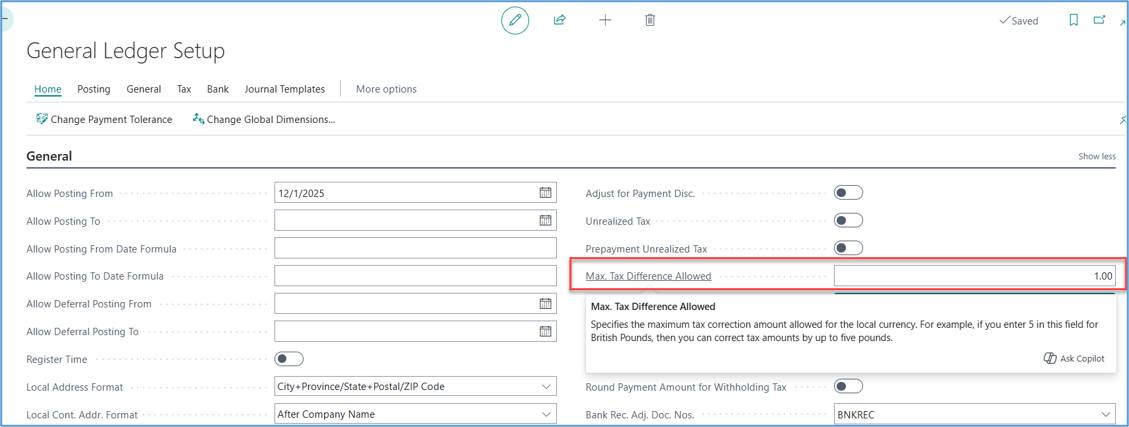
Open "General Ledger Setup" page.
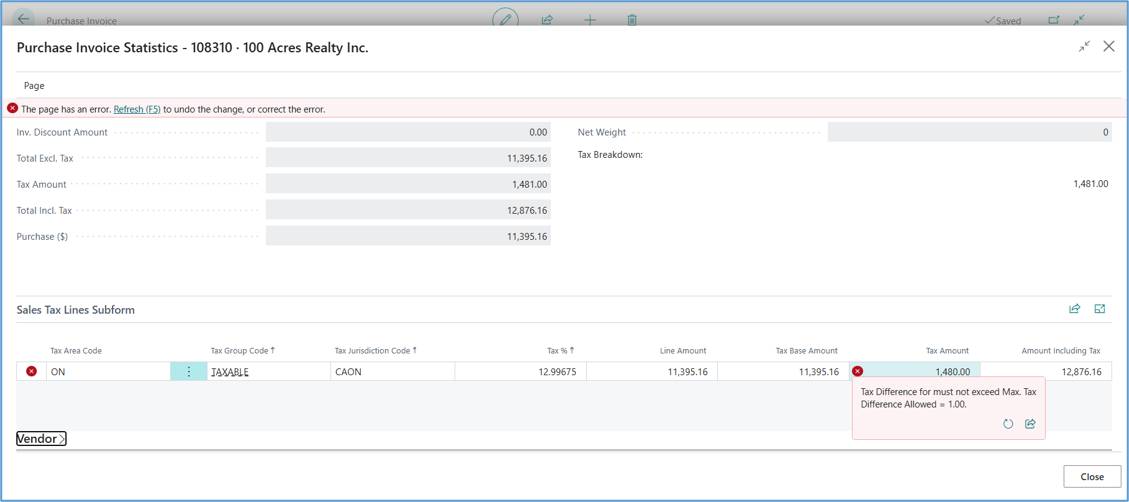
Set a maximum Tax difference that users will be able to adjust into the system. This amount will need to be agreed upon internally.
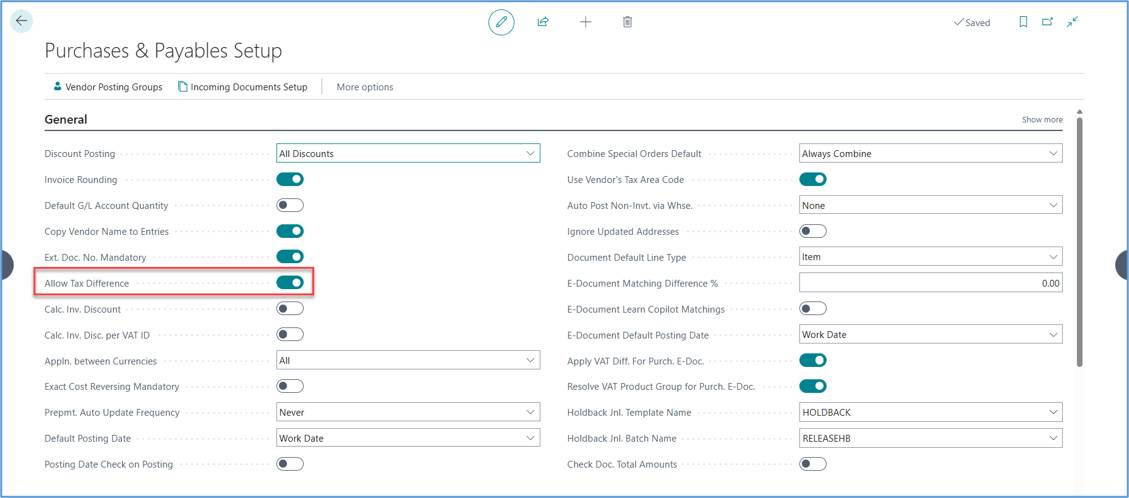
Open "Purchase & Payables Setup" page then check the "Allow Tax Difference".
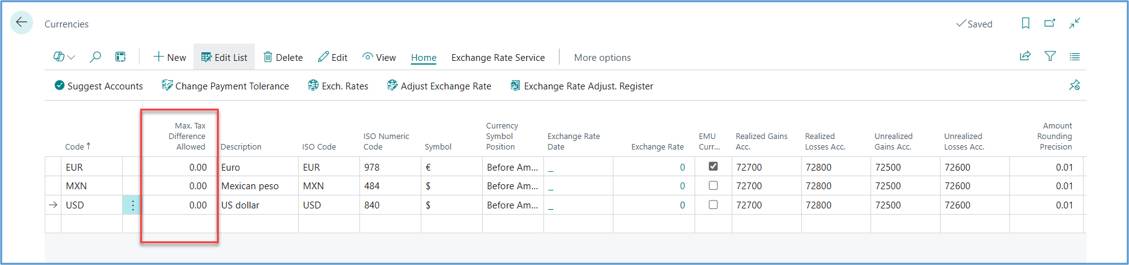
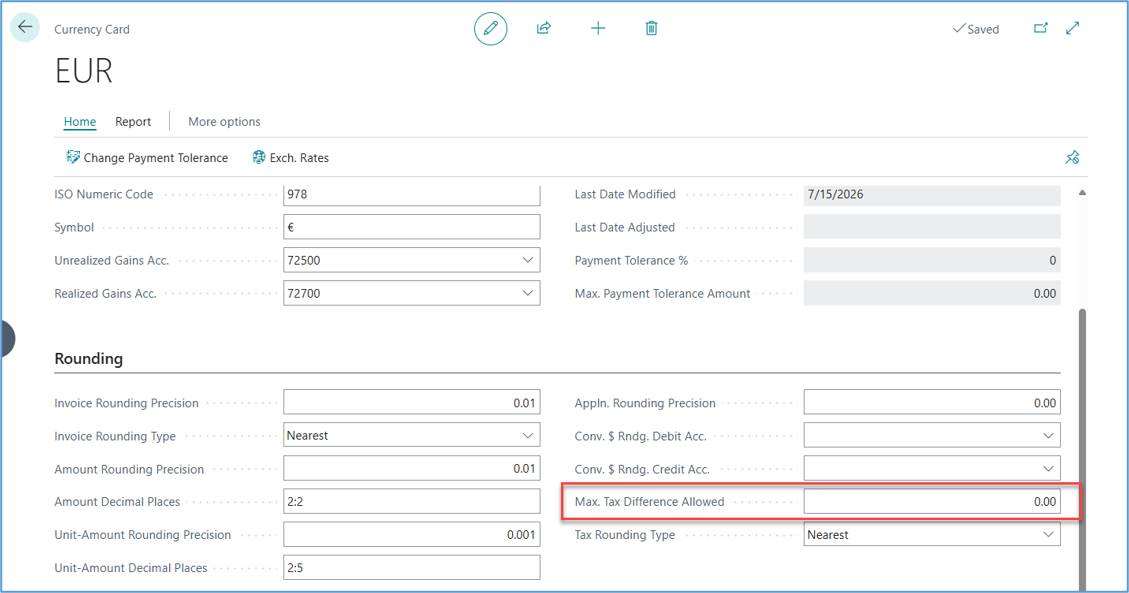
If you are dealing with foreign currency invoices, you need to add another setting on “Currencies” page. You can add the “Max. Tax Difference Allowed” on the list page by Personalize or open the currencies card to set the maximum Tax amount.
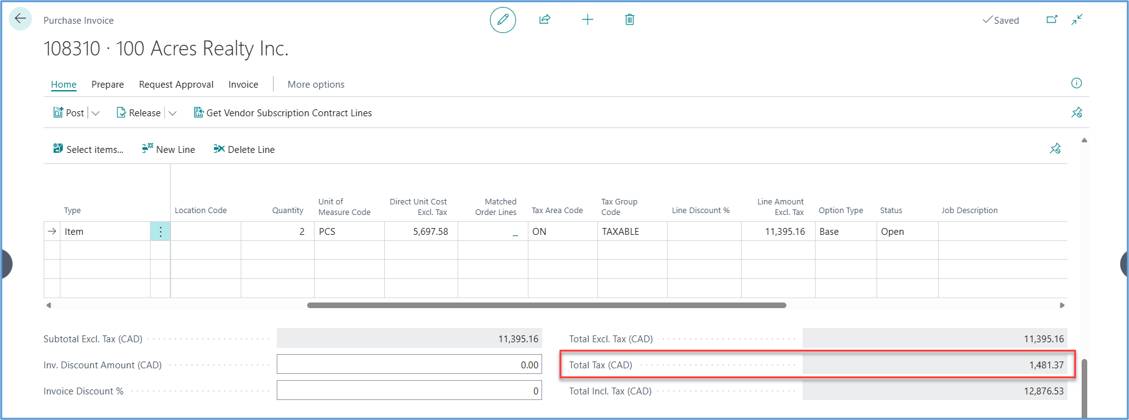
Open a purchase invoice
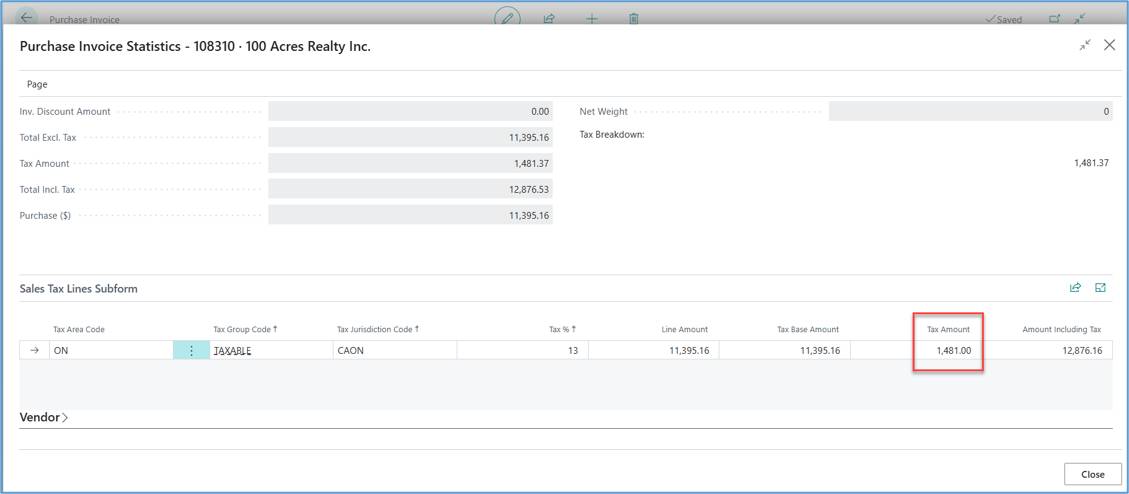
Total Tax is 1,481.37
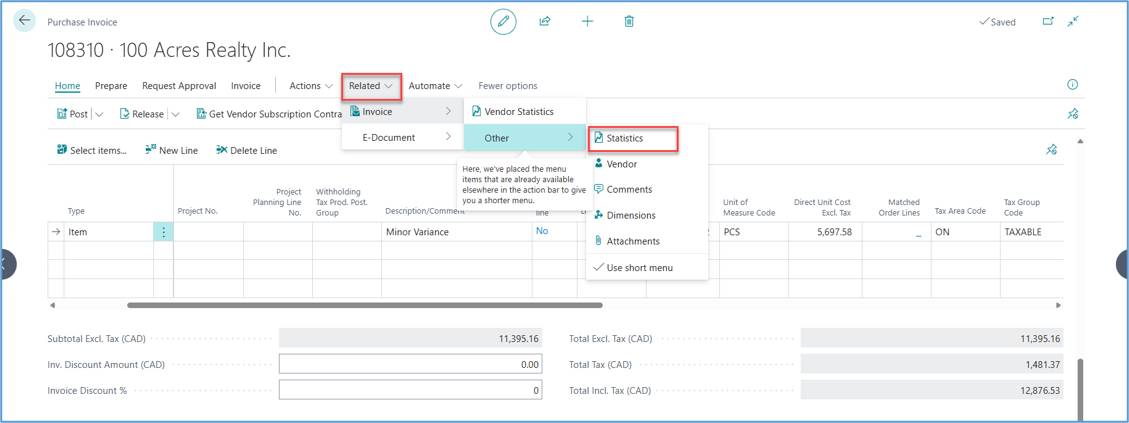
Choose Related -> Invoice -> Statistics as shown below.
Then you can adjust Tax Amount on the lines as shown.
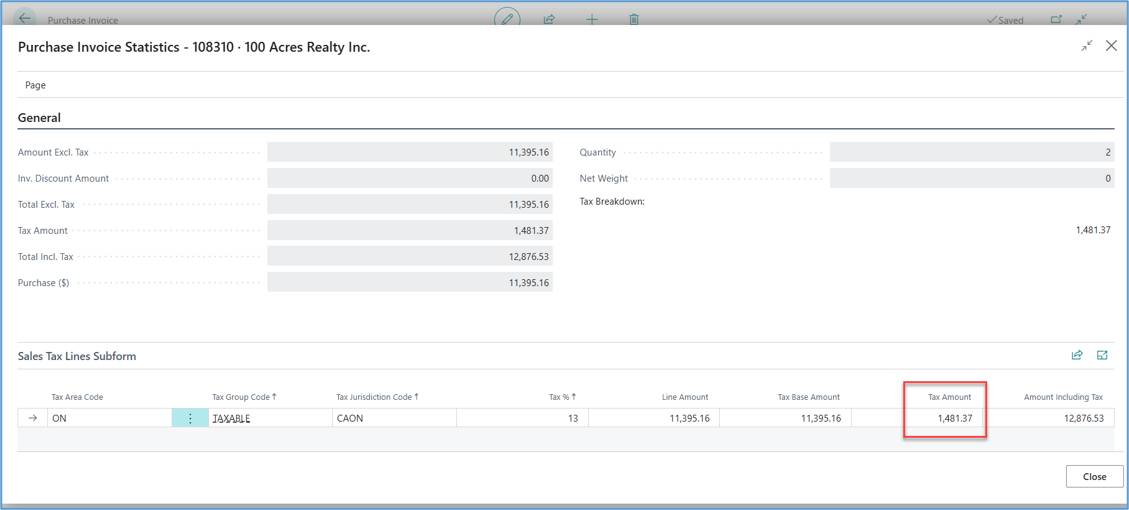
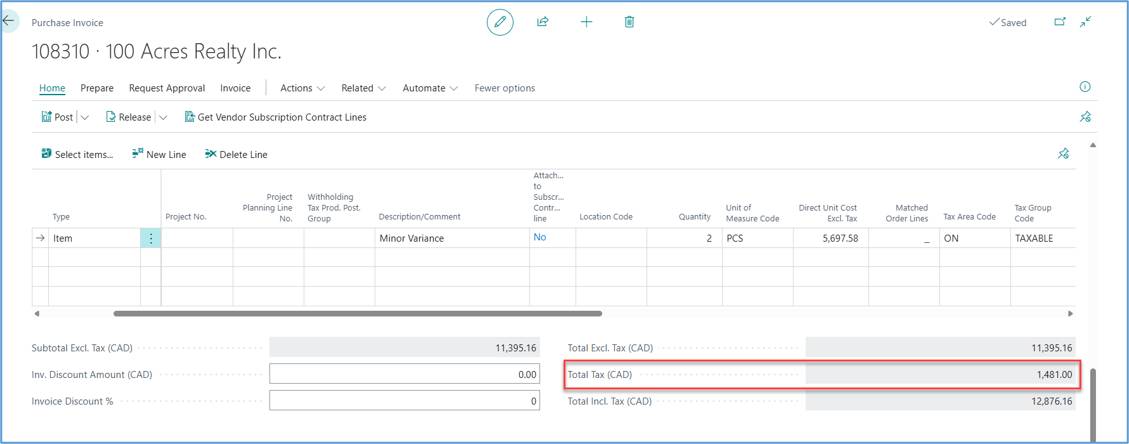
For example: 1,481.37 -> 1,481.00
Purchase Invoice will be updated as shown.
Note: Tax Difference must not exceed Max. Tax Difference Allowed.
These setups are automatically initialized when Enable Override Tax Amount is enabled in the Acumens Starter Pack Setup. No additional configuration is required unless you want to customize the default values.
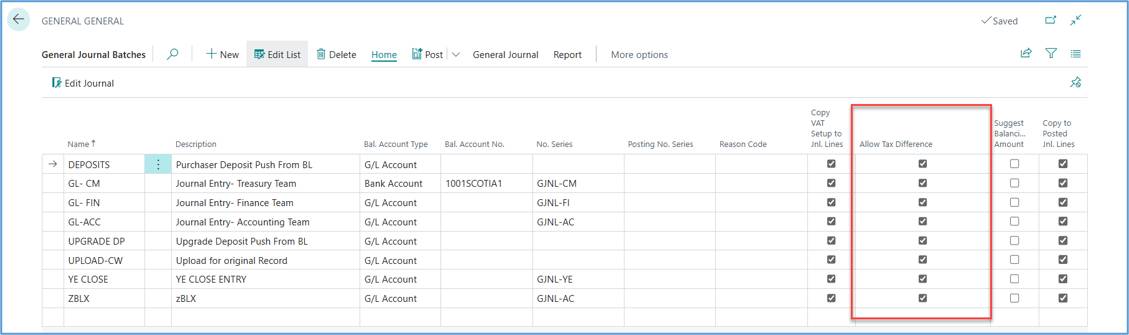
Open the General Journal Templates page and then verify that the Allow Tax Difference option is enabled.
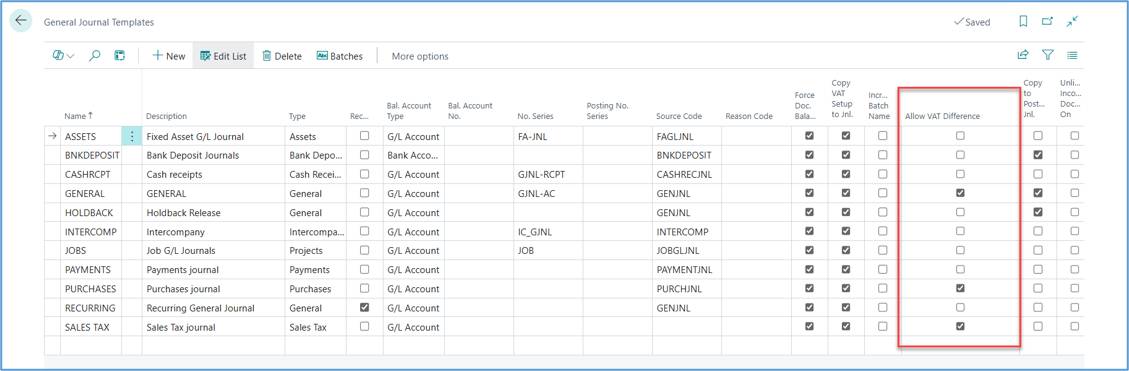
Open the General Journal Templates page and then verify that the Allow Tax Difference option is enabled.
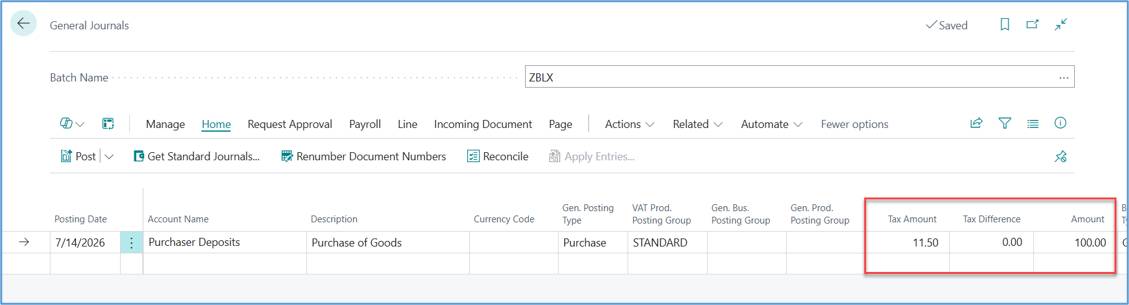
The tax amount is calculated as shown below. At this point, the Tax Difference field is blank because no tax override has been applied.
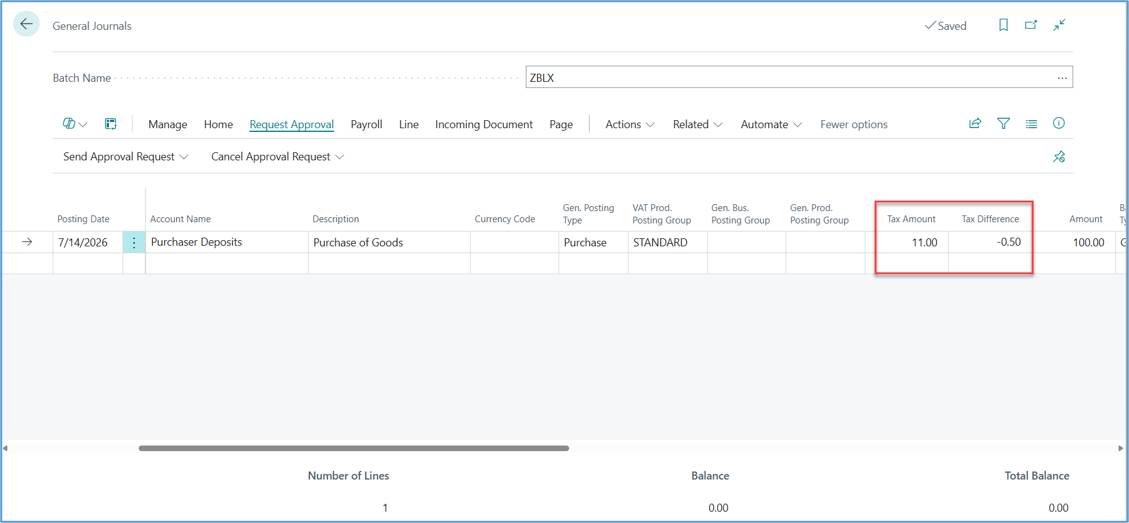
Adjust manually the Tax Amount to 11.00.
The Tax Difference field automatically displays the calculated difference, as shown below.
G/L Entries Preview
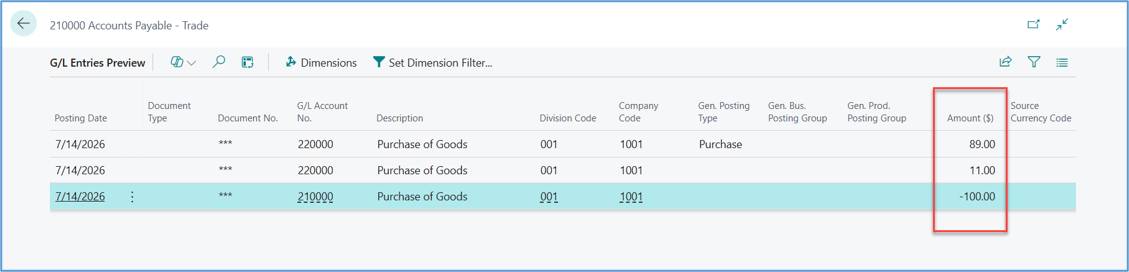
The transaction is posted with a tax amount of 11.00, reflecting the specified override tax amount.