
Global trade runs on complexity — country-specific duty rates, fluctuating tariff schedules, freight allocations across warehouses, and item charges that need to land in exactly the right financial bucket. Standard Business Central provides the foundation, but managing these processes often still requires manual workarounds. The Acumens Freight, Duties & Tariffs app closes that gap by transforming manual, error-prone tariff and charge processing into a rules-based, streamlined workflow.
Below, we break down each feature in the app and the real-world use cases it addresses, helping you identify where automation can improve accuracy, efficiency, and control across your cost management processes.
The app provides a flexible tariff engine that automates duty calculation using configurable rules. Define the conditions that determine a duty rate, maintain tariff rates centrally, and let the system automatically apply the correct charges to relevant documents. This reduces manual effort, improves accuracy, and simplifies compliance with changing tariff requirements.
Build tariff rules that match the way your business operates. With up to eight configurable filters, you can define duty calculations using criteria such as country of origin, region, product type, supplier category, item classification, and more.
The app automatically leverages Harmonized System (HS) codes already maintained on item cards, removing the need for duplicate setup while ensuring accurate and consistent tariff application.
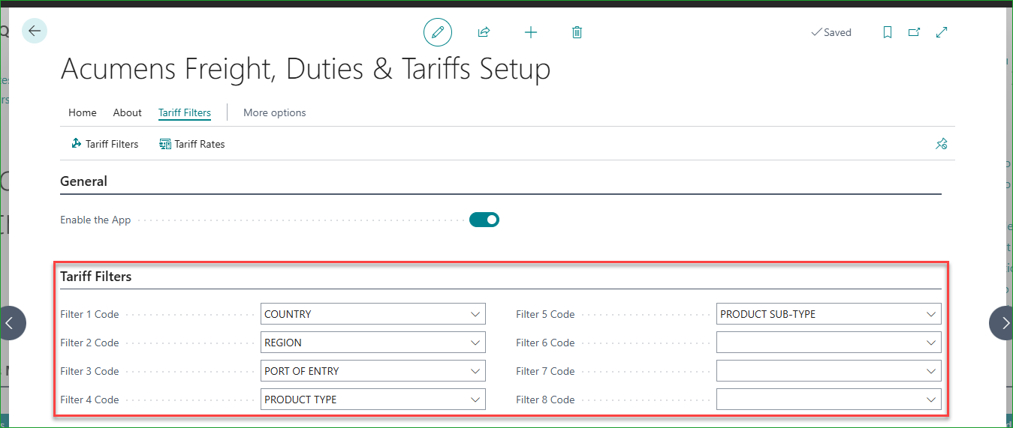
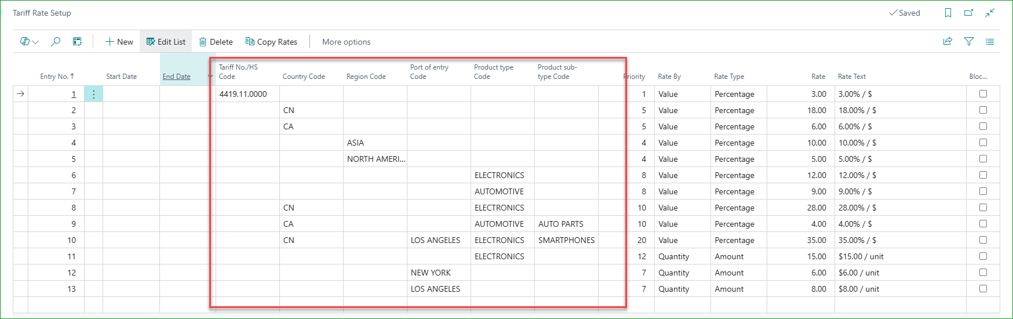
Once filters exist, assign a specific rate to each unique combination. The system automatically finds and applies the correct rate based on the transaction and the item's attributes — no manual lookup required.
Note: HS Codes/Tariff Numbers are used as the default filter followed by the 8 configured parameters.
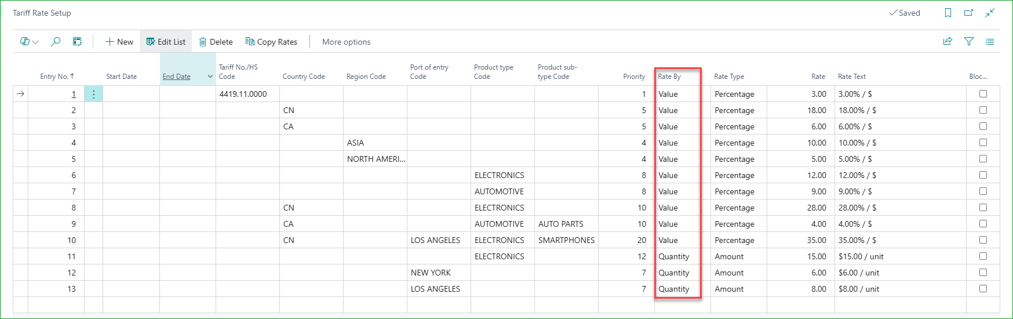
Some duties are charged per unit; others are a percentage of shipment value. This feature lets each tariff rate be configured either way, matching how the relevant authority asses the charge.
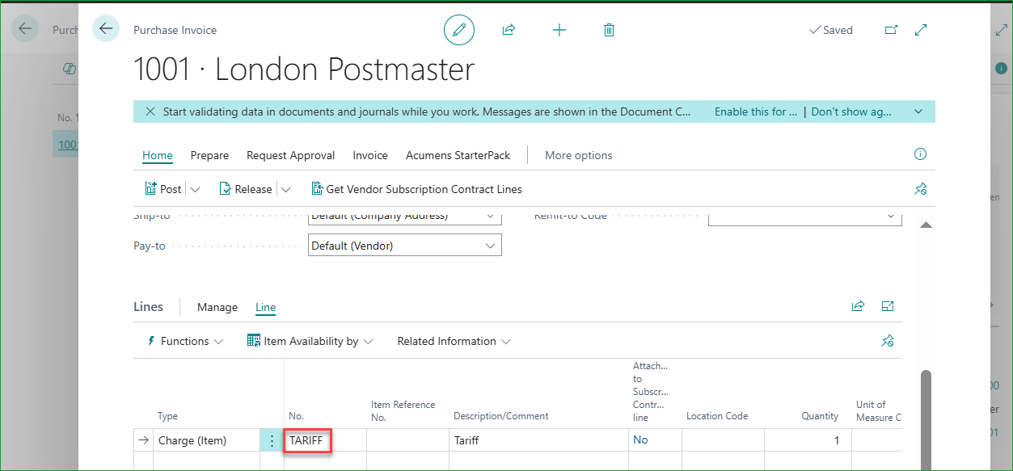
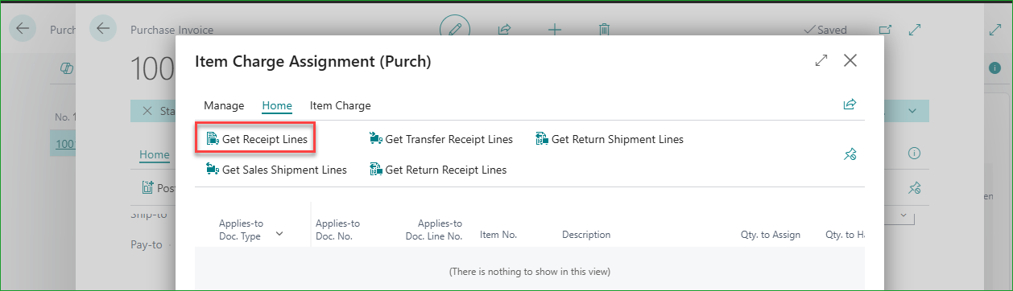
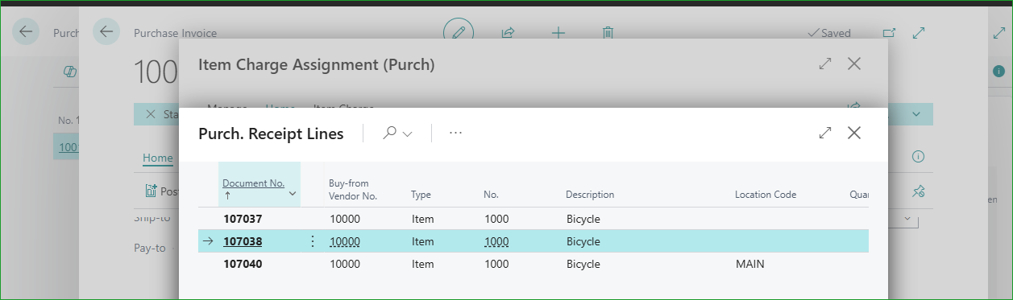
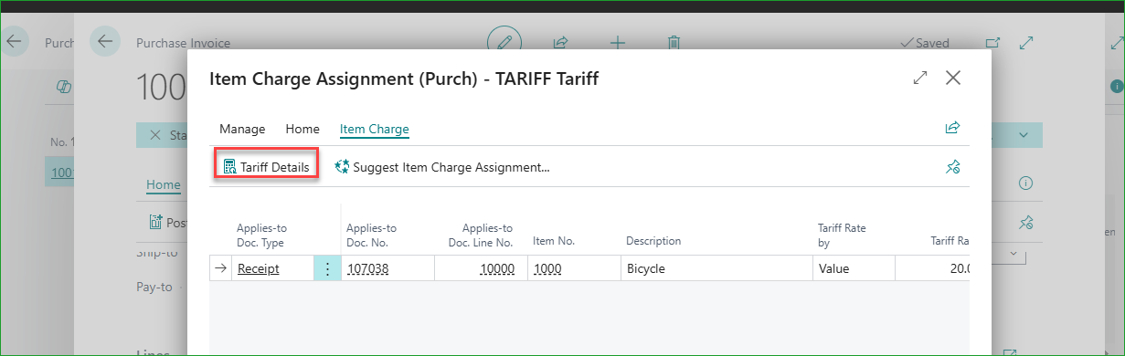
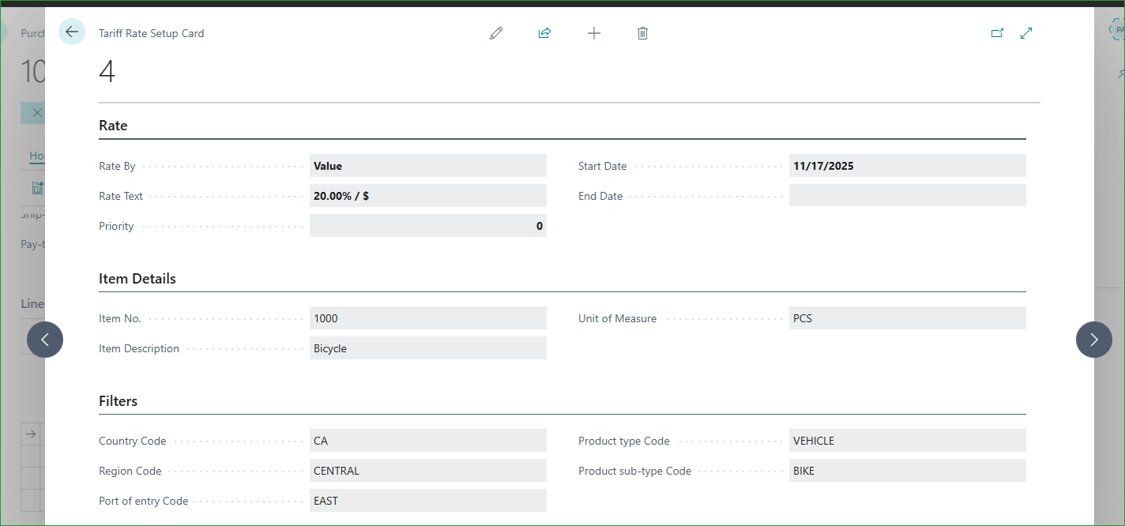
To compute a tariff, create a charge purchase invoice, select the TARIFF item charge, and run item charge assignment (Tariff option) against the relevant receipt lines. The system checks the item and filter setup, calculates the amount automatically, and — if nothing matches — throws a clear error instead of silently posting a wrong number. Otherwise, a tariff amount is computed and assigned. A "Tariff Details" drill-down shows exactly how the figure was derived, and posted results flow straight into value entries.
Create a charge invoice with charge item TARIFF.
Select Receipt Lines to apply charges to.
Suggest Item Charge Assignment – Tariff.
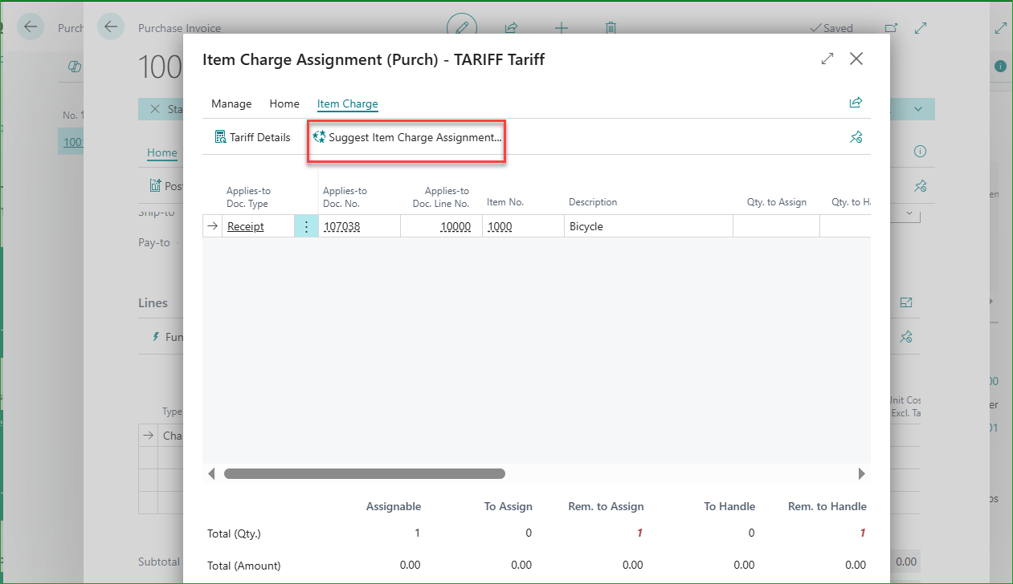
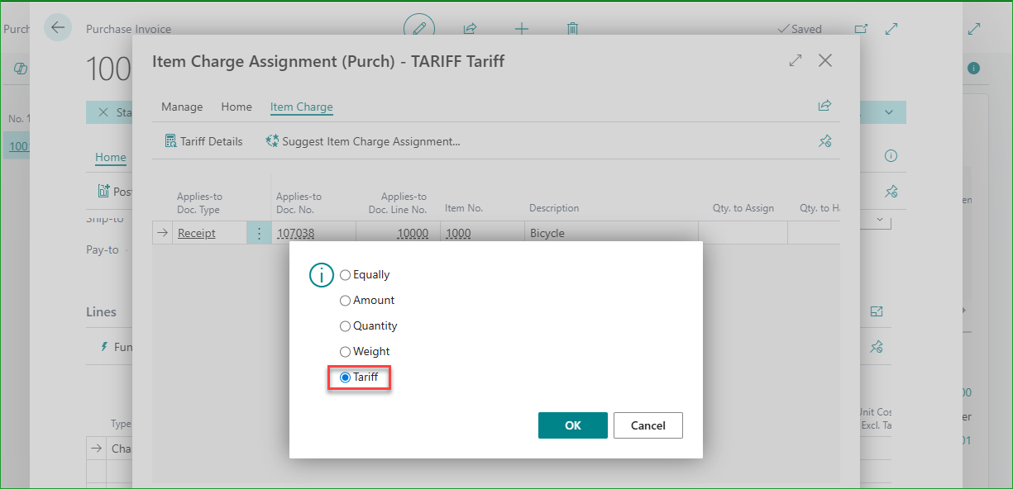
If a tariff rate exists, the system fetches, calculates the tariff amounts, and assigns the item charge.
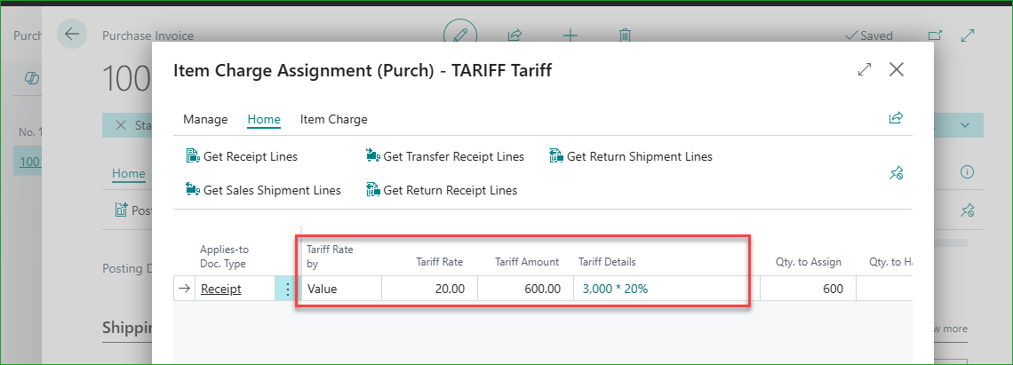
Click the “Tariff Details” card to view the details of the applied tariff.
The tariff charge applied to the purchase in Value Entries.

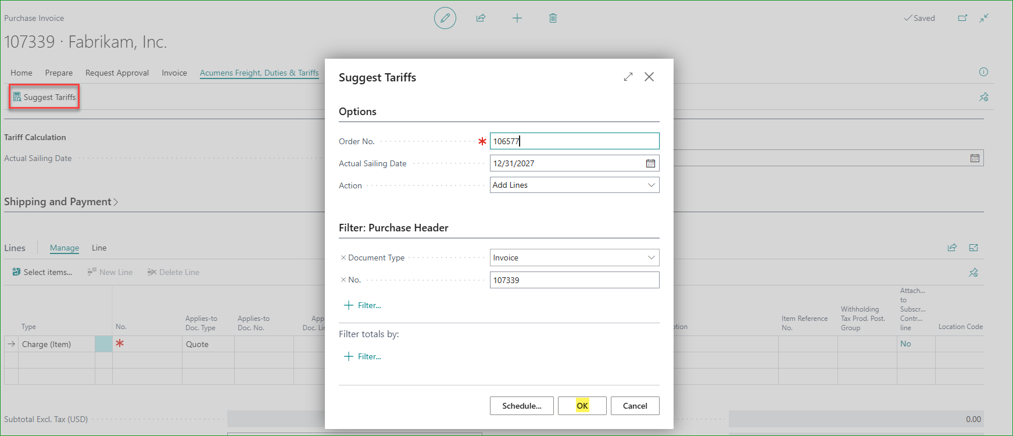
For businesses processing tariffs at volume, Suggest Tariffs automates the creation and assignment step across many receipts at once.
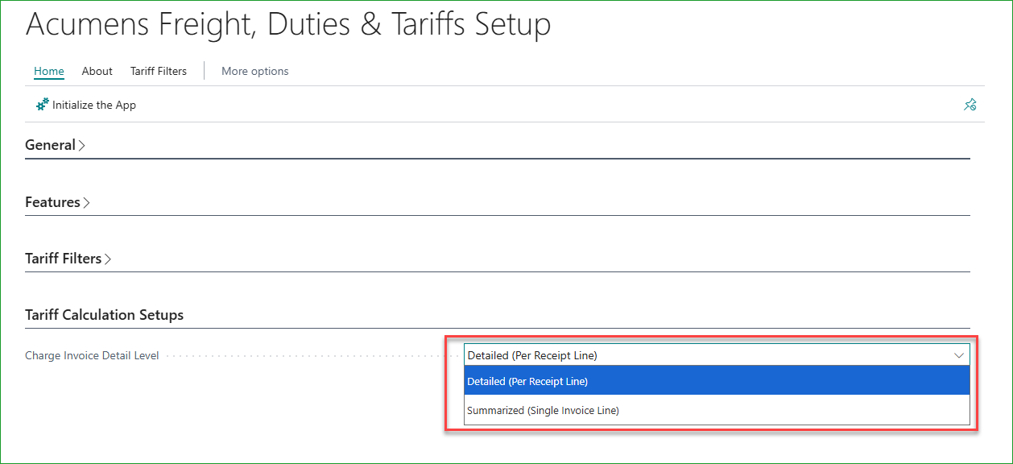
Choose Detailed (one invoice line and one item charge assignment per receipt line) or Summarized (one invoice line covering all applicable receipts).
Filter by order number and sailing date then click OK to load receipts.
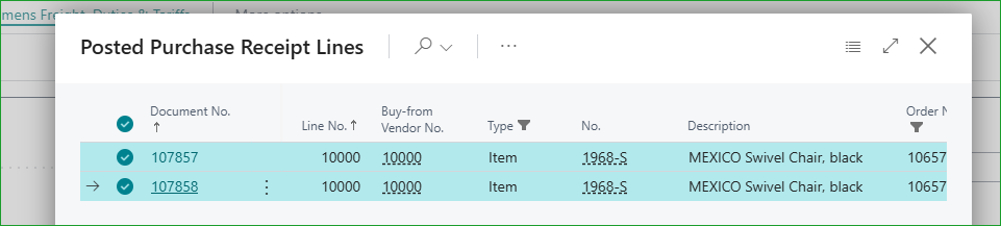
Select applicable receipts and click OK.
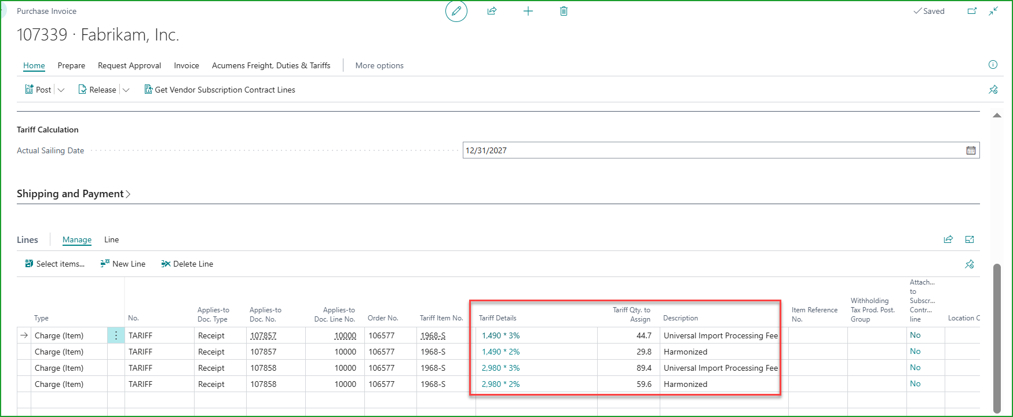
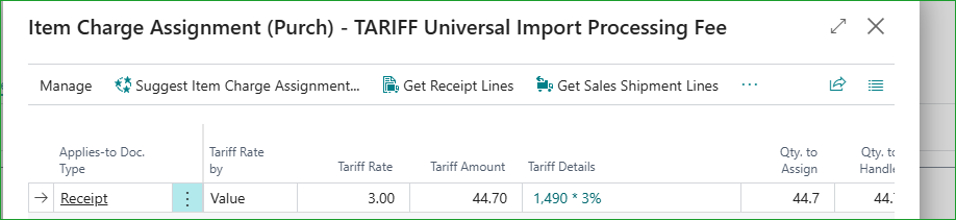
Charge invoice line and item charge assignment lines are created – number of lines depends on the selected detail level: Detailed vs Summarized. Below is a Detailed example.
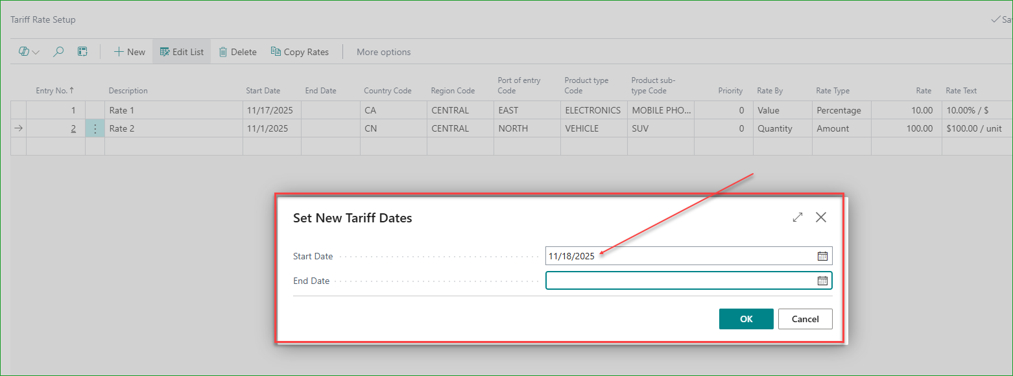
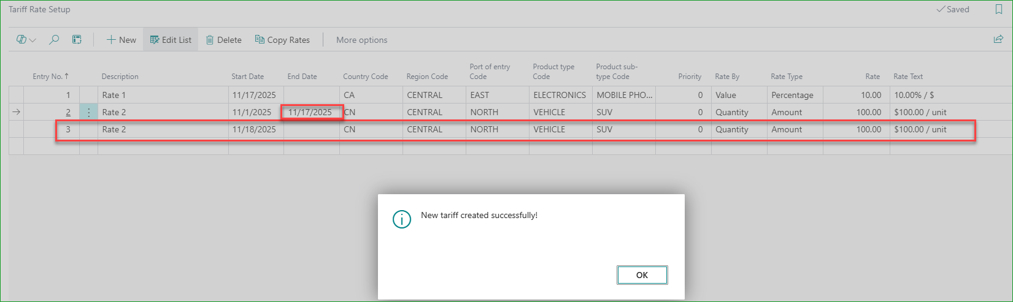
Tariff schedules change. Rather than re-entering an entire rate setup from scratch, select existing rate(s) and copy them, adjusting the new start date — the app automatically closes out the prior rate's end date the day before the new one begins.

Multi-country importers can apply duty rates based on multiple factors, such as country of origin and product category, instead of relying on a single lookup table
Distributors with varied supplier tiers can apply different tariff treatments for different supplier categories.
Importers handling restricted or regulated products can apply different duty calculations based on item classifications, ensuring the correct tariff treatment for each product group.
Companies with complex trade agreements can combine up to eight criteria, including region, item classification, supplier, and origin, for accurate duty calculation.
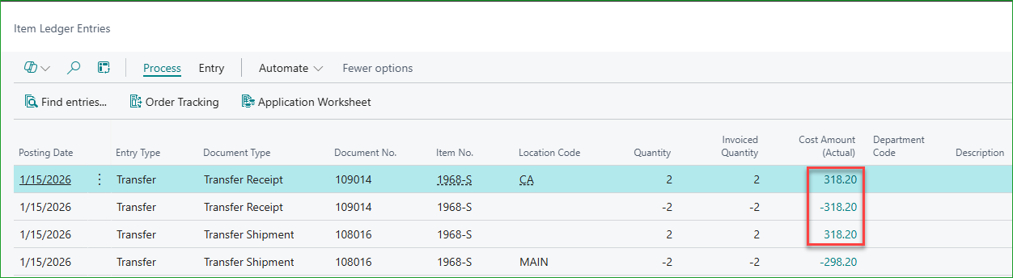
Standard Business Central processes a transfer shipment at the source location's unit cost, ignoring the freight and handling costs incurred in getting inventory to its destination. This enhancement lets purchase charges be assigned directly to Transfer Shipment Lines, so the destination location's unit cost reflects what it actually cost to get the goods there.
A transfer of 2 units of item 1968-S from MAIN to CA at the item’s unit cost in MAIN location. No transfer costs added.
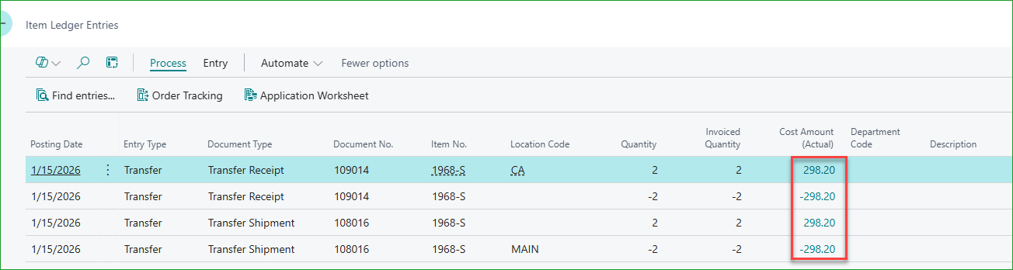
Post charge invoice to assign freight costs to the Transfer Shipment.
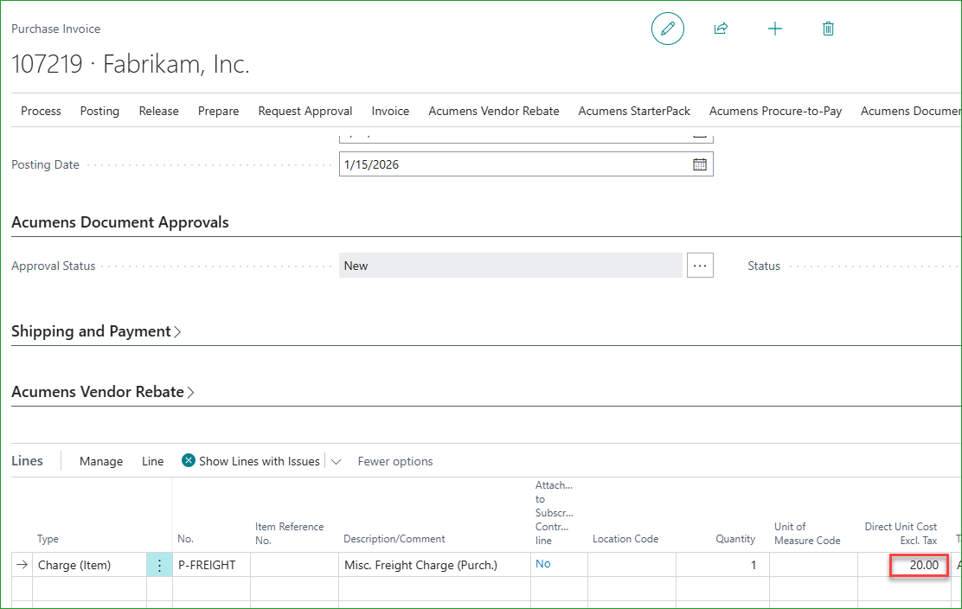
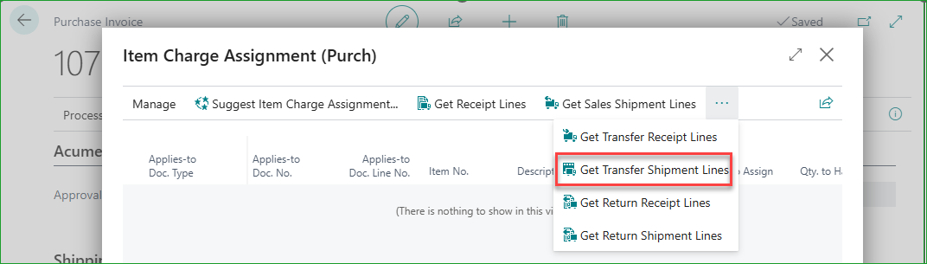
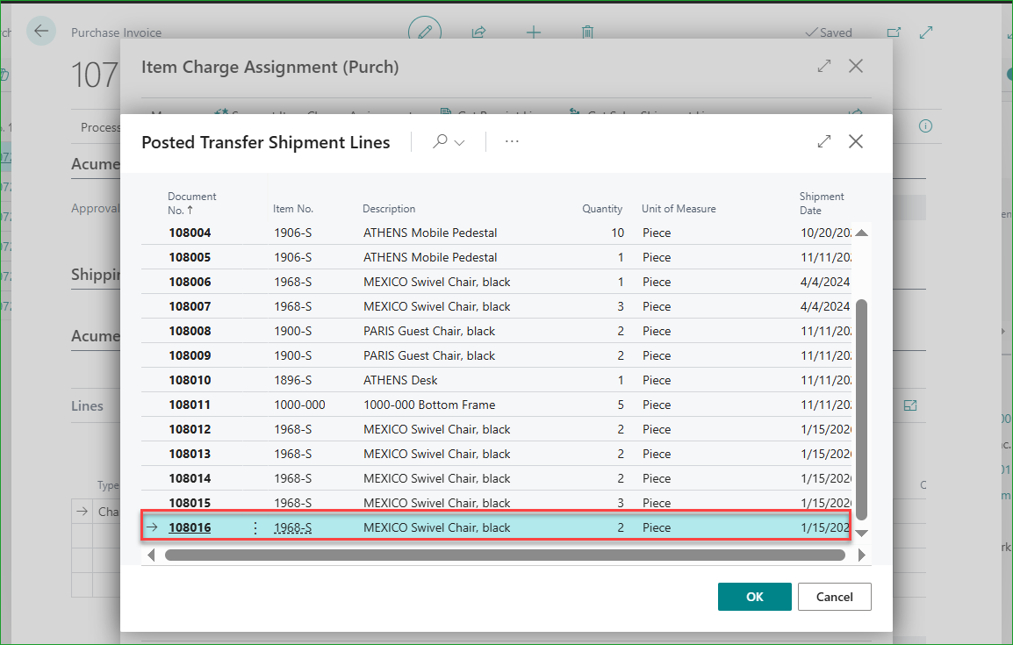
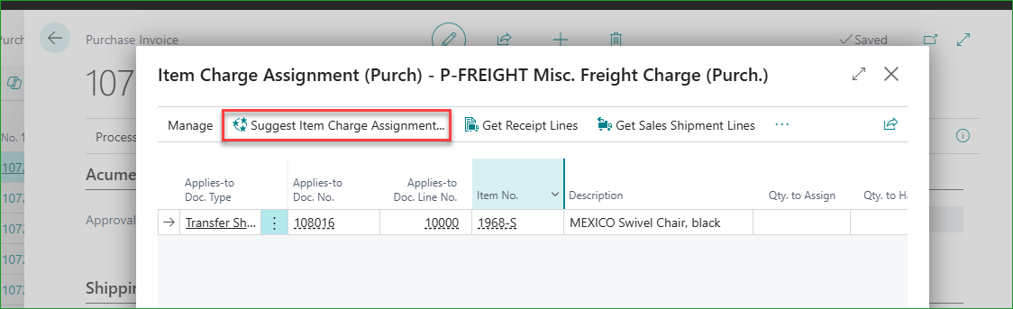
Item charge assigned. Post.
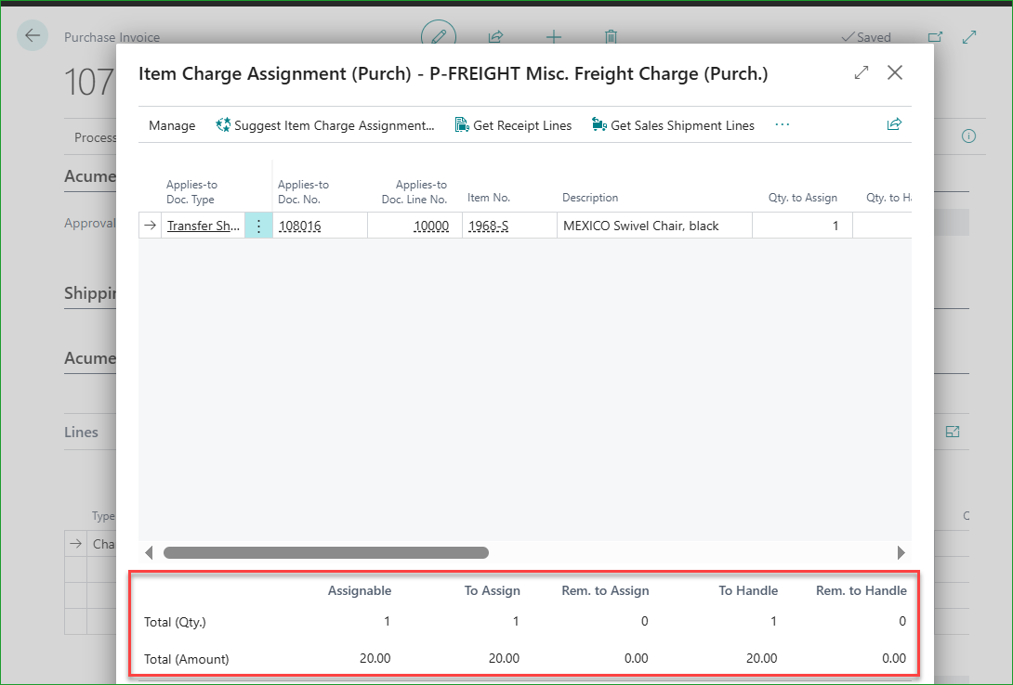
The destination location costs are updated accordingly.

Multi-warehouse distributors moving goods from a central distribution center to regional locations can maintain destination-specific unit costs that include transfer-related freight and handling costs.
Finance teams analyzing location-level profitability get more accurate COGS and inventory valuation per site, since costs incurred during transfers are reflected at the receiving location.
Retail chains and businesses with frequent inter-location transfers can capture the true landed cost of inventory throughout the supply chain, rather than carrying all costs only at the initial purchase location.
Companies operating regional fulfillment networks can ensure inventory valuation remains accurate as goods move between warehouses, branches, or distribution centers with varying transportation costs.
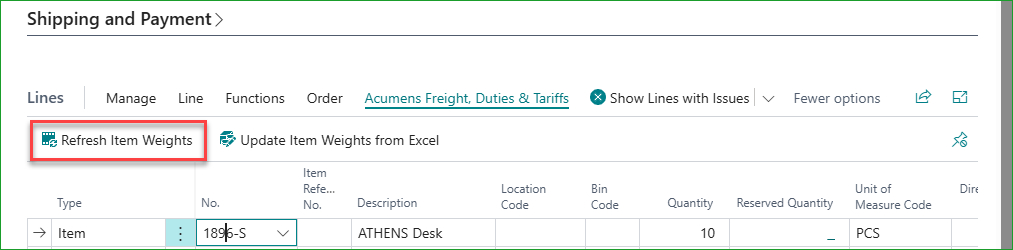
Out of the box, Business Central requires every sales or purchase line to be individually re-validated whenever an item's weight changes. On a large order, that's a lot of manual clicking. Refresh Item Weights updates all document lines in one action, and a companion Excel-based flow lets you export weights, edit them in bulk, and re-import.
Click the "Refresh Item Weights" action on the order/invoice subpage to refresh item weights for all item lines.
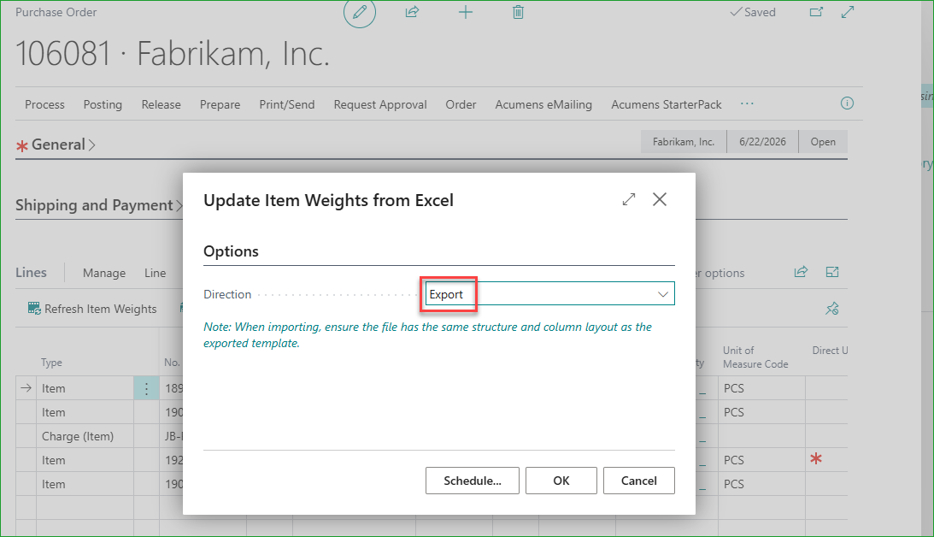
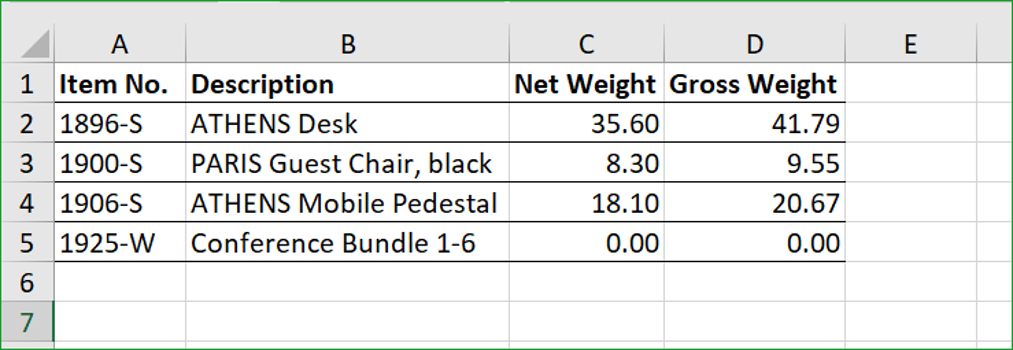
Use "Refresh Item Weights from Excel" to manage the weights from Excel – export, update, and re-import. Upon re-import, document lines and item records are updated with the new weights.

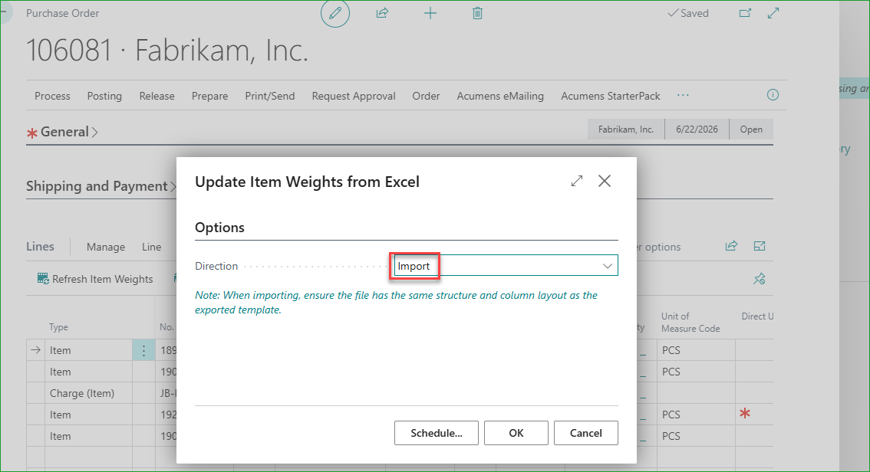
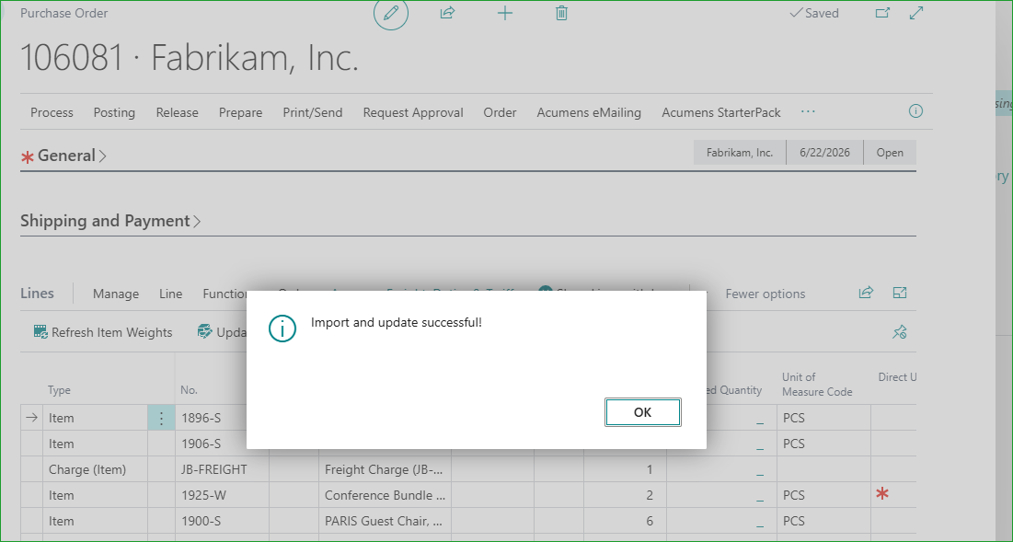
Purchasing teams managing large orders can update supplier-provided weight corrections across multiple lines in one action instead of manually editing each line.
Businesses with changing product specifications can push updated item weights from item cards to open documents, keeping transactions accurate.
Logistics teams handling large shipments can export weights to Excel, update them in bulk, and re-import changes efficiently.
Companies using weight-based freight calculations can keep document line weights aligned with item master data for accurate shipping costs.
Instead of separately creating a charge item, assigning it to the relevant document, and calculating amounts, Suggest Item Charges does all three in a single process — available on Purchase Invoices and Orders as well as Sales Invoices and Orders. Pick the charge and amount, choose a distribution method if the charge should be spread across multiple lines, select which document type to apply it to, and the system builds out the assignment automatically.
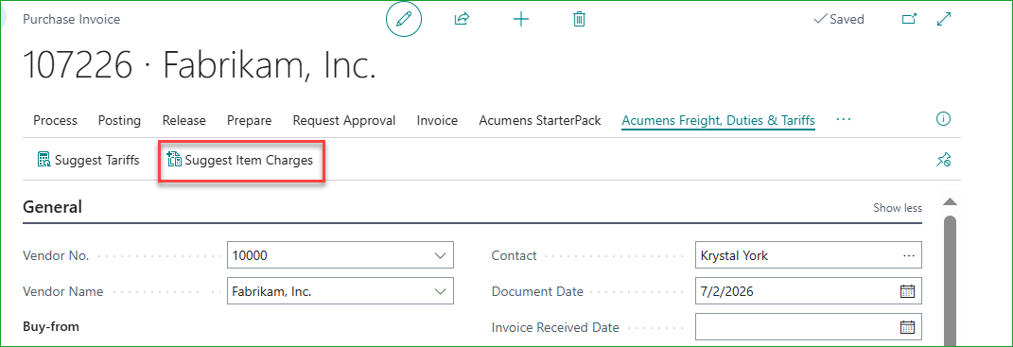
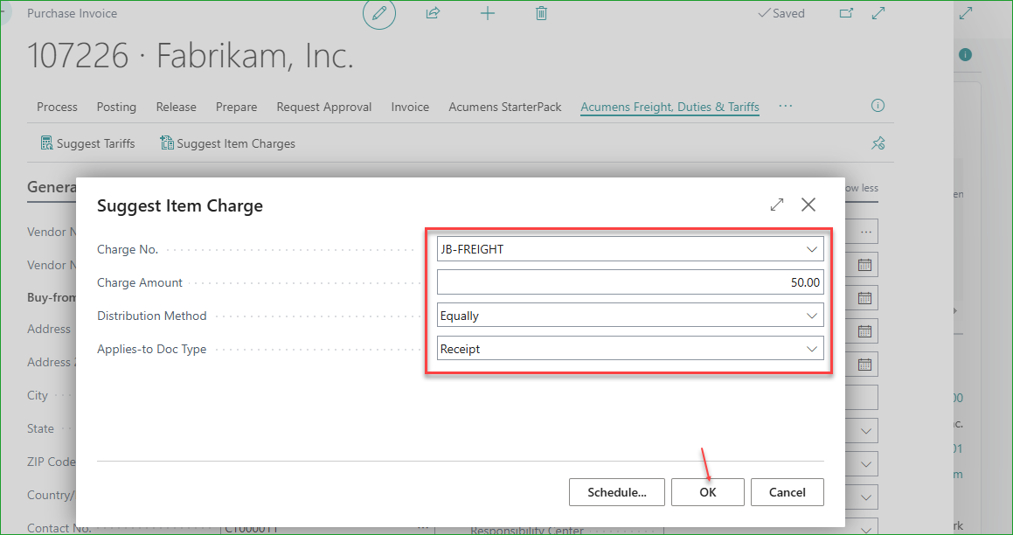
Charge distribution methods.
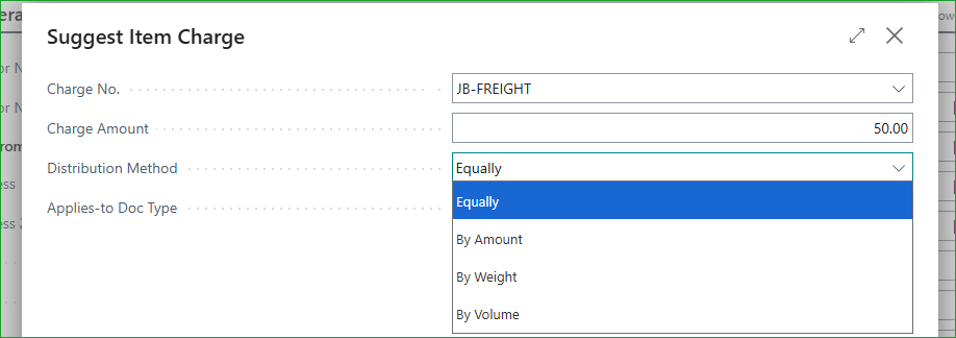
Applicable documents.
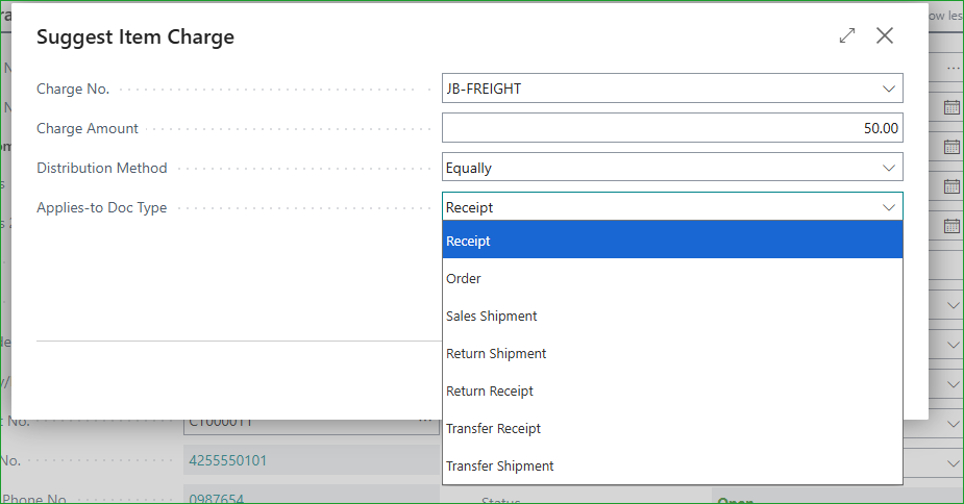
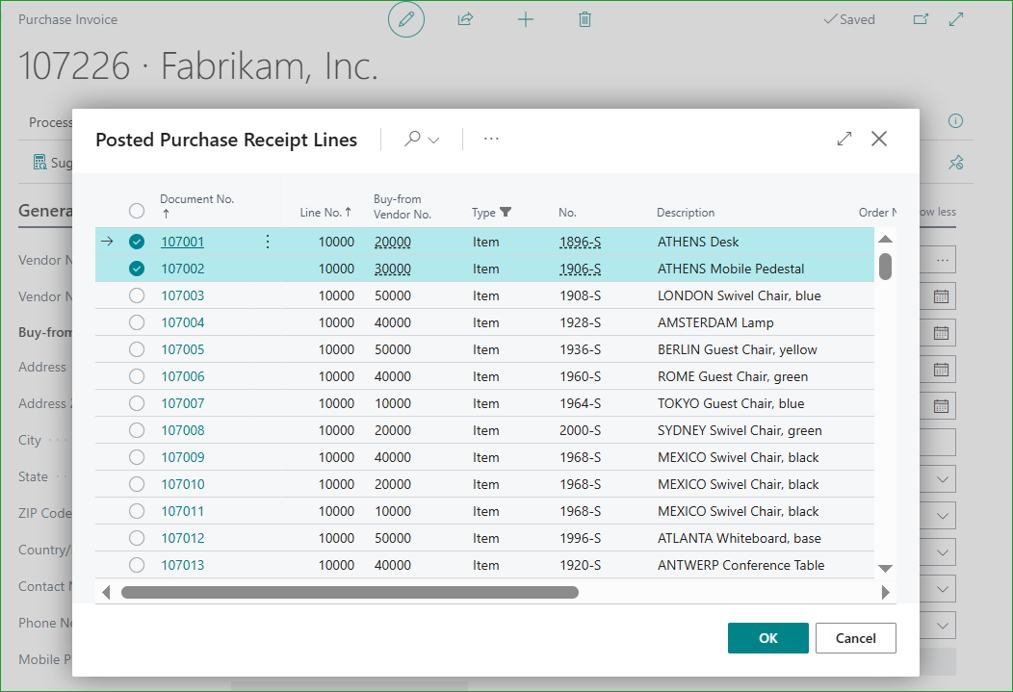
Clicking OK opens the applicable documents list. Select the desired documents then click OK.
Item Charge assignment entries will be created and calculated. A charge invoice/order will also be created automatically – ready to post.
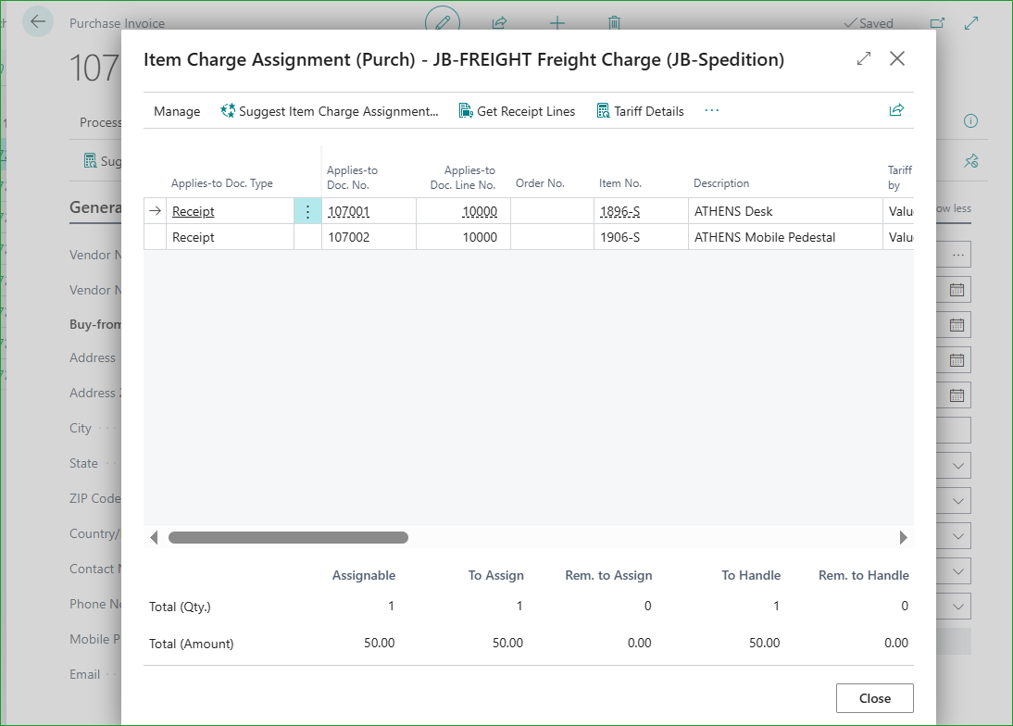
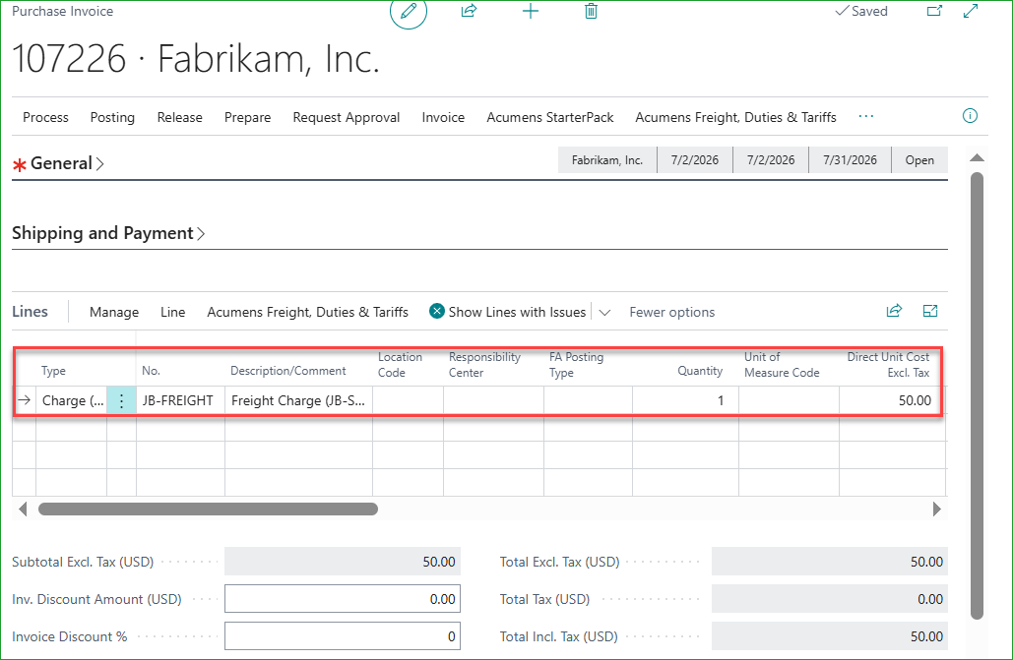
AP and AR teams applying freight or other charges can create, assign, and calculate item charges in one process instead of multiple manual steps.
Businesses allocating shared costs across multiple lines can automatically distribute charges, such as freight, using the selected allocation method without manual calculations.
Companies managing both purchase and sales charges can use the same streamlined workflow for inbound costs and customer-billed charges.
High-volume operations teams can reduce item charge processing time while minimizing errors from manual allocation.
Businesses standardizing charge processes across teams can ensure consistent item charge assignment and calculation without relying on individual user steps.
These related features make sure item charges land in the right financial bucket — so rebates, miscellaneous charges, and adjustments don't quietly distort revenue, inventory valuation, or costing.
Sales item charges post to the Cost Amount (Non-Inventoriable) field instead of the Sales Amount field, so they no longer inflate or deflate reported sales revenue.
Sales Rebate charge posted in Non-Inventory Cost instead of Sales Amount (Actual).

Companies issuing sales rebates can prevent non-revenue adjustments from distorting sales figures by keeping them separate from reported revenue.
Finance teams get more accurate revenue reporting since miscellaneous sales charges are excluded from sales amounts by design.
Businesses posting sales-related adjustments such as handling fees or miscellaneous charges can keep these amounts separate from actual product sales revenue.
Companies requiring clearer revenue analysis can distinguish product sales performance from additional charges and adjustments for better financial visibility.
For charges that should be treated as revenue — just not product revenue — this feature adds a Charge Type field (Cost or Sale) on the item charge. Cost-type charges post to Non-Inventoriable Cost; Sale-type charges post to a new Non-Inventory Sale field, keeping them visible but distinct from core product sales. Reversals follow the same logic automatically.
Classify such charges as Charge Type – Sale.
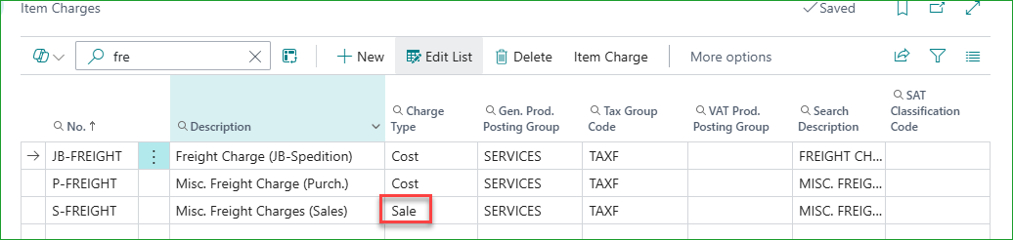
Post the charge.
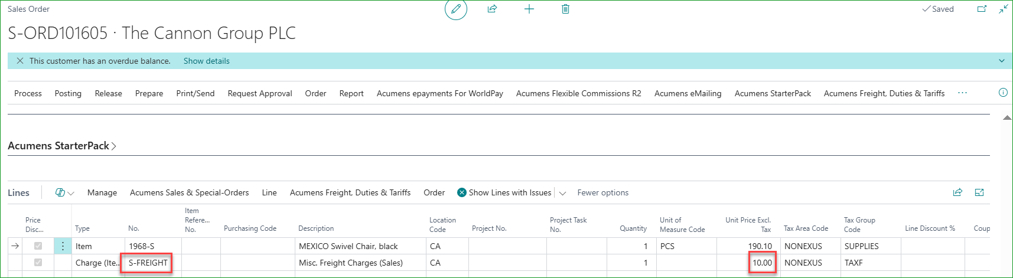
Amount posted in "Non-Inventory Sale" field.


Reversal also maintained in the same "Non-Inventory Sale" field.

Companies billing customers for additional services such as handling or documentation fees can record these as separate revenue streams without blending them with product sales.
Businesses analyzing product profitability can keep core product sales figures separate from miscellaneous revenue while still capturing all income accurately.
Finance teams processing reversals or credits can ensure corrected charges remain classified as Non-Inventory Sales, without manual reclassification.
Companies tracking revenue beyond product sales can improve reporting visibility by separating service-related income from inventory sales.
Standard Business Central folds all purchase charges into the item's actual cost, affecting inventory valuation. This feature allows purchase charges, such as rebates, to be posted as Non-Inventory Cost, preserving the original inventory value while still recording the adjustment. It applies whether the charge is on a purchase order, purchase invoice, or assigned via a purchase credit memo against a receipt. Simply assign the Non-Inventory Cost Charge Type to the item charge to use this posting behavior.
Post the charge item from a purchase invoice or a credit memo.
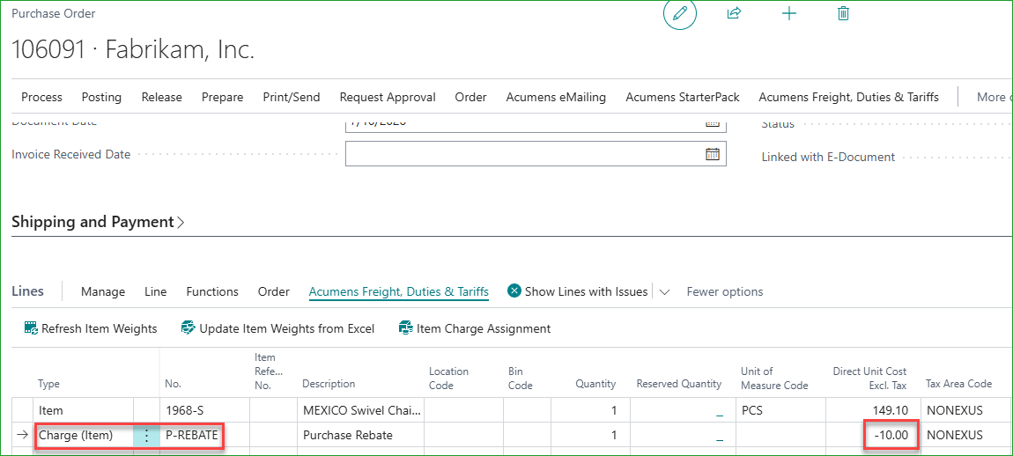
Charge amount posted to Non-Inventoriable Cost Amount field.


Reversal also posted to the same field.

Companies receiving vendor rebates or purchase credits can record these adjustments without reducing the inventory cost of related items, preserving accurate costing.
Cost accounting teams reviewing inventory valuation get a clearer audit trail by keeping purchase-related credits separate from item cost.
Businesses processing Purchase Credit Memos against prior receipts can apply adjustments consistently whether they originate from purchase orders, invoices, or credit memos.
Companies managing complex purchase agreements can capture supplier incentives and cost adjustments without impacting inventory valuation or distorting item profitability analysis.
Individually, each feature addresses a specific challenge — manual calculations, costing gaps, or revenue-reporting distortions. Together, they transform freight, duty, and tariff management in Business Central from a collection of workarounds into a controlled, automated process where rates are defined once and applied consistently, costs are allocated correctly, and every posted charge remains traceable to its source.
If any of these scenarios sound familiar — a spreadsheet acting as a tariff table, a rebate distorting revenue, or transfer costs getting lost between locations — Acumens Freight, Duties & Tariffs is designed to close those gaps. By bringing tariff management, item charge automation, and accurate cost allocation into Business Central, it helps businesses improve costing accuracy, simplify operations, and maintain better financial visibility across the supply chain.