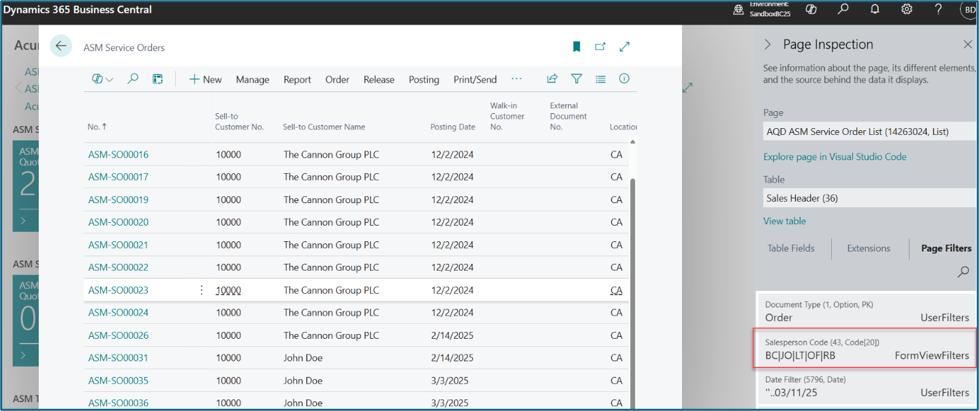
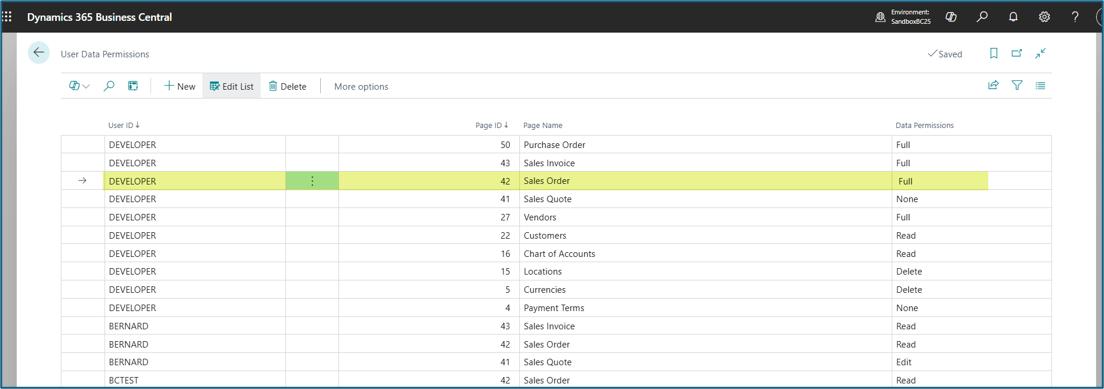
This feature introduces a control to data access per user per page. Users can be given either of the following permissions:
None: User will not have access permission to the page(s). Users cannot create new, read, edit, or delete records.
Read: User will have view only access to the pages. They cannot create, edit, or delete records.
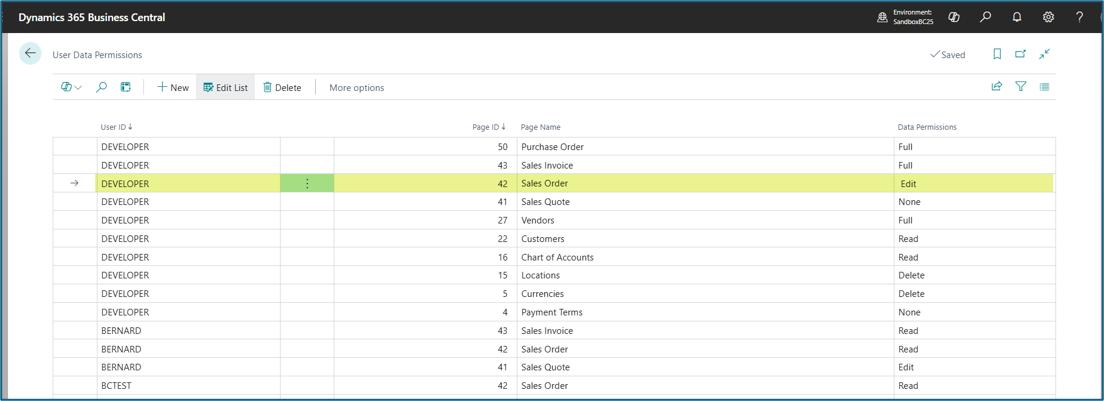
Edit: User can only view and edit existing records, but cannot create or delete records
Delete: User can only view and delete record but cannot create or modify records
Full: User will have full access and rights to the Page. Users can create, read, edit, and delete records.
This feature introduces a control to post actions per user per document type with the option to limit to locations and responsibility centers.
It's implemented for Sales Documents, Purchase Documents, Transfer Orders, Finance Charge Memo and Journals (Item, Item Reclassification, General, Cash Receipt, Payment and Fixed Assets G/L Journals).
This feature defines the various roles that can be assigned to users. This determines which records users can view on the role center and on the page list for Posted and unposted Sales and Purchase Documents, Customers, Vendors, Dimension values, Locations, Salespeople/Purchasers list and Responsibility centers list.
The user can be given either of the following permissions described below.
None: If user is assigned None permission, then they cannot access the related page list or card page. The user cannot create, view, modify or delete records.
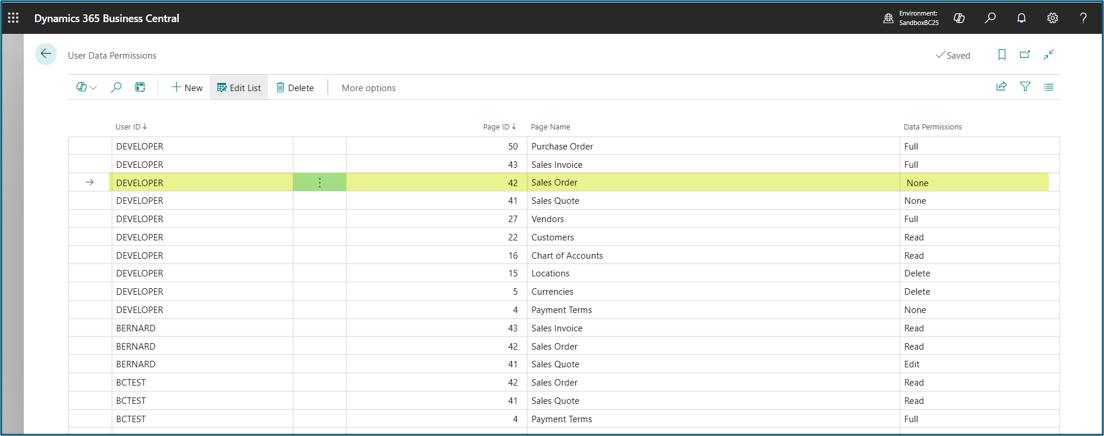
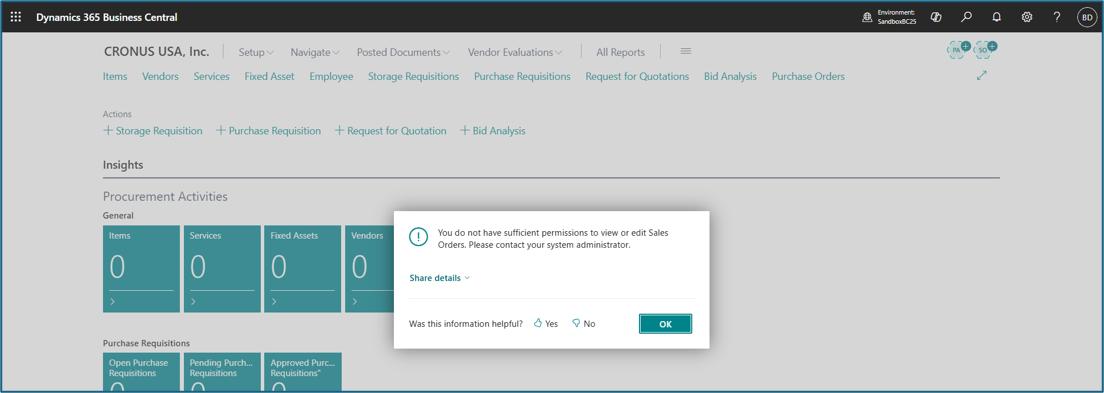
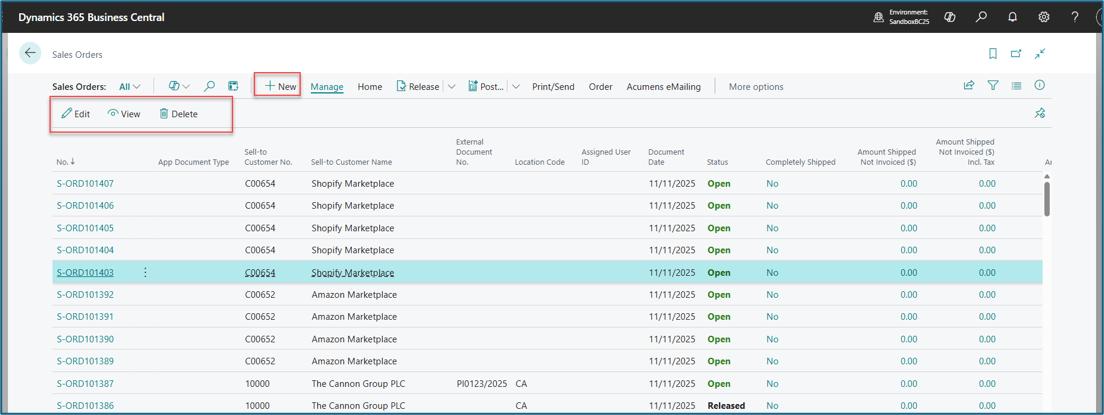
Read: If user is assigned Read permission, then the document will open in view only mode. User cannot create, edit or delete the document.
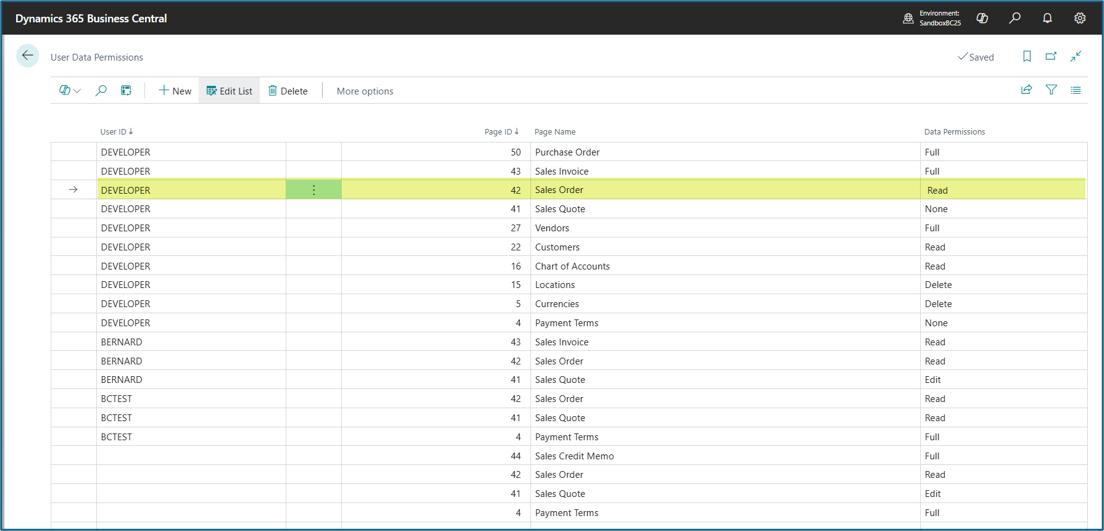
In read mode, Delete, New and Edit actions are automatically disabled.
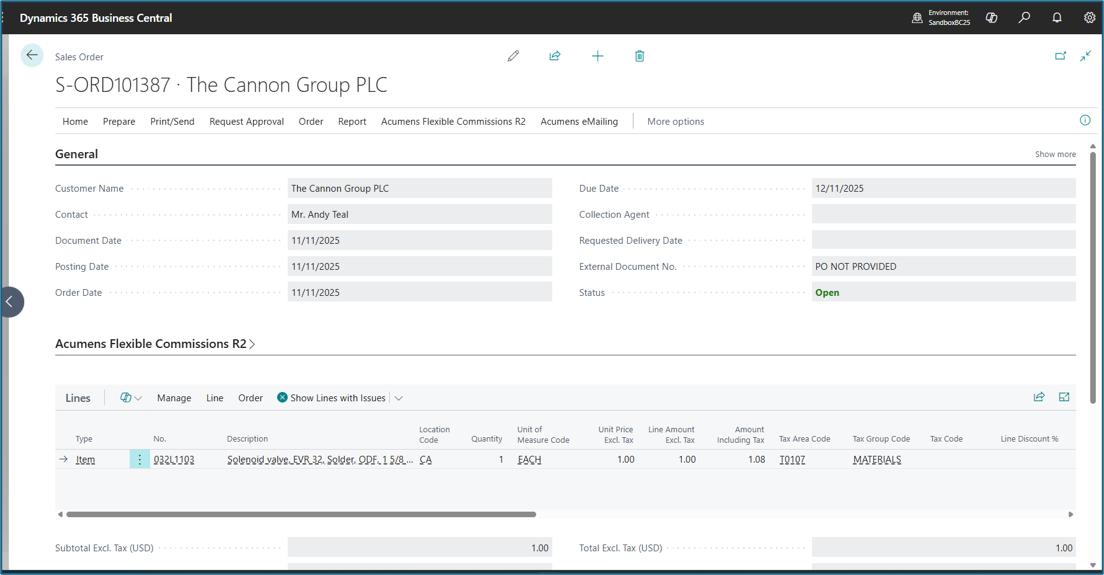
Edit:If user is assigned Edit permission, then they can only edit an existing document
Pages opens in Edit Mode
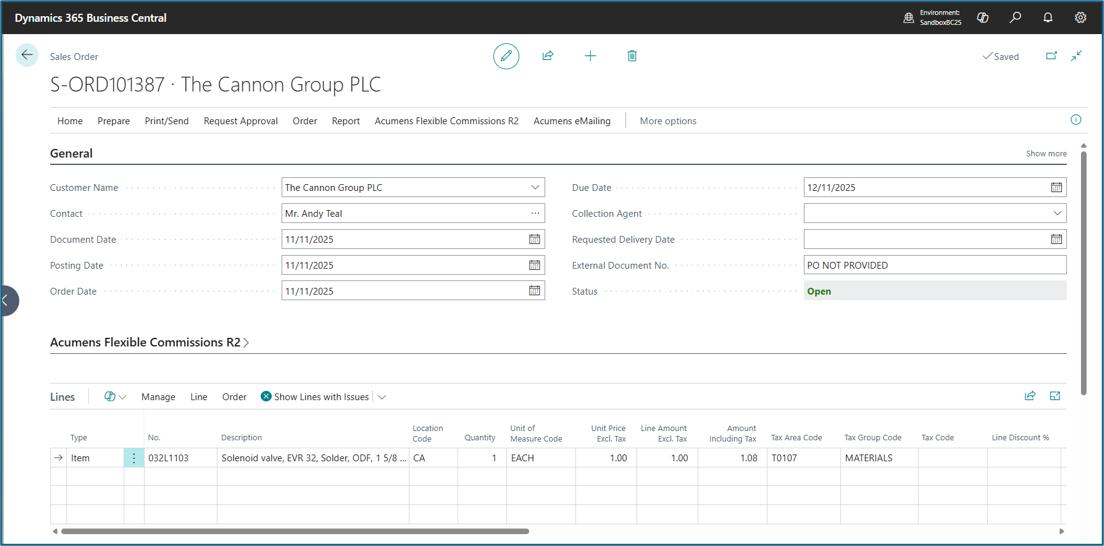
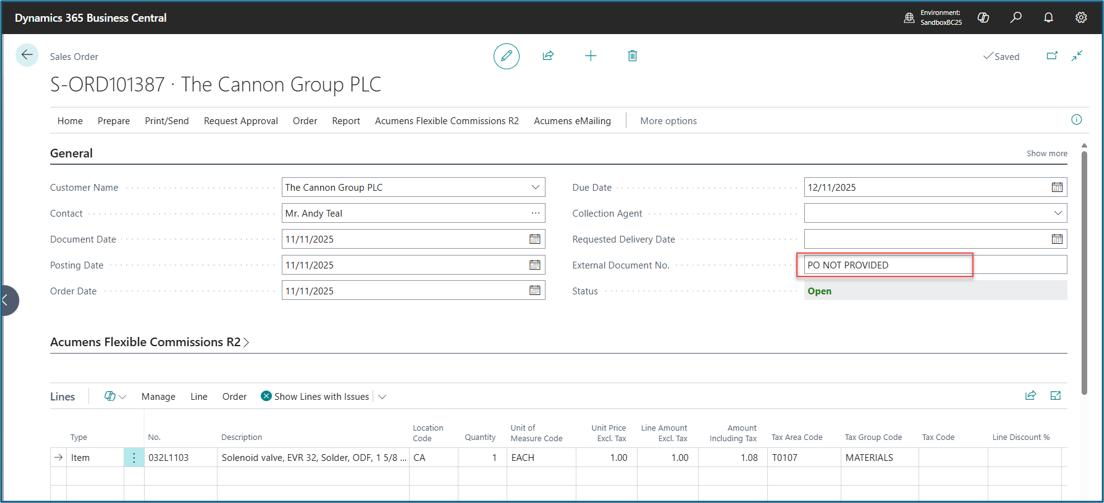
The user can modify existing documents
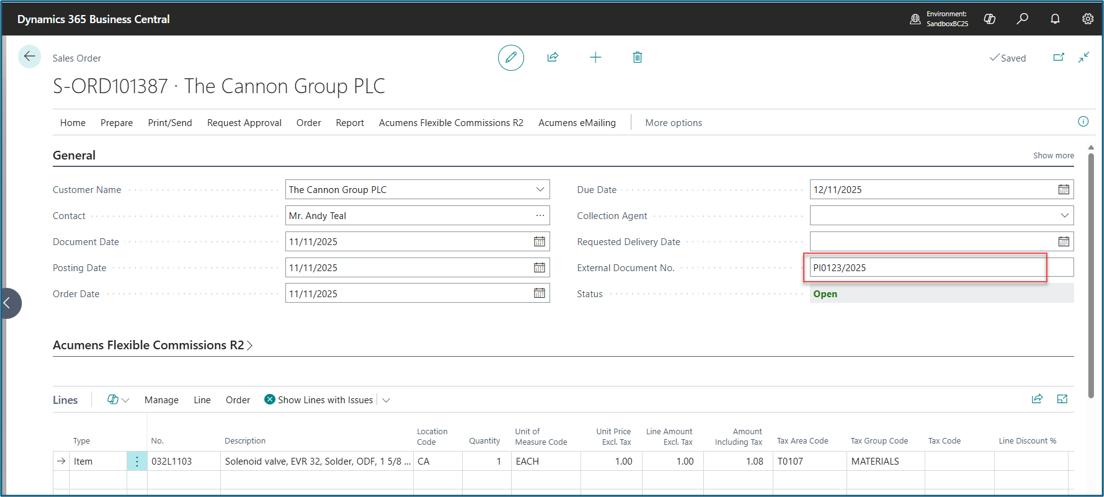
The user cannot create new documents
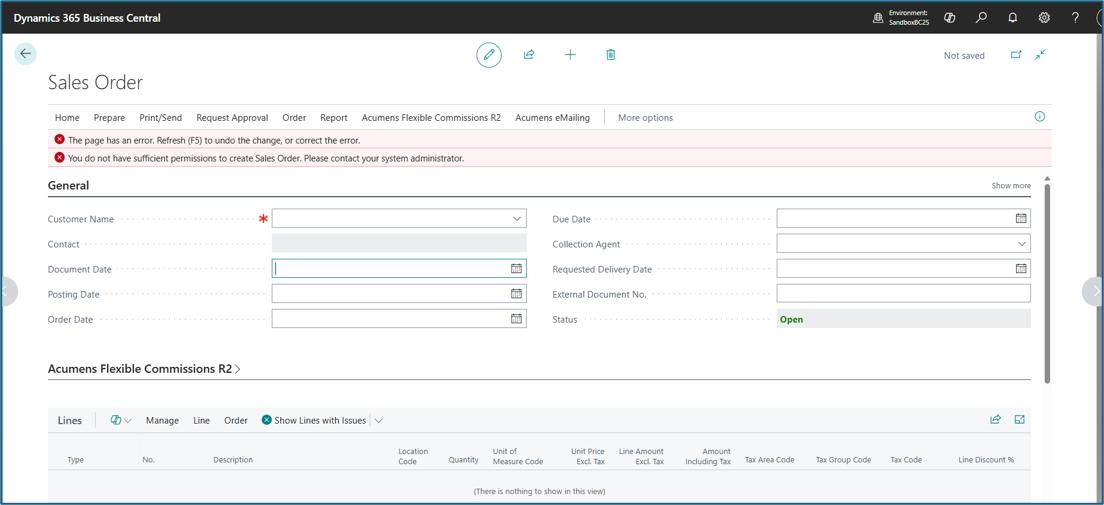
The user cannot delete a document
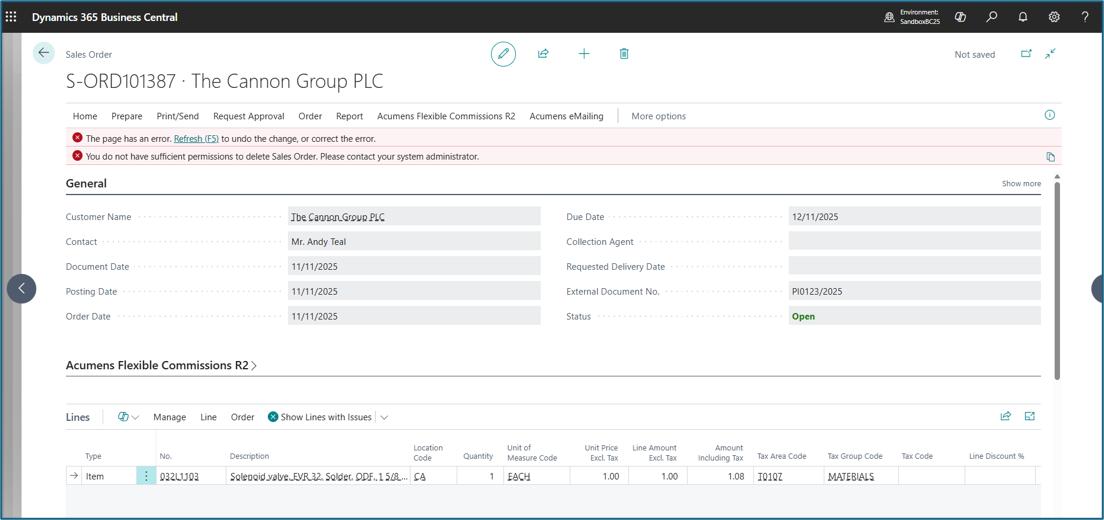
Delete: If user is assigned Delete permission, then user will be allowed to modify and delete existing documents. The user cannot create new records.
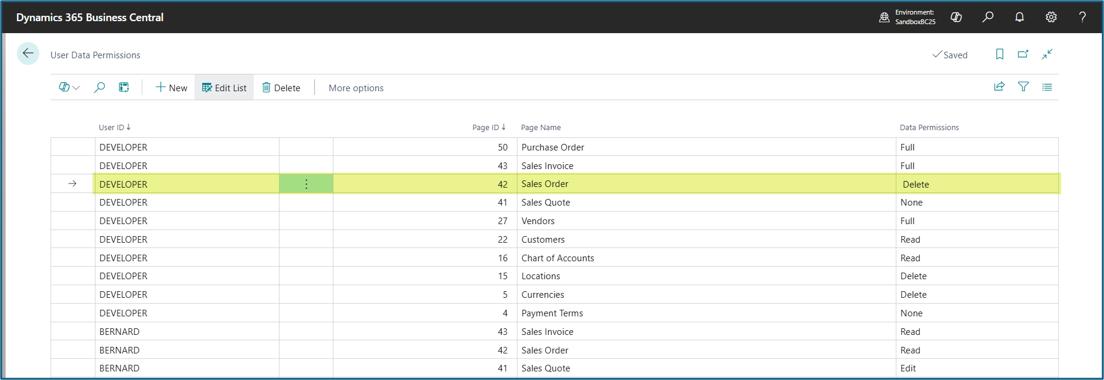
The user can delete
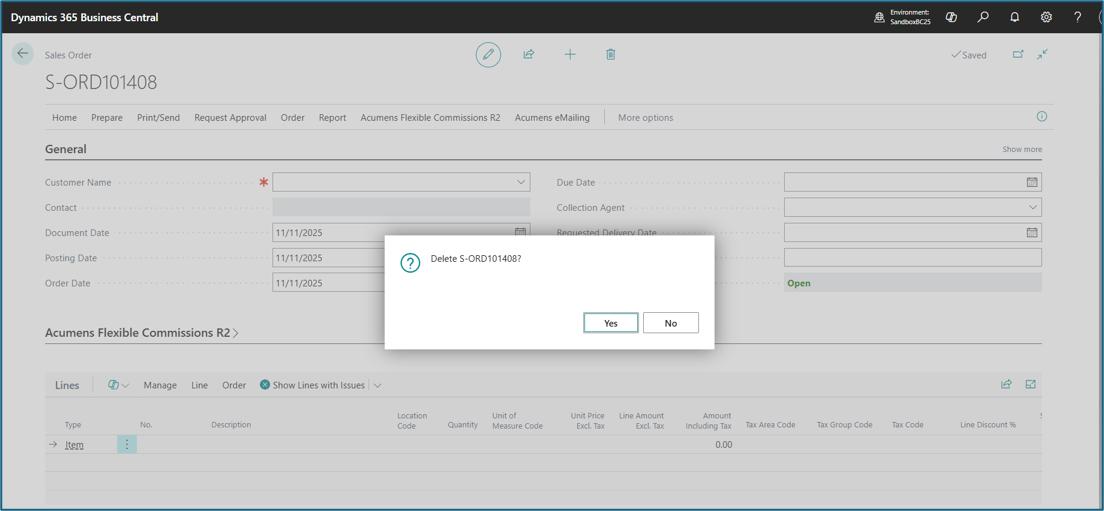
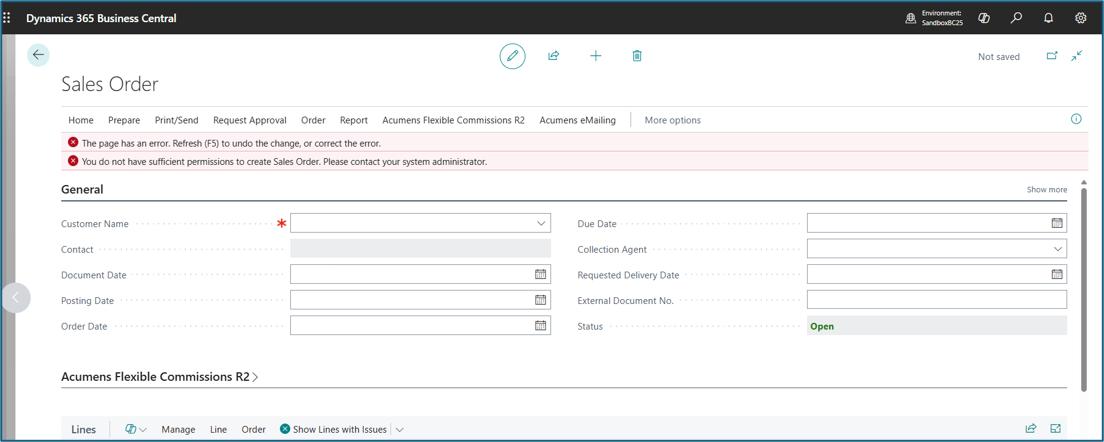
The user cannot create new documents
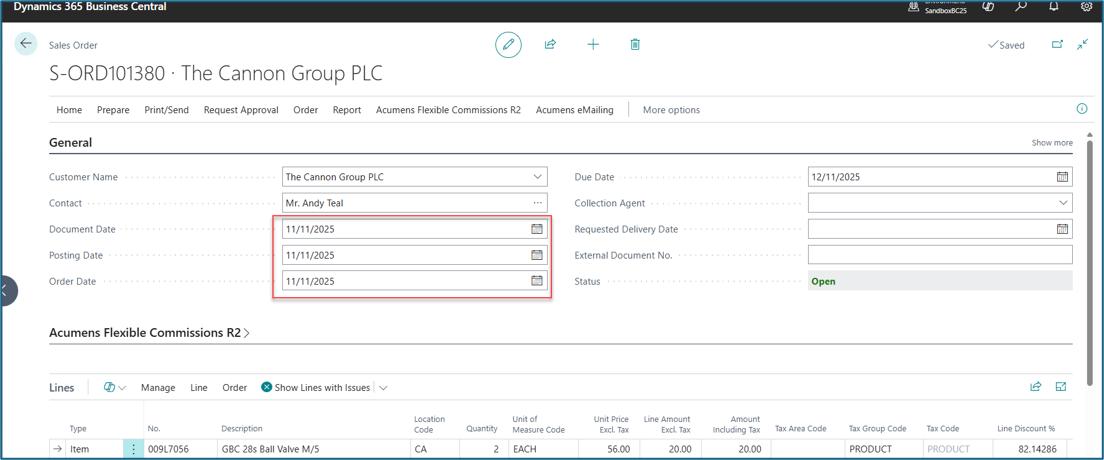
The user can edit existing records
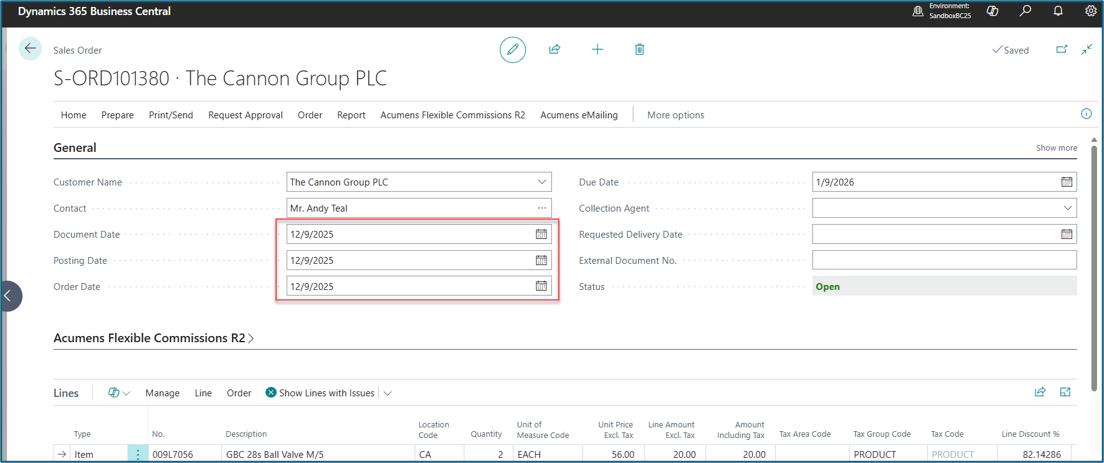
Full: If user is assigned Full permission, then they will have full permissions to create, view, edit or delete a document or record.
The user can create, delete, view and edit a document
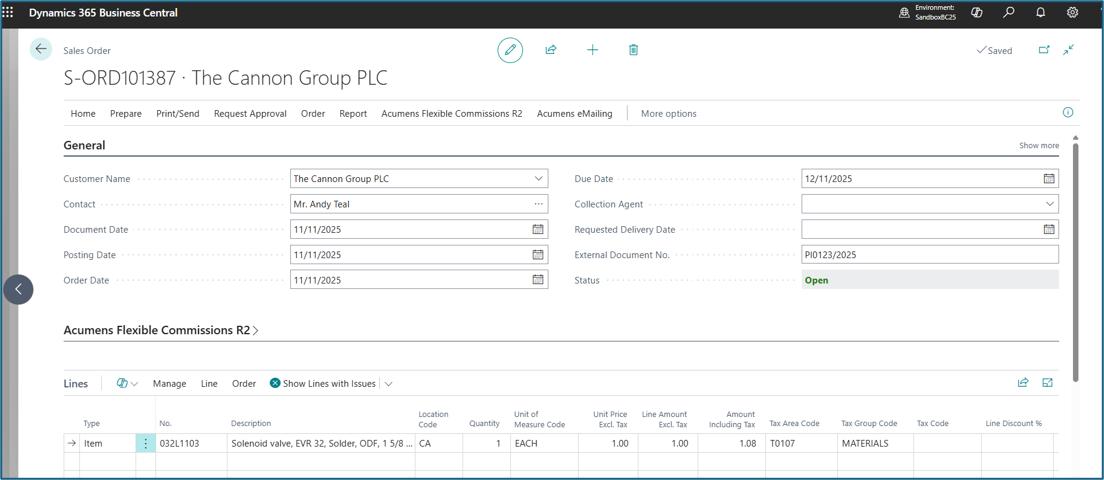
Pages open in Edit Mode
Transactions Documents
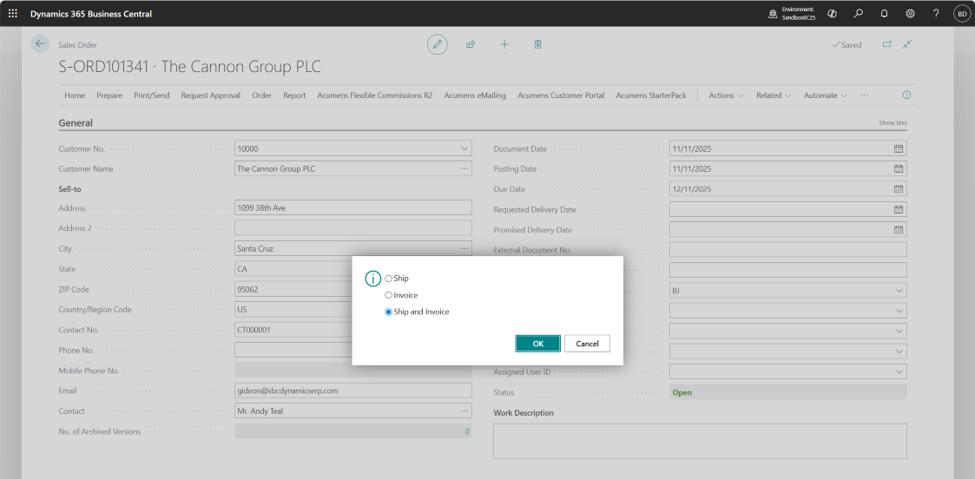
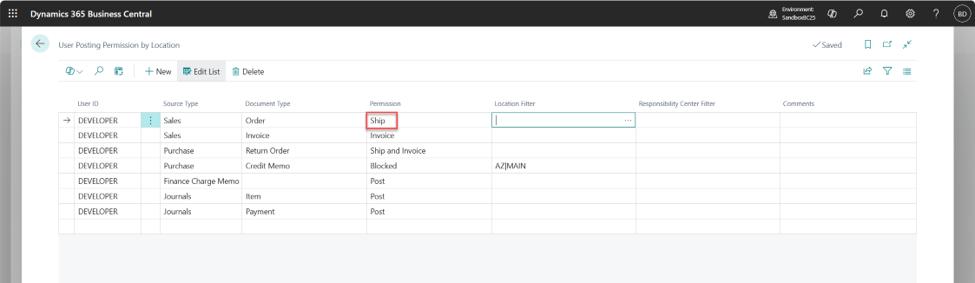
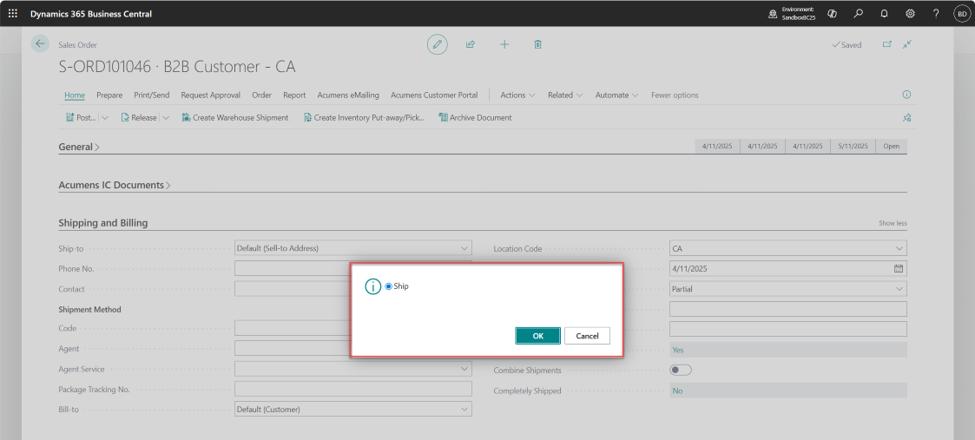
Transaction Documents post options are configured based on available post options on the document i.e. for a Sales Order, available options are Ship, Invoice, Ship and Invoice and additional option for Blocked.
Sales Order Post options before User Permissions Control:
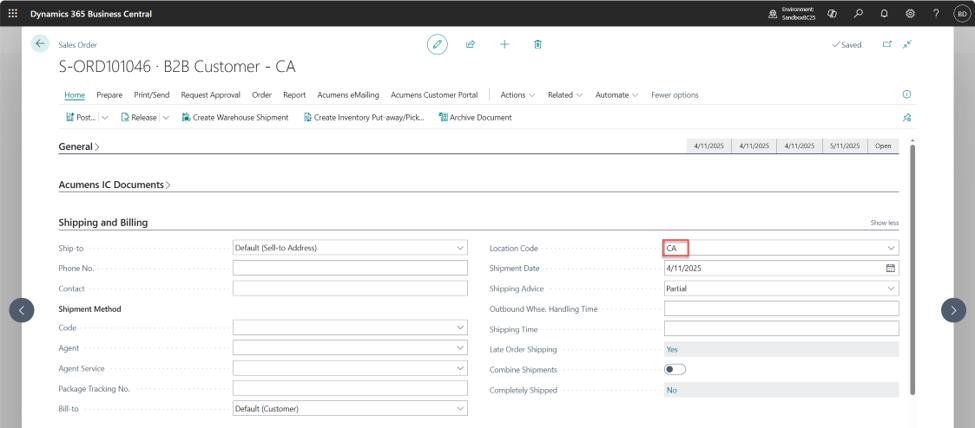
Limit permissions to Ship Only:
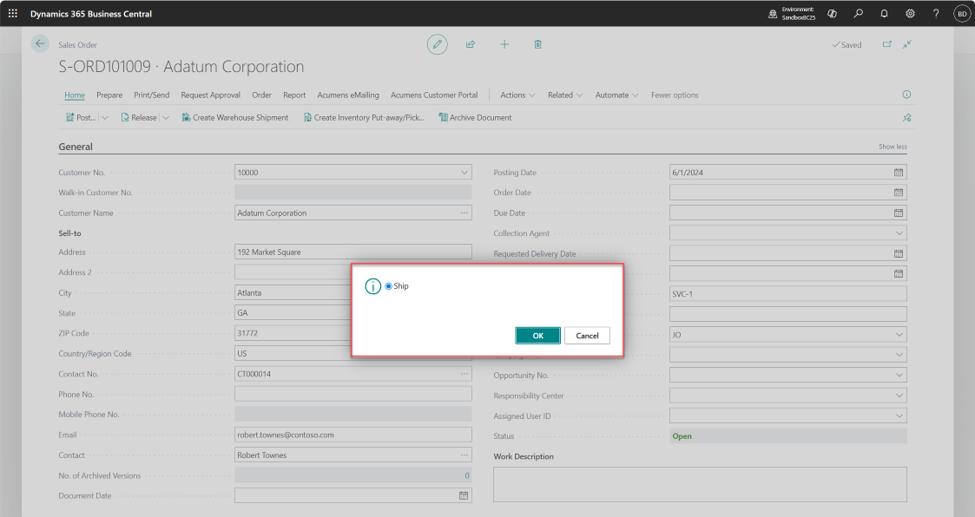
Limit User to Location Posting:
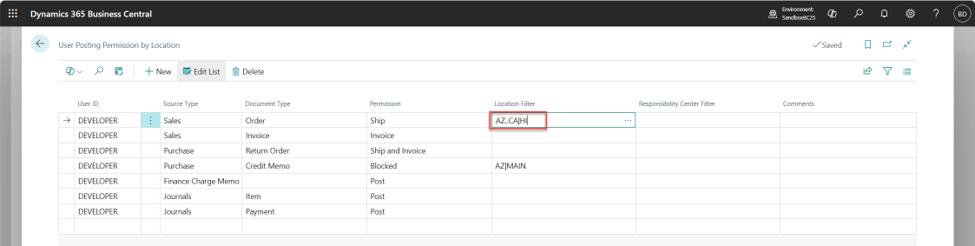
Sales Order not within allowed Locations:
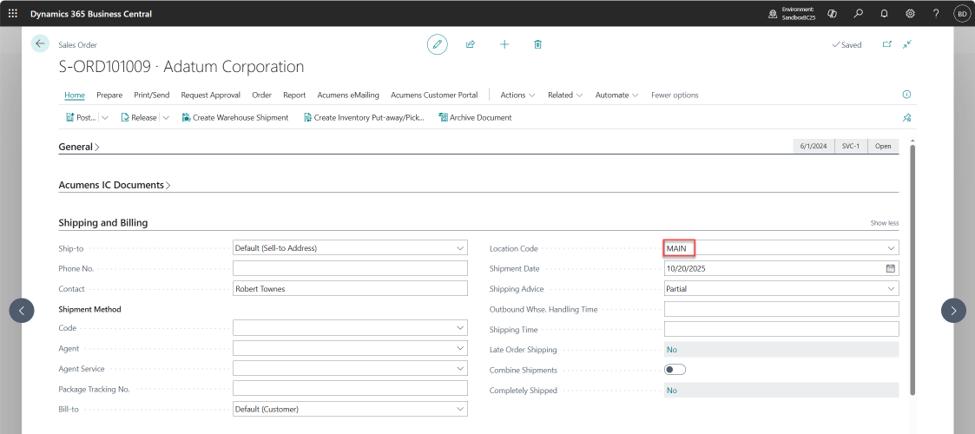
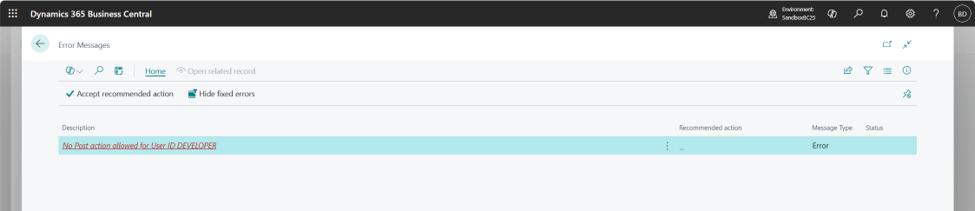
Sales Order for Allowed Locations:
Journals
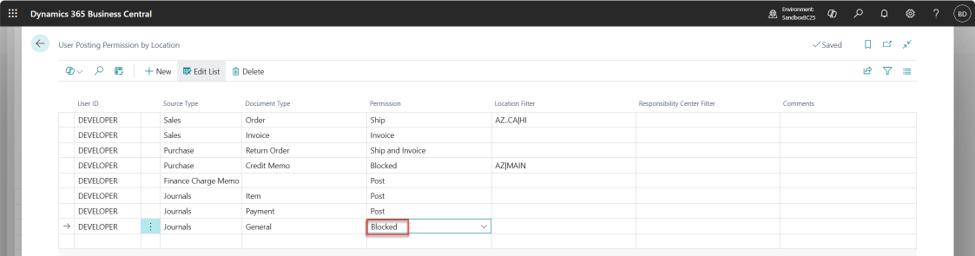
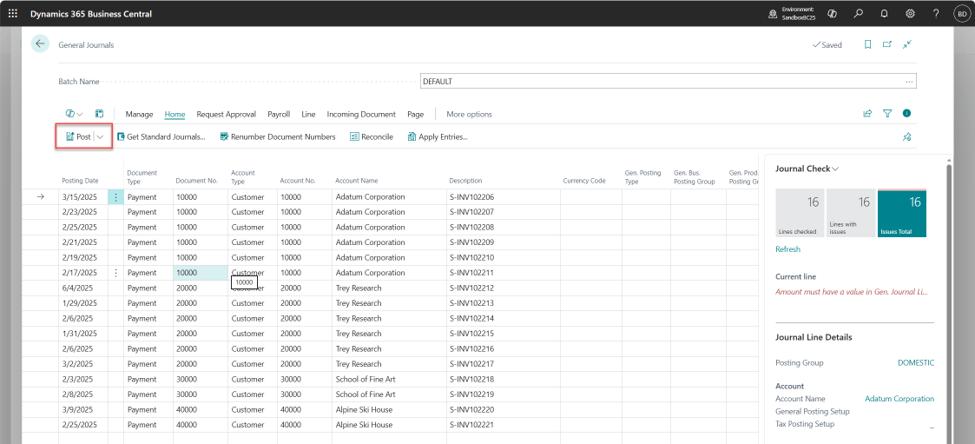
Journals have two options which are Post and Blocked and can also be limited to Locations and Responsibility Centers.
Before User Posting Permission Setup:
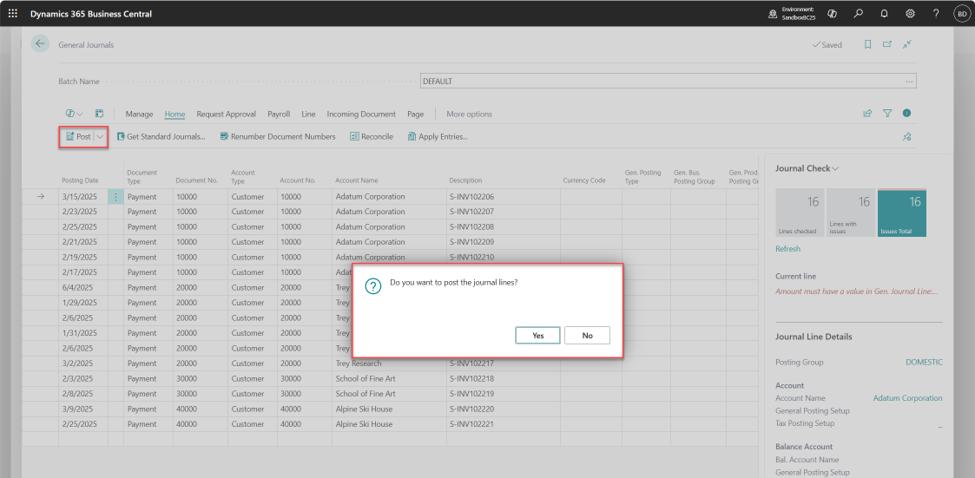
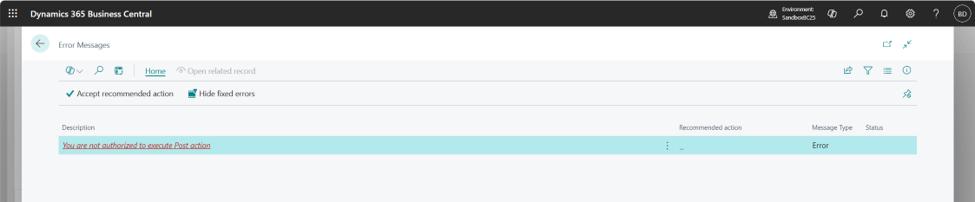
Blocked:
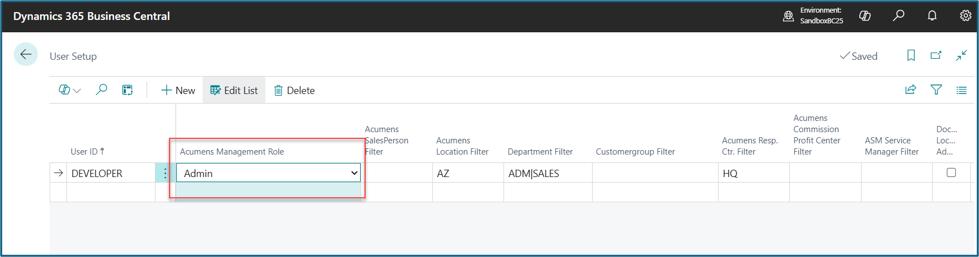
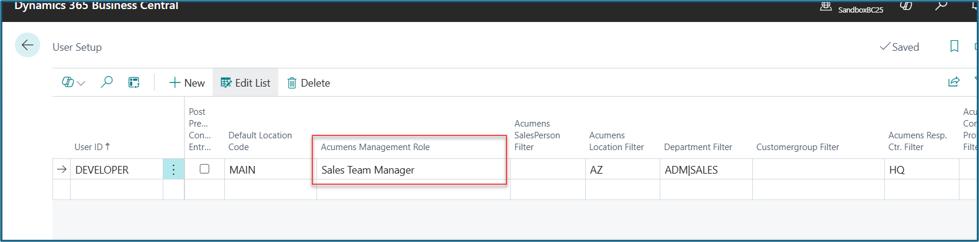
On User Setup, the following filter fields are available. “Acumens Management Role” field specifies the role assigned to a user. Admin is the default Role.
User filters on the Cues and Cues Drilldowns are applied based on User Setup field below.
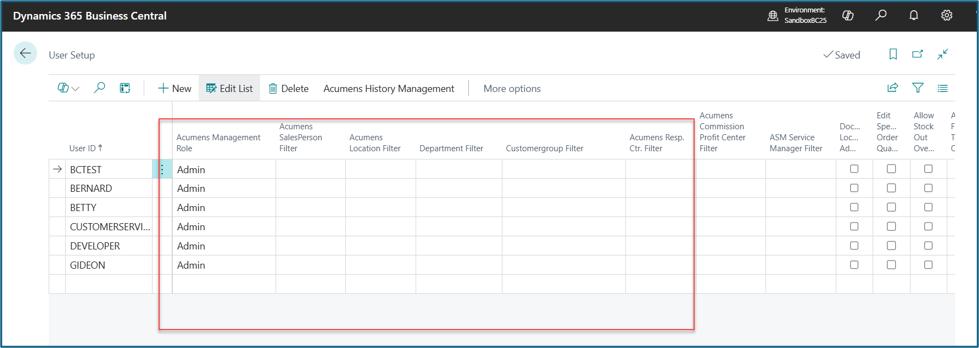
The user can be assigned the following role filters.
Admin: No filter is applied to the cues and lists.
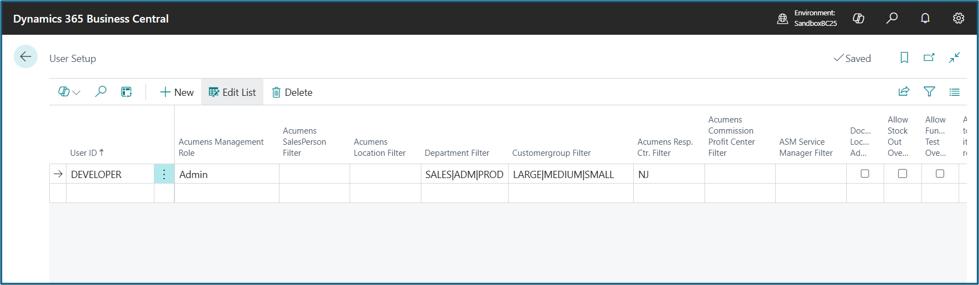
- When a user has admin role as shown above, then no filters are applied to the lists.
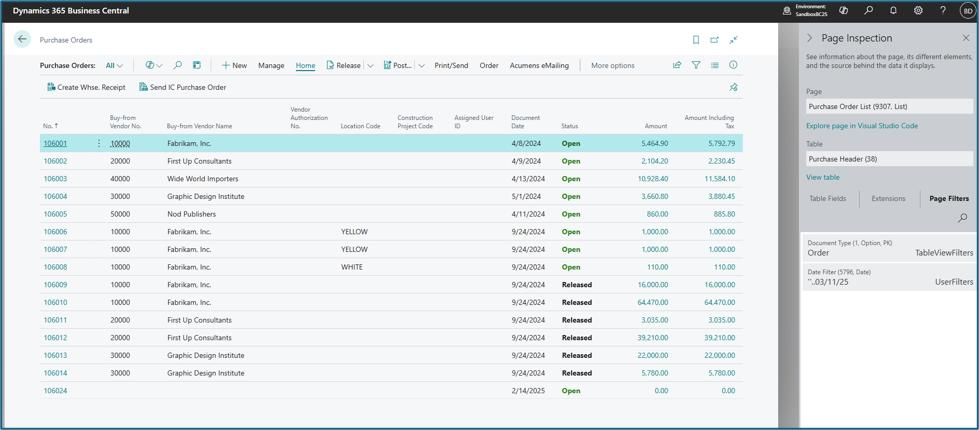
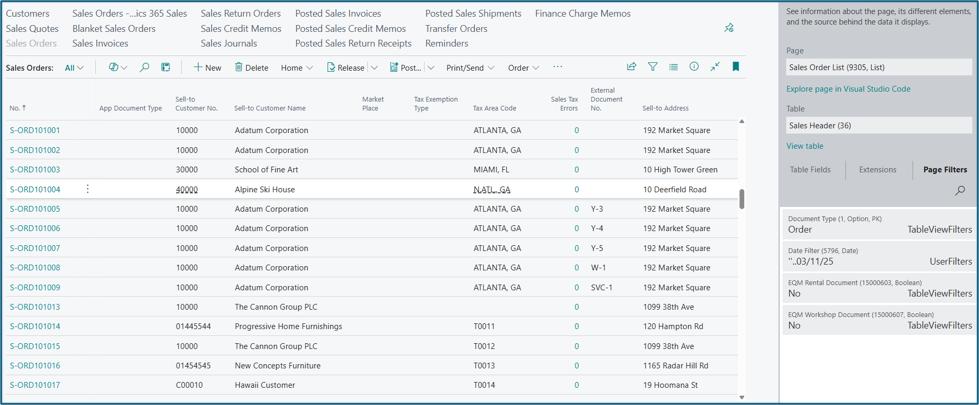
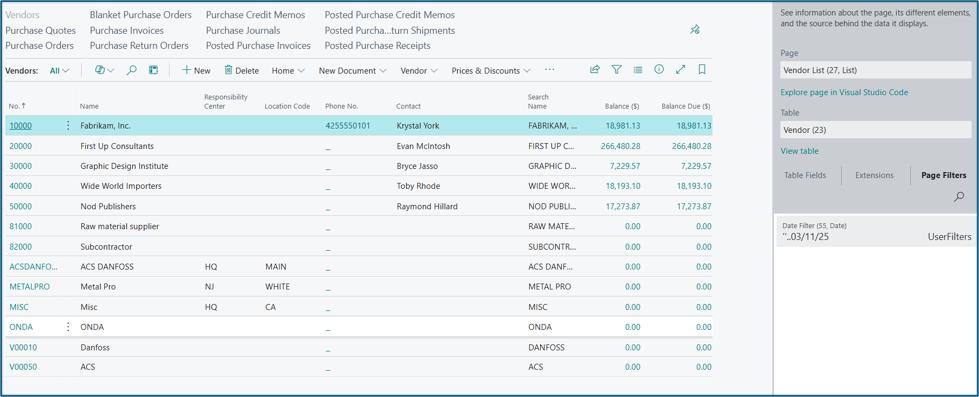
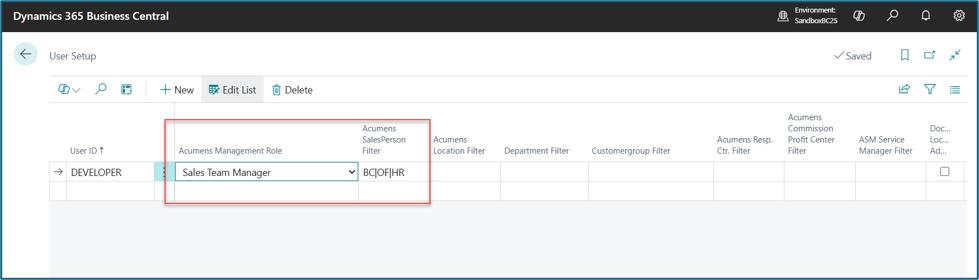
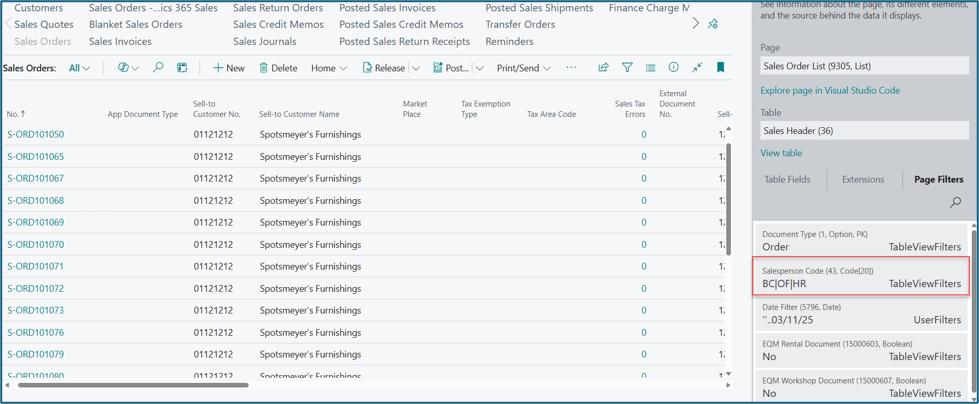
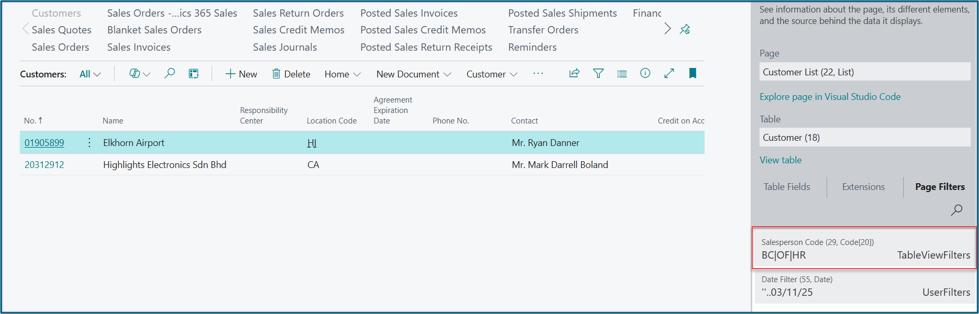
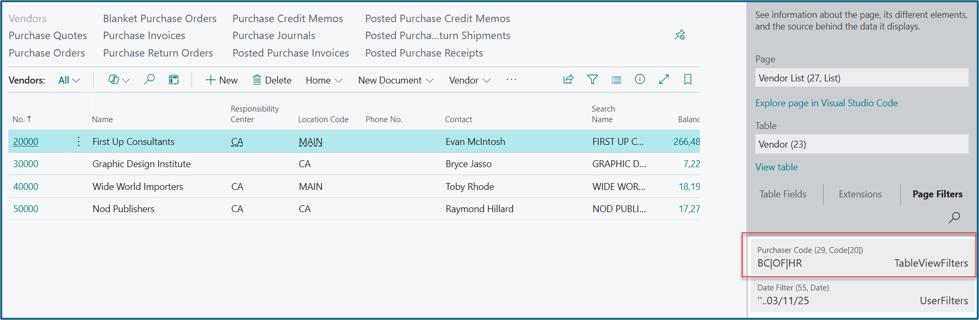
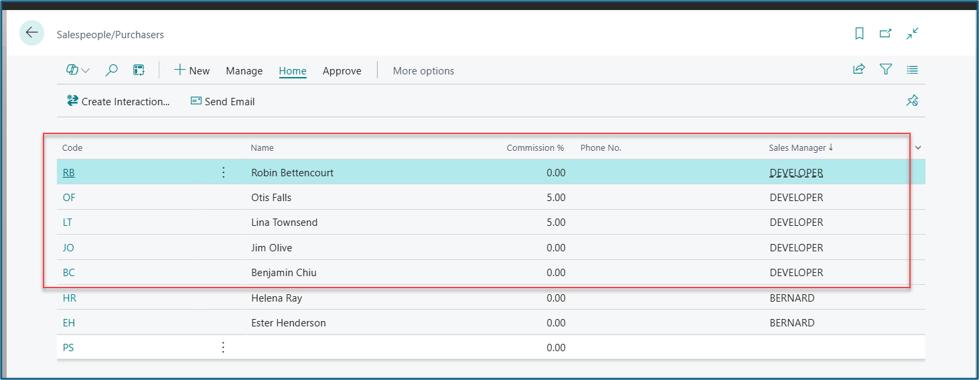
Sales Team Manager: Users can see all the records for the salespeople assigned to them on Salespeople/Purchasers list.
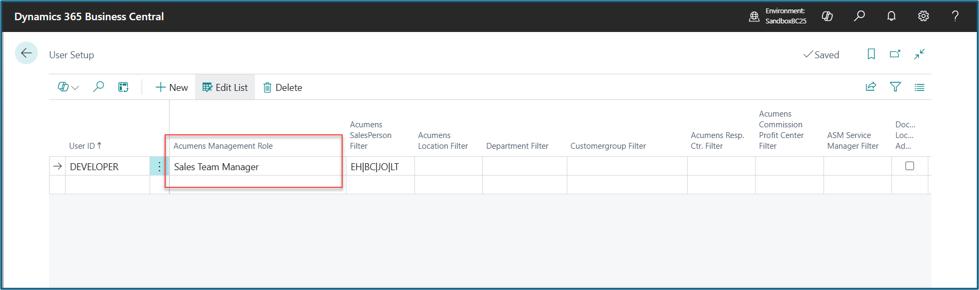
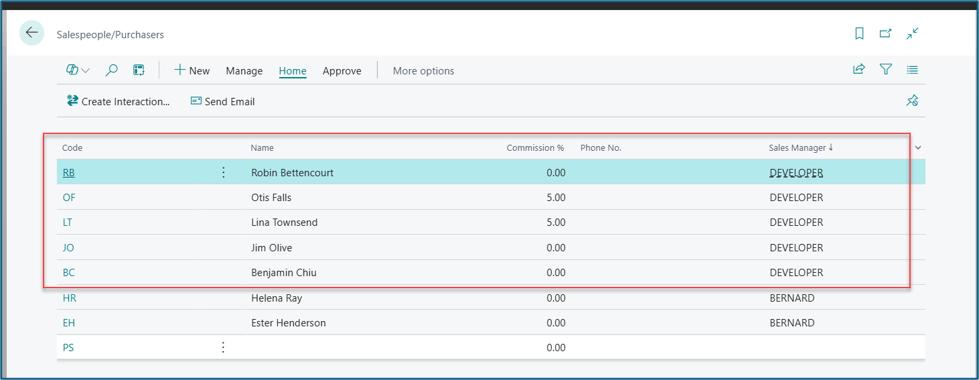
- User filters are applied to the lists.
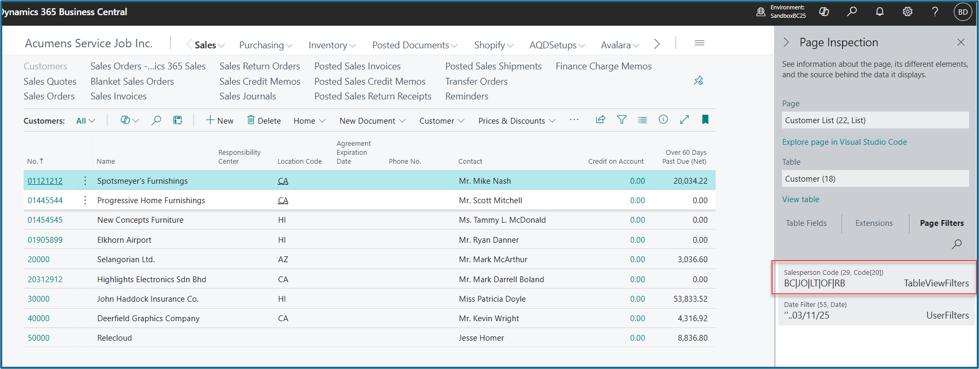
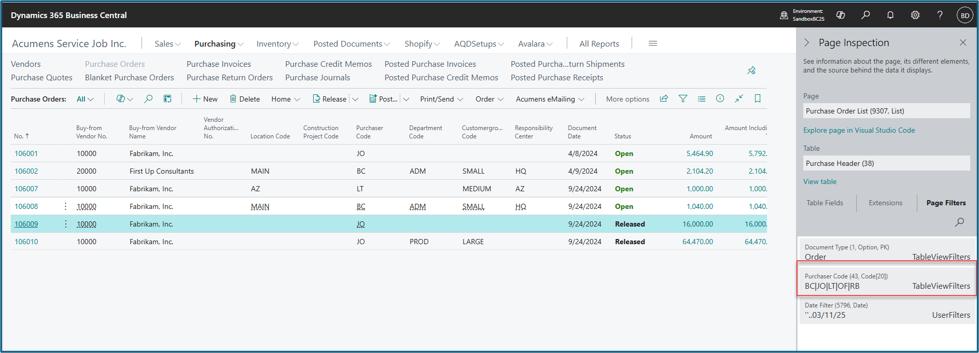
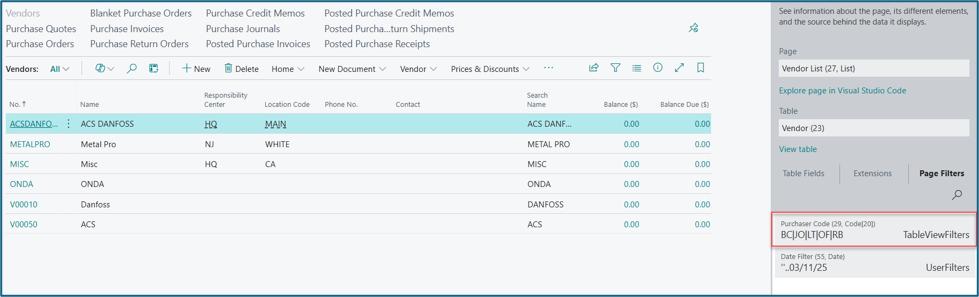
If there is no assigned salesperson on the Salespeople/Purchasers list, then the filter will be populated from the Salesperson filter on User Setup.
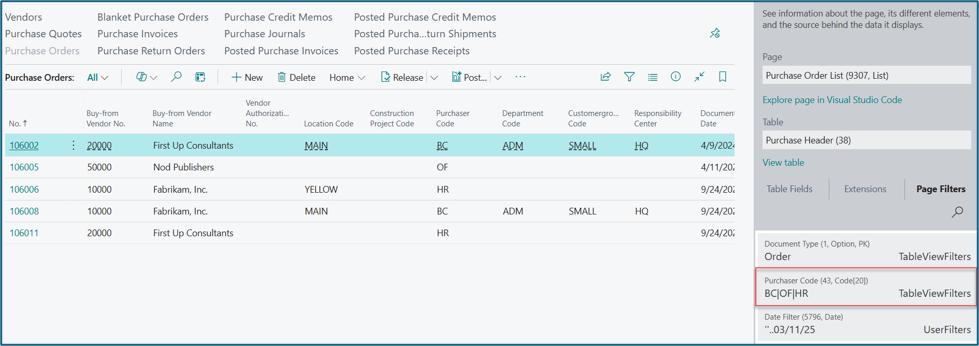
Salesperson: Users can only see all the records for the assigned salesperson code on “Acumens Salesperson filter” field.
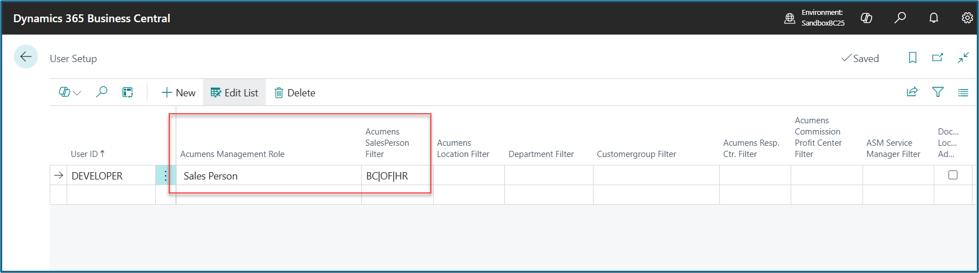
- User filters are applied to the lists.
Location: User can see records for the location assigned on "Acumens Location Filter" field.
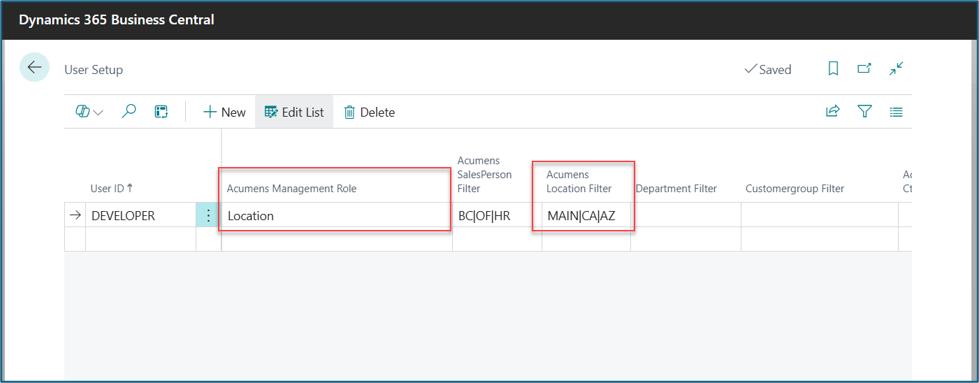
- User filters are applied to the lists
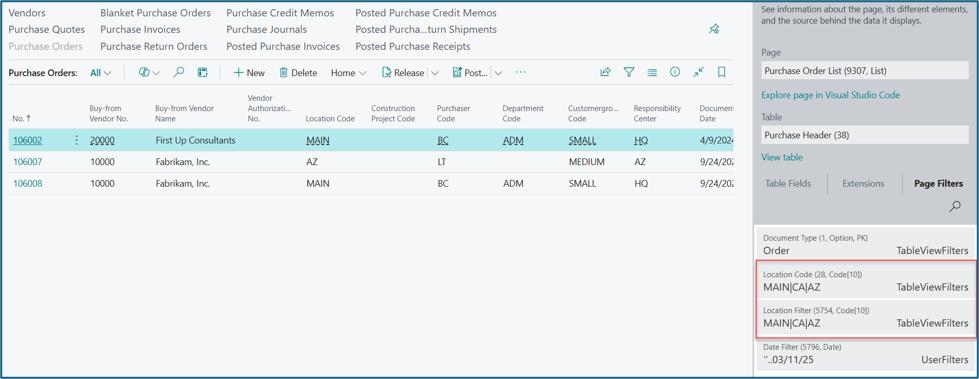
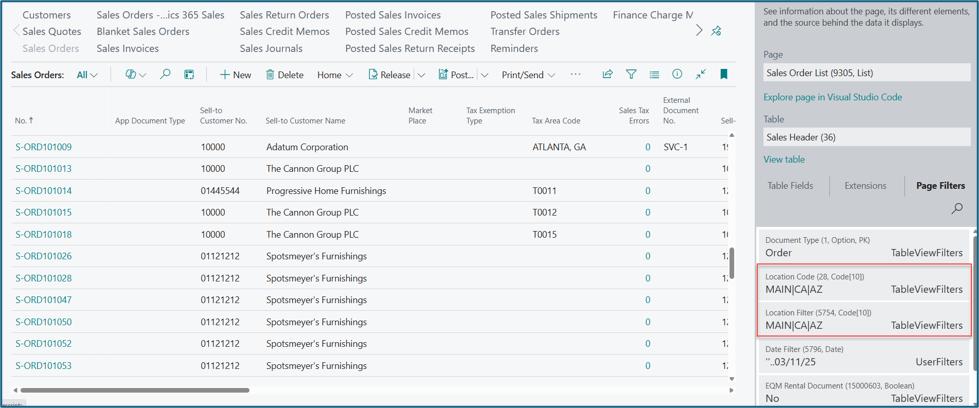
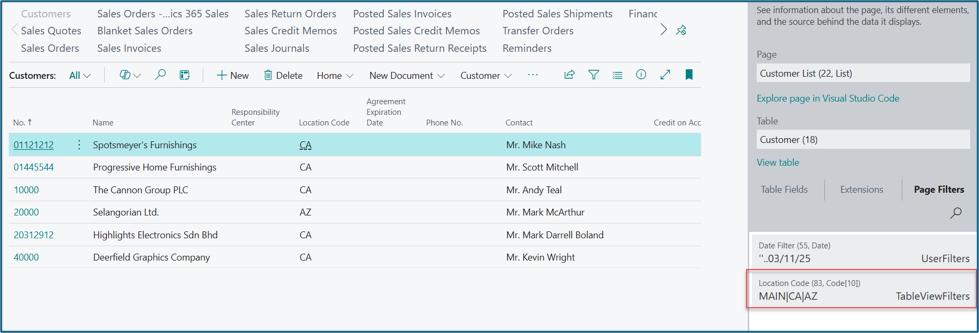
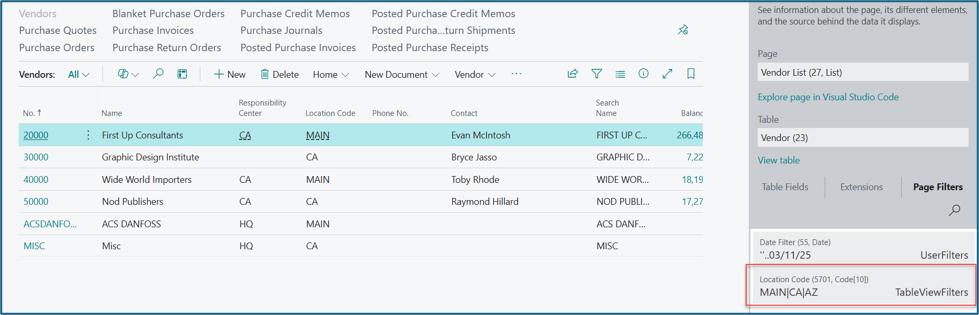
For Global Dimension 1 and 2, The field caption is automatically updated based on the dimension 1 and 2 indicated on General ledger setup.
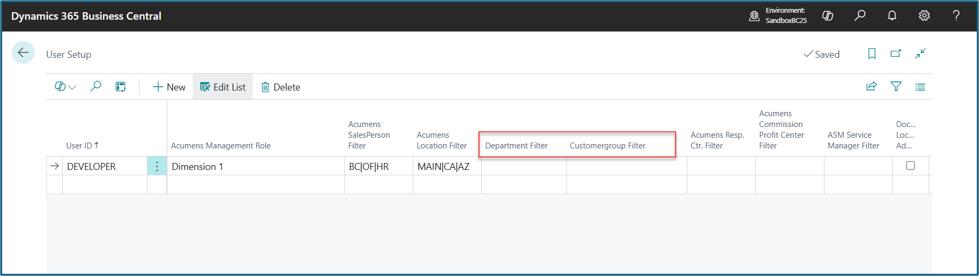
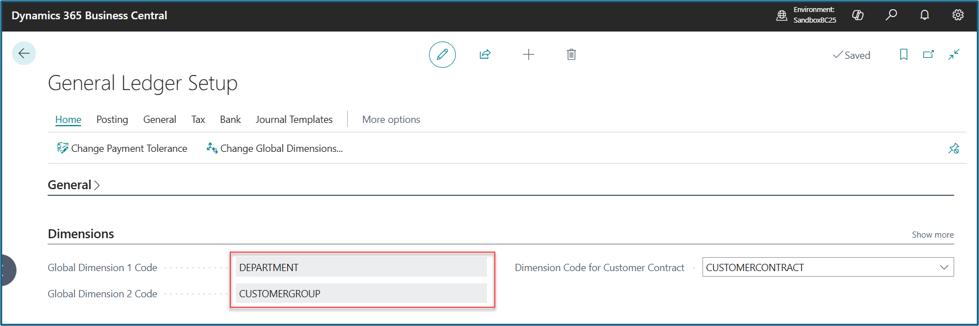
Global Dimension 1: The user can see records for Global Dimension 2 assigned on the Global Dimension 1 filter field.
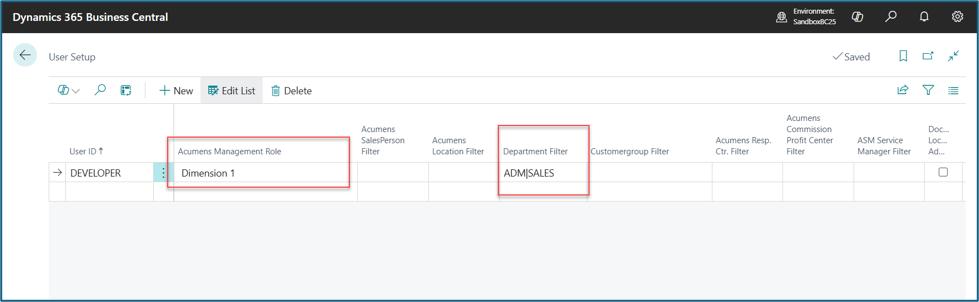
- User filters are applied to the lists
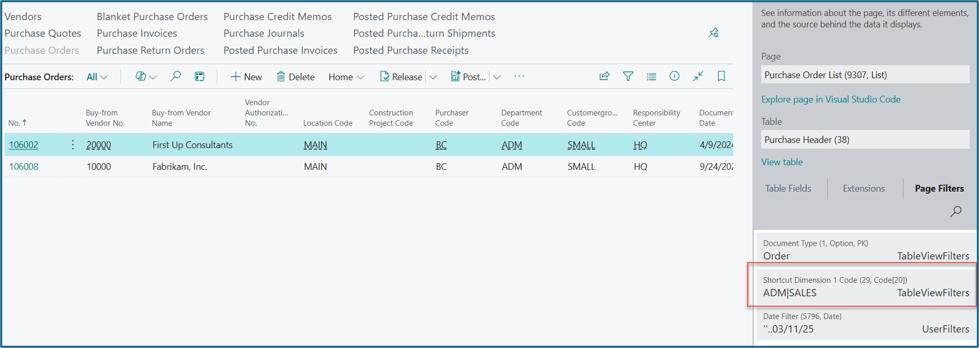
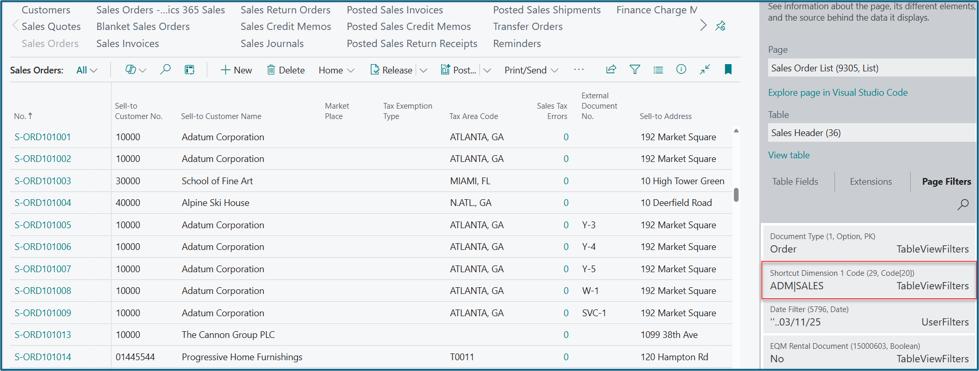
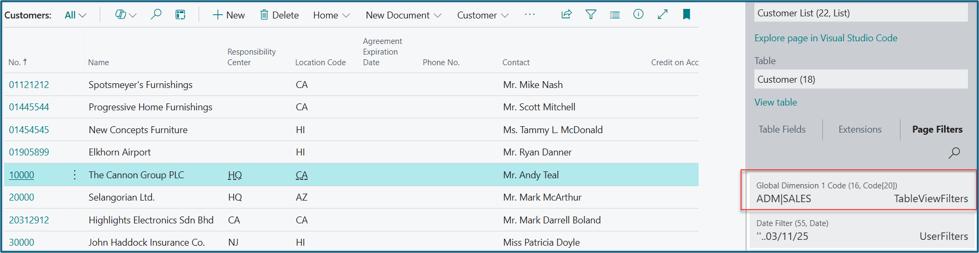
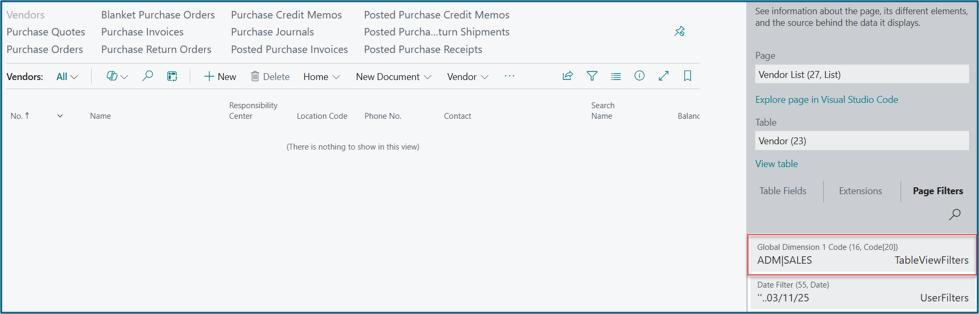
Dimension 2: User can see records for Global Dimension 2 assigned on "Acumens Dimension 2 Filter" field.
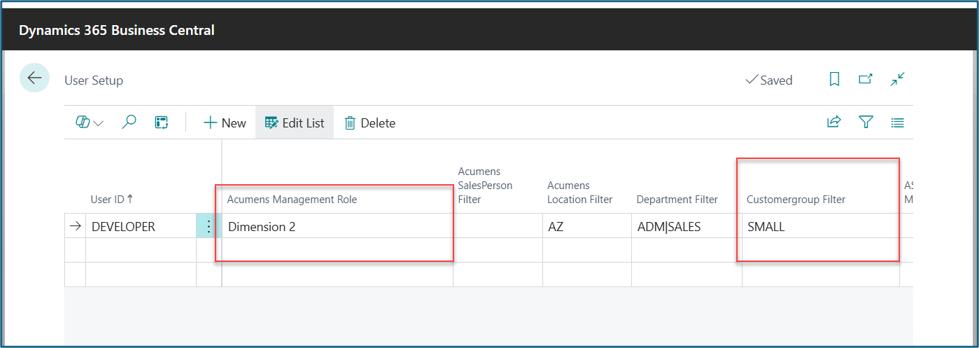
- User filters are applied to the lists
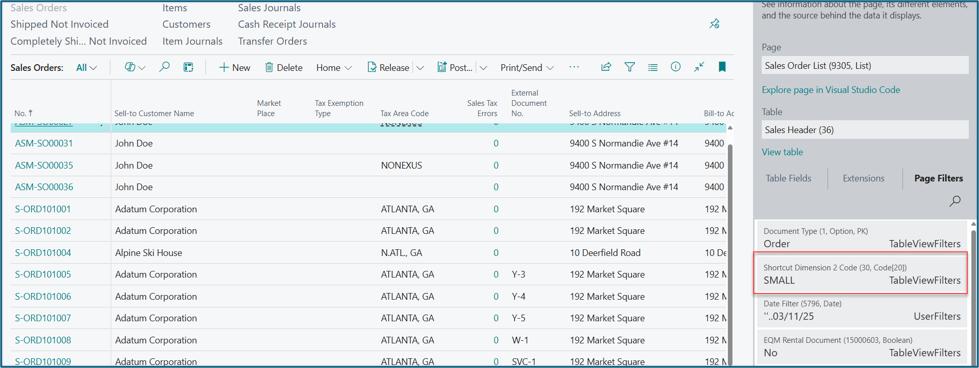
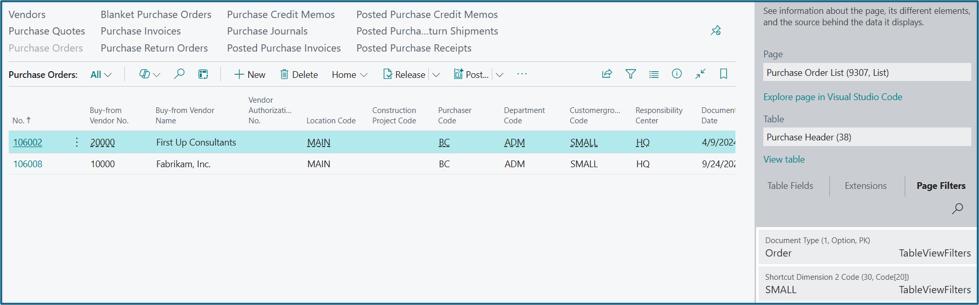
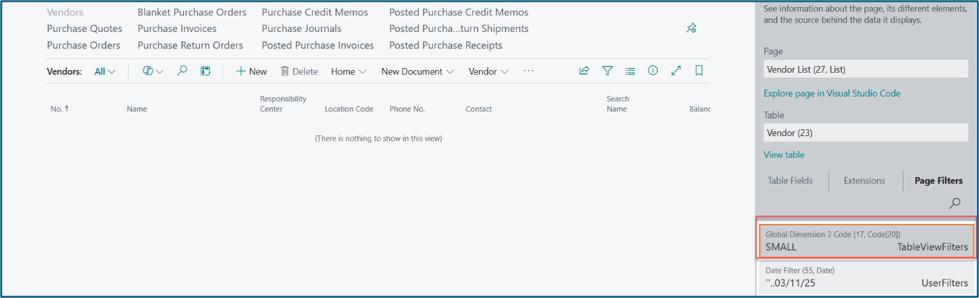
Responsibility Center: User can see records for the Responsibility Center assigned on "Acumens Resp. Center Filter" field.
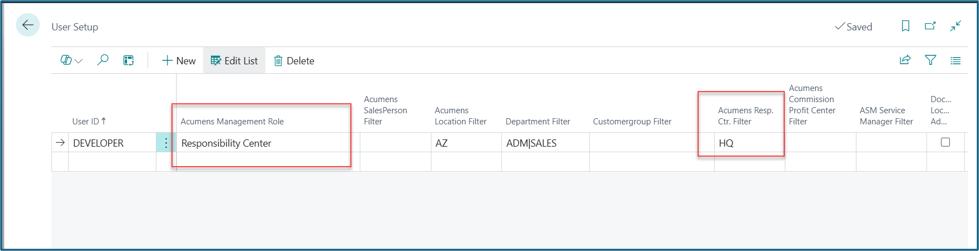
- User filters are applied to the lists
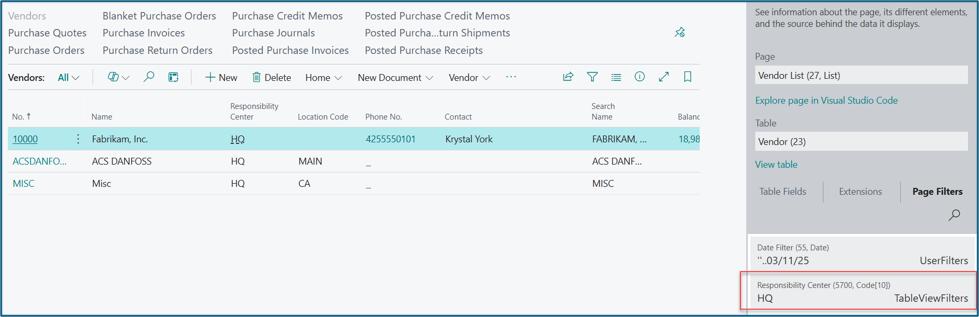
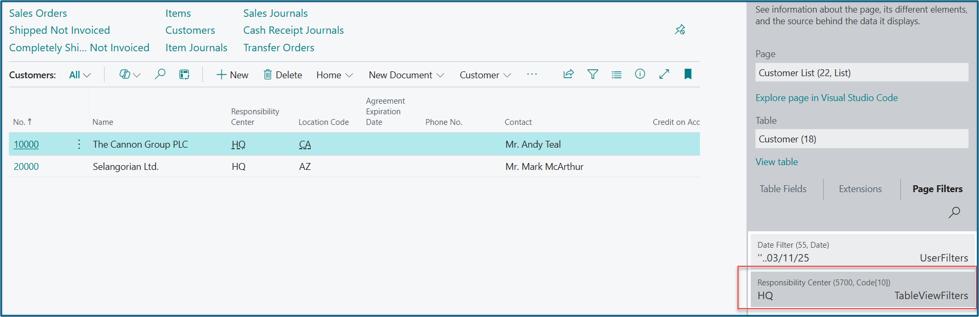
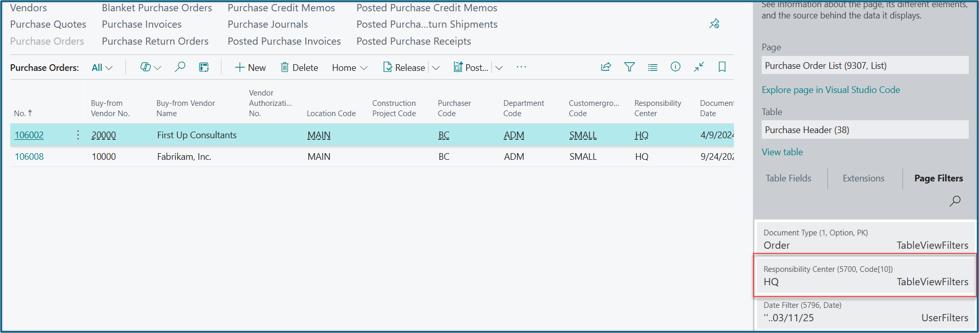
User Filters on Role Center Cues: User filters can be extended to Custom Apps Role centers.
For example, with Admin role, no user filter is applied to the cues and lists
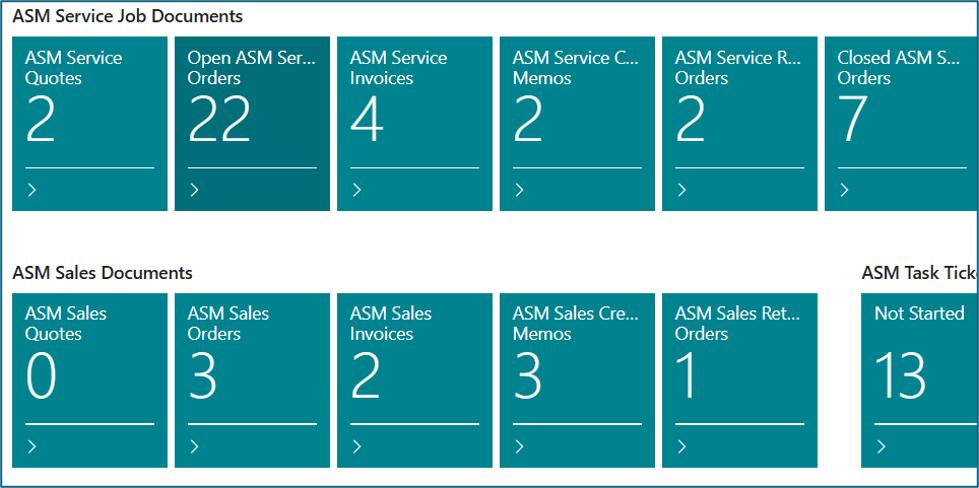
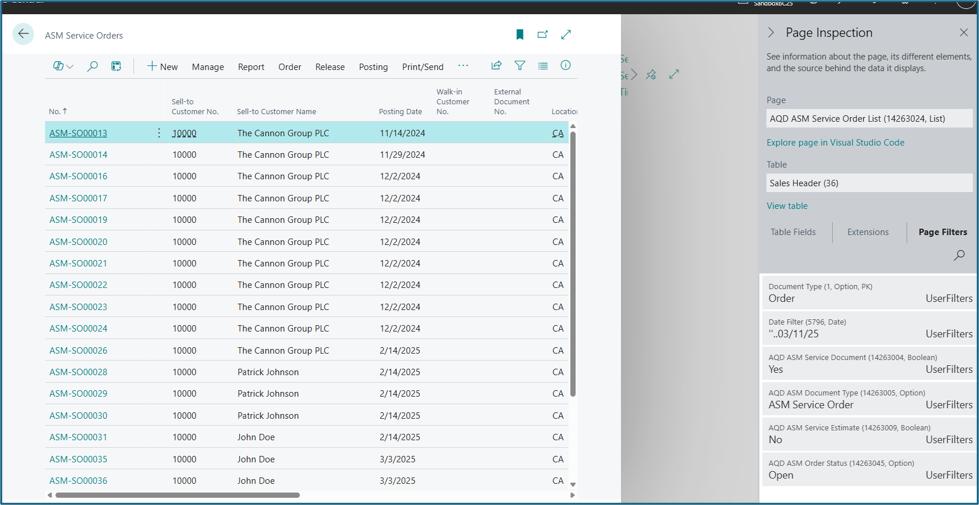
Example with Sales Team Manager role, the cues are filtered, and the user can see all the documents for the salespeople assigned on "Acumens Salesperson filter" field

Drilldown on any of the cues