
The Acumens Document Approval is a robust solution integrated into Microsoft Dynamics 365 Business Central, enhancing the document approval process across various key granules. This application aims to streamline and optimize approval workflows for critical business transactions across sales, purchasing, inventory, general journals, master data, customer credit applications and service documents. It also supports configurable approval levels, notifications, mandatory comments/attachments and selected receipt/shipping controls.
For purposes of illustrating this functionality, the Purchase Order workflow will be used as the primary scenario to demonstrate the configuration, submission, approval levels, notifications, and resulting document status throughout the approval lifecycle.
Implementing Acumens Document Approvals delivers immediate visibility and control across your organization:
Setting up this extension requires configuring global rules, dynamic levels, dimension rules and notification channels.
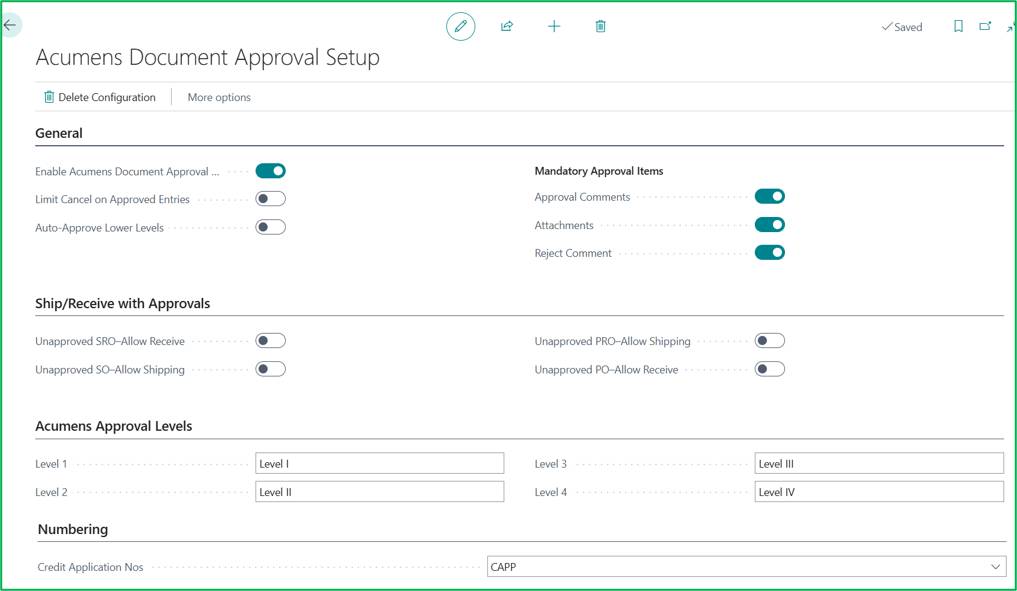
The main setup is used to activate the application and set up the dynamic captions for each level of approval. The setup also activates the default configurations of approval documents.
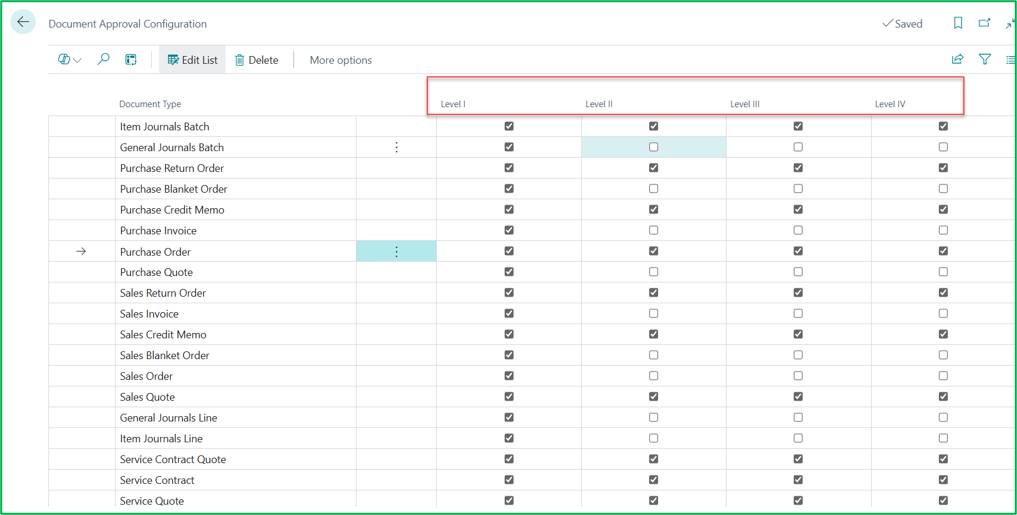
Custom approval levels page will automatically be enabled when main setup page is launched.
This allows the user to edit how many levels a document goes through during the approval process.
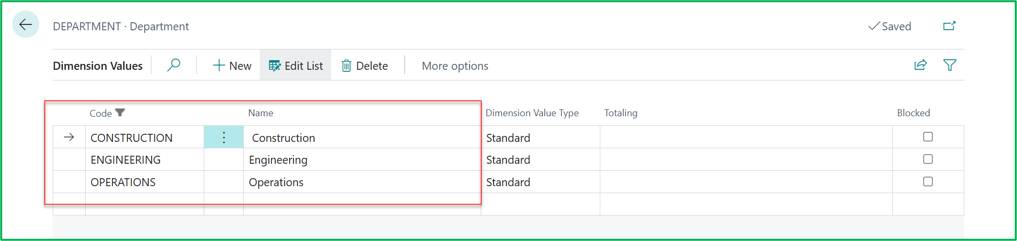
Configure standard dimensions (such as CONSTRUCTION, ENGINEERING, or OPERATIONS etc.) to drive conditional approval logic based on the originating department.
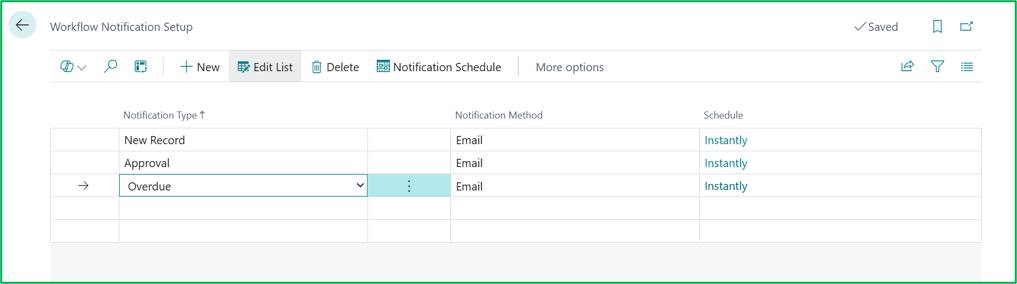
Allow you to set up the preferred notification method for users and the setup is done in the Approval User Setup.
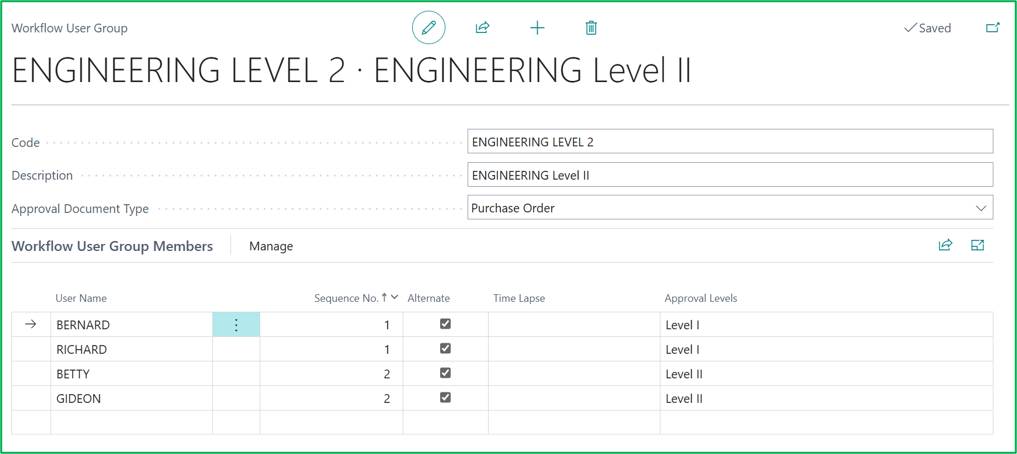
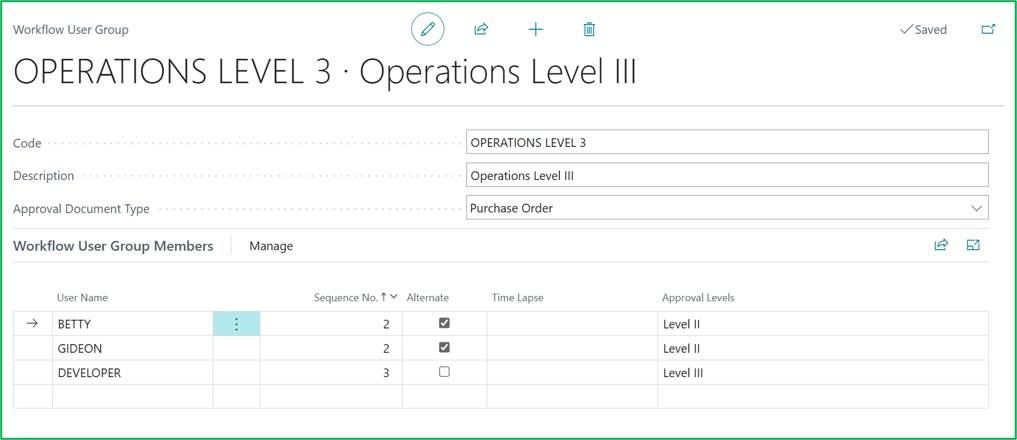
Set up the required approval levels in Workflow User Groups and assign the appropriate users to each approval level according to the defined approval hierarchy.
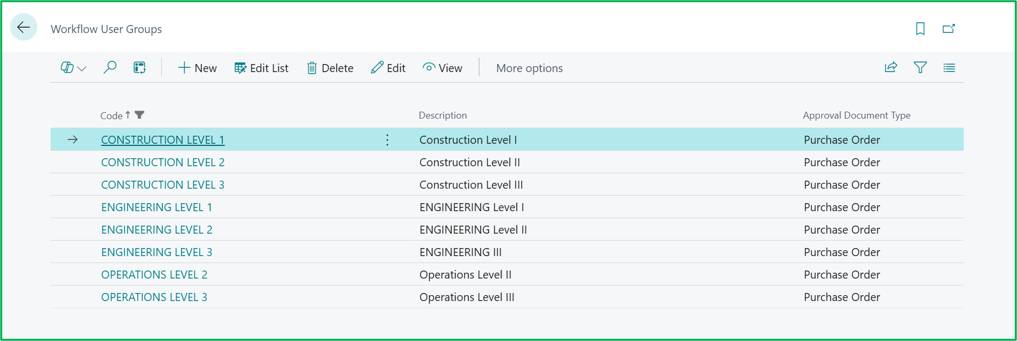
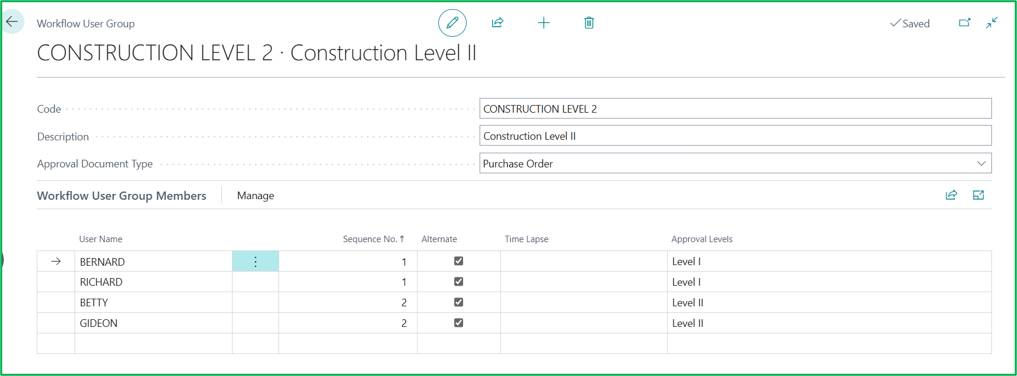
The sample workflow user group below defines the users responsible for approving Purchase Orders at Construction Level. Defines front-line reviewers for Construction POs.
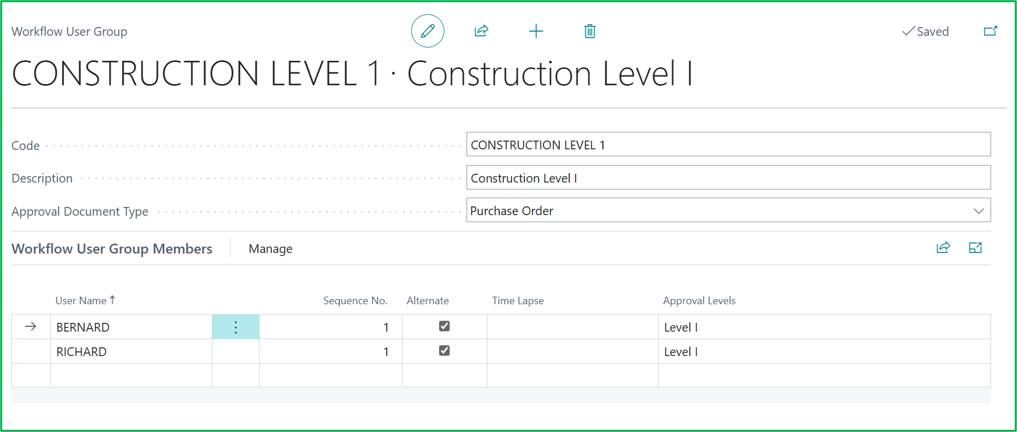
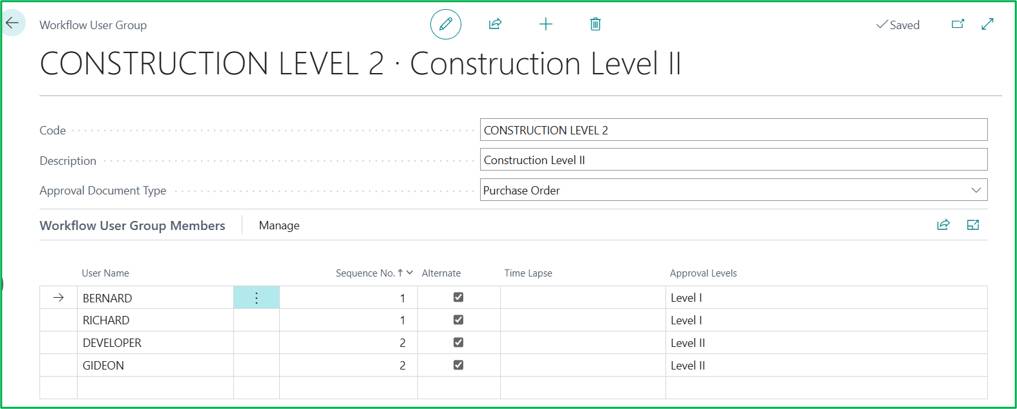
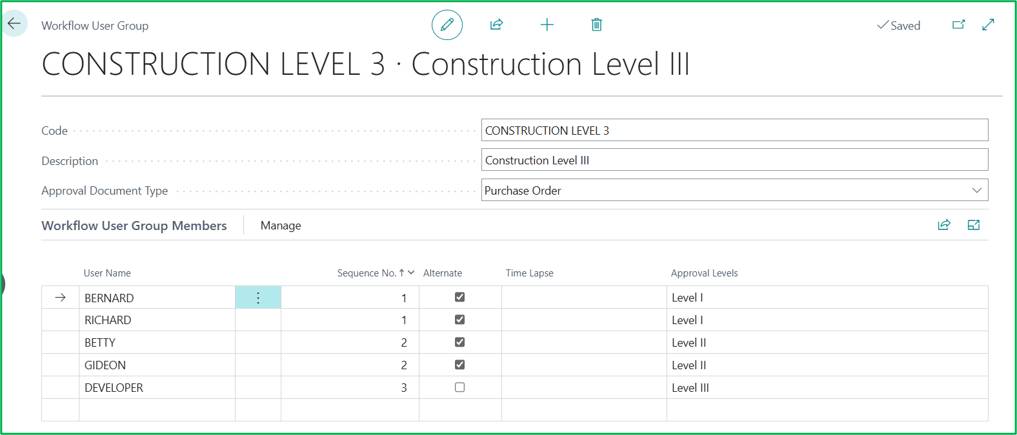
The sample workflow user group below defines the users responsible for approving Purchase Orders at Engineering Level. Defines mid-tier management approvers for Engineering transactions.
The sample workflow user group below defines the users responsible for approving Purchase Orders at Operations Level. Defines executive approvers for high-value Operations transactions.
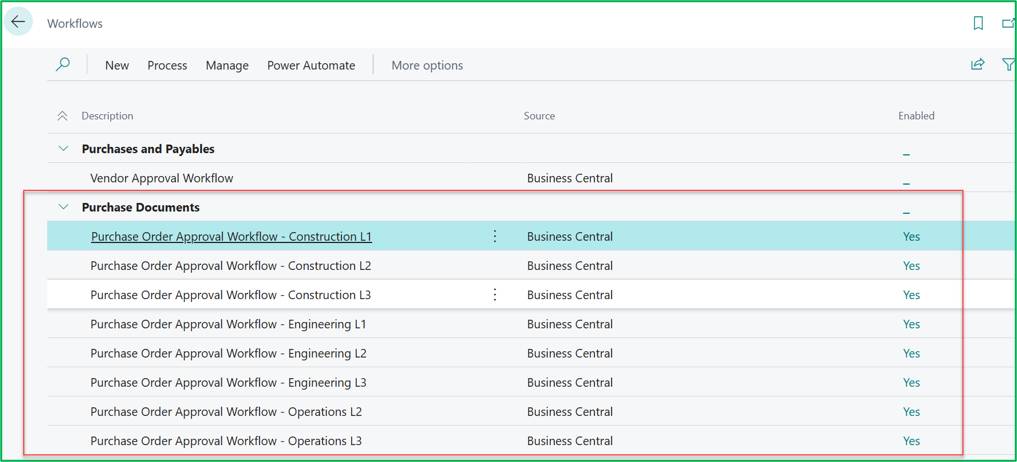
With user groups established, create specific Business Central workflows matching your company’s authorization limits.
Define Purchase Order separate workflows for example Construction, Engineering and Operations each with multiple levels (L1–L3) and enable the workflow.
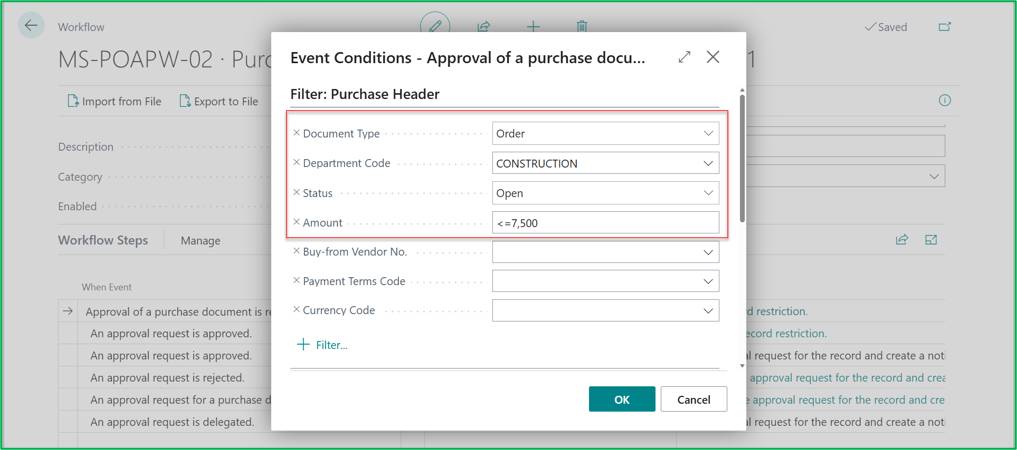
For illustration, we set up three monetary thresholds for the CONSTRUCTION department:
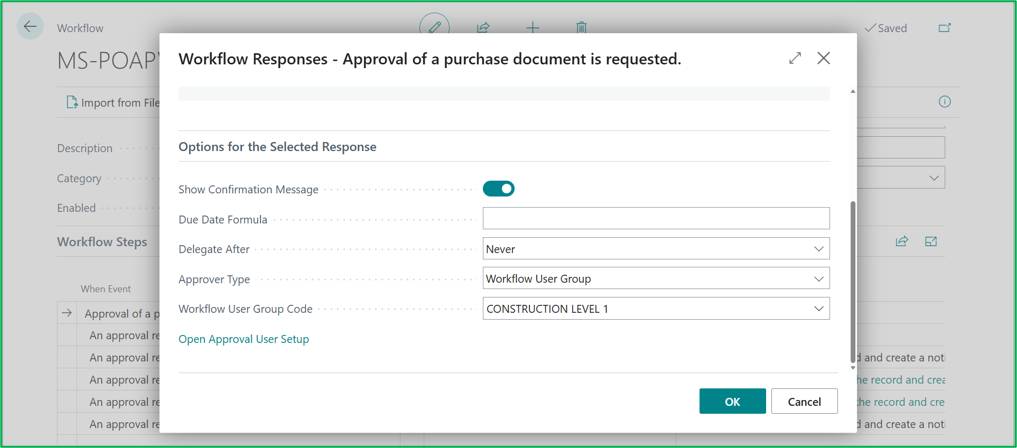
Level I Workflow.
The conditions: Department -> CONSTRUCTION and the Purchase Order Amount <= $7,500.
Create an approval request for the record using approver type Workflow User Group and Workflow User Group Code CONSTRUCTION LEVEL 1.
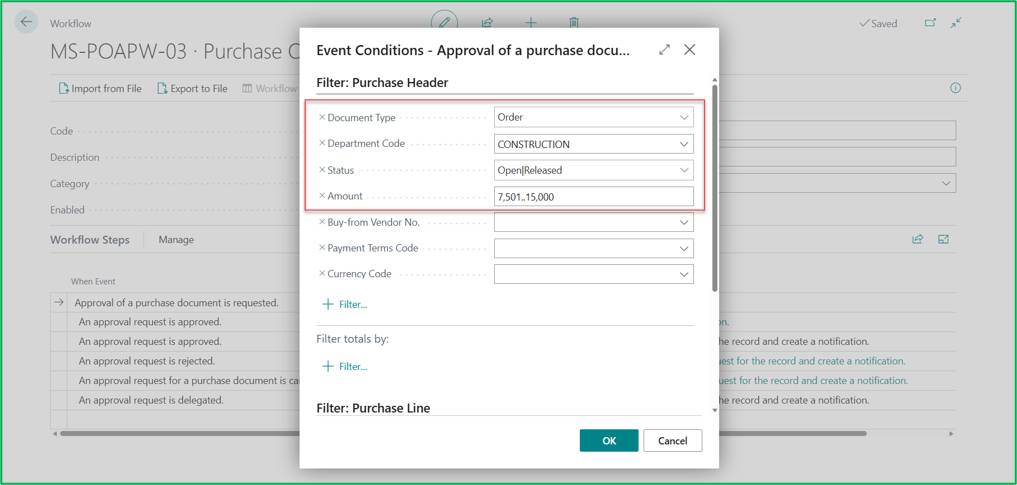
Level II Workflow.
The conditions: Department -> CONSTRUCTION and the Purchase Order Amount $7,500 to $15,000.
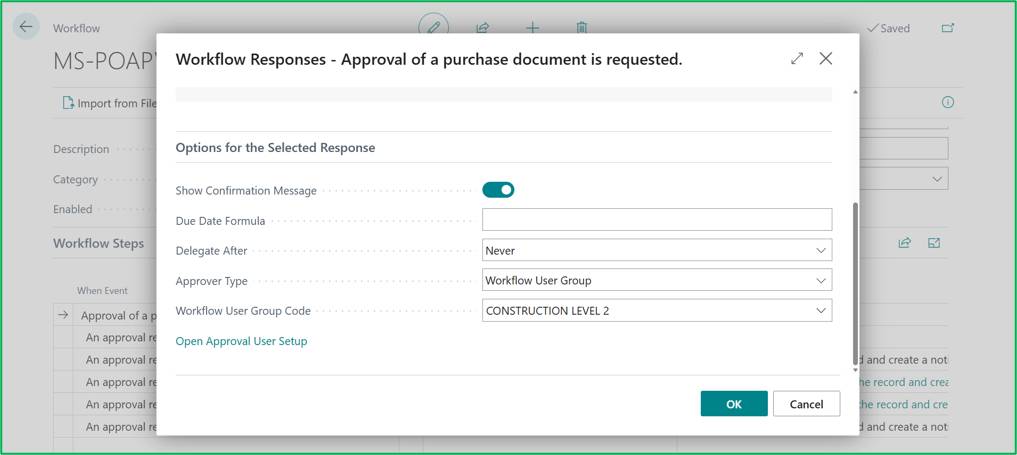
Create an approval request for the record using approver type Workflow User Group and workflow user group code CONSTRUCTION LEVEL 2.
Level III Workflow.
The conditions: Department -> CONSTRUCTION and the Purchase Order Amount > $15,000.
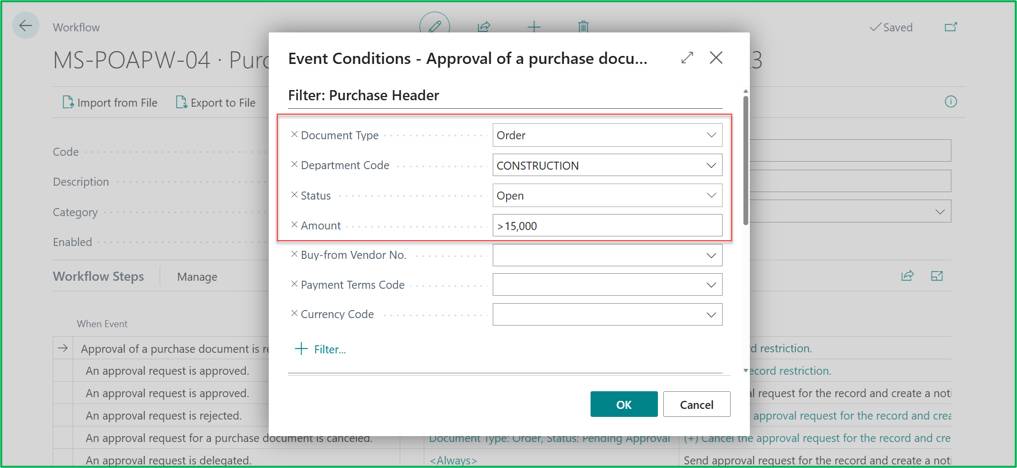
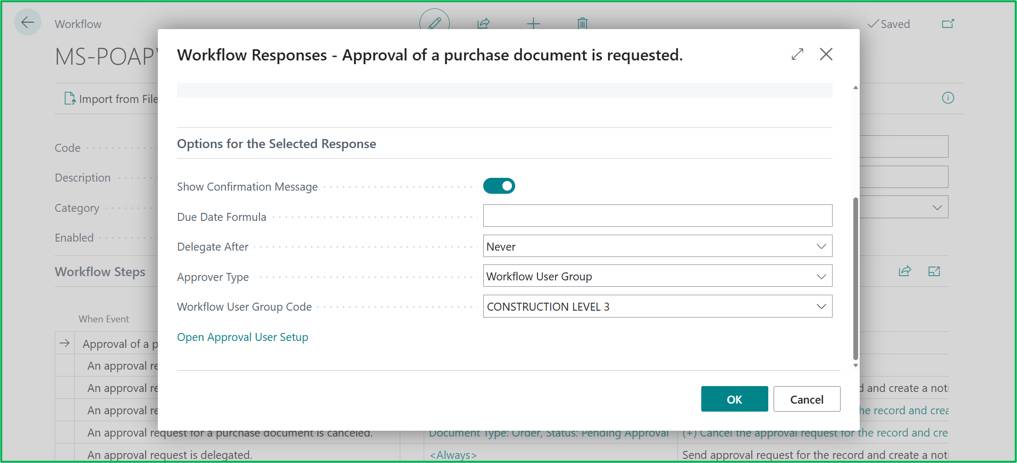
Create an approval request for the record using approver type Workflow User Group and workflow user group code CONSTRUCTION LEVEL 3.
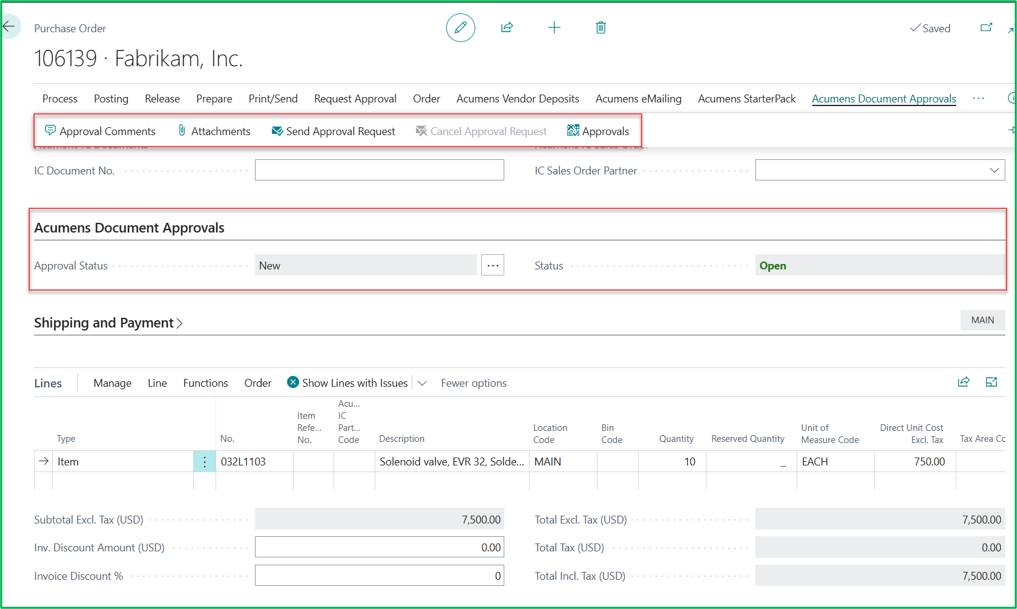
When a user creates a Purchase Order, the document status starts as Open with an Approval Status of New. The user attaches required documents or comments and clicks Send Approval Request.
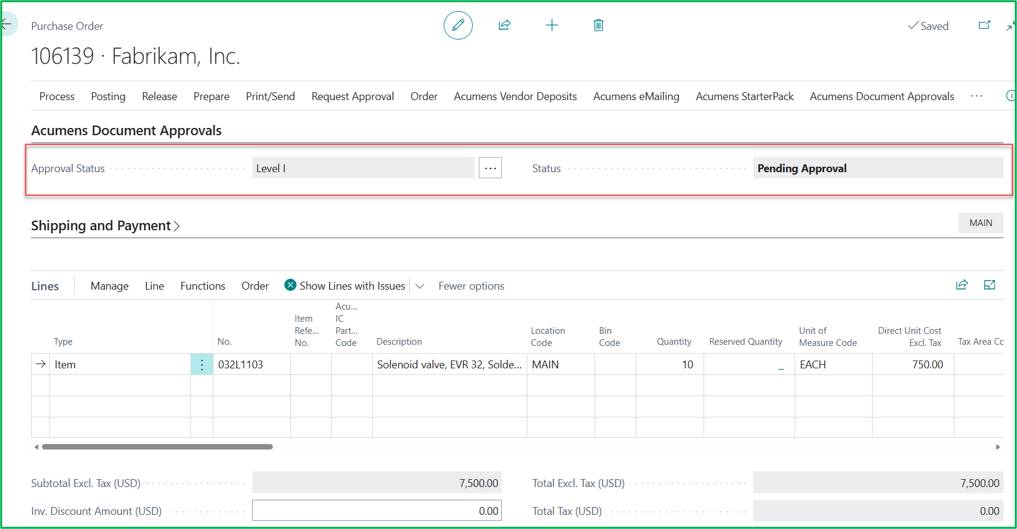
When the document is sent for approval, the status will change to Pending approval and the Approval Status will change to "Level 1". The next available approval level.
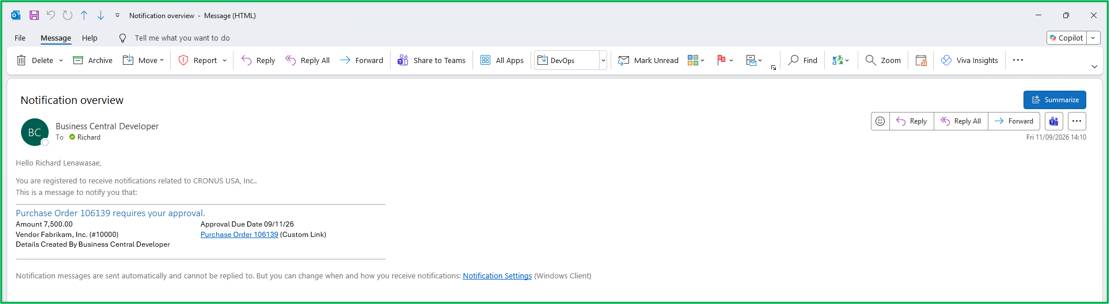
An automated notification is dispatched directly to the designated approver's inbox.
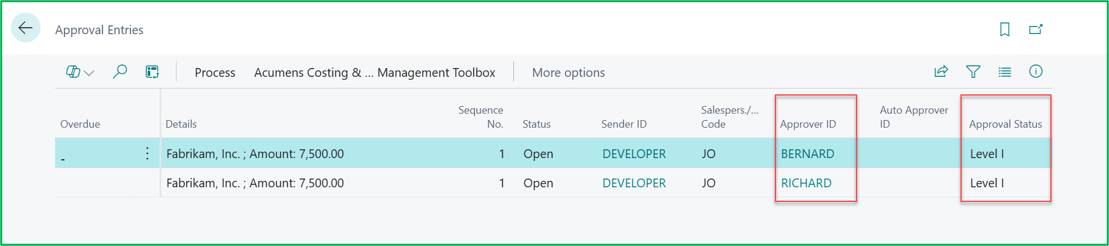
Approvers can monitor pending tasks from the Approval Entries page or their Requests to Approve screen. Here, they can review mandatory attachments and choose to Approve, Reject, or Delegate.
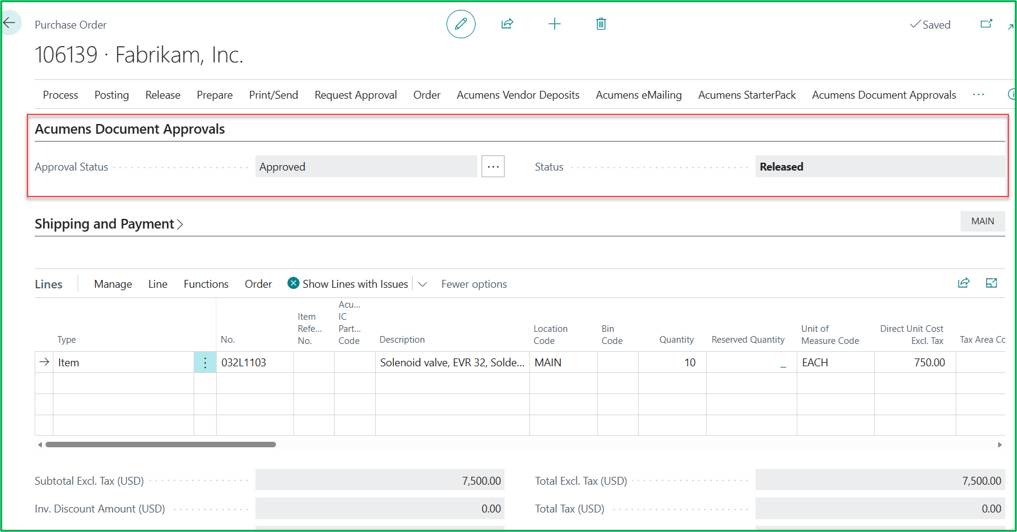
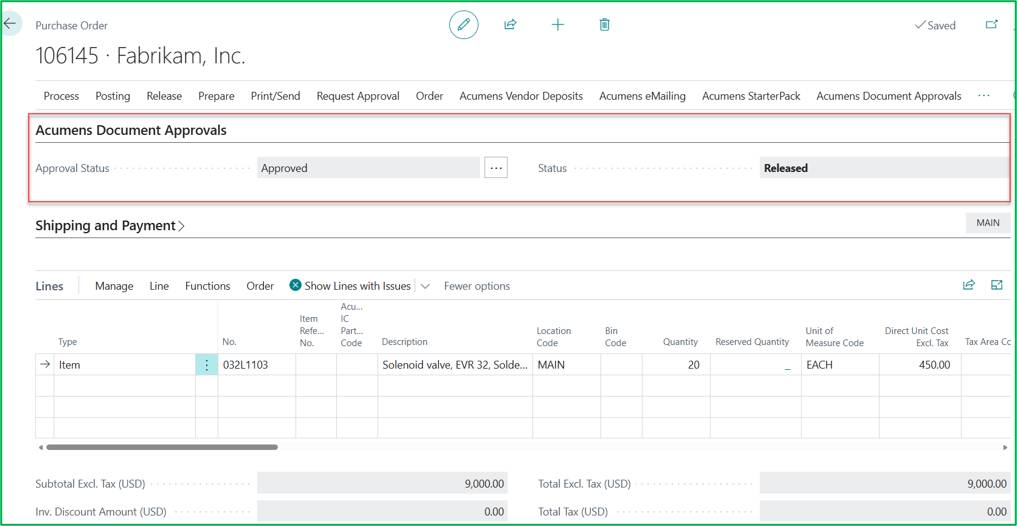
Once fully approved, the Purchase Order transitions to Released status with an Approval Status of Approved, and the originator is notified.

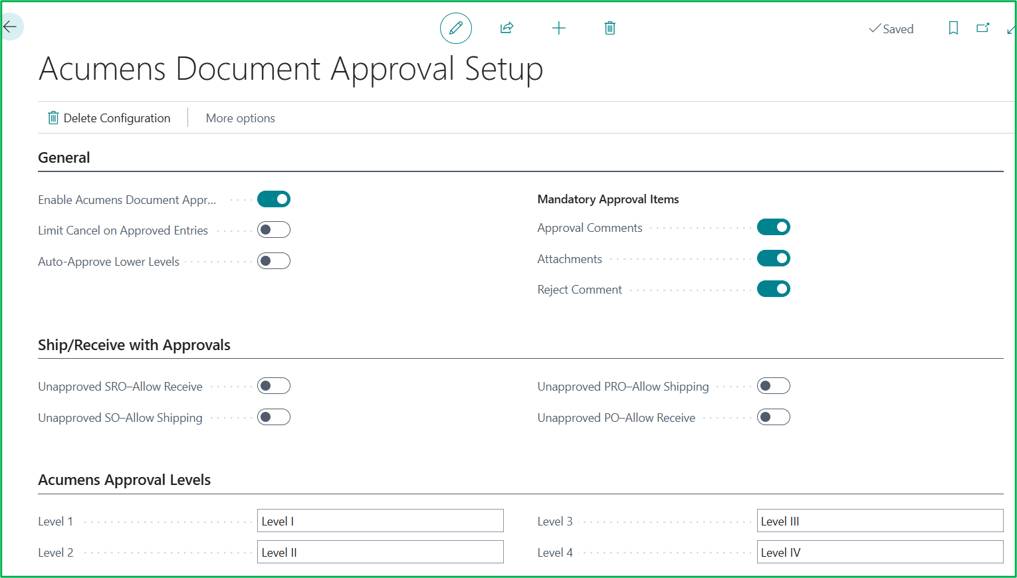
The functionality allows the users in the system to ship or receive goods in the warehouse before the approval process can be finalized in the system. This applies to;
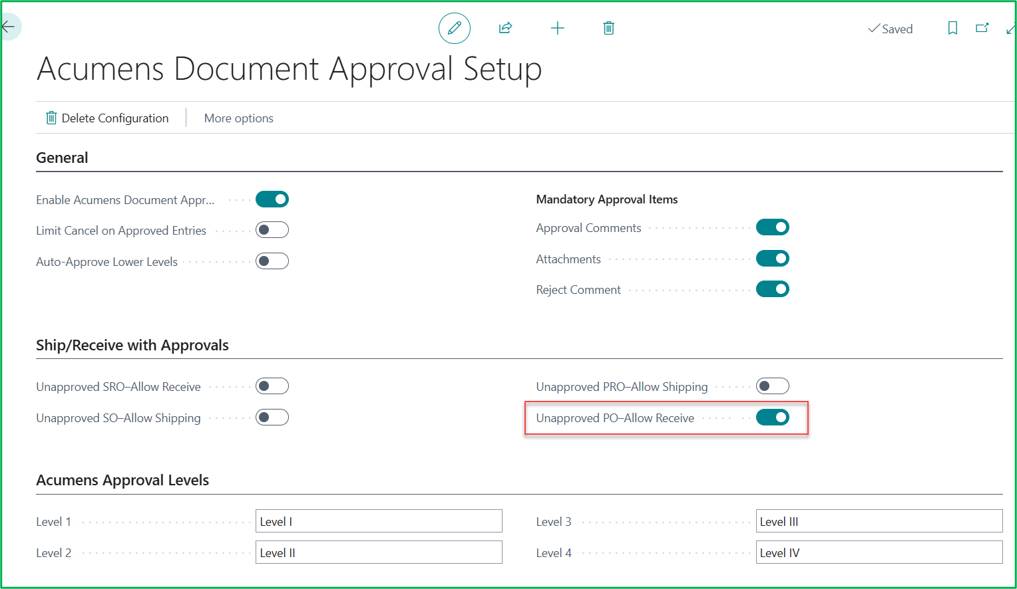
The functionality can be activated from the Document Approval Setup.
Before the setup is activated.
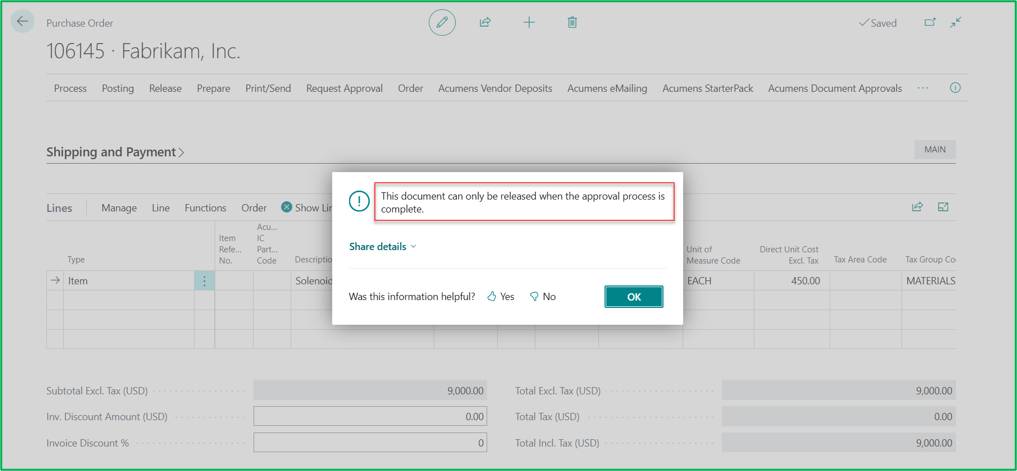
Without this setting enabled, attempting to post a receipt on an unapproved PO triggers a system validation error: "This document can only be released when the approval process is complete."
Create a New Purchase Order and Populate.
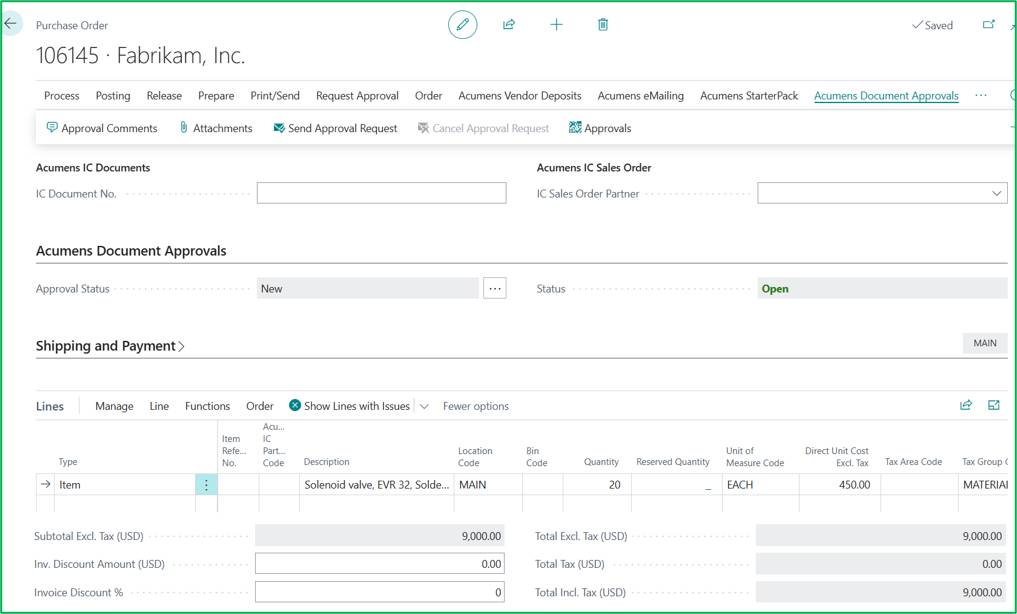
Release the document. The user will get an error. “This document can only be released when the approval process is complete”.
Enable the toggle Unapproved PO-Allow Receive in the main setup to activate the Workflow.
Release and approve the document.
You noticed that the record sits in Pending Approval under Level II status, matching the Construction Level II workflow condition for purchase amounts falling between $7,501 and $15,000.

After Approval the goods can now be received as shown below.
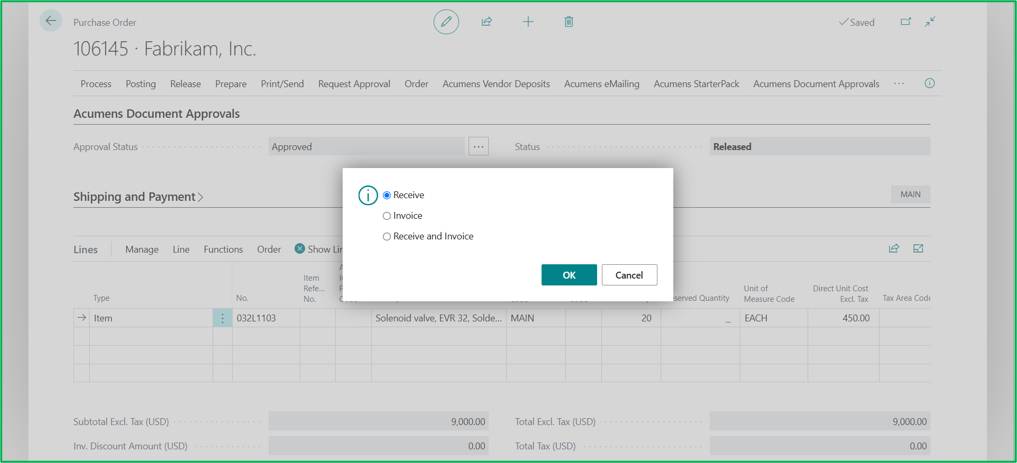
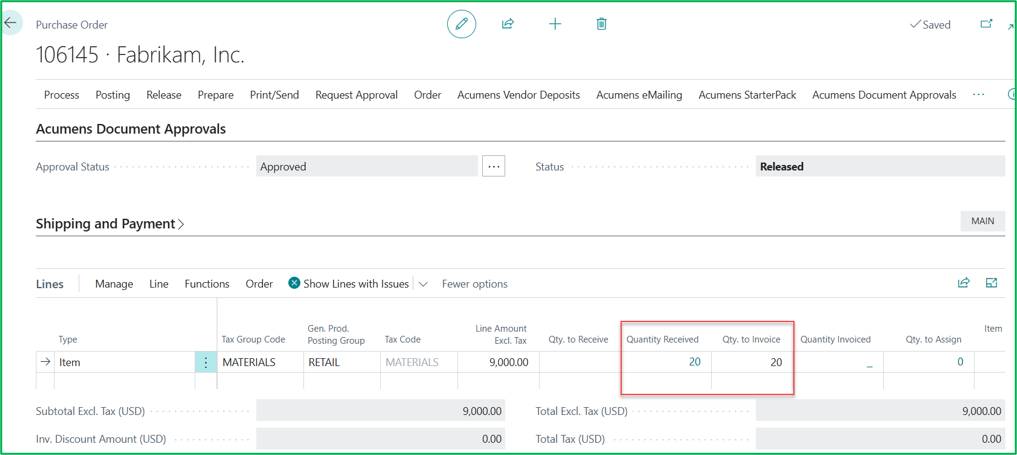
The Purchase Budget Check functionality ensures that purchase orders or Invoices are checked against the available G/L Budget before they can be released or posted.
When enabled, the following conditions must be met:
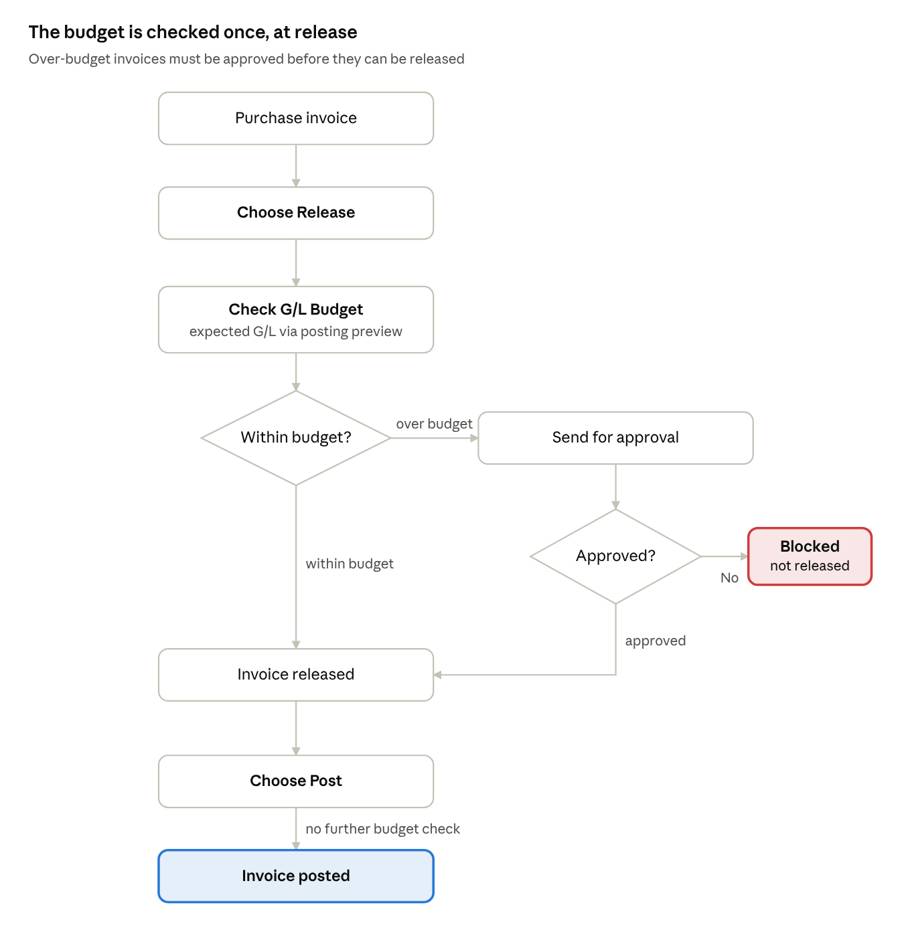
Budget check status
| Status | What it means |
| Not Checked | The invoice hasn't been checked yet, or it changed after the last check. |
| Within Budget | There's enough budget. No approval needed. |
| Approval Required | The invoice would go over budget. It needs approval before it can be released. |
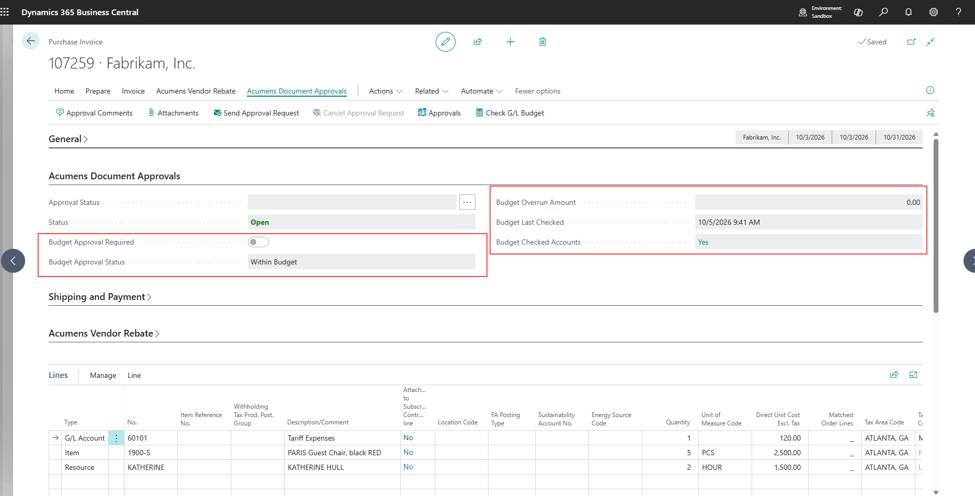
Budget fields on the invoice
| Field | What it shows |
| Budget Check Status | The result of the last check. |
| Budget Approval Required | Yes, if the invoice is over the budget. |
| Budget Overrun Amount | How much the invoice goes over budget. |
| Budget Last Checked | When the check was last run. |
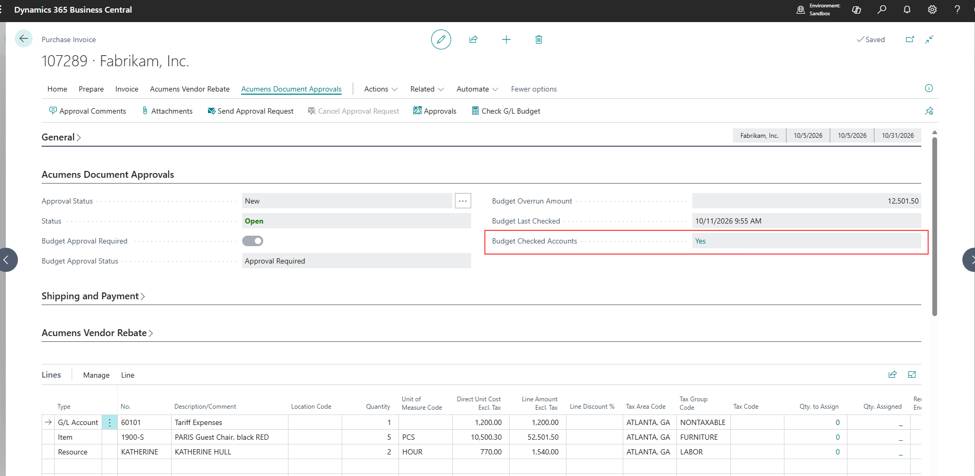
| Budget Checked accounts | Provides a drill down to see which accounts are budgeted and will be affected by the invoice. |
Set up the G/L Budget.
To create a new G/L budget:
Select global search and enter G/L Budgets and then choose the related link.
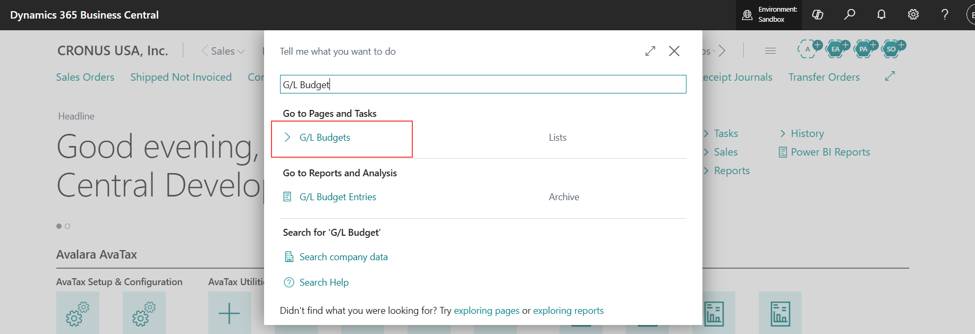
Create new or select existing budget.
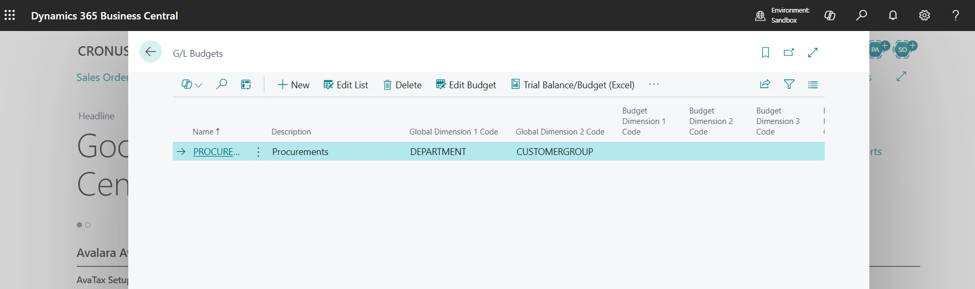
Click the Edit Budget action to open the card page and fill in the fields as necessary.
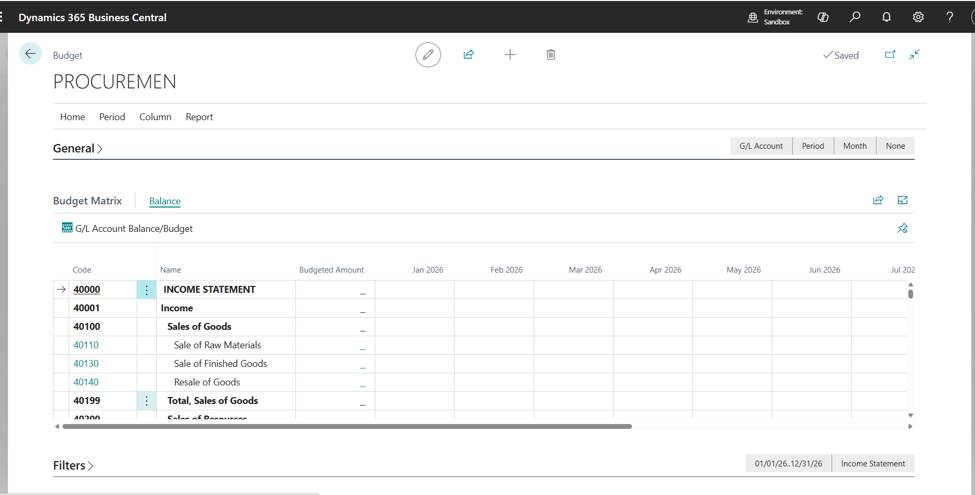
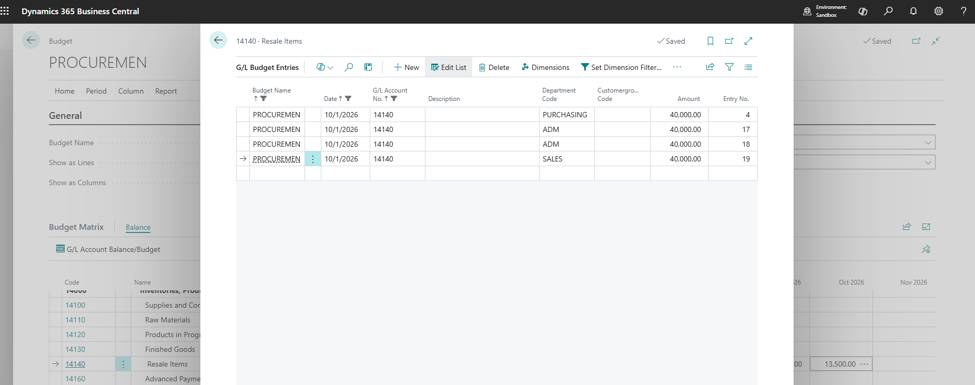
To enter an amount, choose and drill down on the relevant cell in the matrix.
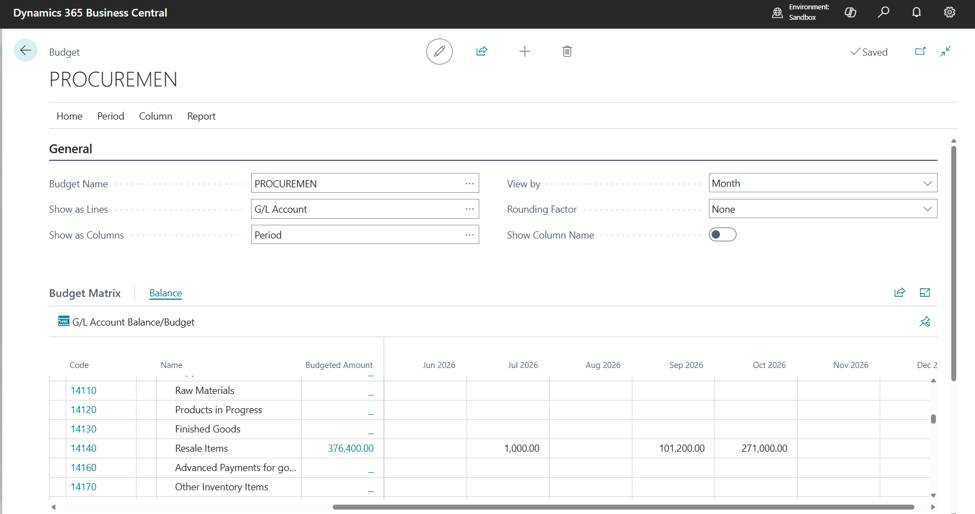
This opens the G/L Budget entries page. Enter the budget lines with the dimensions as required.
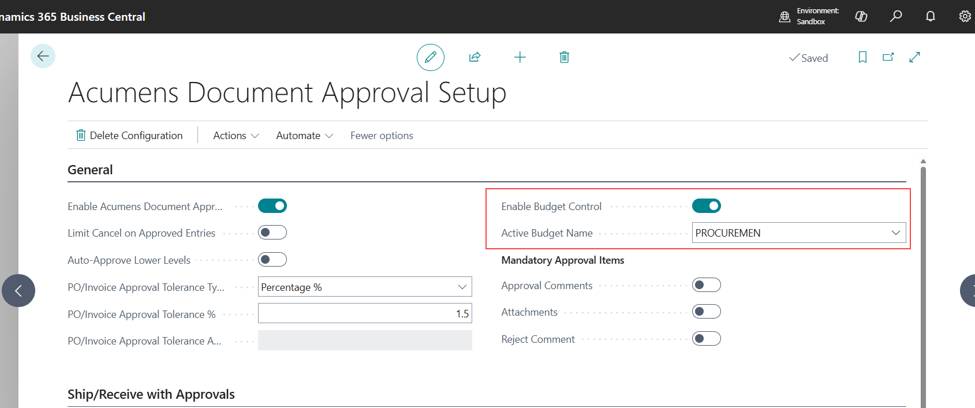
1. On Document Approvals setup, checkmark on “Enable Budget Control” and in "Active Budget Name" field, pick the G/L budget to check against. Choose a budget that isn't blocked.
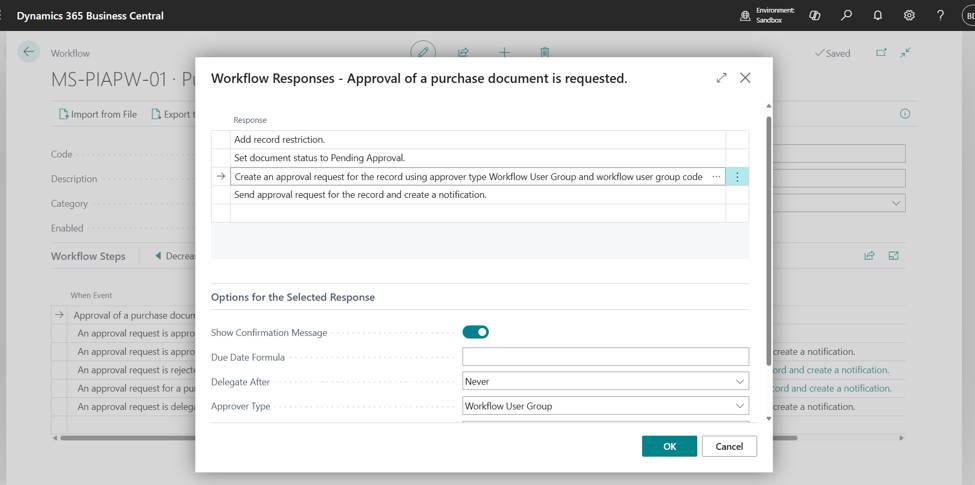
This uses the standard Business Central purchase approval workflow. Set it up with:
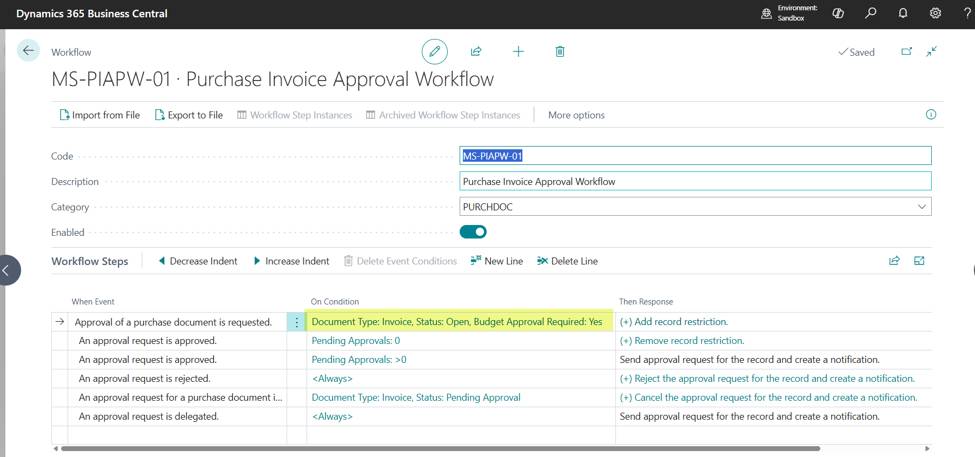
The workflow then sends the request to the approver (or chain of approvers) you set up, marks the invoice as Pending Approval, and lets it continue once it's approved. You can use one approver, several in sequence or in parallel, or amount-based levels, just as with any other BC approval.
Create a new purchase invoice and fill in the invoice as you normally would: vendor, posting date, document date, external document no., lines, G/L accounts or items, quantities, costs and dimensions.
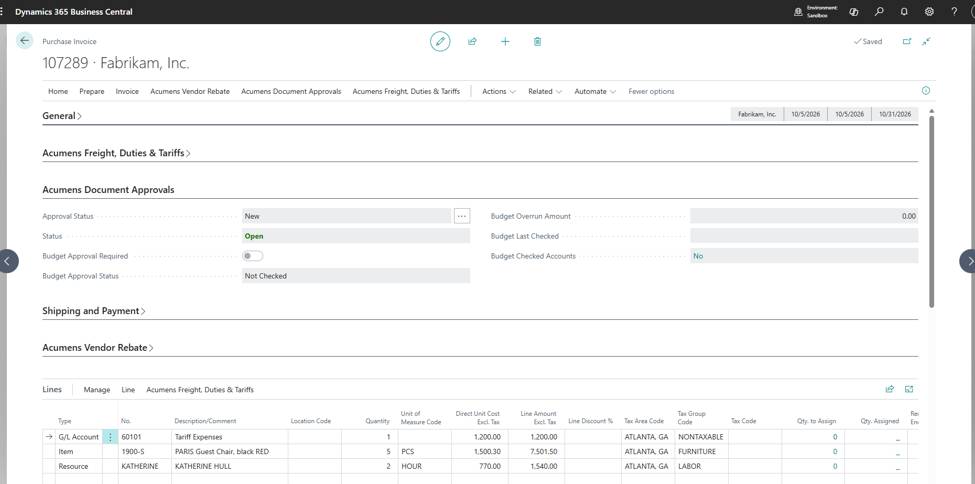
Run the budget check to confirm budget availability.
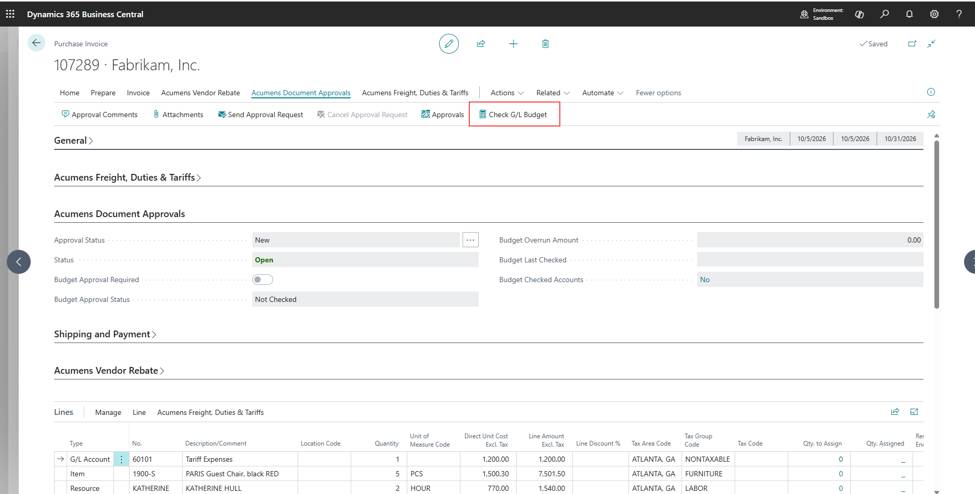
The budget can be checked manually or automatically via release action.
To manually check the budget:
Under Acumens Document Approvals, click on "Check G/L Budget" action.
The budget fields on the invoice are updated.
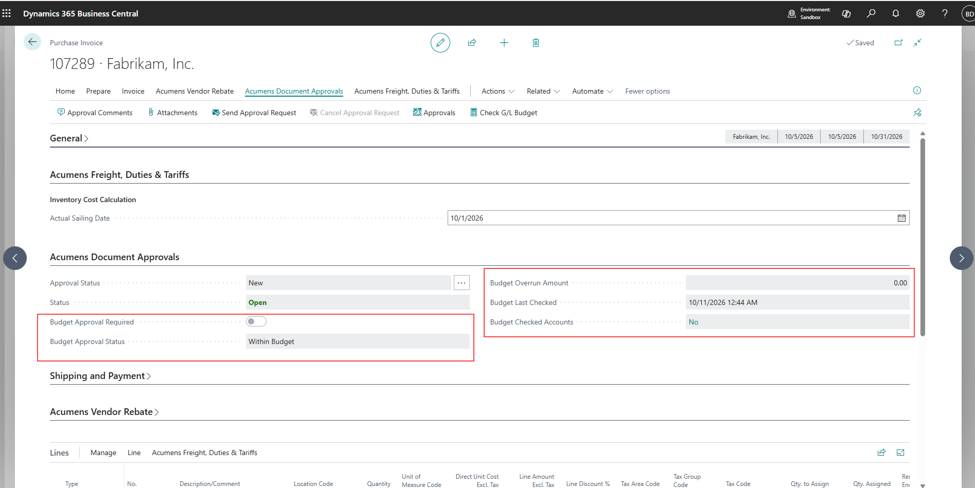
| Field | Within budget | Over budget |
| Budget Approval Status | Within Budget | Approval Required |
| Budget Approval Required | No | Yes |
| Budget Overrun Amount | 0.00 | The amount over, e.g. 5,000.00 |
| Budget Checked accounts | No | Yes. Drilldown will show all budgeted accounts checked by the invoice. |
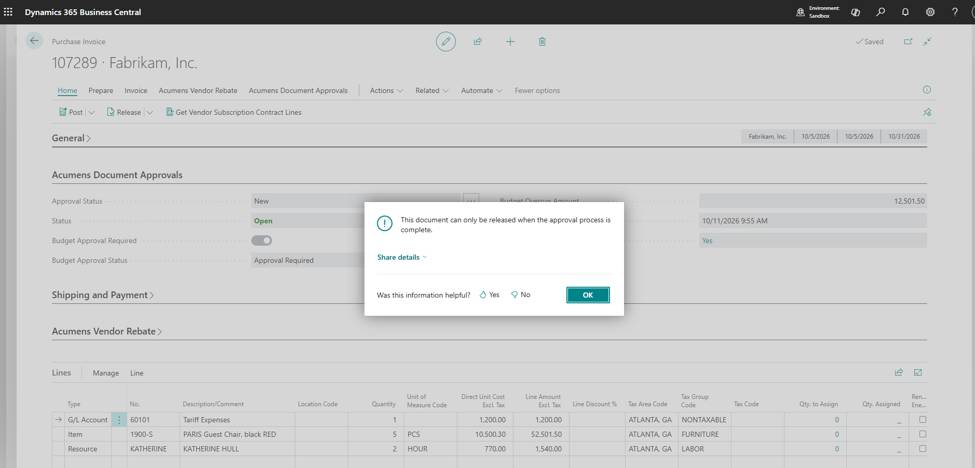
If purchase invoice exceeds any of the budgeted G/L account, Budget Approval Required field is set to true and the Invoice cannot be released or posted until it is approved.
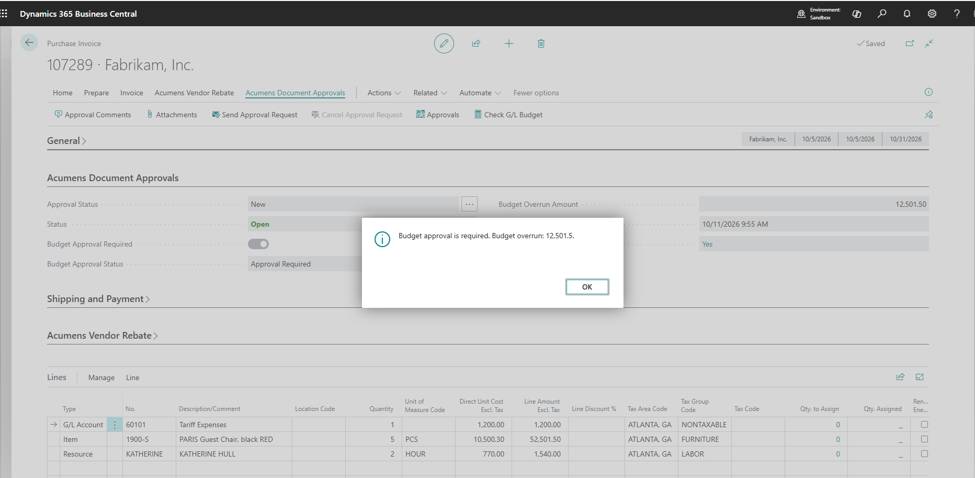
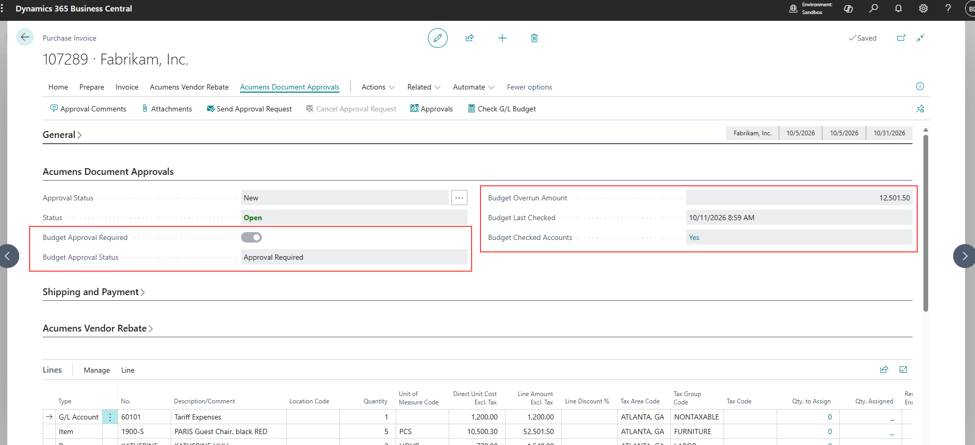
Drilldown on the Budget checked accounts to view the budgeted accounts and the amounts.

Invoice cannot be released or posted until it is approved.
Approve an over-budget invoice.
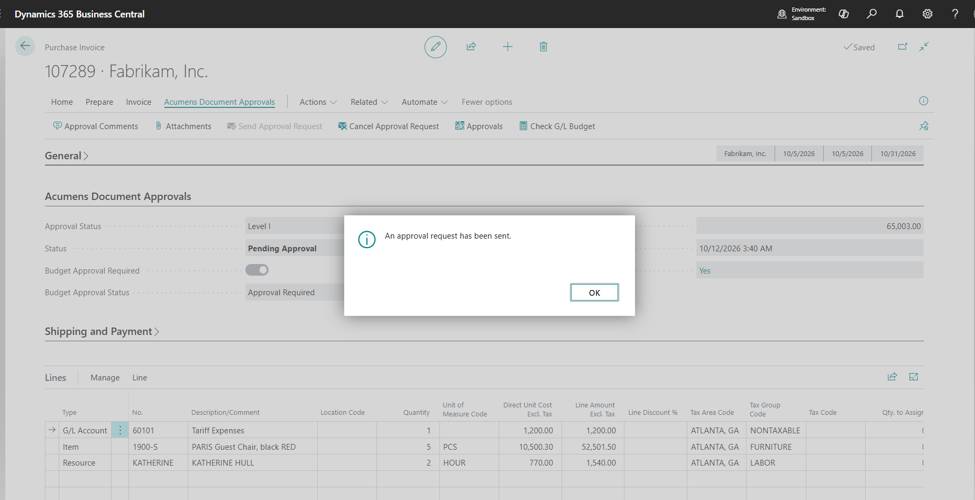
On the invoice, choose Send Approval Request.
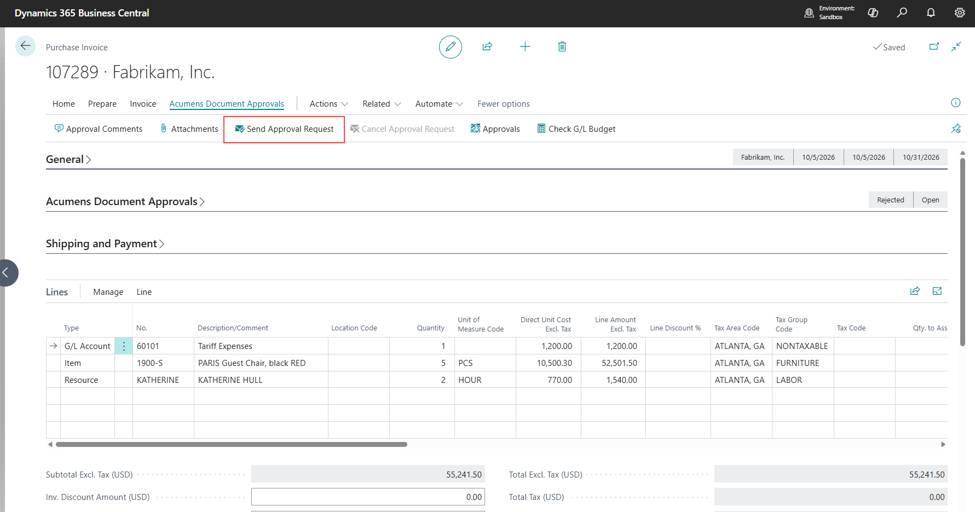
The invoice status changes to Pending Approval, and the request goes to the right approver(s) based on your workflow.
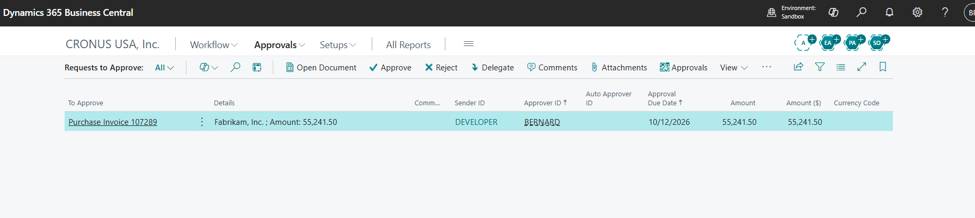
The approvers will approve from Requests to Approve page.
Once approved, the document can be posted.
Post purchase Document.
If the document has already been approved and released, no further budget check is done. The invoice posts as normal.
If the document is still open, Business Central will try to release the invoice first. the budget check runs as part of that release. If the invoice is within budget, it is released and can be posted. If it's over budget and then posting stops and document must be sent for approval.
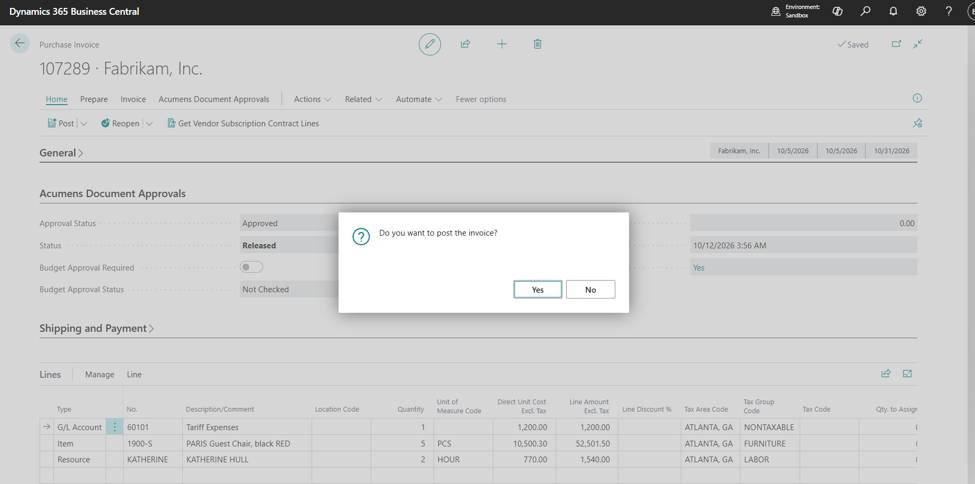
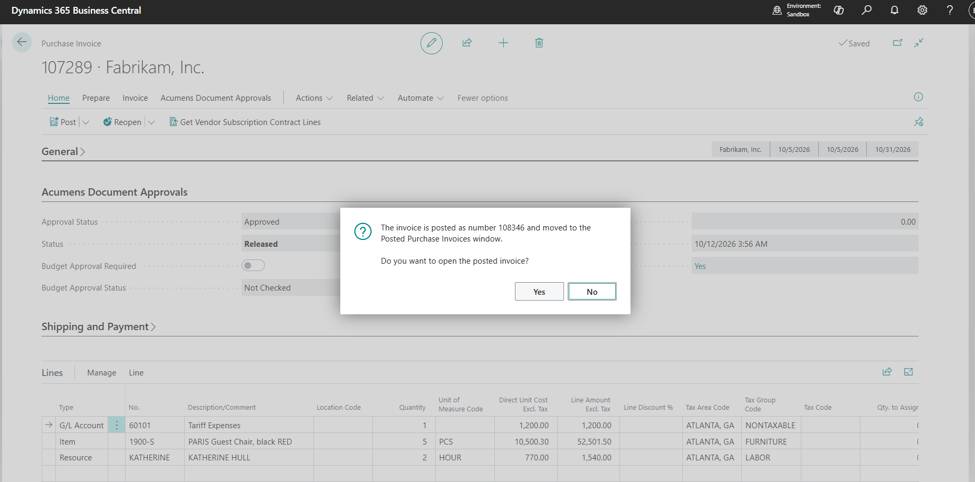
Example of the flow:
Both examples use the Office Expenses G/L account with a budget of 100,000.
| Example A: within budget | Example B: over budget | |
| Budget | 100,000 | 100,000 |
| Already spent (actuals) | 70,000 | 80,000 |
| This invoice | 20,000 | 25,000 |
| Total after this invoice | 90,000 | 105,000 |
| Left over / overrun | 10,000 left | 5,000 over |
| Budget Check Status | Within Budget | Approval Required |
| Budget Approval Required | No | Yes |
| Budget Overrun Amount | 0 | 5,000 |
| What happens | Release and post straight away | Send for approval, then release and post once approved |
This feature performs a unit cost and unit price check before an order is posted. If the sales line has a zero unit cost or there cost is higher than the sales price, the order must be sent for approval before the invoice can be posted.
A line needs approval if:
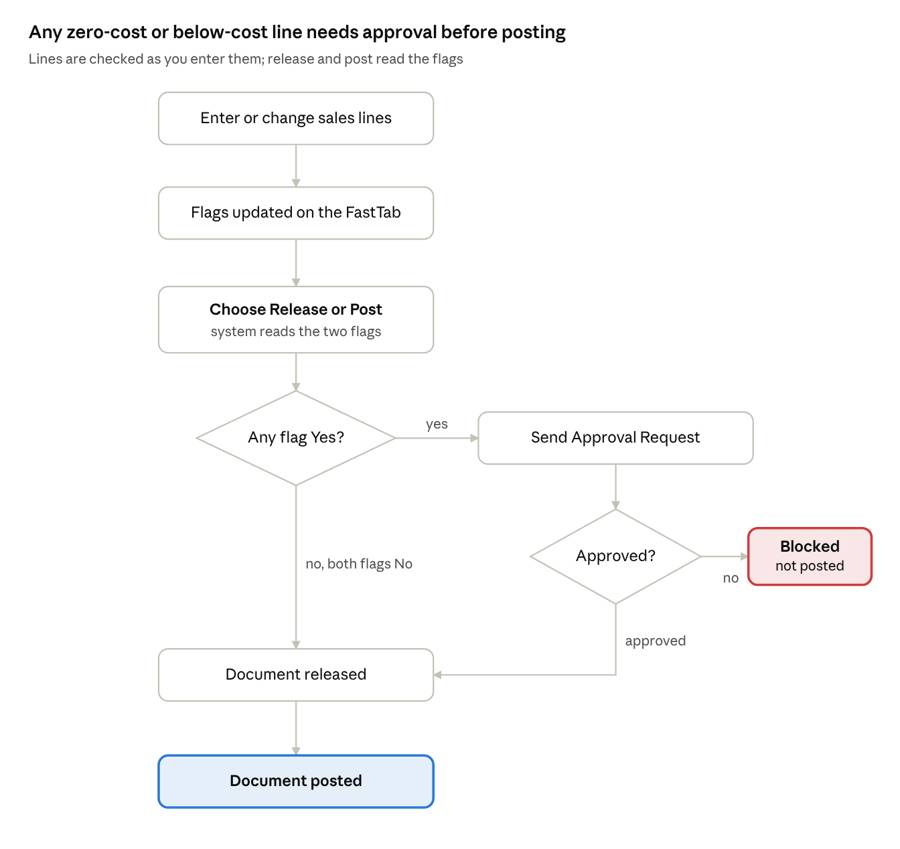
If the flags are No for both, then the document can be released and post without approval, otherwise it cannot be posted until the document has been approved.
Each time a line is added or changed, and unit price or unit cost validates, the system updates two flags on the document.
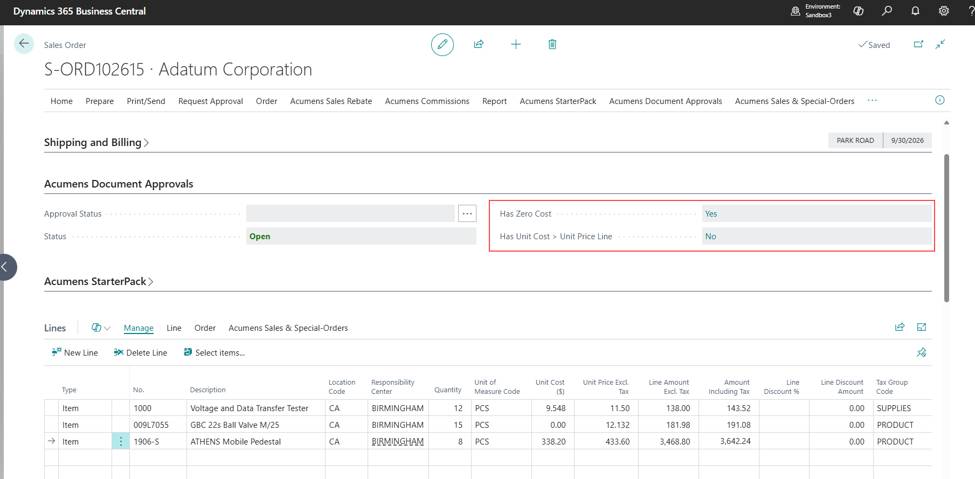
| Field | Shows Yes when |
| Has Zero Cost | At least one line has a Unit Cost of 0 |
| Has Unit Cost > Unit Price Line | At least one line has a Unit Cost higher than its Unit Price |
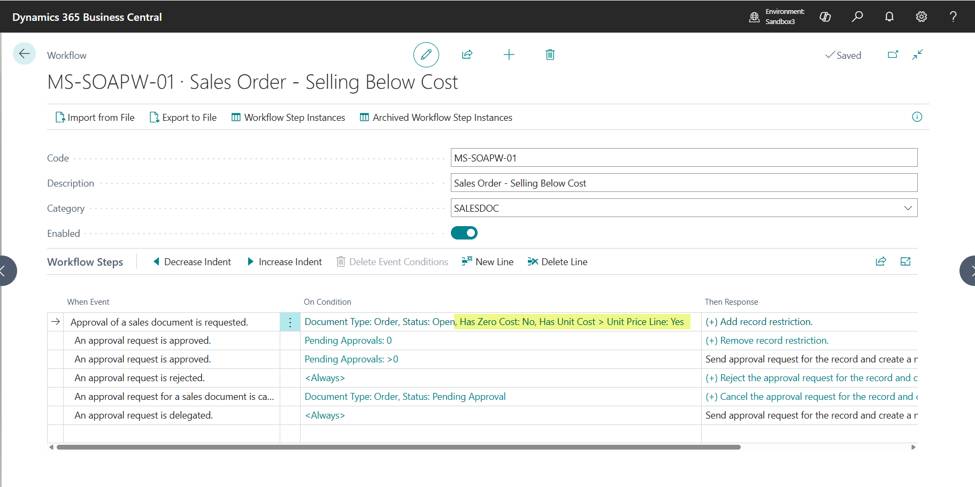
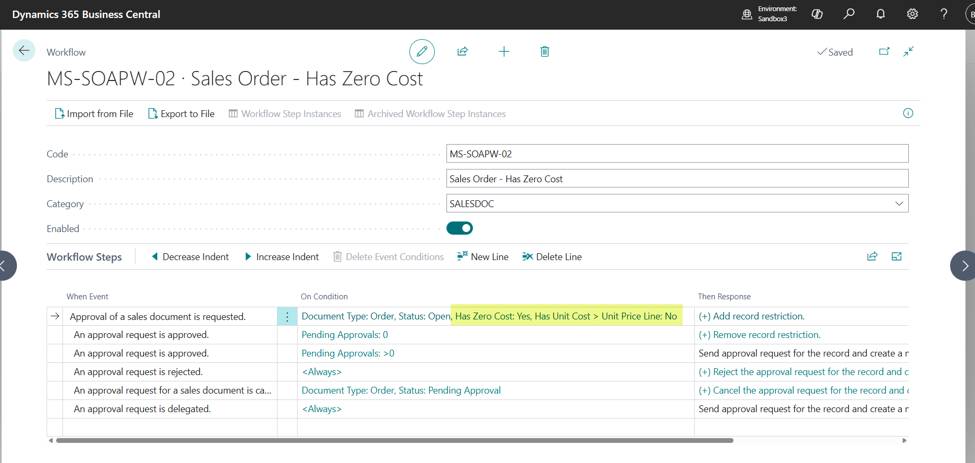
This feature uses the standard Business Central sales approval workflows. Because the two checks are stored as separate fields, each check can go through separate approvers. For example, a zero cost can go to the person who maintains item costs, and a below-cost sale to the sales manager.
Set up one workflow per approval type such as below.
| Approval type | Has Zero Cost | Has Unit Cost > Unit Price Line |
| Zero cost | Yes | No |
| Selling below cost | No | Yes |
| Both | Yes | Yes |
To setup and enable the workflow, Open Workflows and create three copies of the Sales Order Approval Workflow, one for each approval type above.
On the first step of each workflow (Approval of a sales document is requested), set the event conditions on Has Zero Cost and Has Unit Cost > Unit Price Line same as shown in the table.
- Has Unit Cost > Unit Price Line:
- Has Zero Cost:
- Has Unit Cost > Unit Price Line and has Zero Cost:
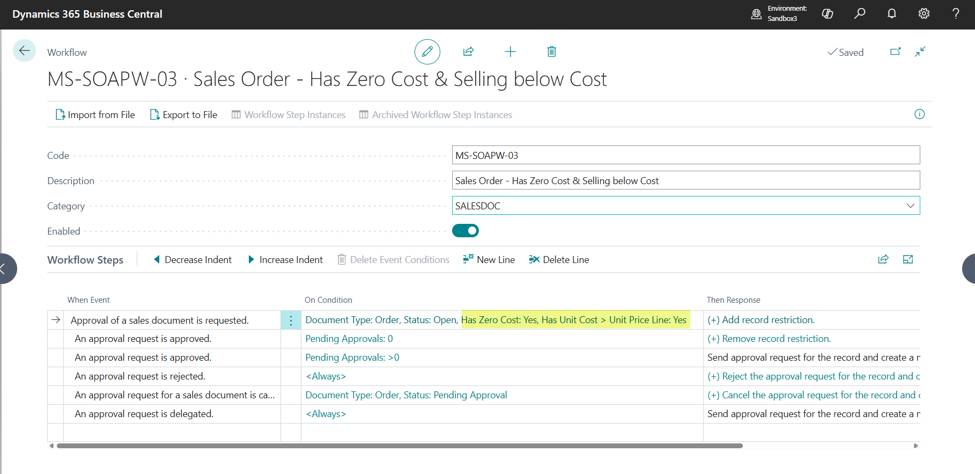
In each workflow's approval step, choose the approver (or approver chain) for that type.
Create the sales order or sales invoice as you normally would and add the lines. Has Zero Cost and Has Unit Cost > Unit Price Line will be refreshed as you update.
If any of the fields show yes, then the document cannot be posted or manually released.
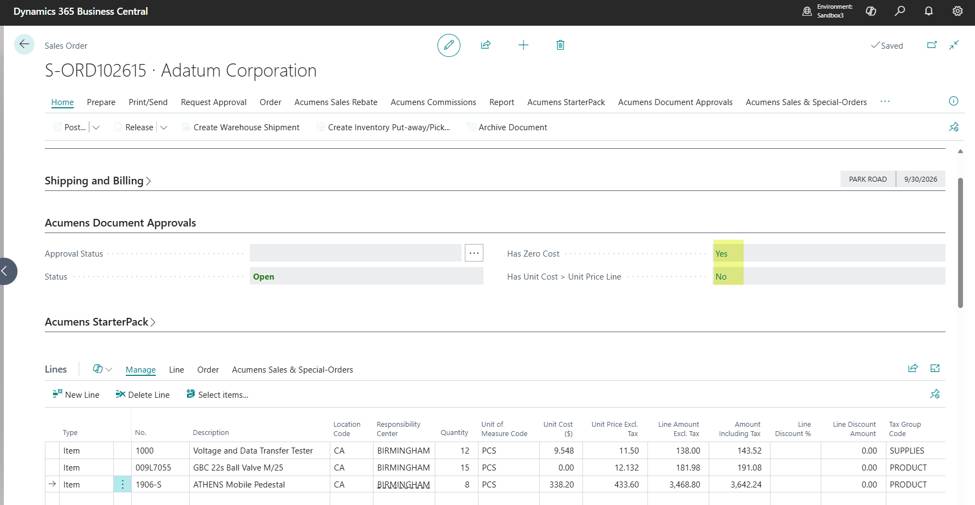
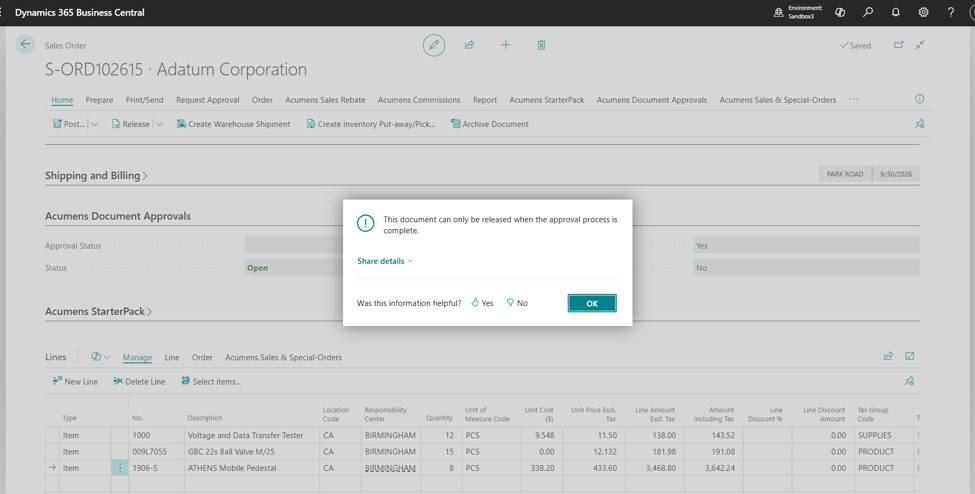
On the sales order or invoice, choose Acumens Document Approvals > Send Approval Request.
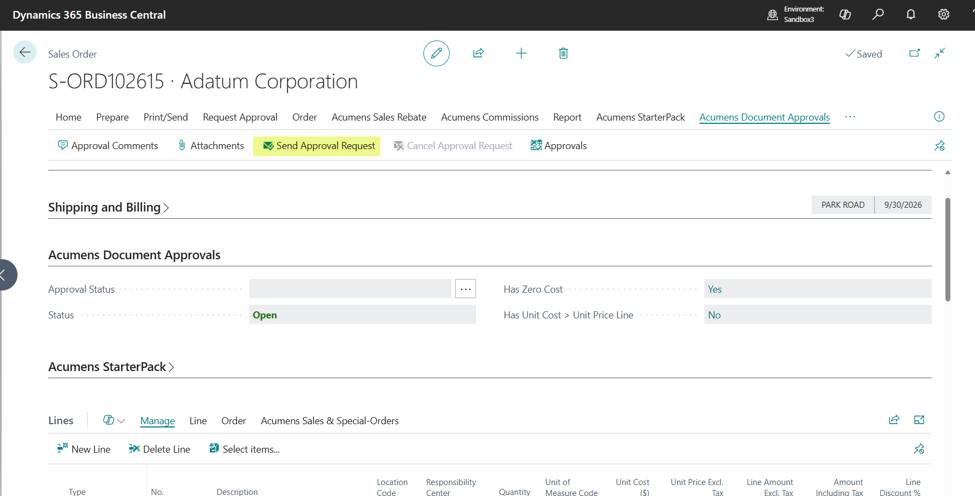
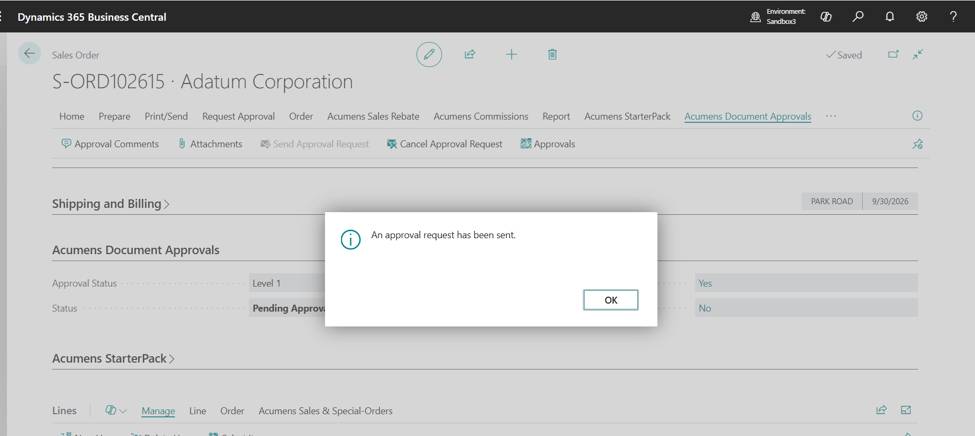
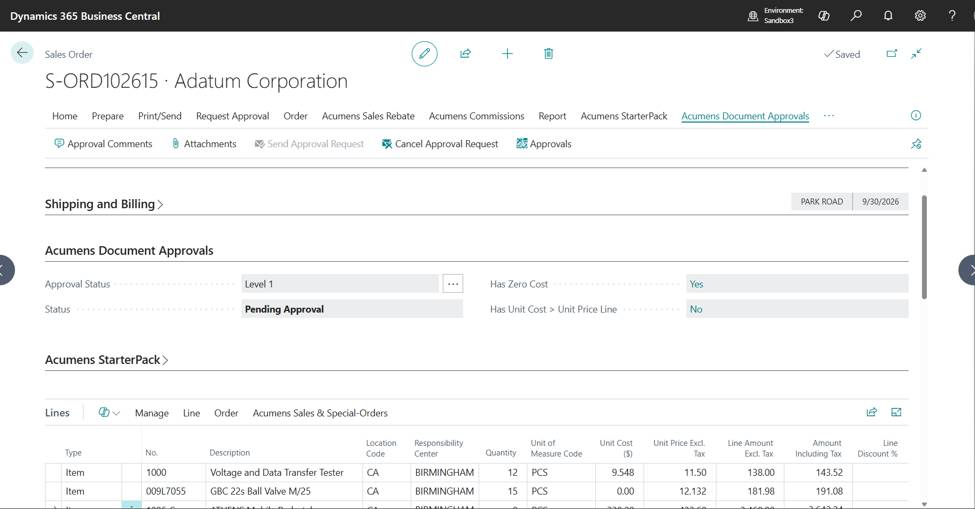
Approvers will approve from the requests to approve page.
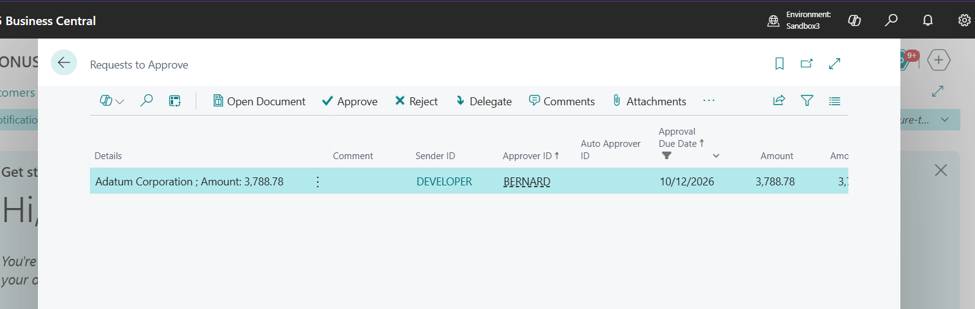
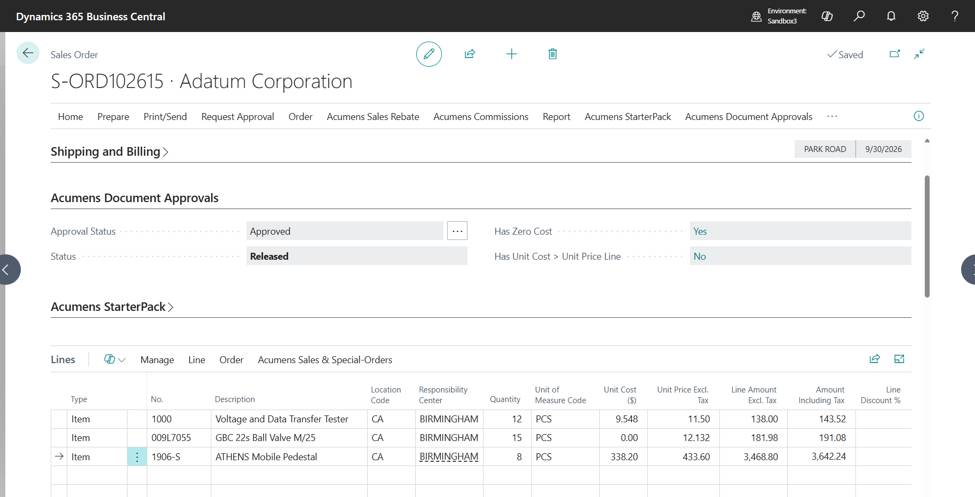
Once the document is approved and released, then it can be posted.
Vendors don't always invoice at exactly the price on the purchase order. This feature lets you update the prices on an approved, released purchase order to match the vendor's invoice, using the PO Vendor Price Adjustment action, if the difference is within the allowed variance. For Bigger differences user must reopen the document and update.
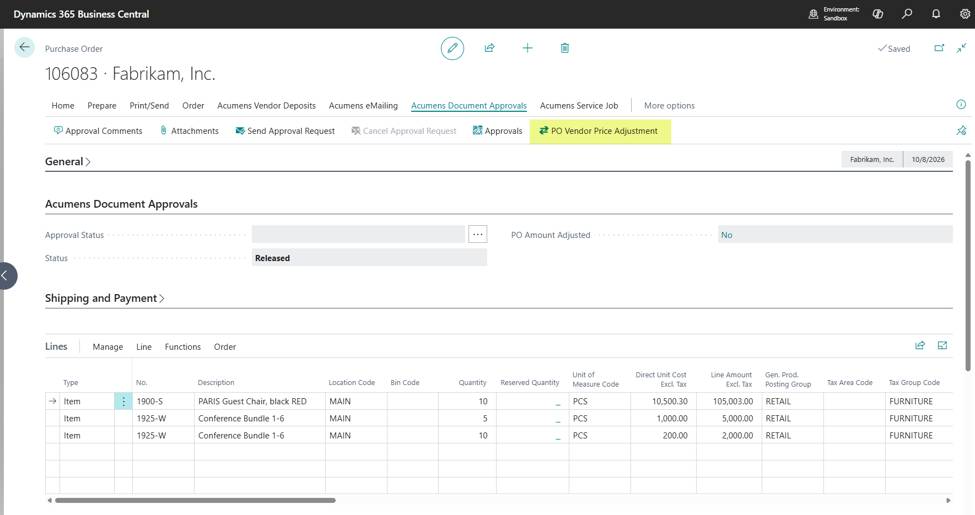
This allows updates as below:
When the vendor's invoice doesn't match the approved purchase order, you enter the vendor's prices and the system compares the new total with the approved amount. If within the tolerance, the new prices are applied and without reopening the document. If over the tolerance, the purchase order will need to be reopened.
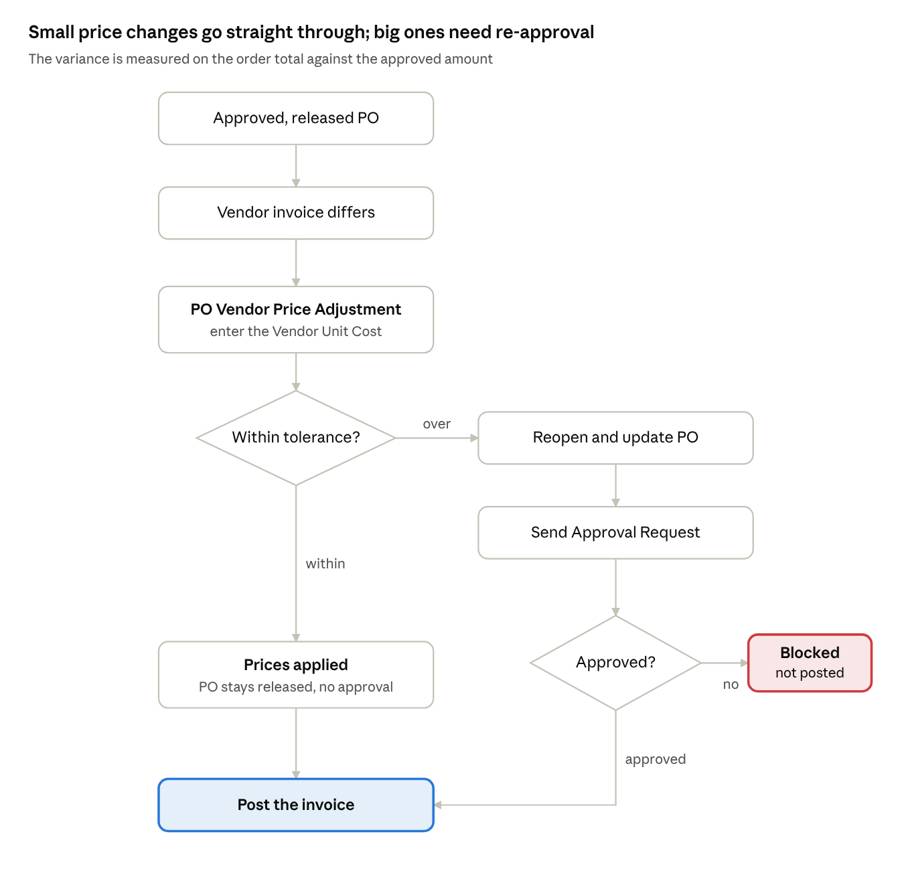
The tolerance is set up as either a percentage or a fixed amount.
To setup, open the setup page for Acumens Document Approvals setup. Choose how tolerance is calculated:
Enter the tolerance value.
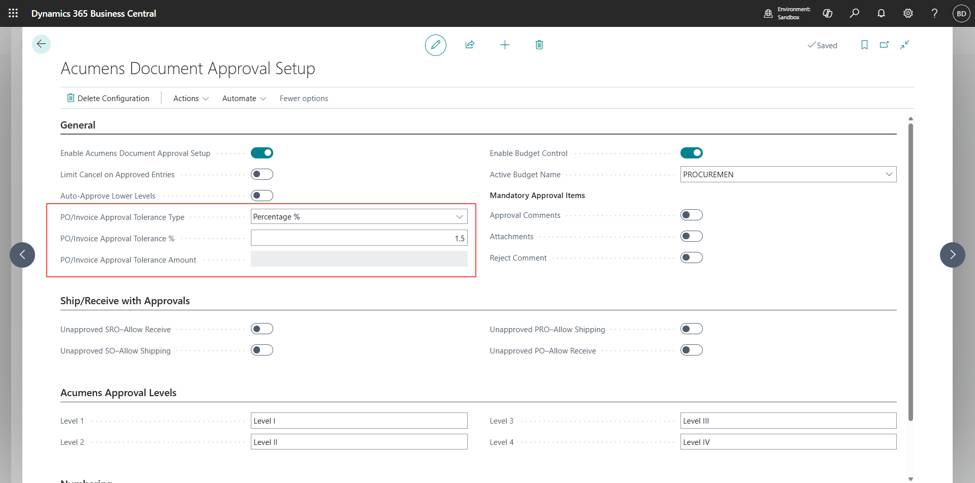
Updating prices from the vendor invoice.
Open the approved Purchase order and go to Acumens Document Approvals > PO Vendor Price Adjustment.
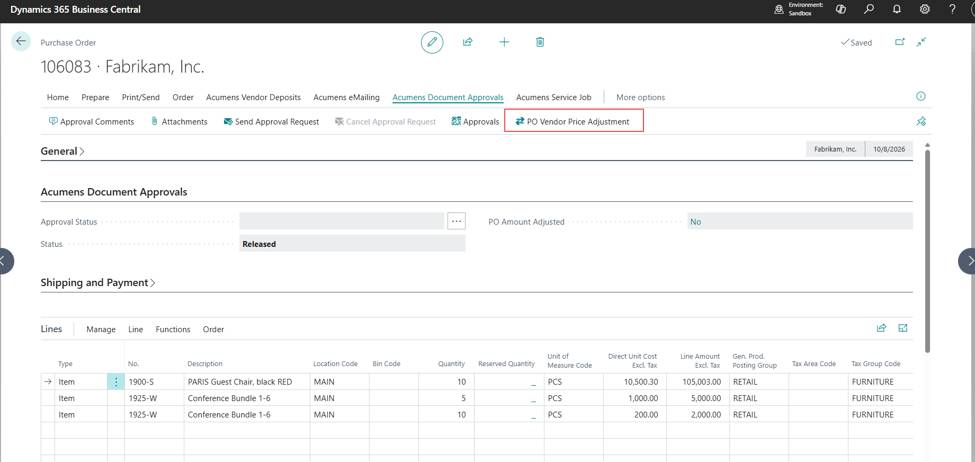
The PO Invoice Amount Adjustment page opens with one row per line. For each line where the vendor's price is different, enter it in Vendor Unit Cost. You can also enter the total for the line in Vendor Line Amount.
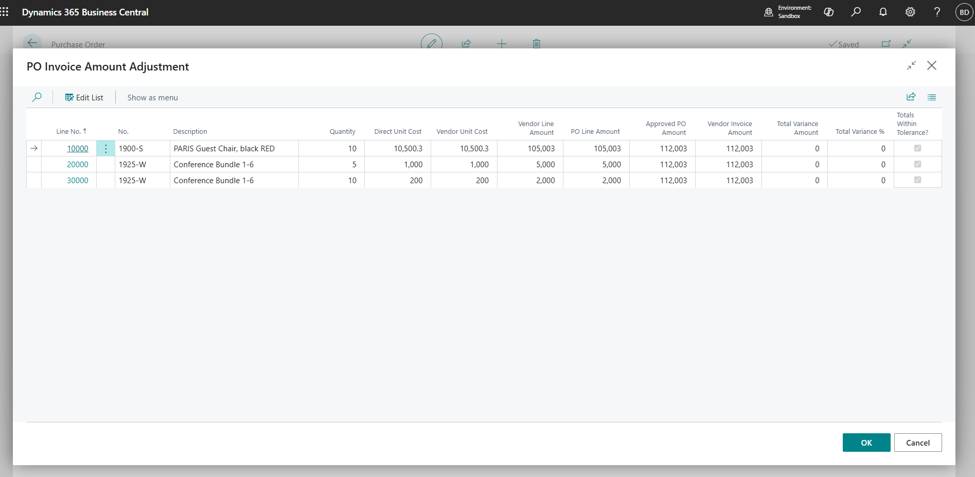
The totals on the right will update as you type:
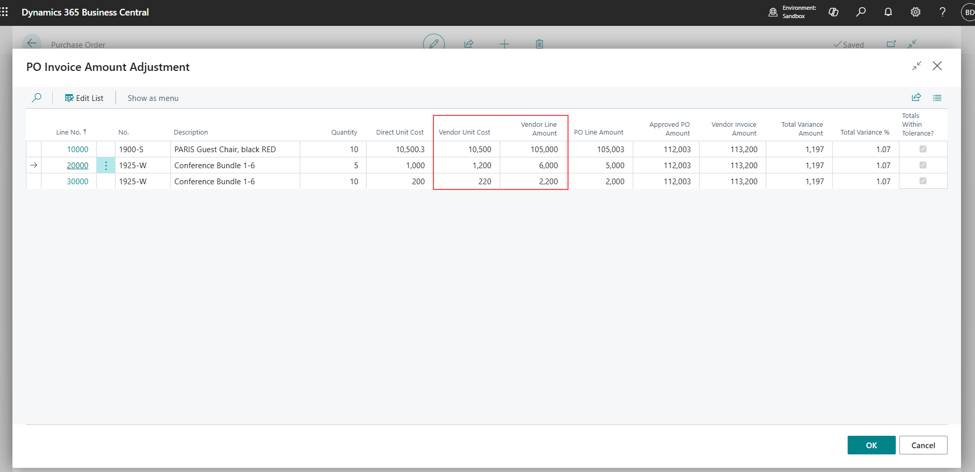
Choose OK to apply.
If the variance is within tolerance:
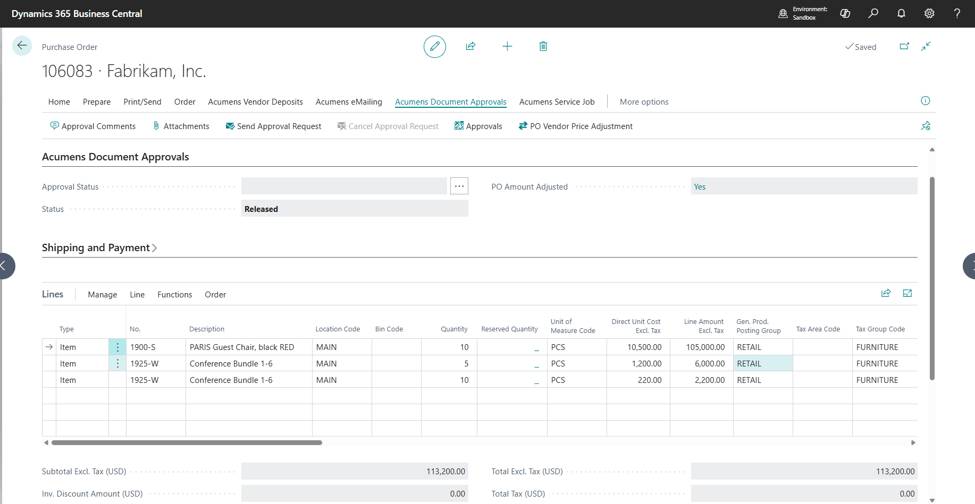
The new prices are copied to the purchase order lines and PO Amount Adjusted on the Acumens Document Approvals FastTab changes to Yes. The purchase order status stays Released.
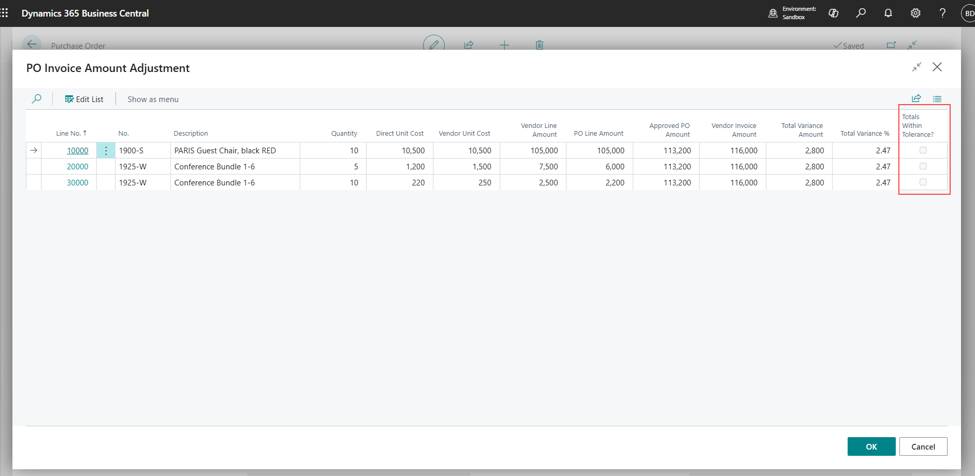
If the variance is over tolerance:
"Totals Within Tolerance?" field is not ticked, and the prices can't be applied this way. Choose Cancel to exit.
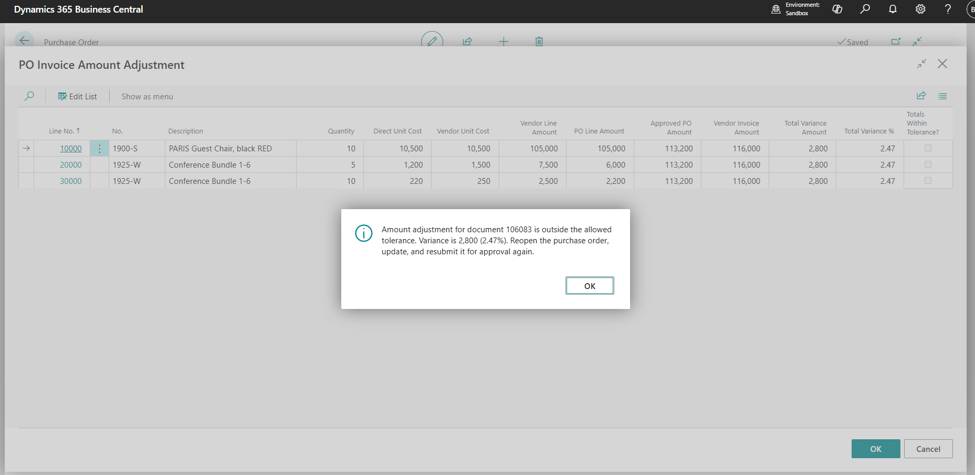
To update unit cost for this case, on the purchase order, choose Reopen. The status changes to Open.
Update the Direct Unit Cost on the lines to match the vendor's invoice.
Choose Acumens Document Approvals > Send Approval Request. The approval status changes to pending, and the request goes to the approver set up in the workflow.
PO Invoice Amount Adjustment log.
Drilldown on the “PO Amount Adjusted” field to view the log of lines that were adjusted.
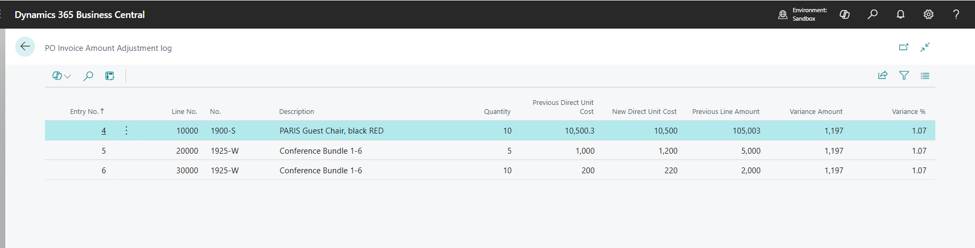
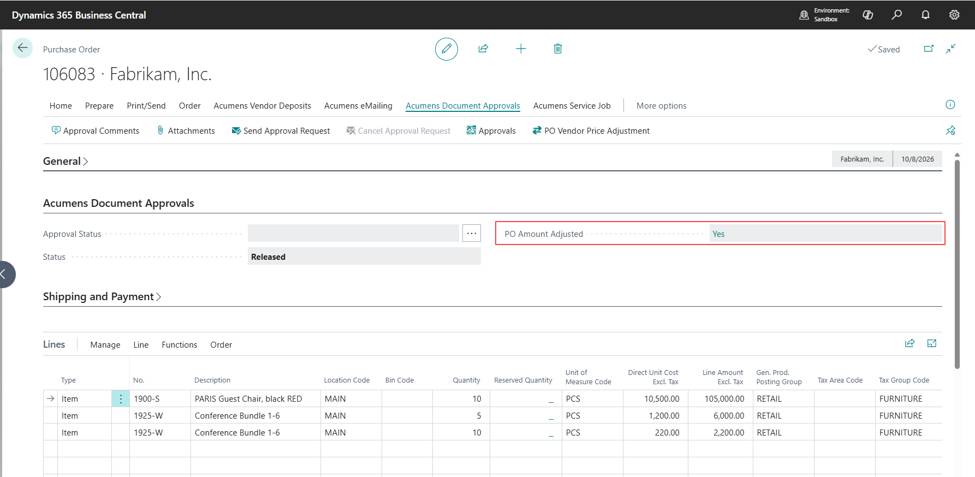
A dedicated dashboard showcasing the number of pending and approved purchase orders and other types of documents, offering insights into the procurement process.
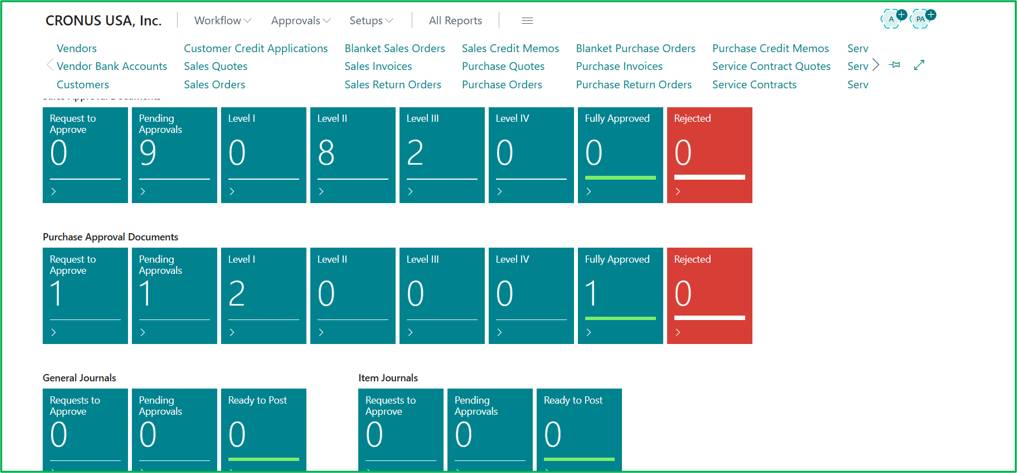
The Acumens Document Approvals Management extension transforms standard Microsoft Dynamics 365 Business Central workflows by offering multi-tiered approval levels, automated notification schedules and dynamic user assignment across departments. Therefore, by incorporating features like validation controls on unapproved transactions alongside important flexibilities such as allowing item receipt before final approval, organizations can maintain rigorous compliance without causing operational bottlenecks in the warehouse.