
Costing mistakes in production can snowball fast — one wrong unit cost can distort value entries, inflate variances, and ripple through multiple production orders. If you’ve ever dealt with a raw material cost accidentally set to the wrong value, you know how painful the cleanup can be.
In this blog, we’ll walk through a real scenario from Microsoft Dynamics 365 Business Central, show how the error affected two production orders, and demonstrate how the Acumens Costing & Inventory Management Toolbox corrects the issue cleanly and automatically.
The Scenario: A Raw Material Cost Goes Wrong
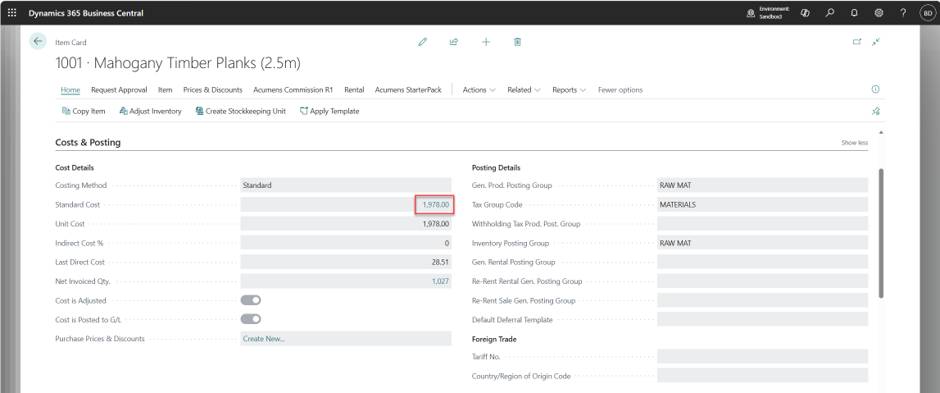
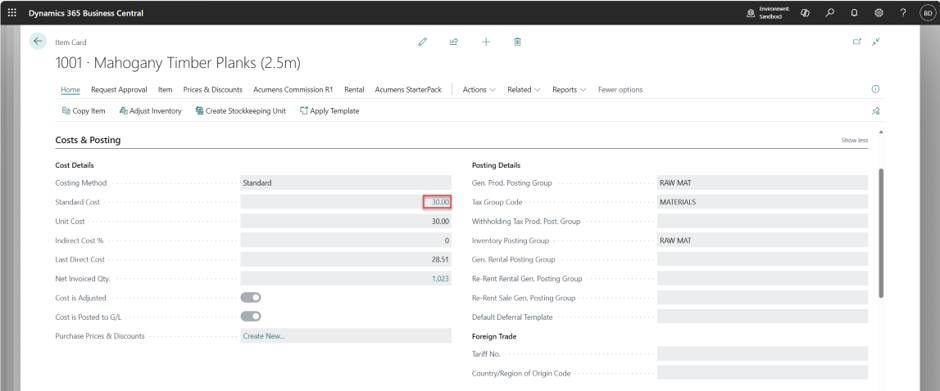
Our story begins with Item 1001, a production item whose correct Standard Cost is $30. This item is used as a component in the production of Item 1008.
But then an error slipped in, there was an erroneous update its Standard cost to $1978, and a Production Order 101017 was posted for it.
That incorrect cost didn’t just affect one order — it cascaded into the next.
Production Order 101017: The First Impact
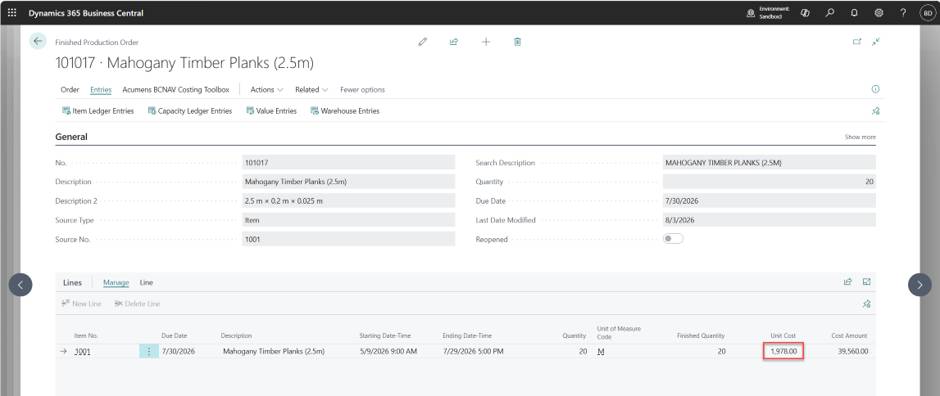
With the wrong cost in place, Production Order 101017 posted Item 1001 at $1,978 per unit instead of $30.
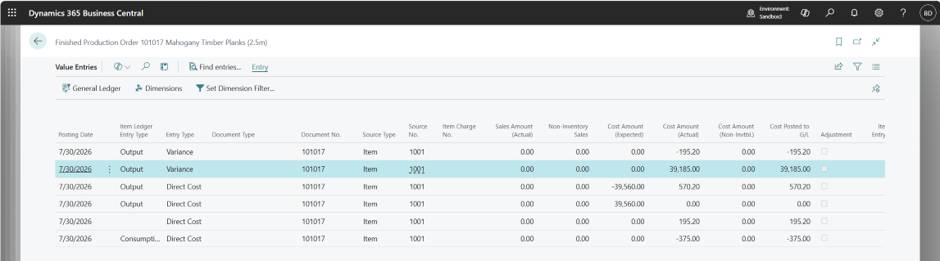
Value Entries
The system recorded a material variance of $39,185 — a massive difference
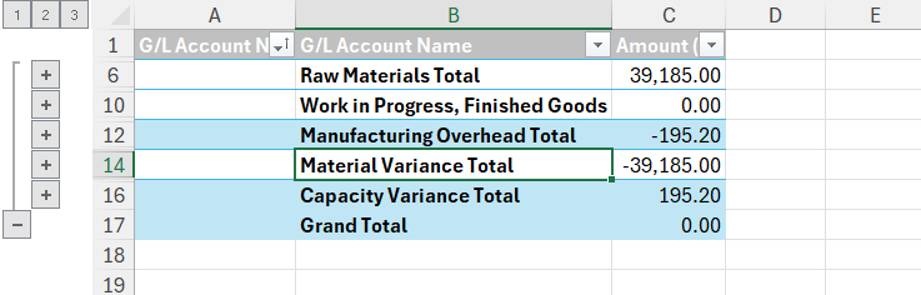
Net G/L Postings
Financials showed a large variance amount, making the order appear wildly unprofitable.
This is the kind of error that can distort costing reports, margin analysis, and inventory valuation.
Production Order 101018: The Error Spreads Downstream
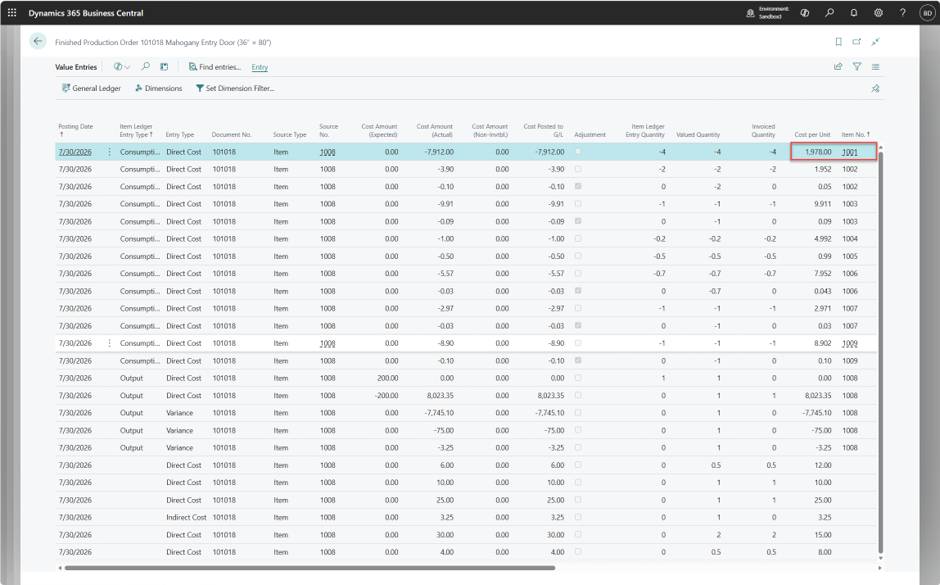
Item 1008 consumes Item 1001 as a BOM component. Because Item 1001 was already posted at the wrong cost, the next production order inherited the problem.
Consumption Entries
Item 1008 consumed Item 1001 at $1,978 per unit.
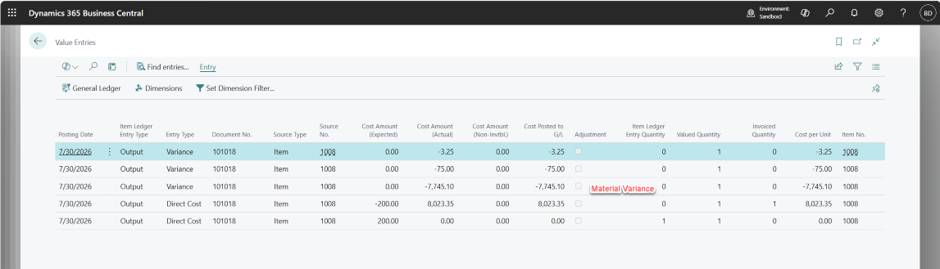
Output Variance
The incorrect cost caused Item 1008 to post another material variance of $7,745.
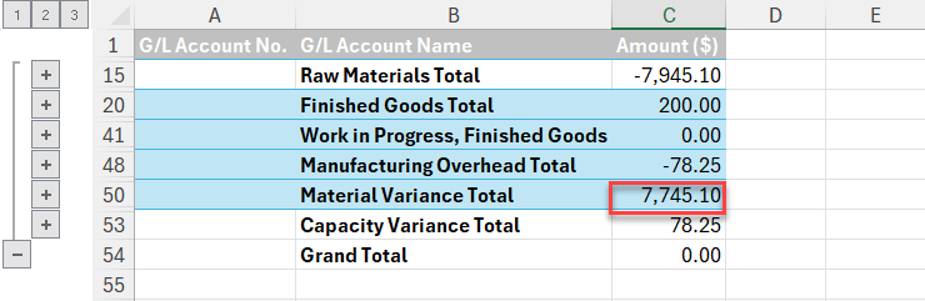
Net G/L Postings
Again, the variance was huge — and completely inaccurate.
This is the classic rollup effect: one wrong cost inflates everything downstream.
The Fix: Correct Raw Material Unit Cost Issues
This is where the Acumens Costing & Inventory Management Toolbox comes in.
"The feature reverses all value entries posted and posts the correct ones with the correct cost…"
The toolbox includes a powerful function called Correct Unit Cost Issues, designed specifically to fix erroneous production postings.
What the tool does
This means you don’t have to manually adjust entries or create messy workarounds — the system handles the correction end to end.
Correcting Production Order 101017
With Item 1001 restored to its correct standard cost of $30, we run the correction.
Action
Use the Correct Unit Cost Issues page action.
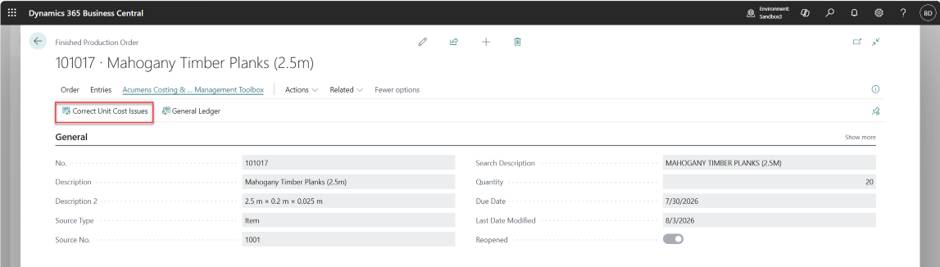
Result
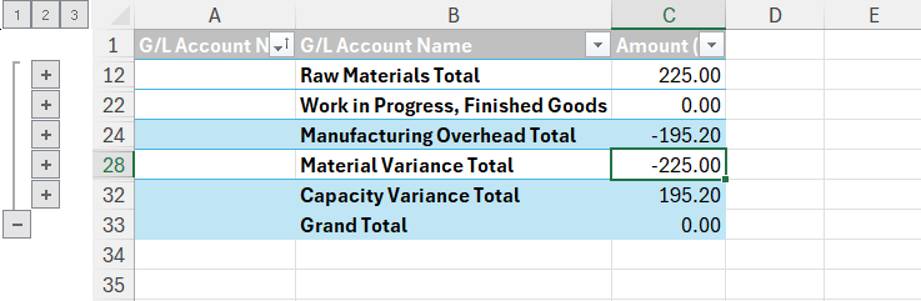
The system reverses the bad entries and reposts accurate ones.
The new Net G/L postings show:
Net Variance = –$29.80
A normal, expected variance — not the $39k we saw earlier.
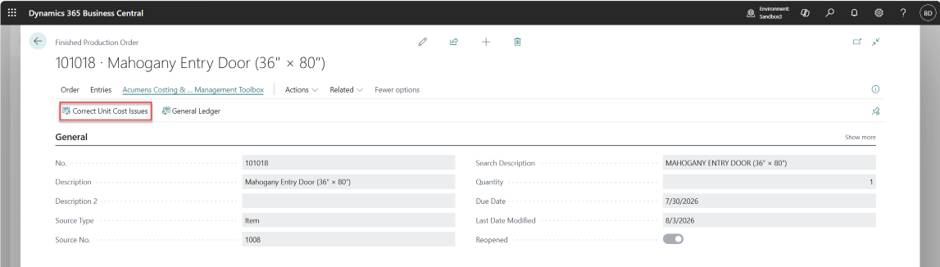
Action
Run Correct Unit Cost Issues action
Result
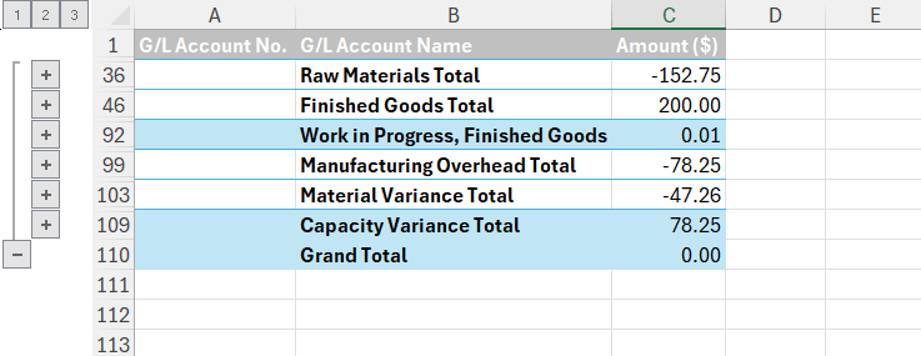
Consumption and output are recalculated using the correct cost of Item 1001.
The new Net G/L postings show:
Net Variance = $30.99
The inflated $7,745 variance is gone, replaced with a realistic figure.
In conclusion, Rollup cost errors can wreak havoc across production, inventory, and financial reporting. But with the right tools, you can unwind the damage quickly and accurately.
The Acumens Costing & Inventory Management Toolbox makes the correction process simple:
Costing errors don’t just stop at production orders — they can follow your stock movements into transfer documents, creating inflated variances and inaccurate valuations across locations. When items are shipped or received with the wrong unit cost, the ripple effect can distort both inventory and financial reporting.
To solve this, the Acumens Costing & Inventory Management Toolbox extends its Correct Unit Cost Issues feature to Transfer Shipments and Receipts. This means you can update costs per item or across all items in a transfer, ensuring clean postings end to end.
The Problem: Erroneous Costs Flowing Through Transfers
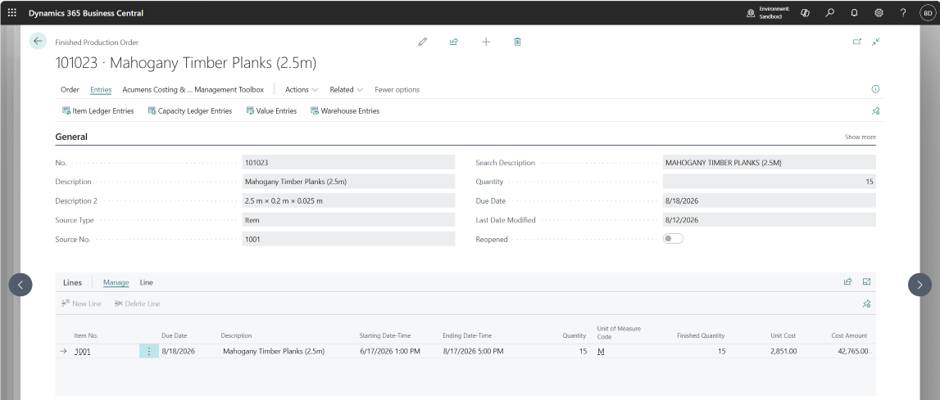
Item with wrong cost A production order finishes with an incorrect unit cost, leading to a large variance.
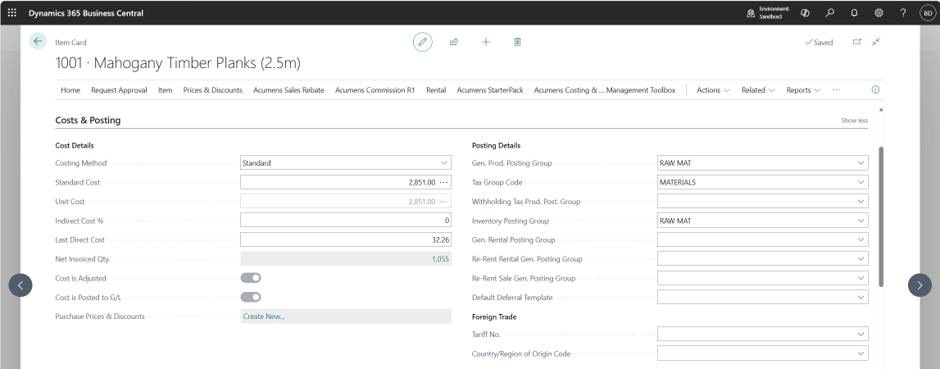
Production Order that finished with the wrong cost.
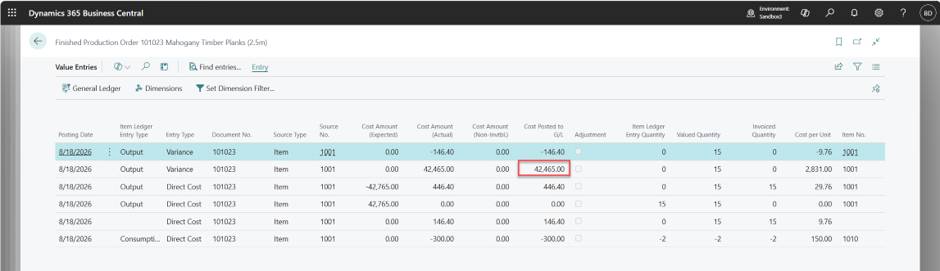
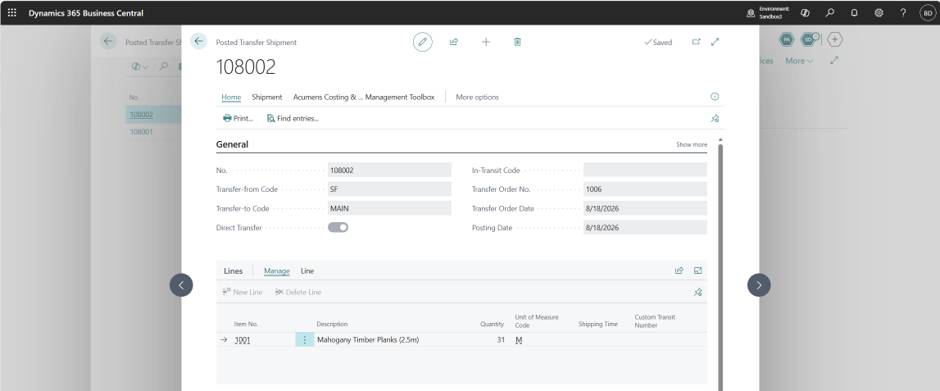
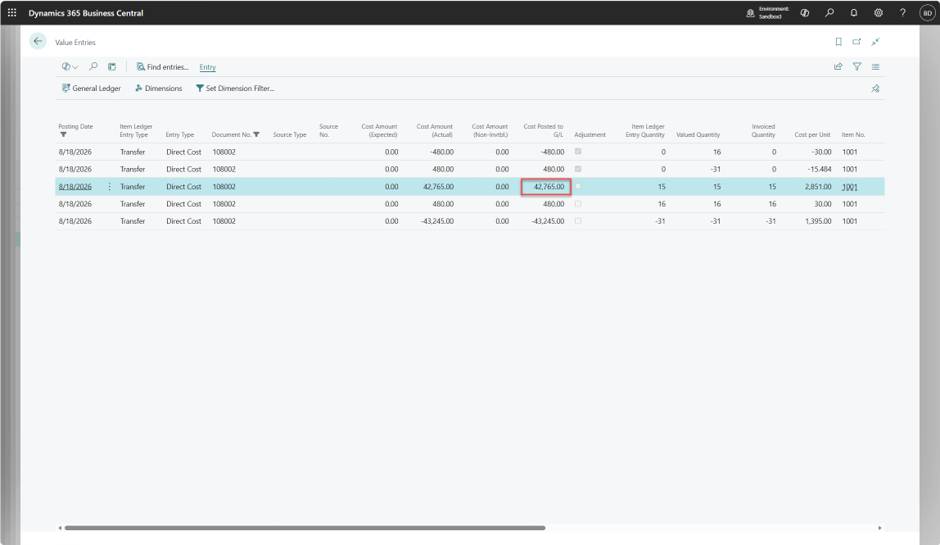
Posted Transfer Shipment The error carries forward into shipment value entries.
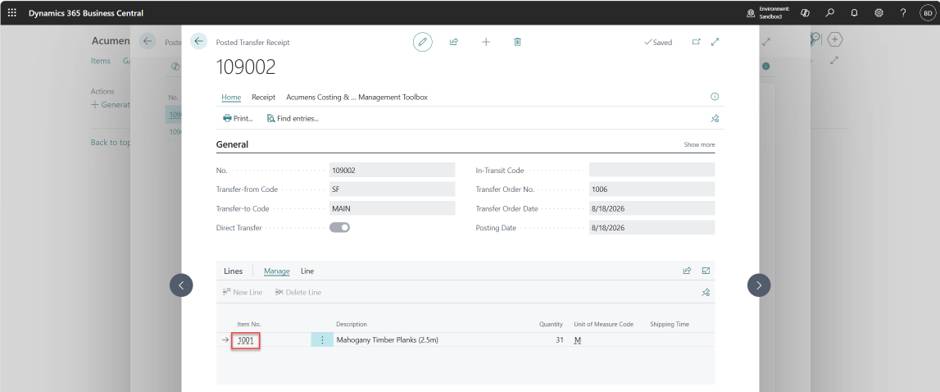
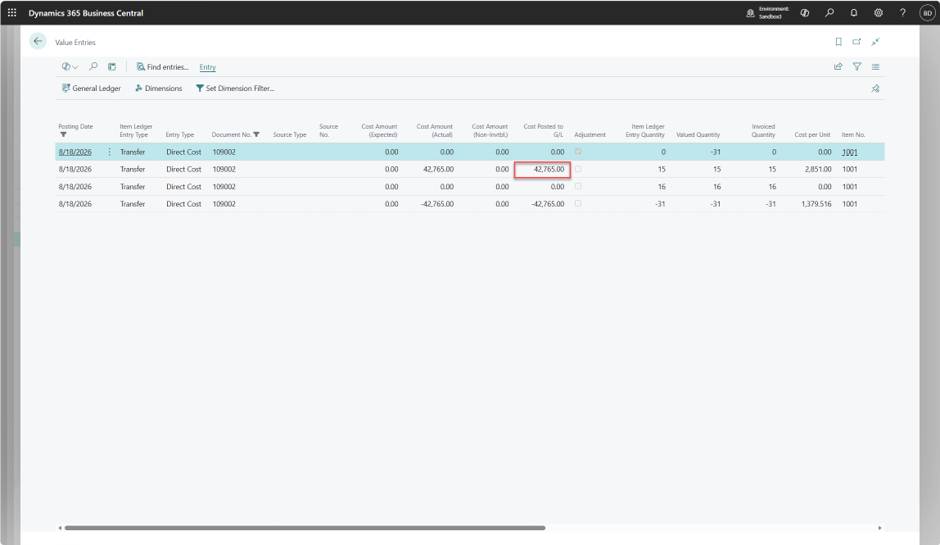
Posted Transfer Receipt The same wrong cost is inherited in receipt value entries.
The Fix: Correct Unit Cost Issues
The toolbox provides correction actions at two levels:
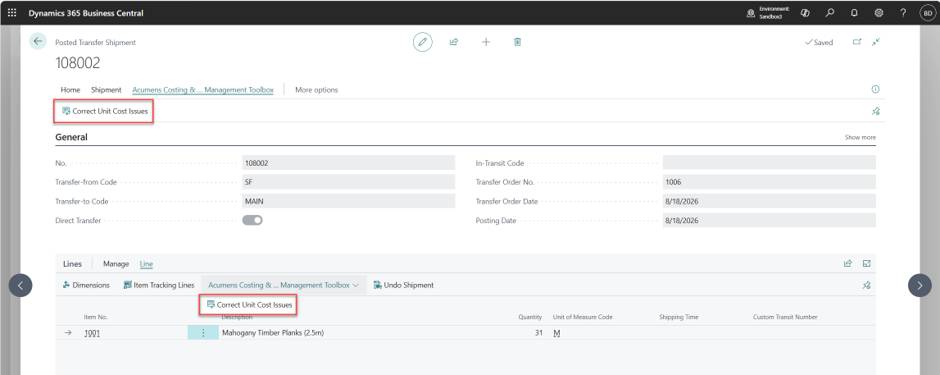
When executed, Correct Unit Cost Issues reverses all erroneous postings tied to the transfer order — both shipment and receipt entries — and recreates them with the correct standard cost.
What You’ll See After Correction
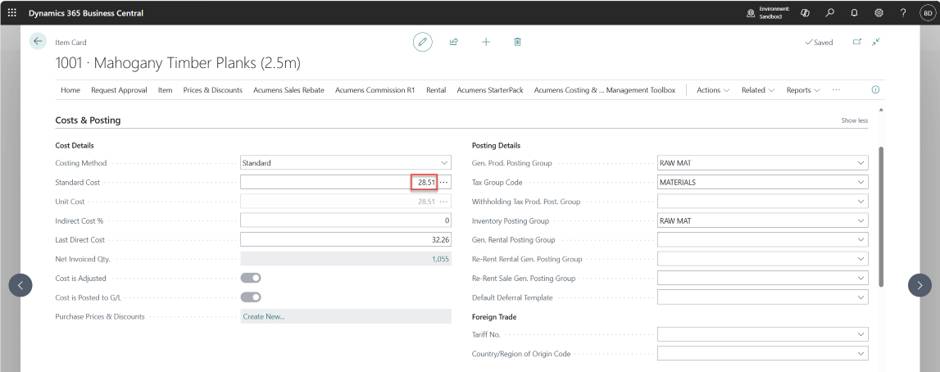
Corrected Item Standard Cost applied from the Item Card.
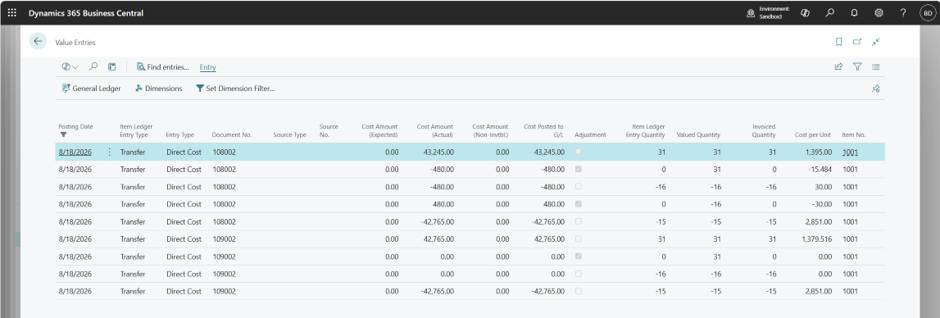
Reversed Entries for the wrong unit costs.
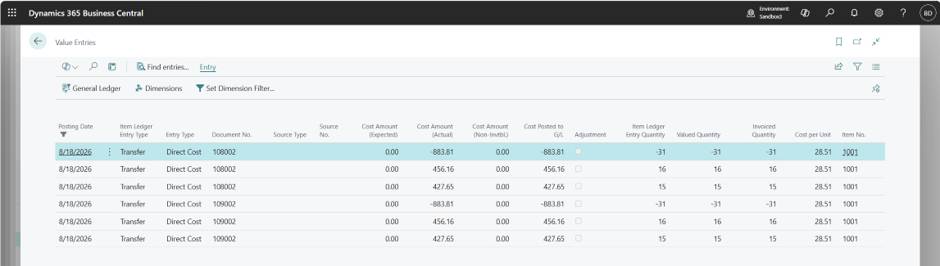
Recreated Entries with accurate values, restoring consistency across your ledger.
By correcting value entries in transfers, you:
It’s a simple but powerful safeguard against the hidden costs of stock movement errors.
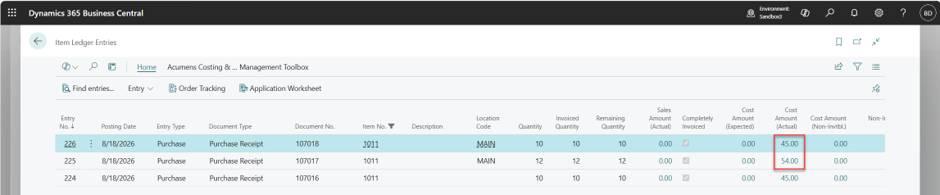
For one off fixes, corrections can also be applied at the Item Ledger Entry level, perfect when only a single entry needs updating.
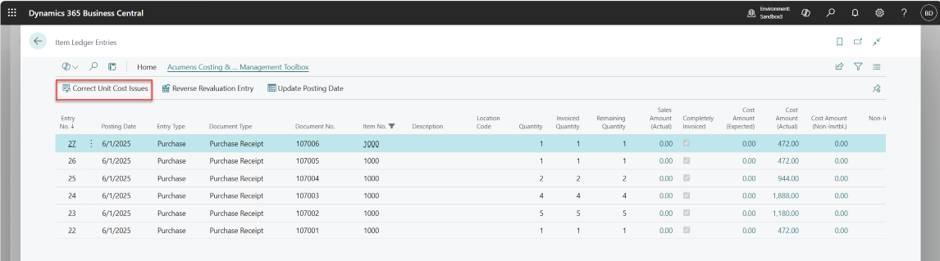
Updating production structures is a normal part of manufacturing — whether it’s adjusting a BOM line, fixing a routing step, or refreshing a production order to reflect the latest setup. The way you handle these updates matters: done right, your costs, variances, and ledger entries stay accurate; done wrong, you risk messy postings and distorted reporting.
With Acumens Costing & Inventory Management Toolbox, you gain enhanced control and visibility when managing Production BOM Updates and Routing Updates, both individually and in batch mode.
Individual Updates
Suppose you’ve modified a BOM, maybe adjusted a component quantity, added a new line, or deleted one and now need to reopen a production order to post those changes.
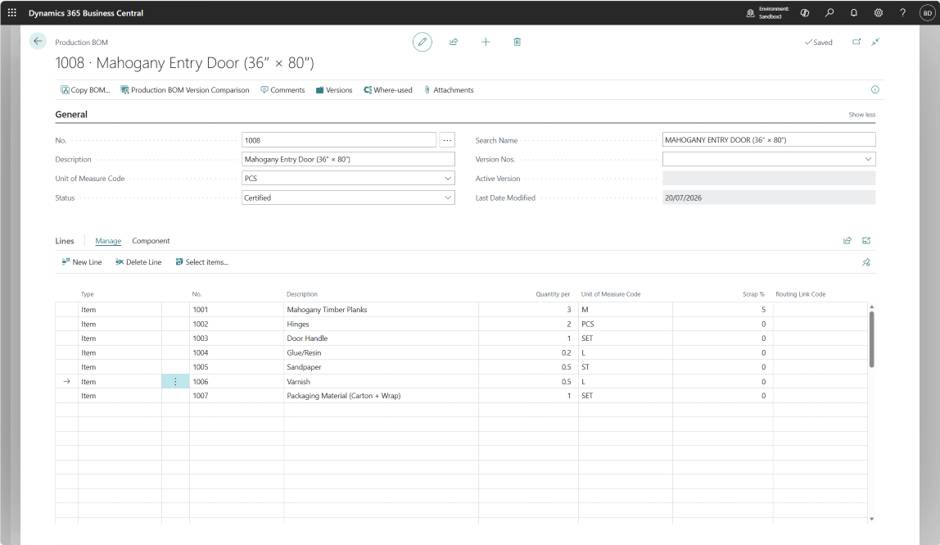
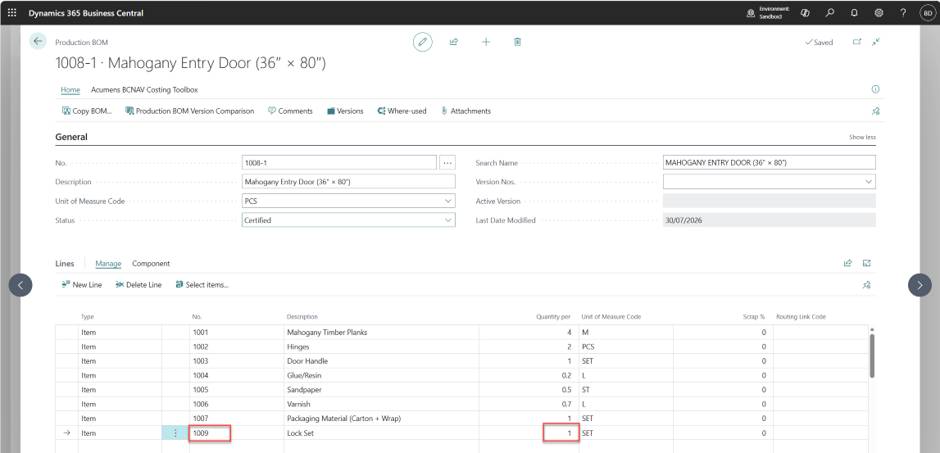
In the example below, a BOM line Quantity Per is update and a new BOM line added.
Initial BOM Setup
Updated BOM:
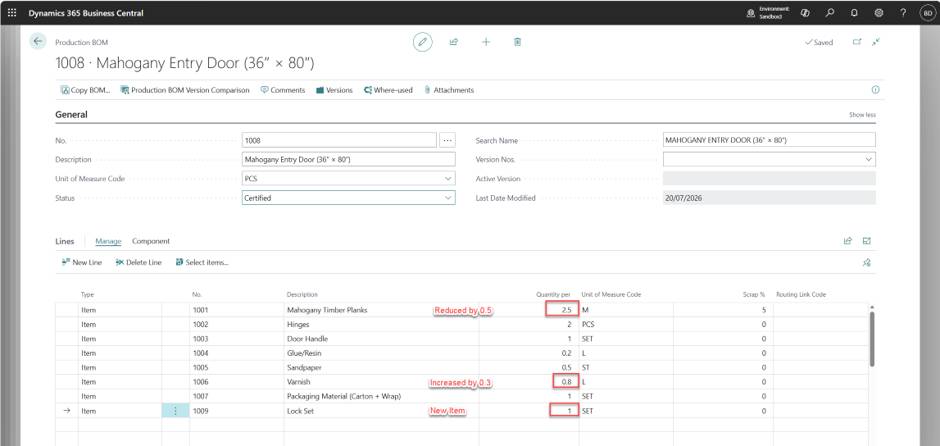
Standard Business Central behaviour: When refreshing a reopened order, the system increases the Quantity Per field by the BOM-defined quantity. For example, if Quantity Per was 4 and the BOM still defines 4, the refreshed order shows 8.
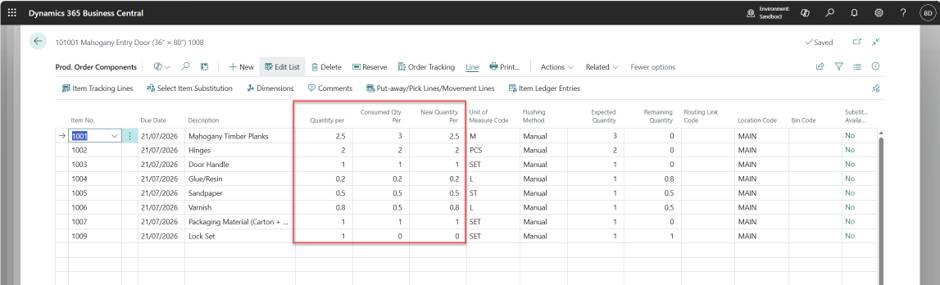
Acumens Costing & Inventory Management Toolbox introduces two additional columns that appear for only reopened orders:
This makes it easy to see the difference between what was consumed originally and what should be consumed, more like the difference in Quantity Per to post.
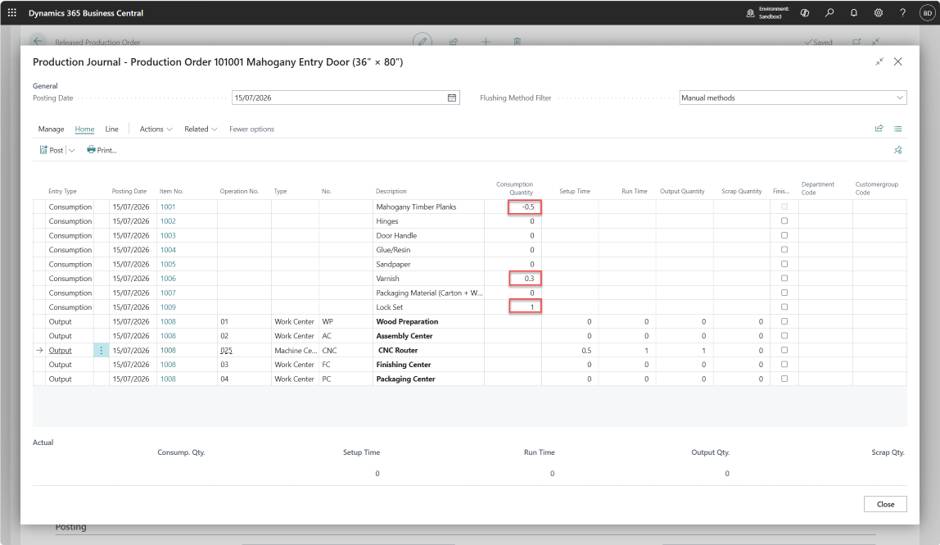
The Production Journal is updated with the differential Quantities that need to be posted:
Once posted, the system updates:
New Entries:
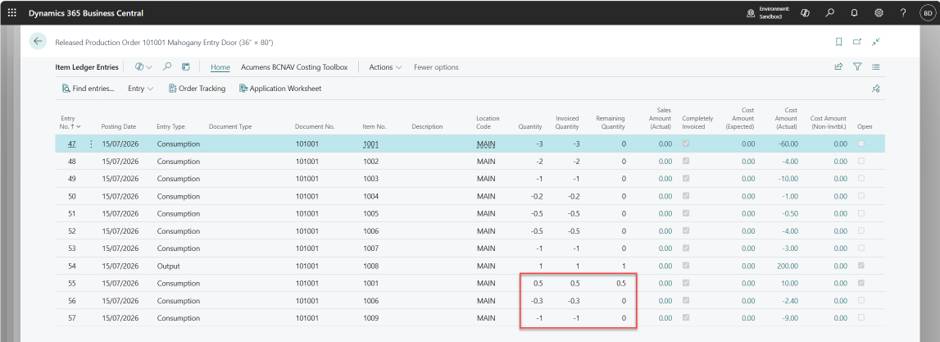
Material Variance before update: 117.50
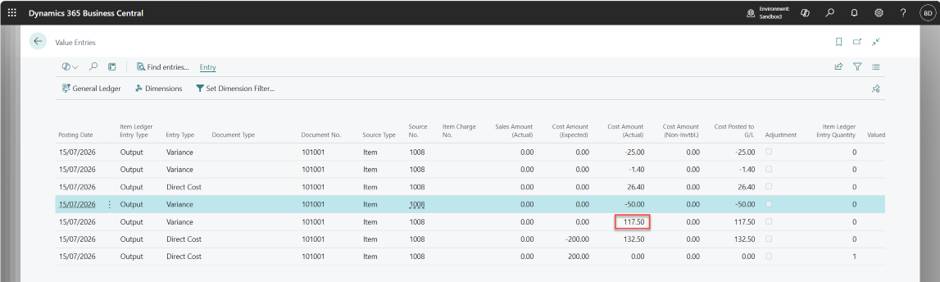
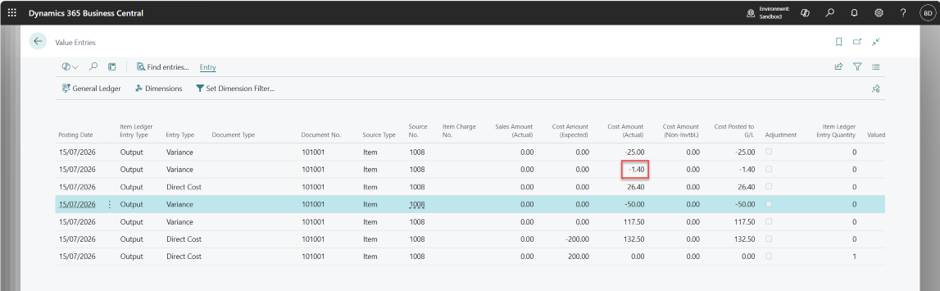
Material Variance after update: 116.10
Difference posted: –1.40
That's a clean update without manual juggling.
Production BOM Batch Updates
Sometimes you need to update multiple finished production orders at once when a BOM line-item changes.
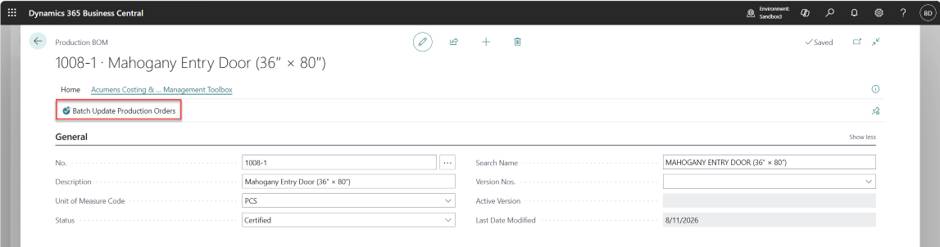
The Batch Update feature lets you:
Original Production BOM:
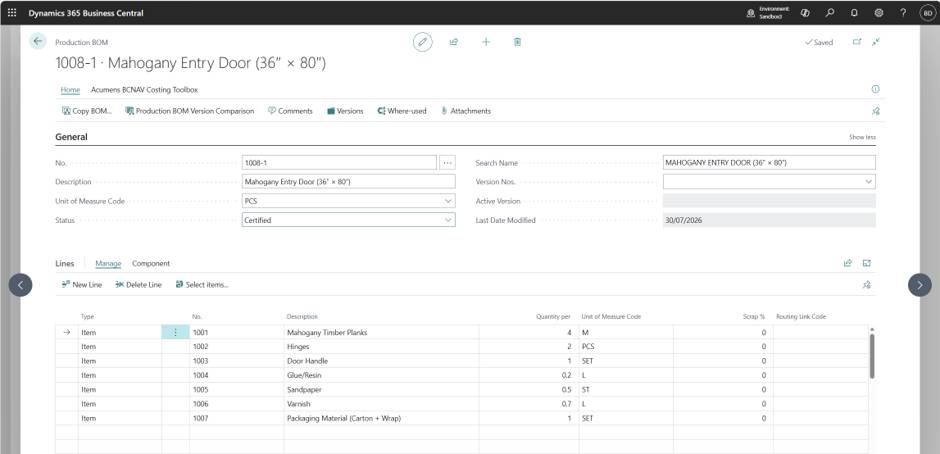
Updated Production BOM:
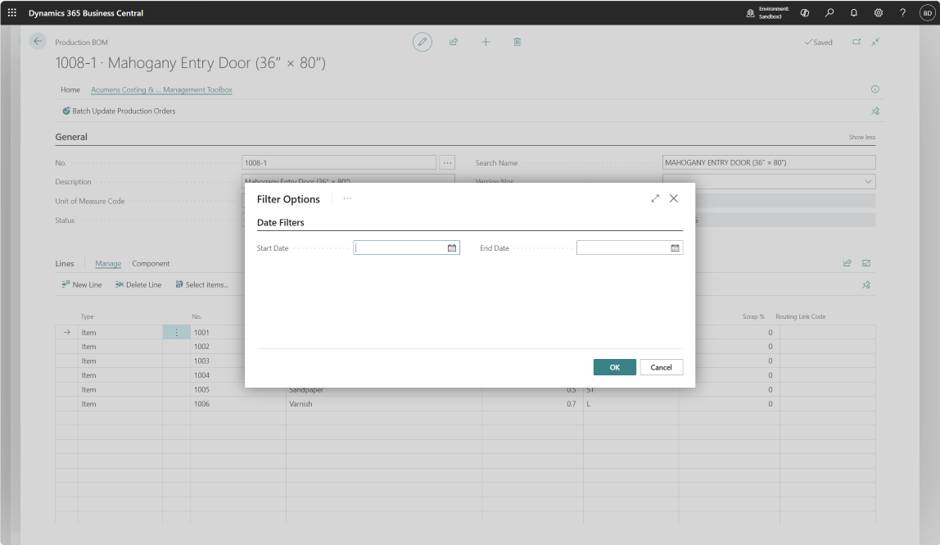
Batch Update run:
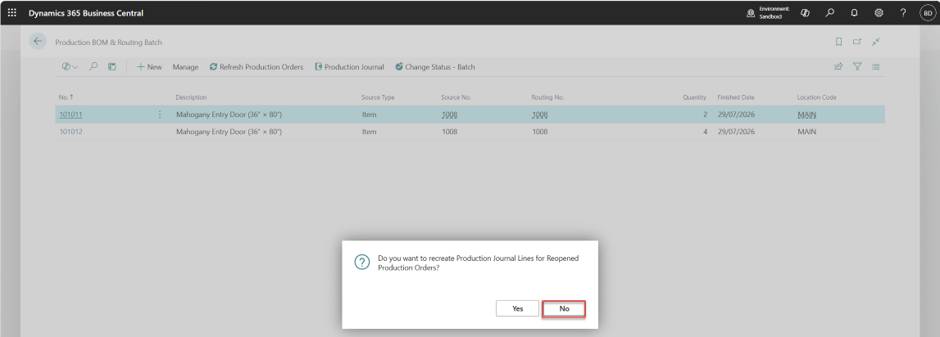
After batch run, Reopened Production Orders are added to the Production BOM and Batch Routing List.
For our test scenario we have Production Order 101011 and 101012.

When opening Production Journal to post changes on the Batch, the system prompts whether to recreate journal lines if further updates exist. This ensures no changes are missed.

For this scenario, we are not making any updates
The entries created on Production Journal as below:
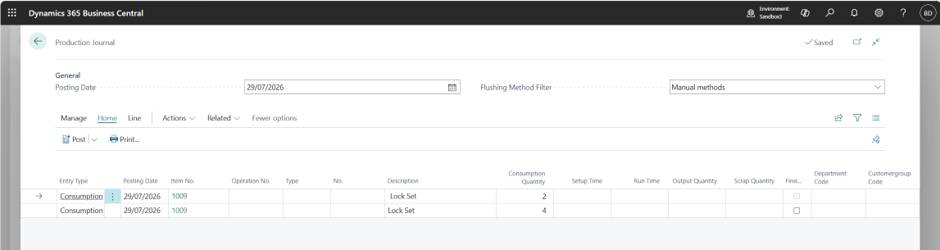
Once posted:
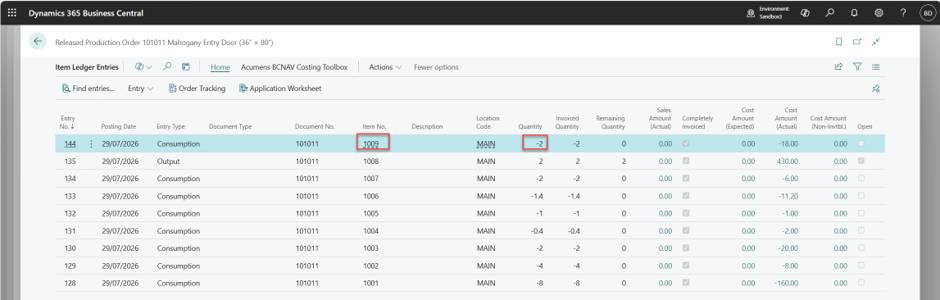
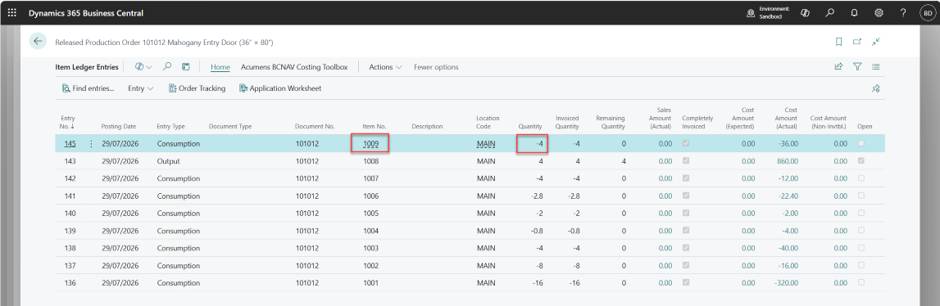
Each production order gets updated Item Ledger Entries
Prod Order 101011
Prod Order 101012
Reopen Select Orders action allows user to reopen select orders from the Finished Production Order list.

To remove some orders from the list that are not needed for the update, use Close Select Orders action. It deletes current selection on the list.

Update Production Orders Bom & Routing action on Batch list ensures all reopened orders pick up the latest BOM changes in the event that some updates had been missed.

Finally, you can finish all reopened orders using Change Status Batch, clearing them from the batch list

This saves huge amounts of time compared to reopening and correcting each order individually.
Routing changes — like adding a missed step or adjusting run times — follow a similar pattern to Production BOM Updates.
Individual Updates
This is when a routing update is applied to a single reopened production order:
Original Routing Setup
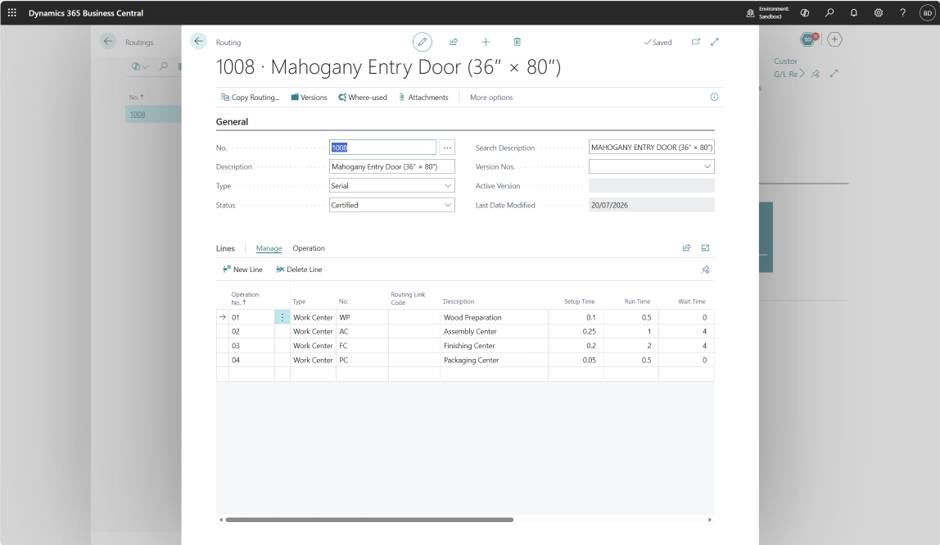
Updated Routing Setup
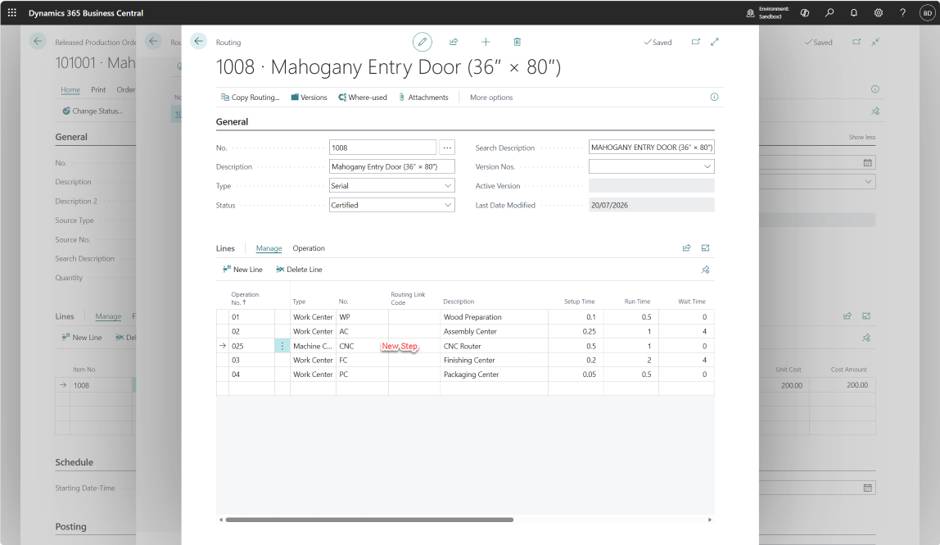
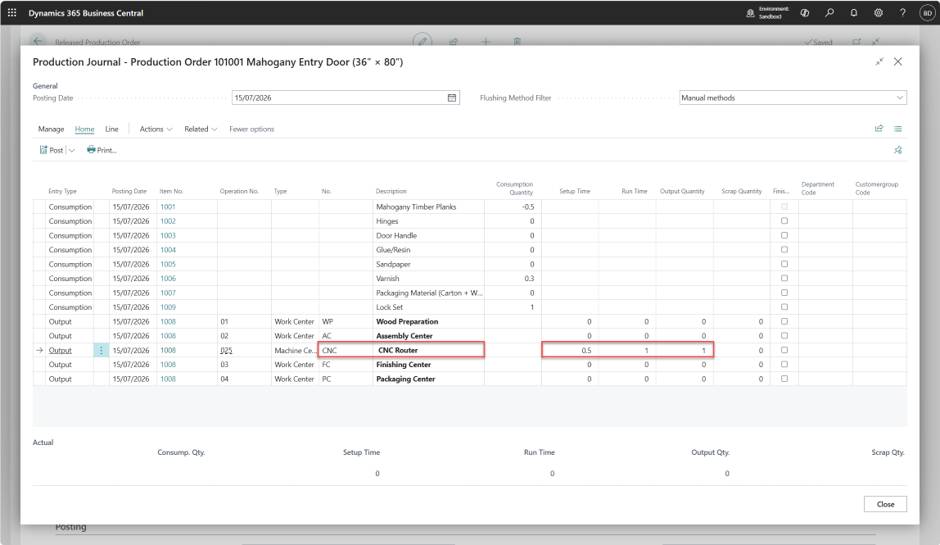
The Production Journal reflects the new routing steps or times.
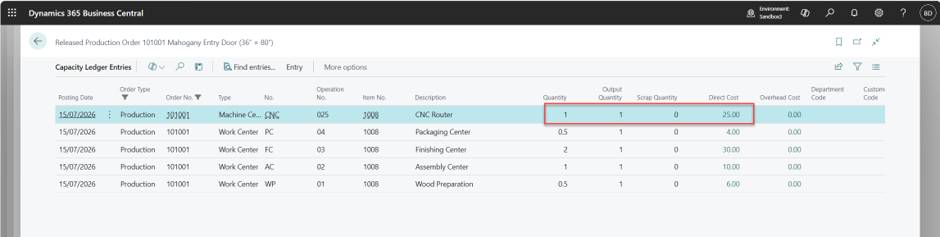
After posting, the Capacity Ledger Entries are updated with new usage.
Variances are recalculated:
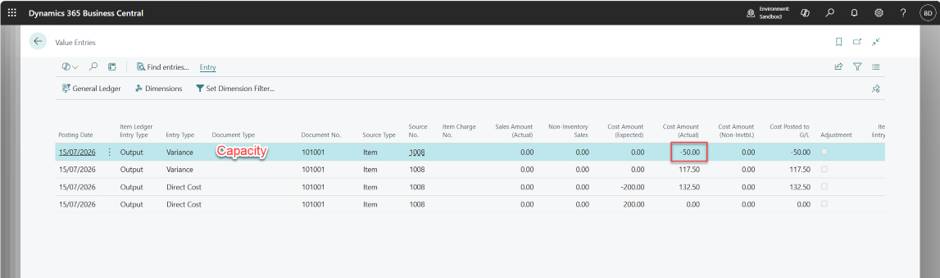
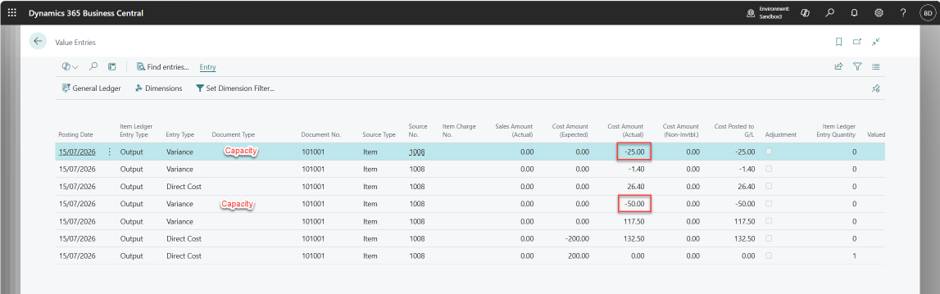
This ensures your production costs align with the actual routing structure.
Batch Updates
Routing batch updates are especially useful when a missed step needs to be applied across multiple orders. The process is like BOM Batch Updates and they share the same Batch Update list.
Use Batch Update Production orders to bring several finished orders back into editable status.
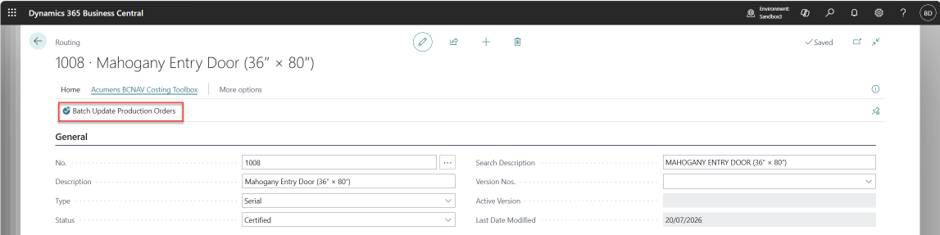
Apply the routing update (e.g., add the missing step).
Refresh all reopened orders in batch to pick up the new routing.
Post journals for all affected orders.
Finish them again using Change Status Batch.
The result: consistent routing corrections across multiple orders, with accurate ledger postings and variances.
Key Points
Inventory posting errors can quietly distort your financials, disrupt reporting, and create headaches for production and accounting teams alike. Whether it’s a misaligned account setup, a wrong posting date, or inflated unit costs, these issues often ripple through the system and compromise accuracy.
That's why the Acumens Costing & Inventory Management Toolbox includes a dedicated processing report called "Correct Inventory Posting Issues." This powerful feature is designed to clean up common posting mistakes and restore confidence in your data.
With it, you can:
In short, this tool helps you move from messy postings to clean, reliable records — without tedious manual adjustments.
Maintaining accurate posting dates is critical for financial integrity. Recently, an Adjust Cost entry was posted to 08/10 instead of the intended 08/06. To resolve such discrepancies, we use the Correct Inventory Posting Issues processing report.
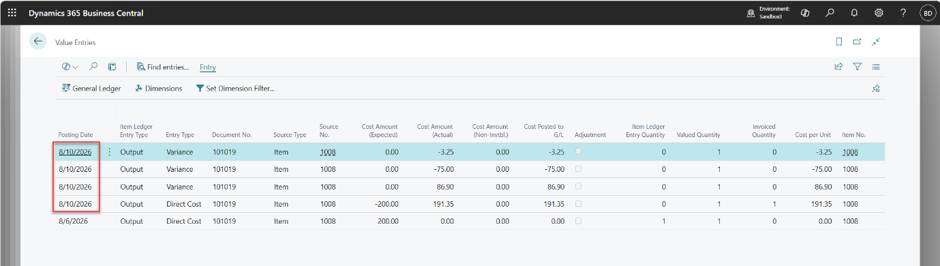
Correct Inventory Posting Issues Processing Report
This report is designed to handles date updates ensuring corrections are applied consistently:
Easily shift entries from the wrong date (e.g., 08/10) back to the correct one (08/06).
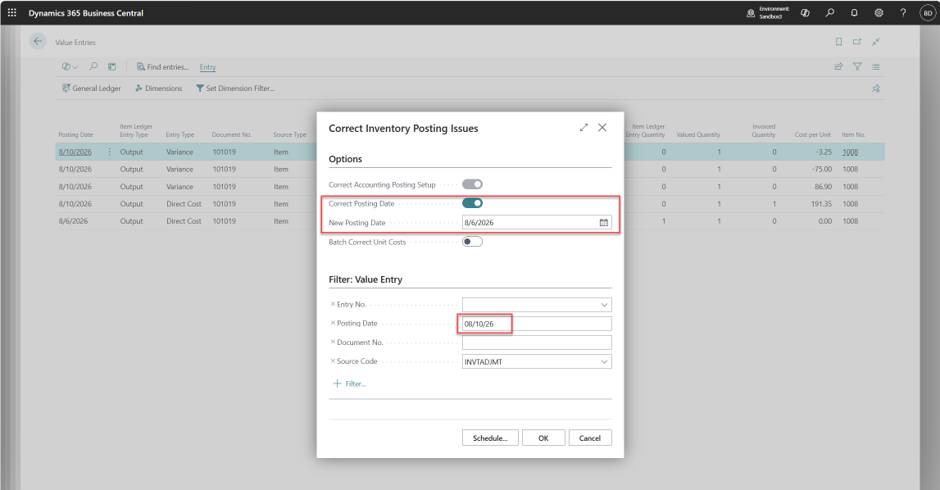
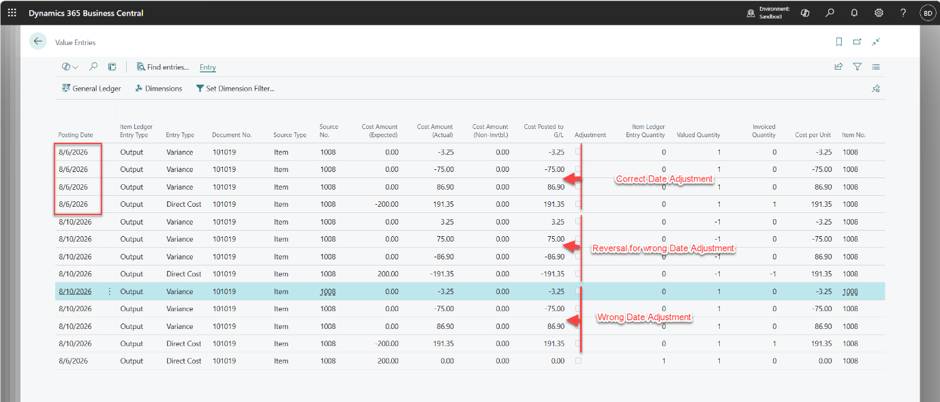
In conclusion, the Correct Inventory Posting Issues processing report is your reliable tool for addressing Adjust Cost Posting Date issues, it ensures your records remain accurate and transparent.
Maintaining accurate posting dates and General Ledger (GL) accounts is essential for financial integrity. Recently, we identified output value entries with two issues:
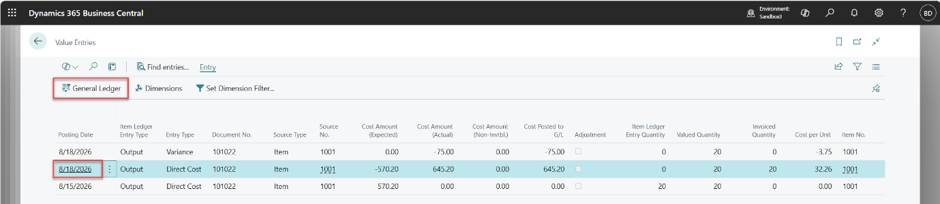
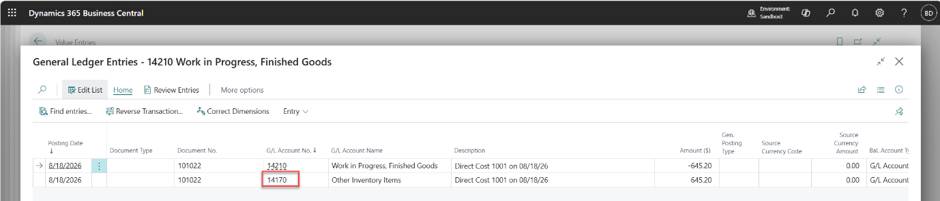
These errors can occur due to incorrect account setup or misaligned inventory configurations. Let's walk through how to correct them using the Correct Inventory Posting Issues processing report.
Erroneous Setup
Wrong Account on Posted GL Entries can lead to incorrect postings that distort financial reporting.
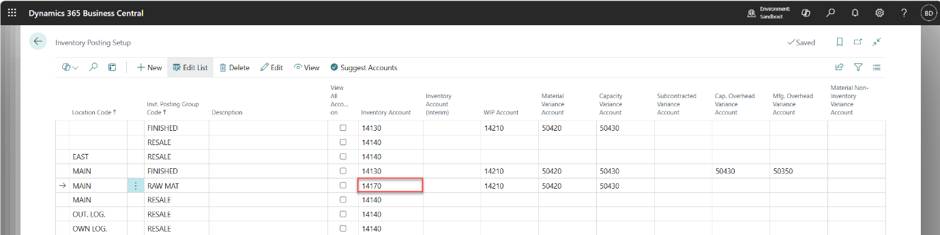
Correct Inventory Setup
By aligning inventory setup with the correct accounts, you ensure that postings flow to the intended GL accounts.
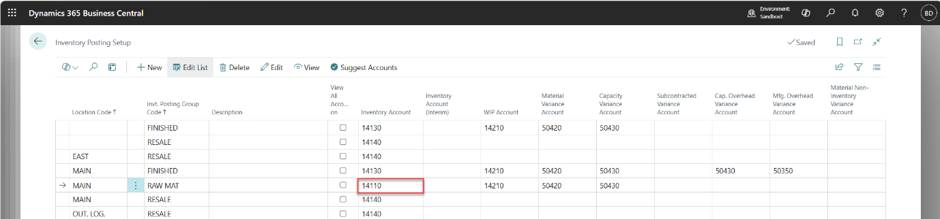
Using the Correct Inventory Posting Issues Processing Report
The Correct Inventory Posting Issues processing report is designed to fix both posting date and account issues. Here’s how it works:
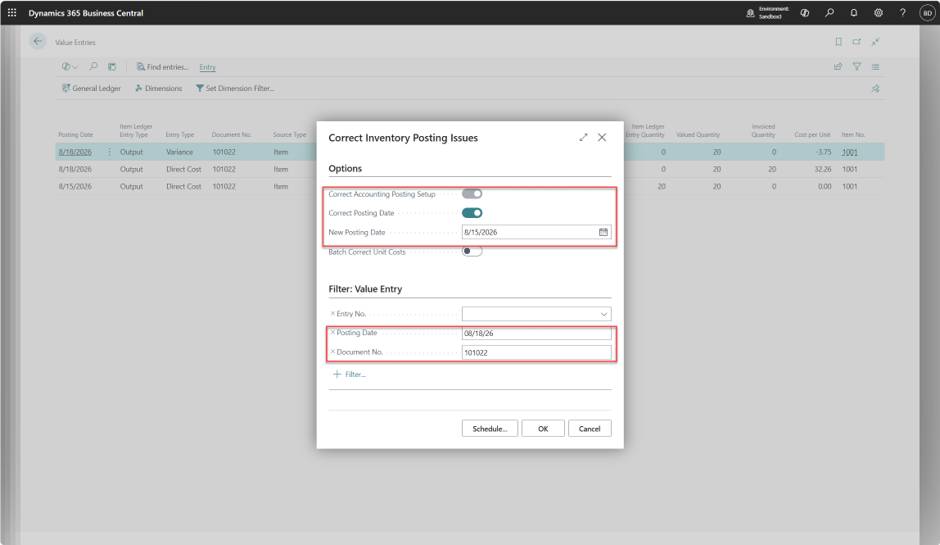
Original Entry Posted with the wrong date and wrong account.
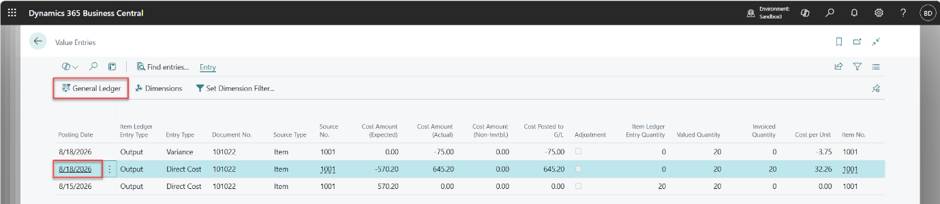
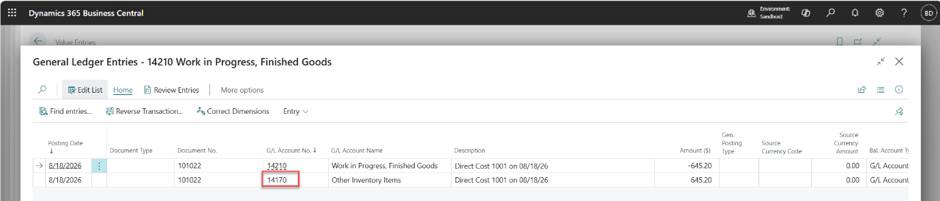
Reversed Entry Automatically reverses the erroneous posting with the exact date and account reversal.
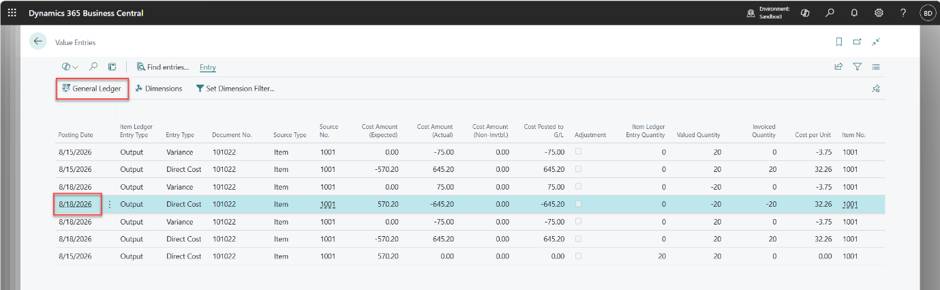
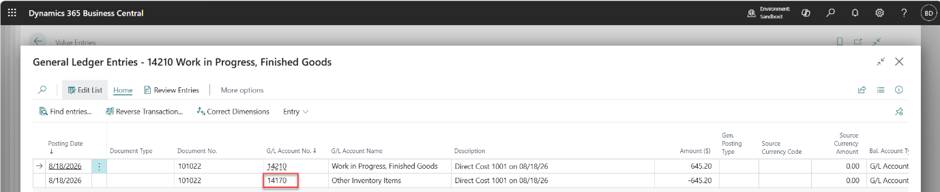
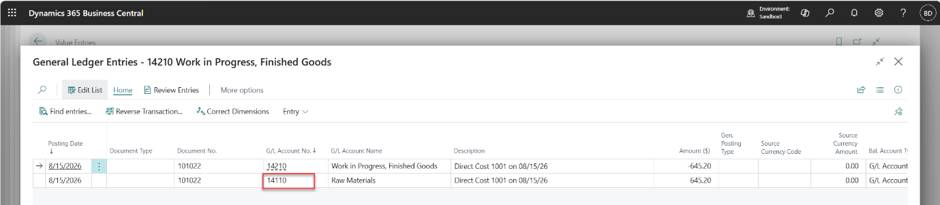
Corrected Entry Applies the corrected values:
New Date: 08/15/2026
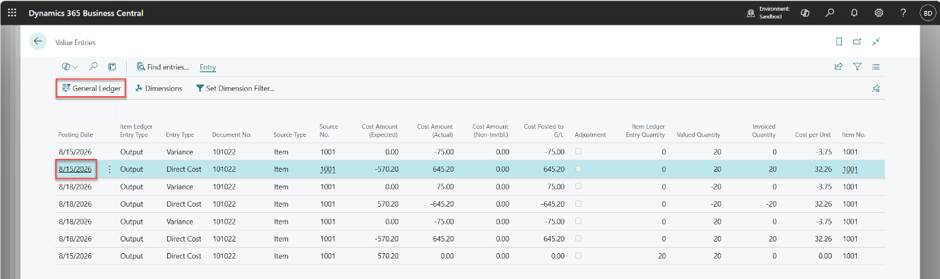
Correct Account: Applied from the proper inventory setup.
The Correct Inventory Posting Issues processing report provides a reliable way to correct both posting date and GL account errors. By leveraging this tool, you can maintain clean, accurate records and ensure compliance with financial reporting standards.
Unit cost errors can creep into your inventory records quietly, but their impact is anything but small. A single wrong cost can distort valuations, inflate variances, and throw off reporting. Correcting them one by one is tedious — and risky if you miss something.
That's where the Batch Correct Unit Cost Issues feature in the Correct Inventory Posting Issues processing report comes in. Think of it as a bulk clean up tool for your Item Ledger Entries, designed to restore accuracy with just a few clicks.
How It Works
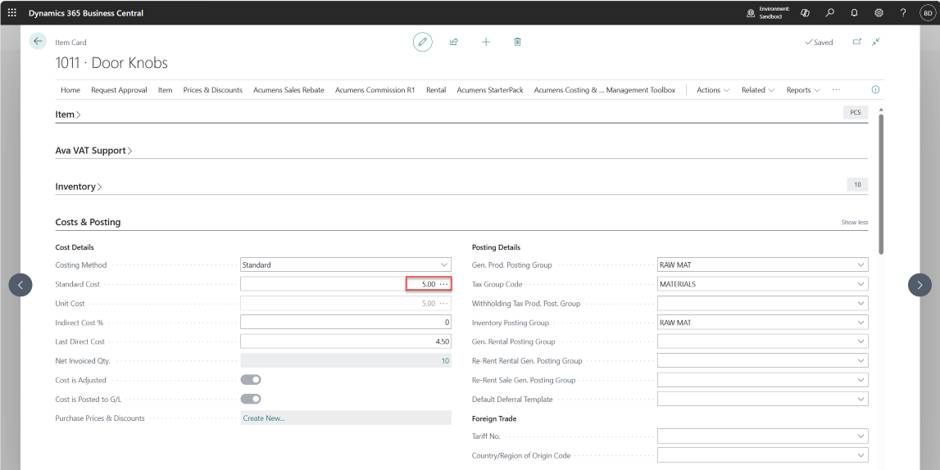
Original Standard Cost Your items carry a defined standard cost on the Item Card. This is the baseline for accurate postings.
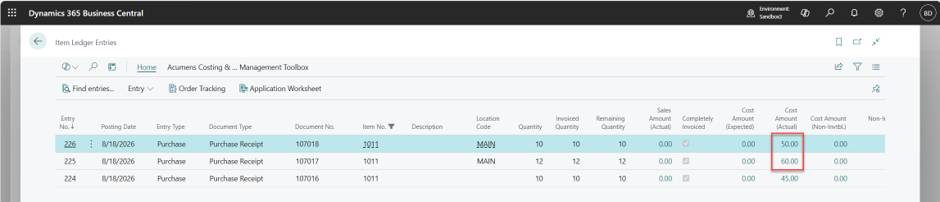
Item Ledger Entries When errors occur, ledger entries may reflect incorrect unit costs, leading to distorted consumption and output values.
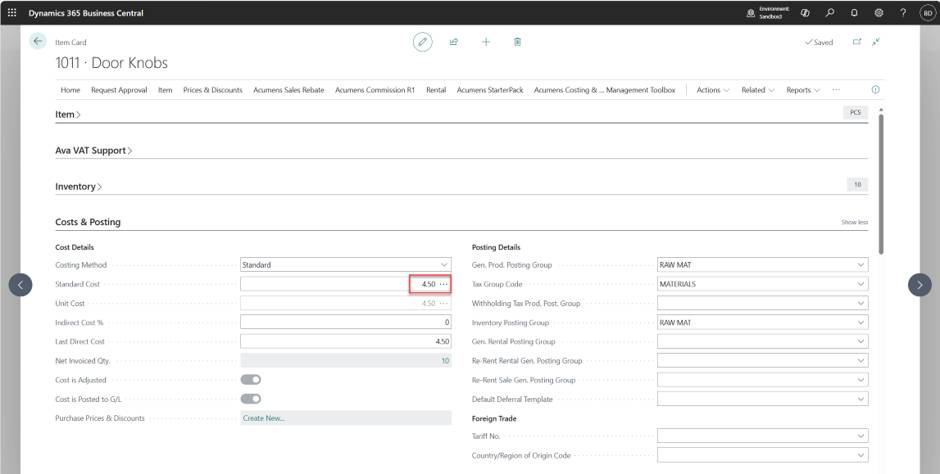
New Standard Cost The toolbox references the correct unit cost from the Item Card.
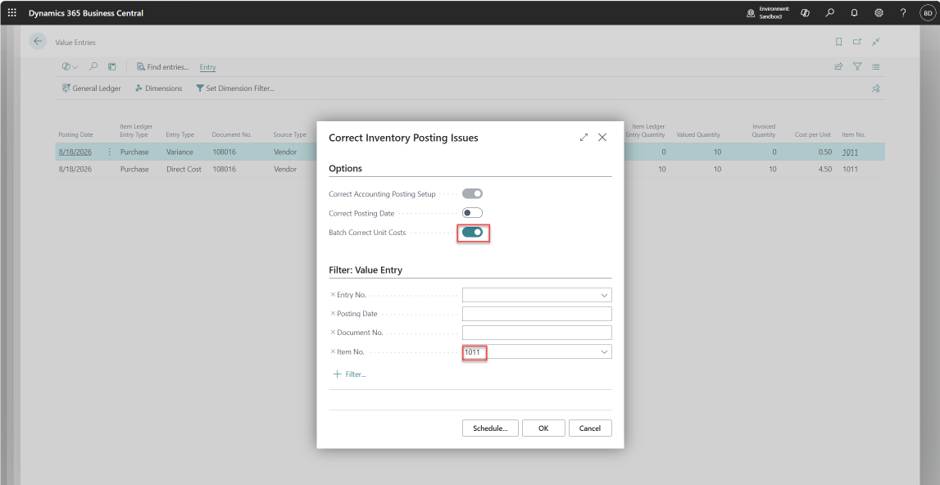
Batch Correct Unit Cost Using user defined filters, the system identifies affected entries and applies corrections in bulk.
Updated Item Ledger After processing, your ledger entries are recalculated with the correct unit costs, restoring consistency across inventory and financial postings.
Instead of chasing down individual mistakes, you can:
Its a simple but powerful way to keep your inventory records clean, accurate, and audit ready.