
Sales Tax Exemption Certificates may be received in batches and need to be associated with the correct customer and state.
Processing certificates individually can be time-consuming and can make it difficult to identify files that could not be processed.
The proposed process allows multiple certificates to be processed in a single batch while providing visibility into successfully processed, skipped, and unmatched files.
The process supports Tax Exemption Certificate files from the following source
The overall process is:
Receive Files → Batch Import → Customer/State Matching → Secure Attachment → Import Results → Archive/Delete
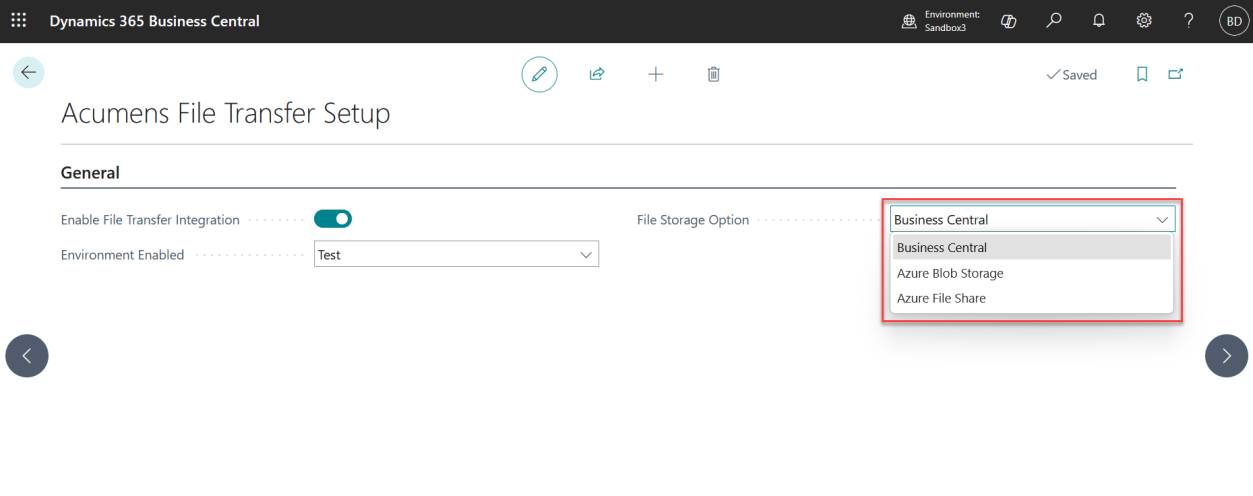
Figure 1: Configured Tax Exemption Certificate import and storage options
The batch import process:
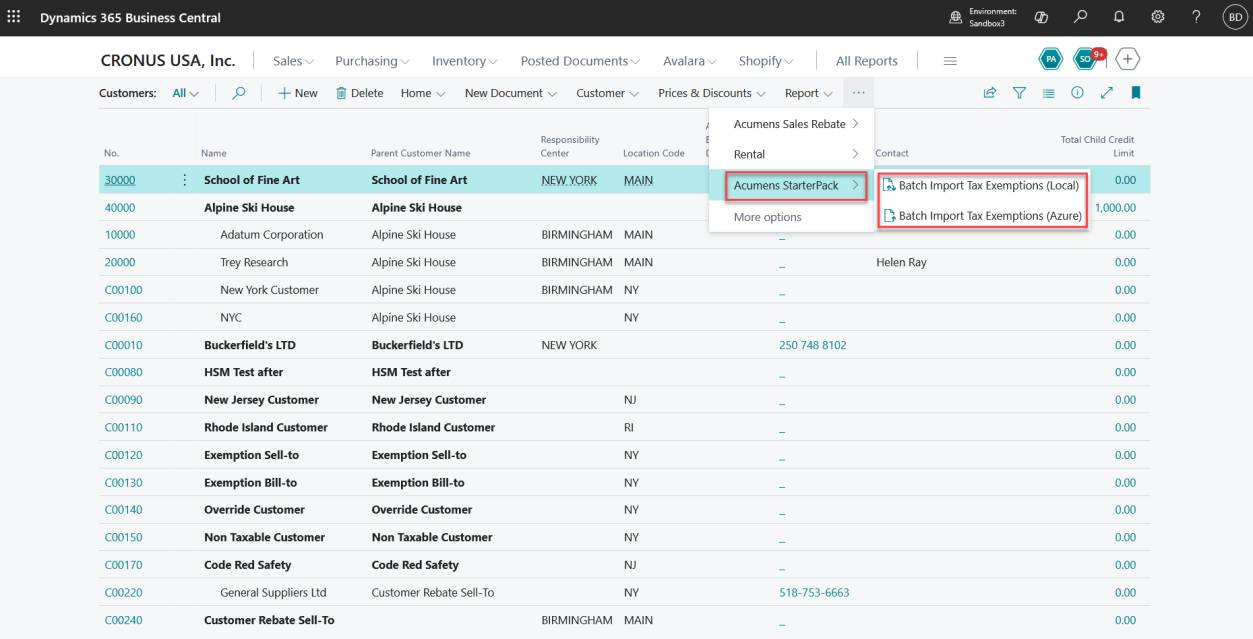
Figure 2: Batch Import action showing the available import source options
For each certificate, the process attempts to identify the appropriate customer and state before creating the attachment.
This allows certificates to be associated with the correct customer record as part of the batch process.
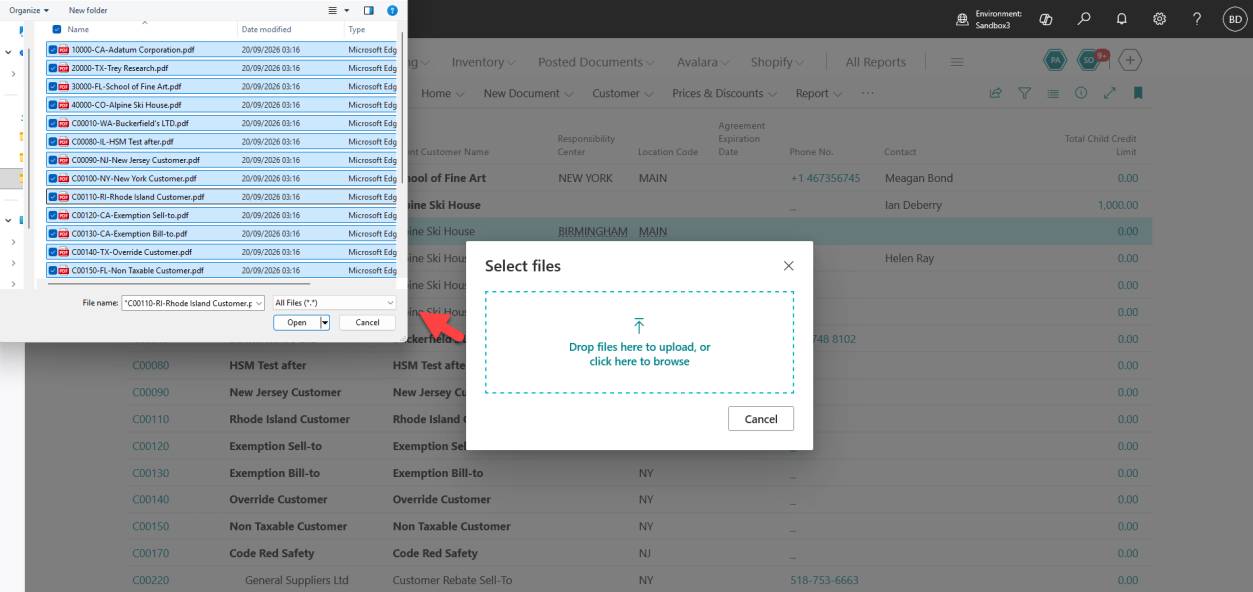
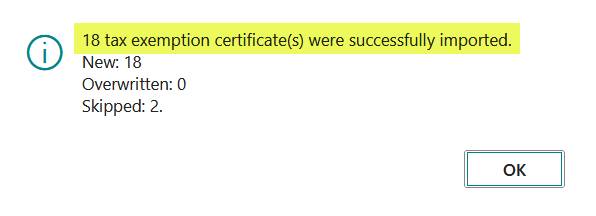
Figure 3: Successfully matched Tax Exemption Certificate
When a certificate is successfully matched and processed, it is stored as a Secure Attachment against the appropriate Business Central record.
This allows users to access the certificate directly from the relevant customer record.
Figure 4: Tax Exemption Certificate stored as a Secure Attachment
After processing, users can review the import results. The results distinguish between successfully processed and skipped files.
Certificates successfully imported and created as new Secure Attachments for the matched customers.
Certificates that matched existing Secure Attachments and were successfully replaced with the newly imported files.
Files that could not be imported, for example, where the corresponding customer could not be matched or the file could not be processed.
When skipped files are identified, a temporary File Import Results page is displayed. The page identifies the files requiring attention and provides the reason they were not processed.
The results are limited to the current import session and do not maintain historical import records.
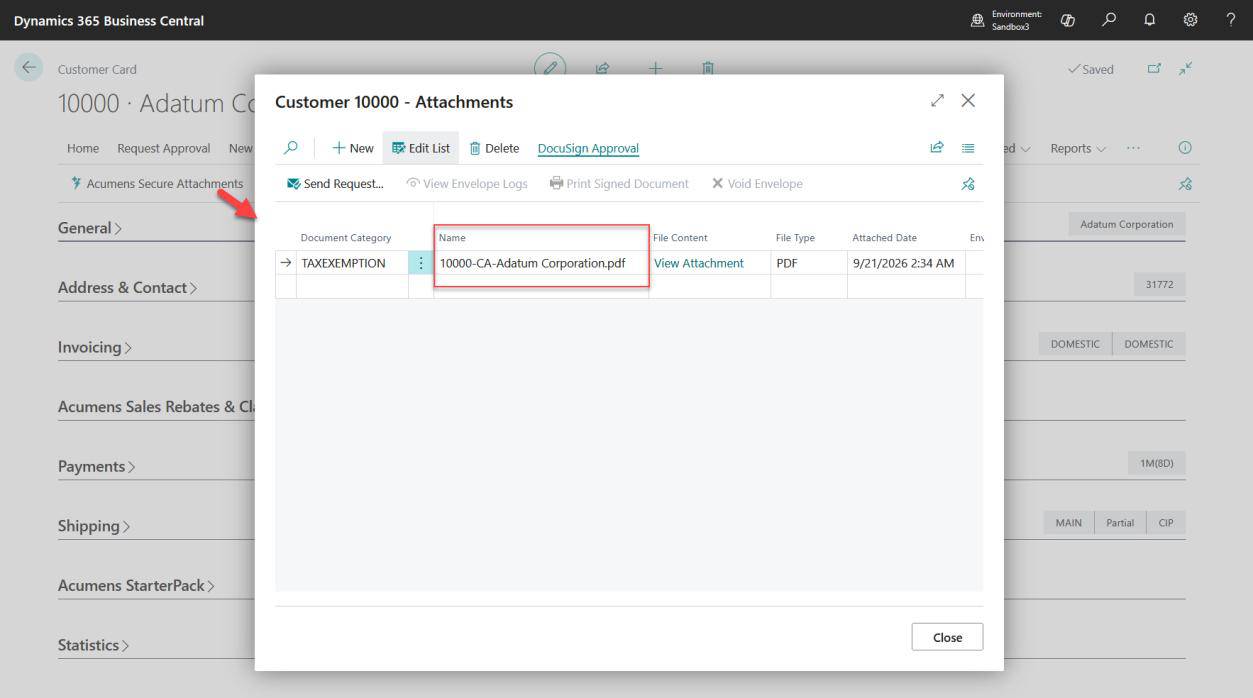
Figure 5: File Import Results showing successful and skipped files
A certificate that cannot be matched or processed does not stop the entire batch.
Instead, the file is skipped and presented on the File Import Results page so that the user can review the reason and take the appropriate follow-up action.
For example, a file may be skipped because:
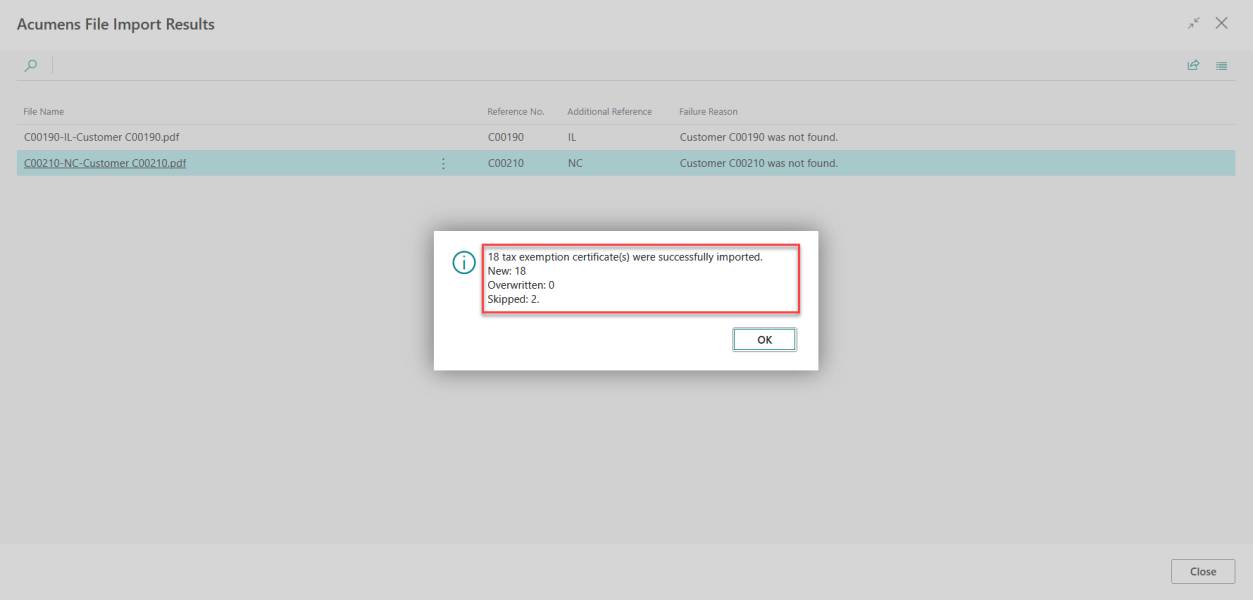
Figure 6: Unmatched/skipped certificate with the processing reason
Successfully processed files can be either archived or deleted from the configured Azure Blob Storage or Azure File Share location based on the processing settings. This keeps the source location organized while allowing processed files to be retained when required.
Import: Source files before processing.
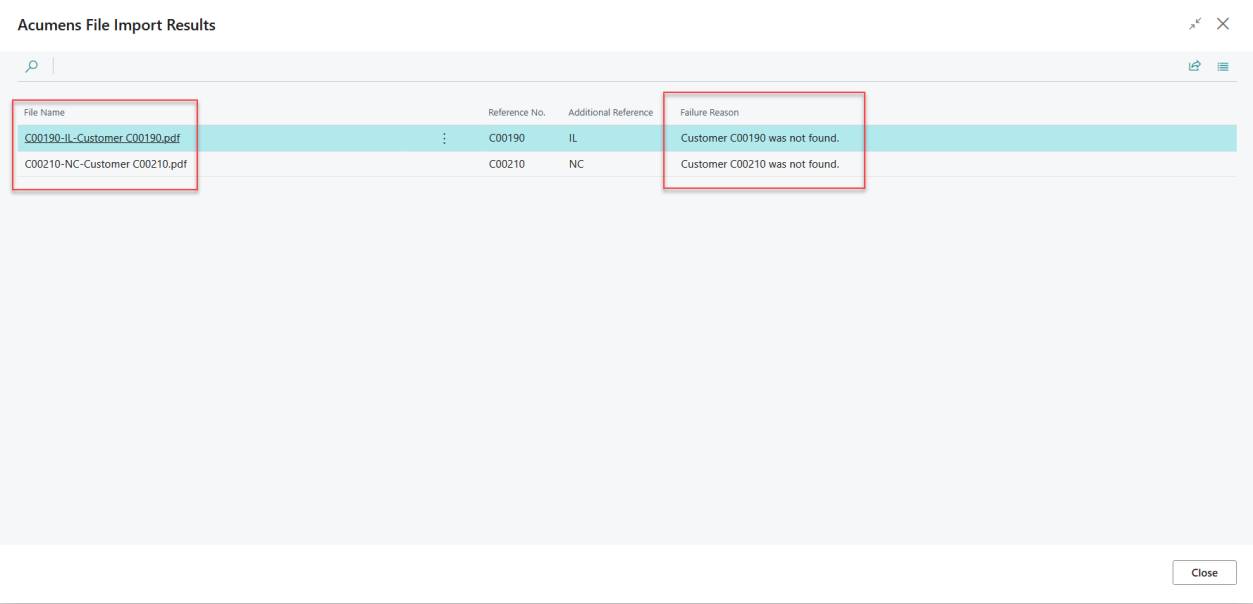
Figure 7: Import folder showing certificate files before batch processing.
Import: Skipped files remain after processing.
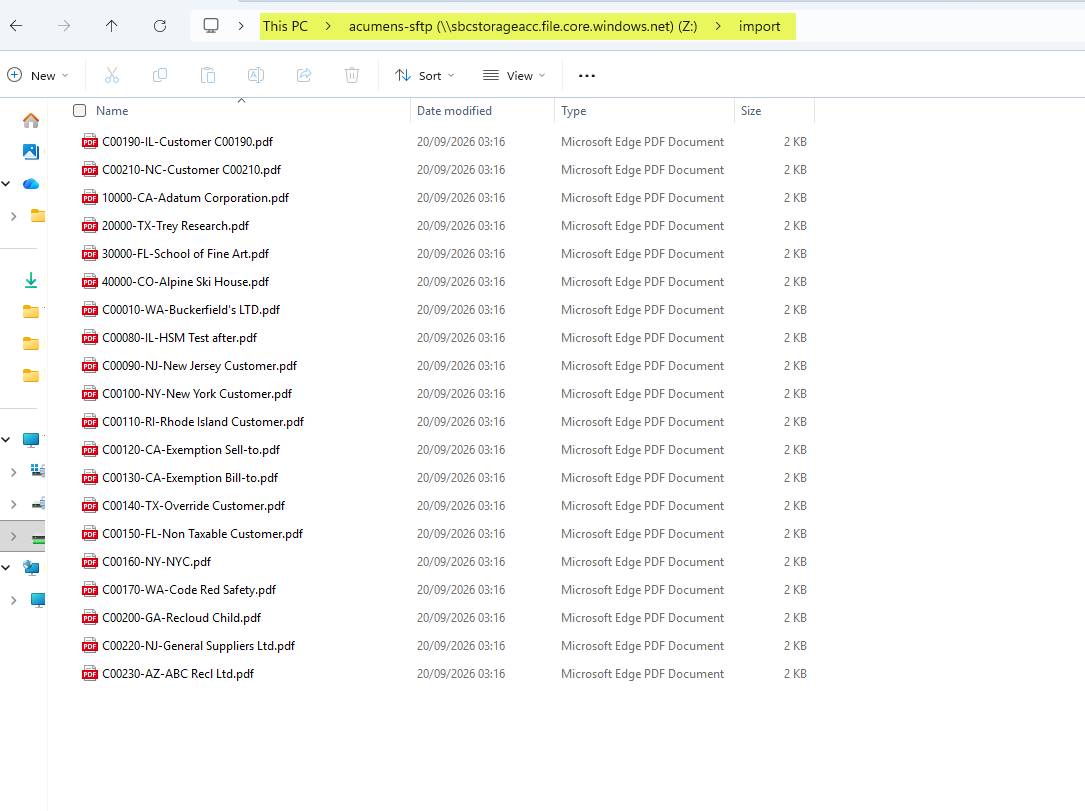
Figure 8: Import folder showing skipped certificate files remaining after batch processing.
Archive: Successfully processed files.
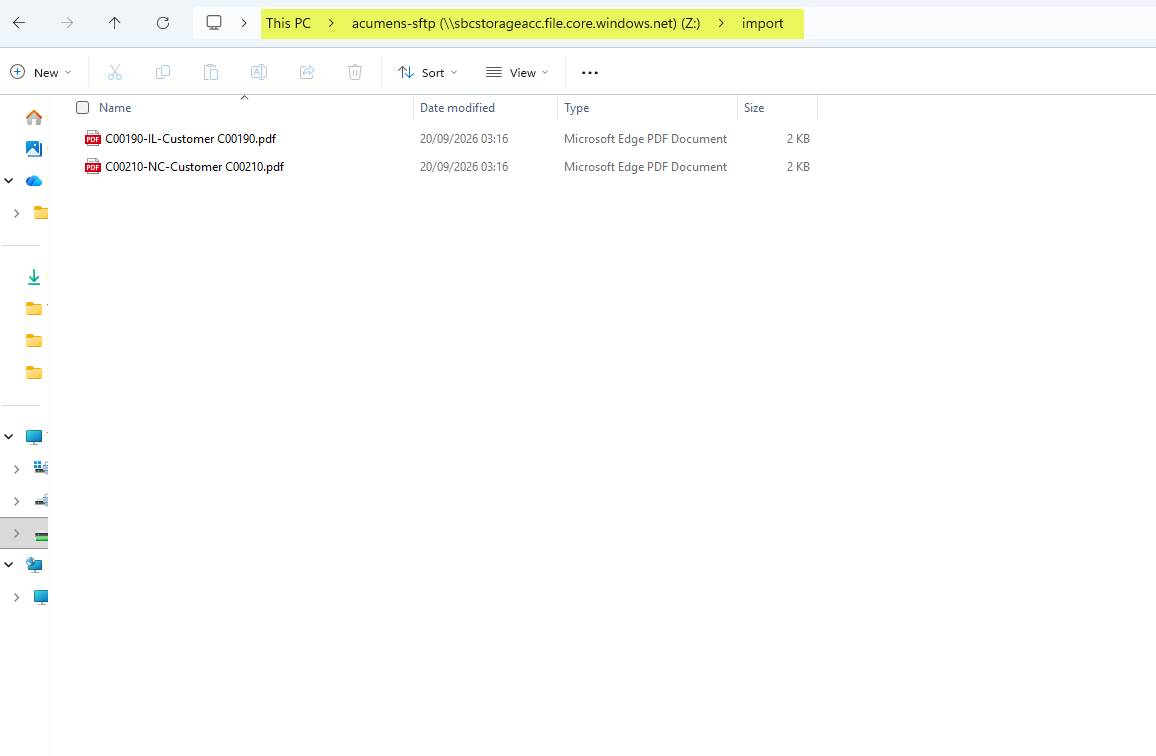
Figure 9: Archive folder showing successfully processed certificate files after batch import.
As an illustrative example, a user receives 50 Tax Exemption Certificates and starts the batch import.
Business Central processes each certificate and attempts to match it to the relevant customer and state.
For example:
The user can then review the File Import Results page to identify the five skipped files and the reasons they were not processed.
The unmatched files can be corrected and processed separately without having to restart the entire batch.
The proposed process provides the following benefits:
The proposed process simplifies the management of Sales Tax Exemption Certificates in Business Central by allowing certificates to be processed in batches while providing clear visibility into the outcome of each file.
Business Central handles the routine matching, attachment, and post-processing activities, while unmatched or skipped certificates are presented separately for user review.
The approach also provides flexibility in the source of the files and in how successfully processed files are handled after import.