Acumens Loading

Acumens Starter-Pack & Simple EDI for Microsoft Dynamics NAV/BC

Setting Up & Processing Electronic Payments in Business Central

Managing vendor disbursements efficiently is a foundation of modern financial operations. With Microsoft Dynamics 365 Business Central, standardizing electronic funds transfers (EFT/ACH) and automated remittance distribution ensures faster payment cycles, reduced errors and seamless auditability.

Below is a complete functional walkthrough for configuring and processing electronic payment files and vendor remittances using the Acumens StarterPack app extension within Business Central.

1. Prerequisites & Source Files Notice

Before beginning the configuration process, ensure you meet the following requirements:

Cronus Database Requirement: The Data Exchange Definitions and Bank Export/Import configurations must be exported from a standard Cronus Database (or an existing template company setup) prior to importing them into your working target company.

Requesting Setup Files: If you do not have direct access to export these configuration files from a Cronus environment, please send an email request to info@sbcdynamicserp.com to receive the required setup package directly via email.

2. Data Exchange Definitions & Bank Export Setup

Before generating bank, files or sending remittance advice, several administrative and master data configurations must be in place to ensure Business Central communicates correctly with your bank’s required file format such as US EFT CCD, ACH, Positive Pay, SEPA.

Export/Import Data Exchange Definitions

Export "Data Exchange Definition" from BC26 Database (or another company that has these setups) and import into the desired company.

This will be required for each Company.
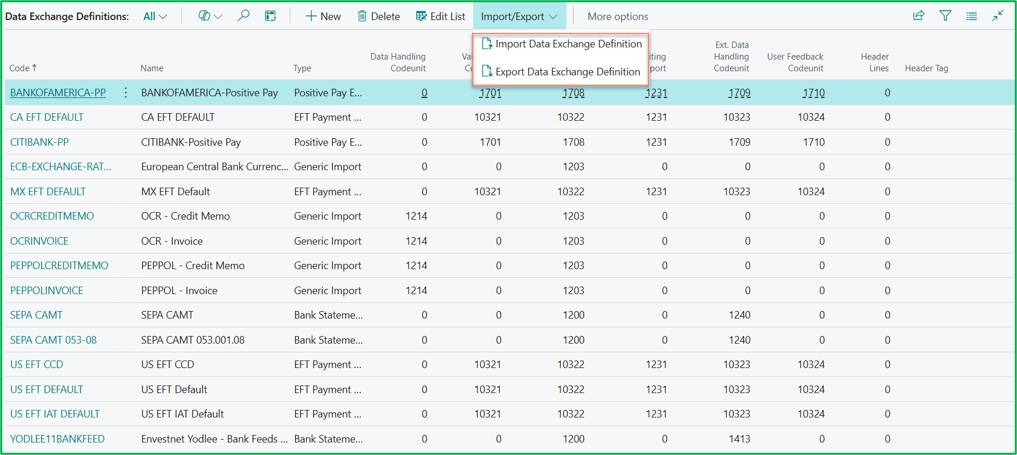
Acumens StarterPack – Setting Up & Processing Electronic Payments in Business Central

Bank Export/Import Setup

Copy from BC26 Base database (or another company that has these setups) and paste in the desired company.

This will require to perform per Company.
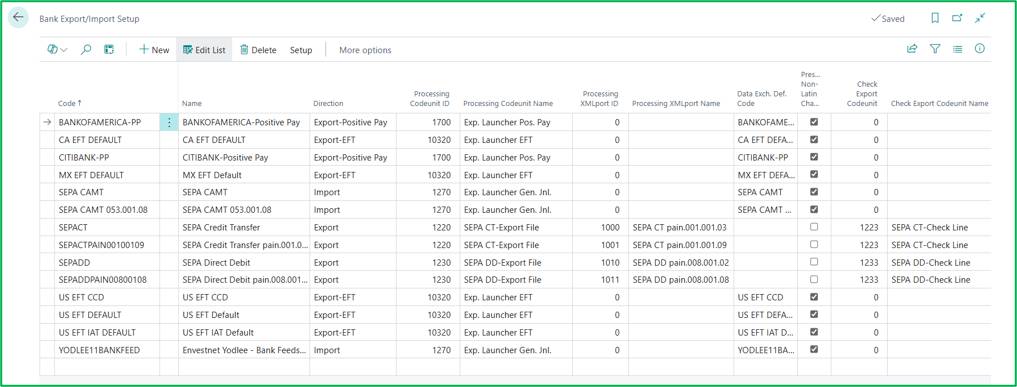
Acumens StarterPack – Setting Up & Processing Electronic Payments in Business Central

3. Configure General Journal Batches

To export electronic payments from a payment journal, the journal batch must explicitly allow file generation:
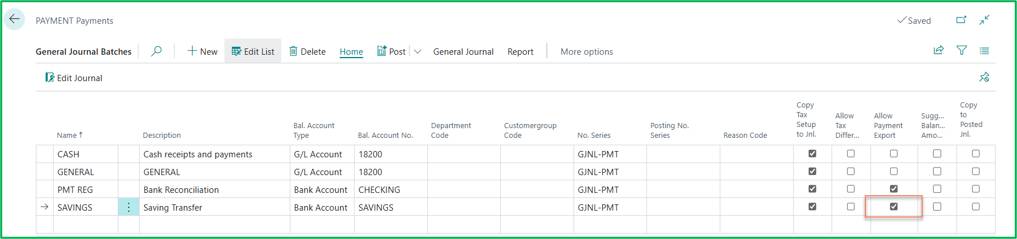
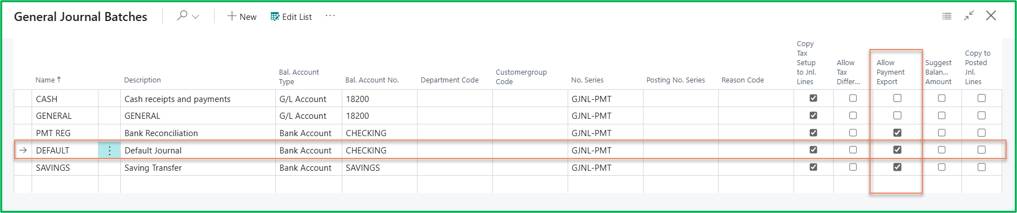
  • Open Payment Journals and navigate to General Journal Batches.
  • Locate your target batch such as CHASE, DEFAULT, ACH.
  • Enable the Allow Payment Export checkbox.
Acumens StarterPack – Setting Up & Processing Electronic Payments in Business Central Acumens StarterPack – Setting Up & Processing Electronic Payments in Business Central

4. Bank Account & Vendor Master Data Setup

Bank Account Card

Set up the payment and remittance numbering parameters under the Acumens StarterPack fasttab:
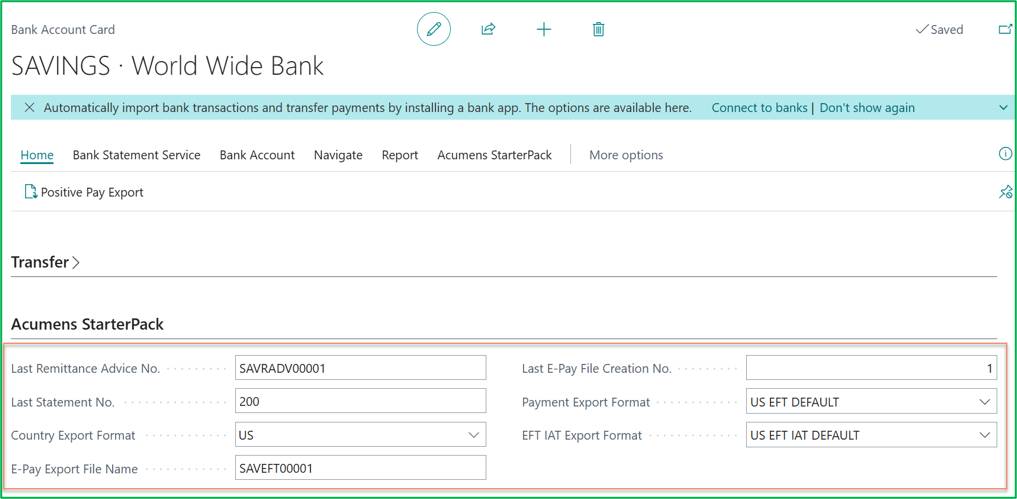
  • Payment Export Format: Select US EFT DEFAULT (or your bank's specification).
  • EFT IAT Export Format: Select US EFT IAT DEFAULT.
  • E-Pay Export File Name & Number Series: Define your naming convention and number series for tracking file outputs.
  • Last Remittance Advice No.: Set the starting document series for remittance tracking.
Acumens StarterPack – Setting Up & Processing Electronic Payments in Business Central

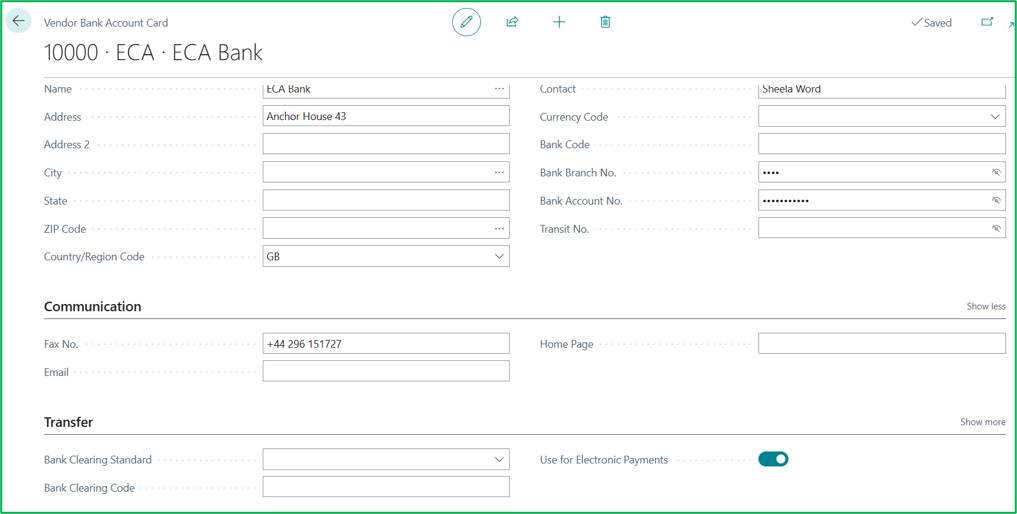
Vendor Bank Account

Setup Vendor Bank Account Card. It must have Bank Account No., Transit No. and ensuring Use for Electronic Payments is toggled ON.
Acumens StarterPack – Setting Up & Processing Electronic Payments in Business Central

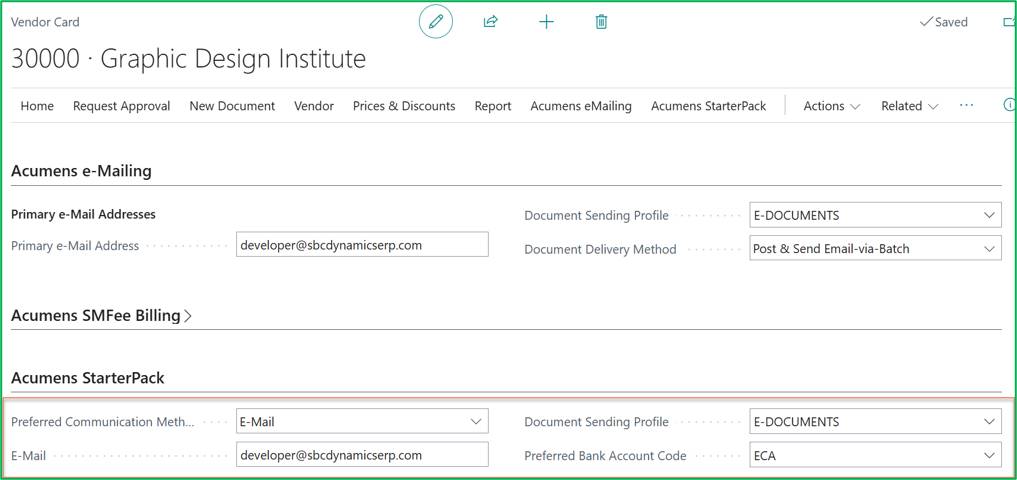
Vendor Card

Select "Preferred Bank Account Code". Also select the Preferred Communication Method, E-Mail, and Document Sending Profile (optional).
Acumens StarterPack – Setting Up & Processing Electronic Payments in Business Central

5. Vendor Remittance Report Selection

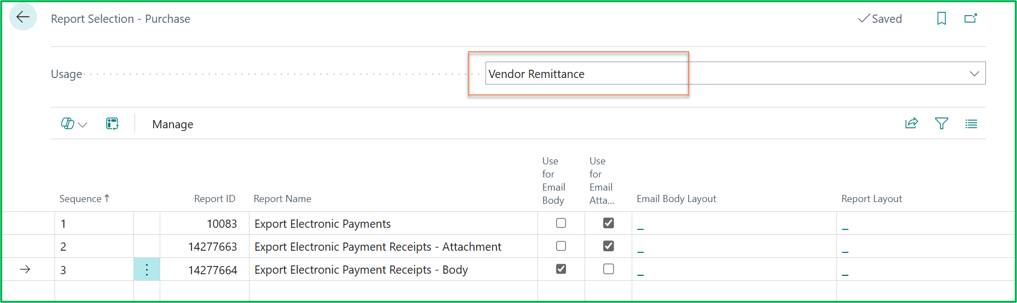
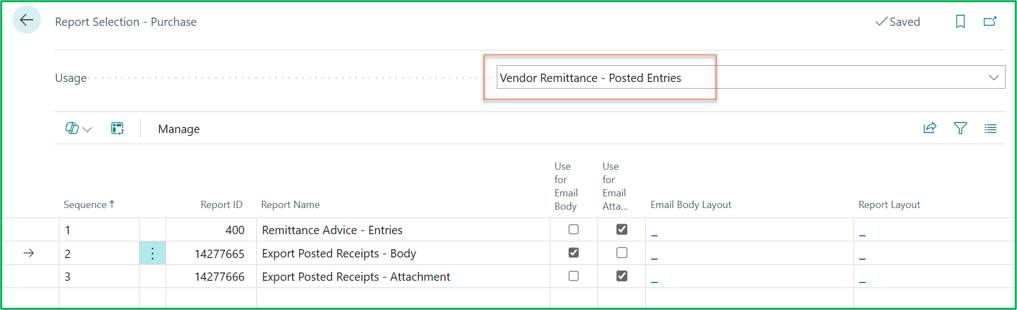
Configure which report layouts are utilized when generating pre-posting and post-posting remittance documentation. These reports will be used to print/email remittance advice before posting.

Set Usage to Vendor Remittance to set report layouts for unposted remittance documents.
Acumens StarterPack – Setting Up & Processing Electronic Payments in Business Central

Set Usage to Vendor Remittance - Posted Entries to set report layouts for historical posted entries.
Acumens StarterPack – Setting Up & Processing Electronic Payments in Business Central

6. Payment Journal Processing Workflow

Once setup is complete, executing an electronic payment run involves a structured 5-step sequence.

Create Payment Journals

Navigate to the Payment Journal using an allowed batch and perform the following.
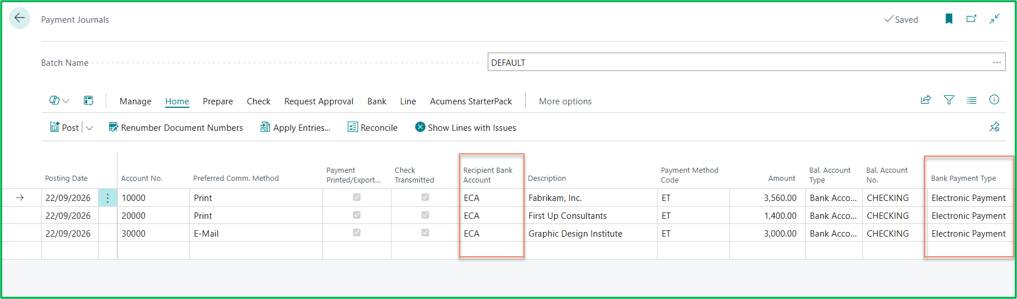
  • Fill in payment lines or use Suggest Vendor Payments.
  • Ensure Bank Payment Type is set to Electronic Payment.
  • Verify that Recipient Bank Account populates automatically from the vendor's preferred bank settings.
  • Apply vendor invoices via Apply Entries or using Applies-to Doc. No.
Acumens StarterPack – Setting Up & Processing Electronic Payments in Business Central

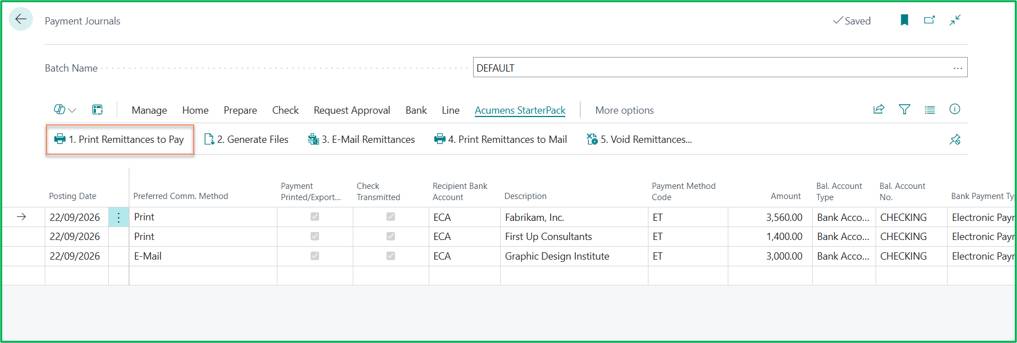
Print Remittances to Pay

Use Acumens StarterPack -> "1. Print Remittances to Pay" Menu action to export electronic Payments.
Acumens StarterPack – Setting Up & Processing Electronic Payments in Business Central

This downloads a zipped folder with each payment line exported as a separate PDF file. The files are grouped based on vendor name in ascending order.

Acumens StarterPack – Setting Up & Processing Electronic Payments in Business Central

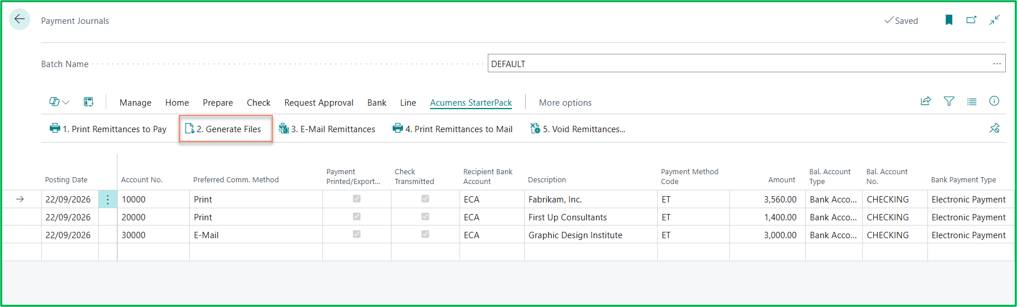
Generate Electronic Bank Files

When Electronic Payment is exported successfully then it will be possible to Generate EFT files. Go to Acumens StarterPack -> "2. Generate Files".
Acumens StarterPack – Setting Up & Processing Electronic Payments in Business Central

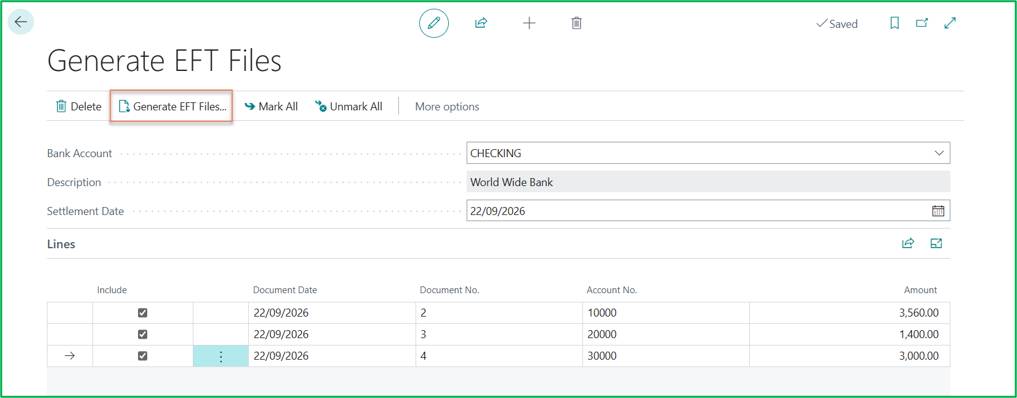
Use "Generate EFT Files" menu action to create Electronic Payment File to submit to Bank
Acumens StarterPack – Setting Up & Processing Electronic Payments in Business Central

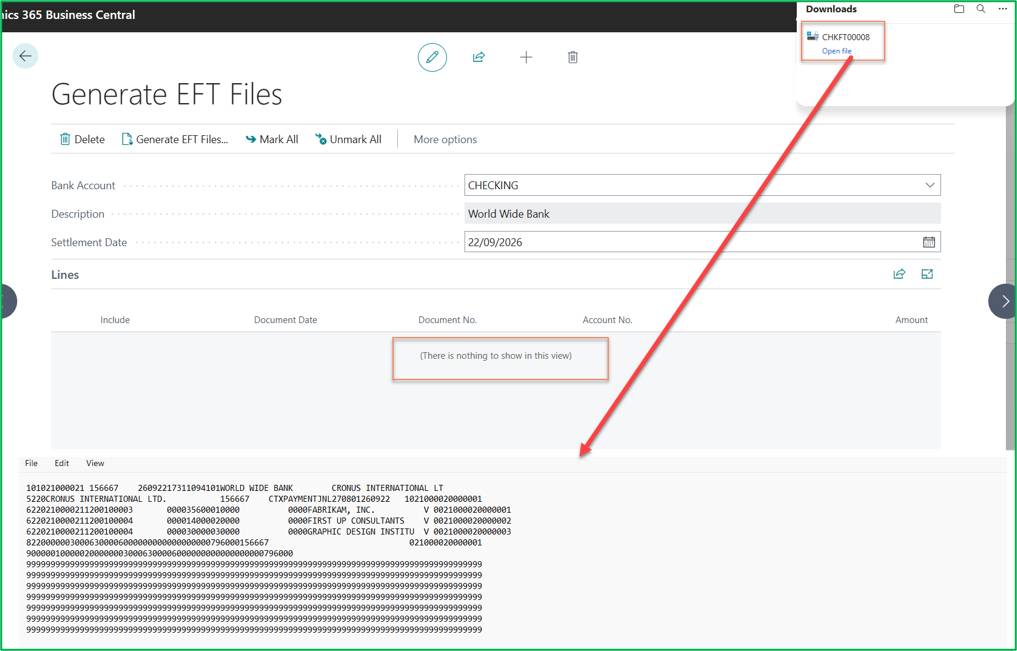
Electronic Payment File will be generated and downloaded to local, and all records will be removed from Lines as shown below.
Acumens StarterPack – Setting Up & Processing Electronic Payments in Business Central

Distribute Remittances (Email / Print)

Distribute remittance notices based on vendor communication preferences:
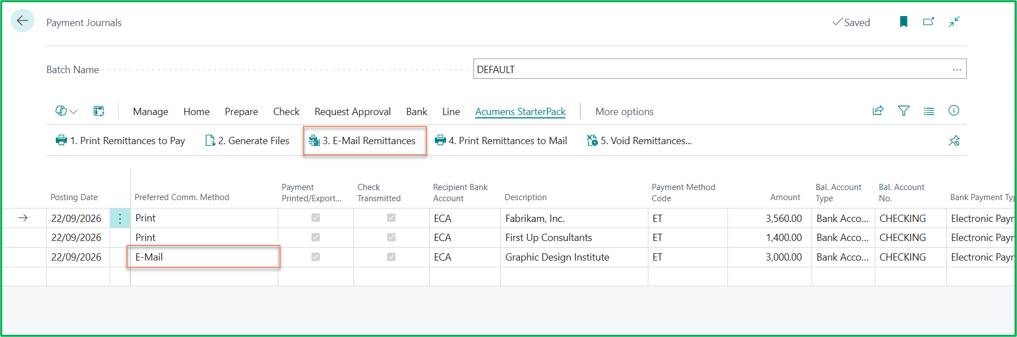
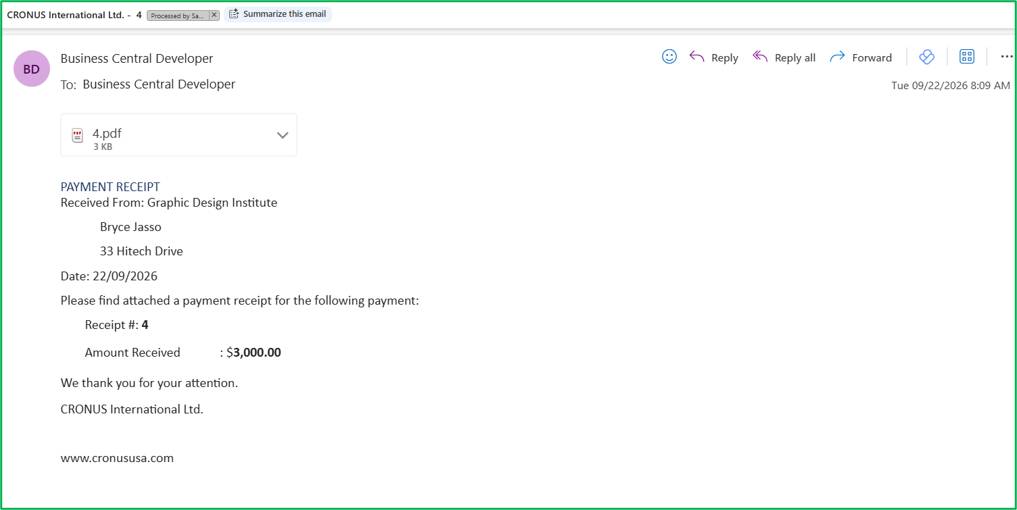
  • E-Mail Remittances: Automatically sends emails with PDF remittance attachments to vendors marked for E-Mail. (Note: Any validation errors generate an error report for review). Acumens StarterPack – Setting Up & Processing Electronic Payments in Business Central Acumens StarterPack – Setting Up & Processing Electronic Payments in Business Central
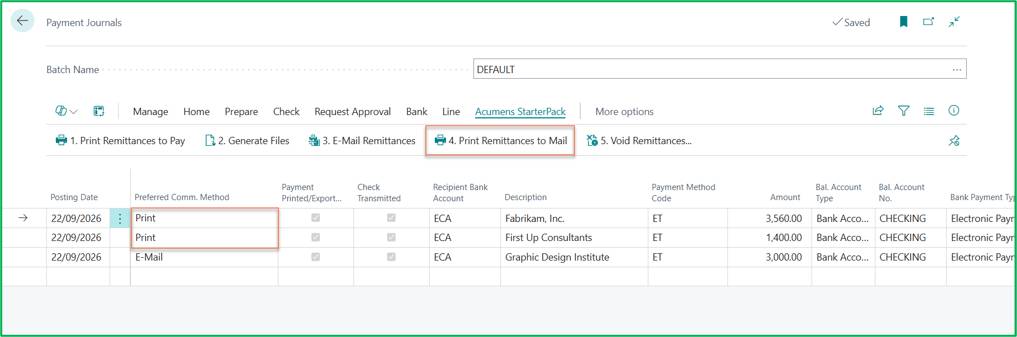
  • Print Remittances to Mail: Generates a zip folder of individual PDFs for vendors set to Print. Acumens StarterPack – Setting Up & Processing Electronic Payments in Business Central Acumens StarterPack – Setting Up & Processing Electronic Payments in Business Central

Post Journal Entries (or Void if Reverting)

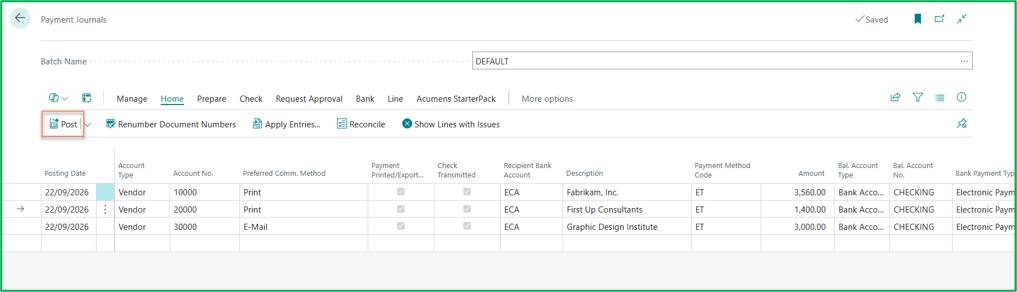
Post Payments: Post the payment journal lines to complete the transaction and update vendor ledgers.
Acumens StarterPack – Setting Up & Processing Electronic Payments in Business Central

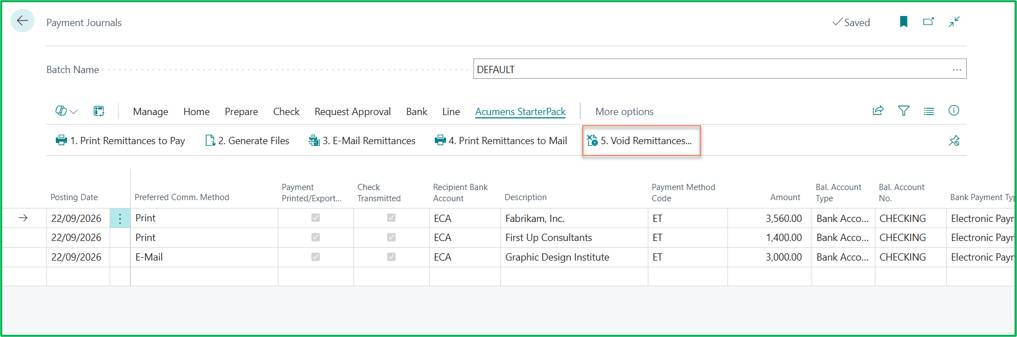
Void Remittances (Optional): If edits or adjustments are necessary prior to posting, click 5. Void Remittances to reset exported flags and rerun the process.

Acumens StarterPack – Setting Up & Processing Electronic Payments in Business Central

Best Practices & Troubleshooting

  • Pre-flight Validation: Always ensure vendor email addresses and route numbers are populated before running payment batches to avoid workflow errors during step 3.
  • Handling Communication Errors: If email distribution fails during E-Mail Remittances, Business Central exports an Excel file detailing the affected records resolve these errors before re-sending.
  • Bank File Security: Keep generated bank files securely stored and upload them directly to your banking portal immediately following file generation.
Customer support team ready to assist you

Contact SupportContact

Contact Support for demo of the app or for assistance with setup and training

Sign UpSign Up

Sign up to receive updates on Acumens.com, new releases, and extension updates by filling in the form.