
Import and export product images in bulk, with flexible storage options and clear visibility into import errors.
A growing product catalog often means hundreds of images to upload, update, or move between systems. In Microsoft Dynamics 365 Business Central, adding them one Item Card at a time can take hours away from more important work. The challenge becomes even greater when your team regularly introduces new products or maintains images across different environments.
Acumens Starter-Pack & Implementation Tools from SBC Dynamics ERP makes that work easier. Its Mass Image Import and Export functionality lets you handle multiple item images in one operation, choose where the files are stored, and identify any images that need attention. If an individual image cannot be imported, the remaining files can still be processed.
Start by selecting the location where your product images are stored, then choose Import Images from the Business Central Items list. Acumens checks each file against the configured matching rules and assigns successfully matched images to the relevant items. You can use the Has Picture column to see which items have images before and after the import.
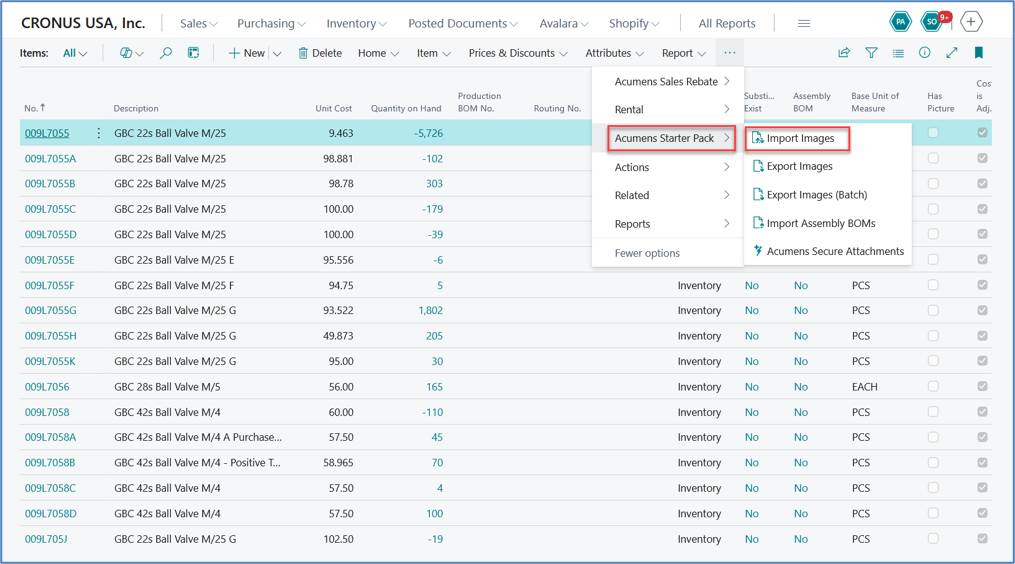
Figure 1. Access the Acumens Import Images action from the Business Central Items list
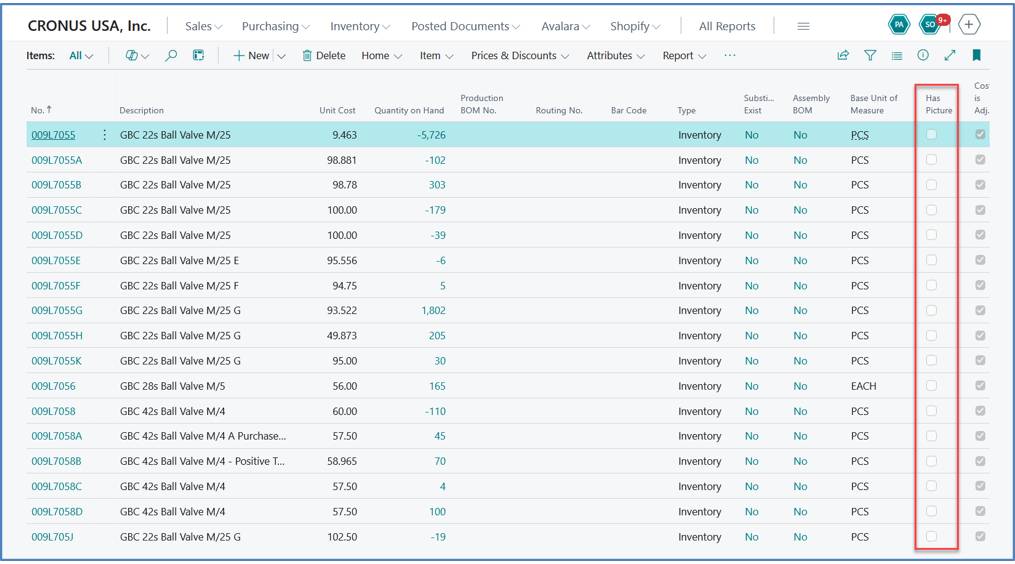
Figure 2. The Has Picture column before image import helps users identify items without images.
Once the import is complete, Business Central confirms the successful operation. If some files do not match an item or cannot be processed, they can be reviewed separately while the rest of the batch continues.
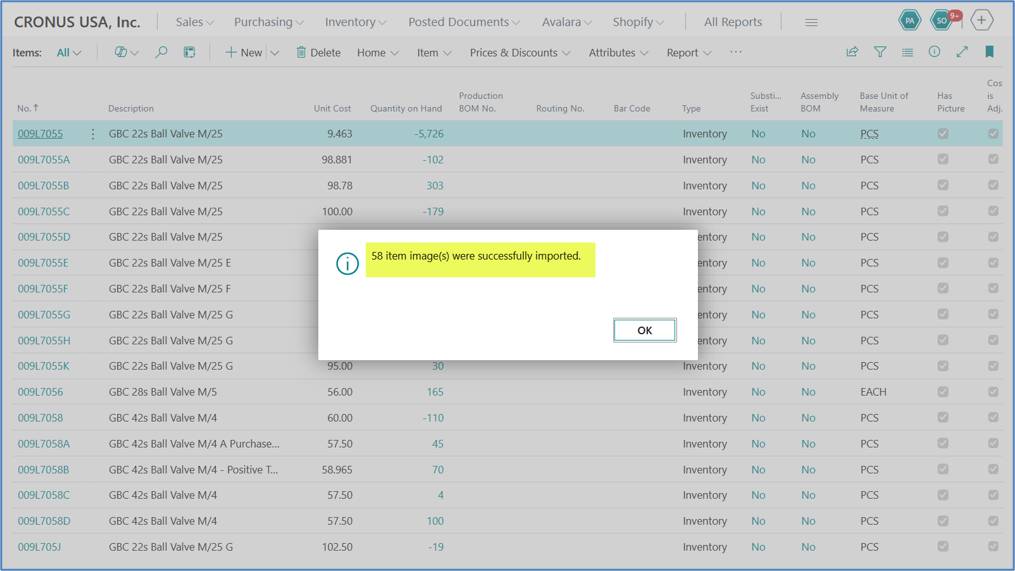
Figure 3. Business Central displays a confirmation after images are successfully imported.
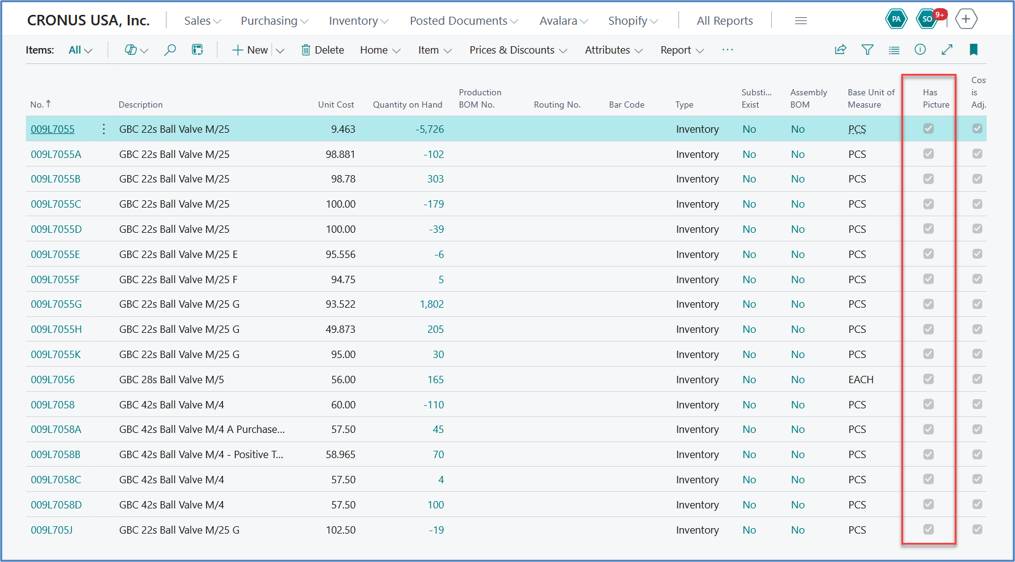
Figure 4. The Has Picture column reflects the imported item images.
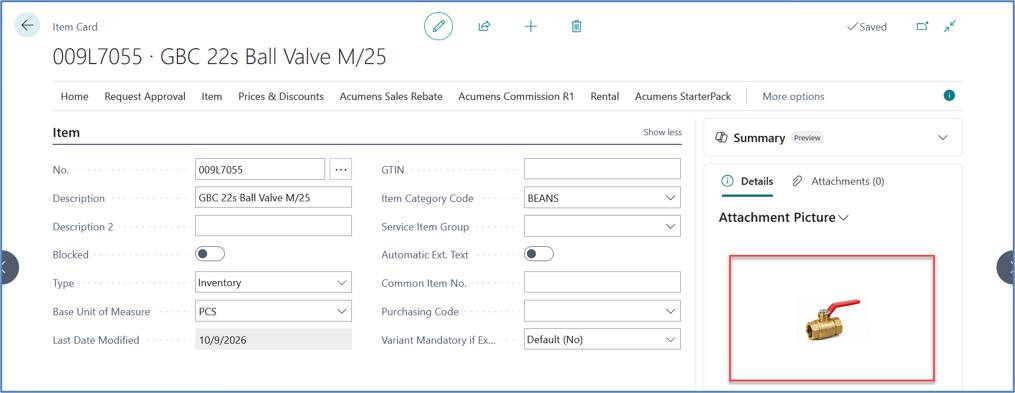
Figure 5. An imported image displayed on the corresponding Business Central Item Card.
When you need to share product images, keep copies of catalog assets, or prepare for a move between Business Central environments, exporting them individually creates the same unnecessary work. With Mass Image Export, you can select multiple items and export their images to a configured location, including local file storage, SFTP, Azure Blob Storage, or Azure File Shares.
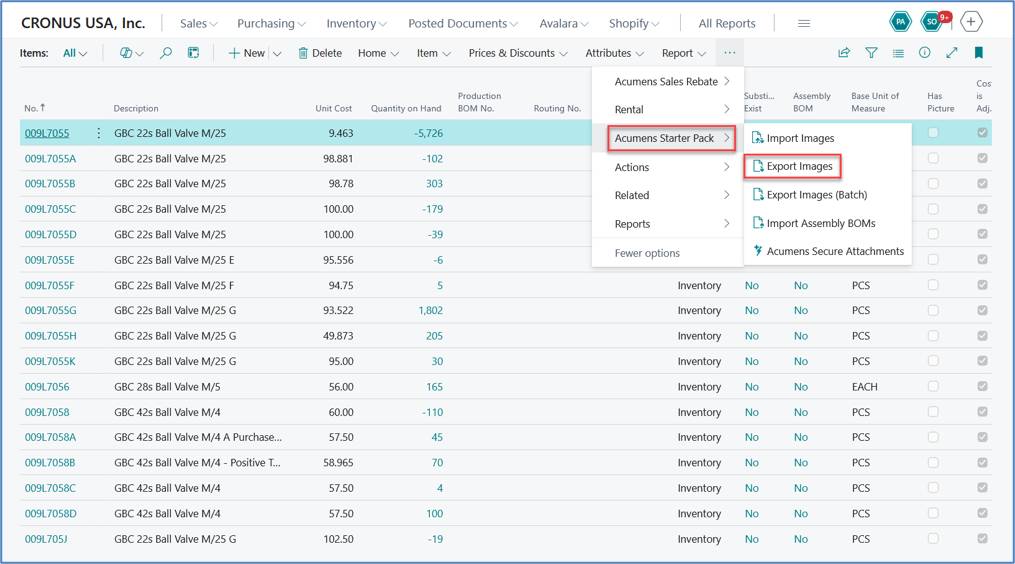
Figure 6. Select the Export Images action for multiple items in Business Central.
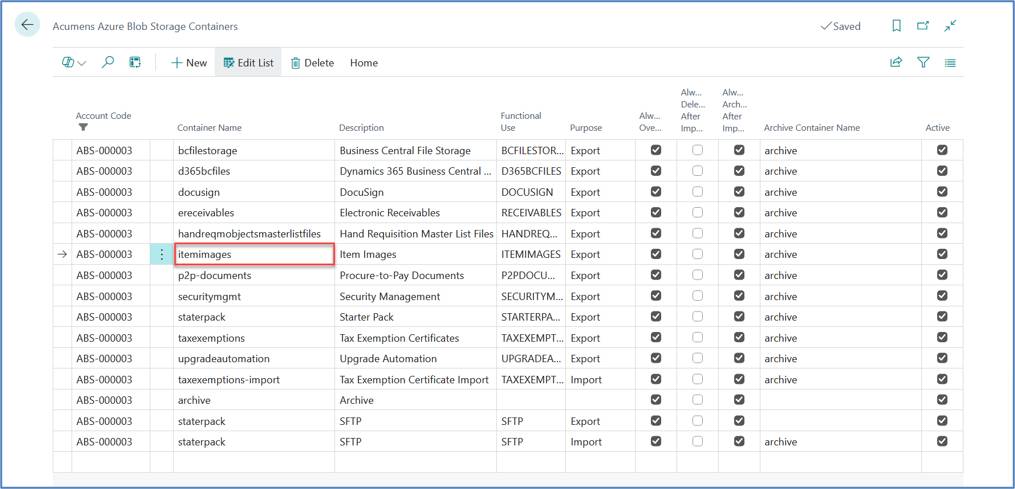
Figure 7. Acumens file storage configuration used for image transfer operations.
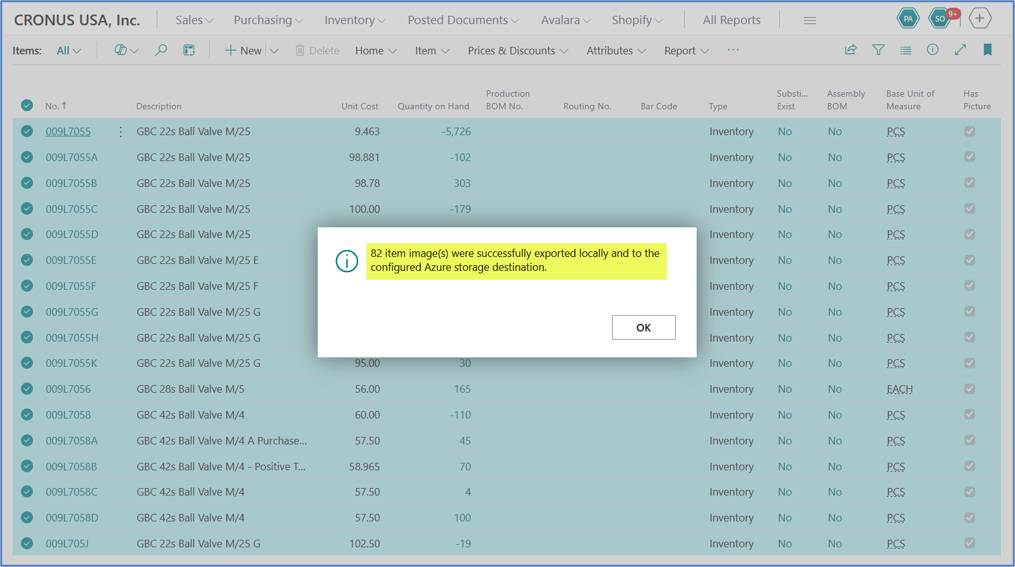
Figure 8. Confirmation that selected item images were exported to the configured storage destination.
Not every image will be ready for import. A filename might not match an existing item, or a file might fail during processing. Acumens skips the affected image and continues with the others. You can then open the temporary File Import Results page to see which files were skipped and why, correct the issues, and import those images again without repeating the successful ones.
The File Import Results page displays information for the current import session. It is not intended to serve as a permanent history of earlier imports.
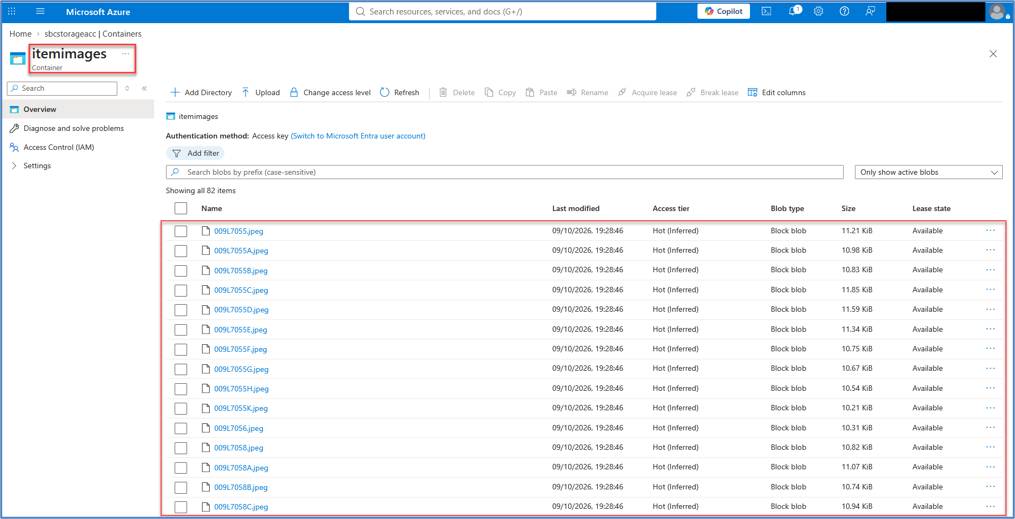
Figure 9. Example image files in the configured Azure storage location.
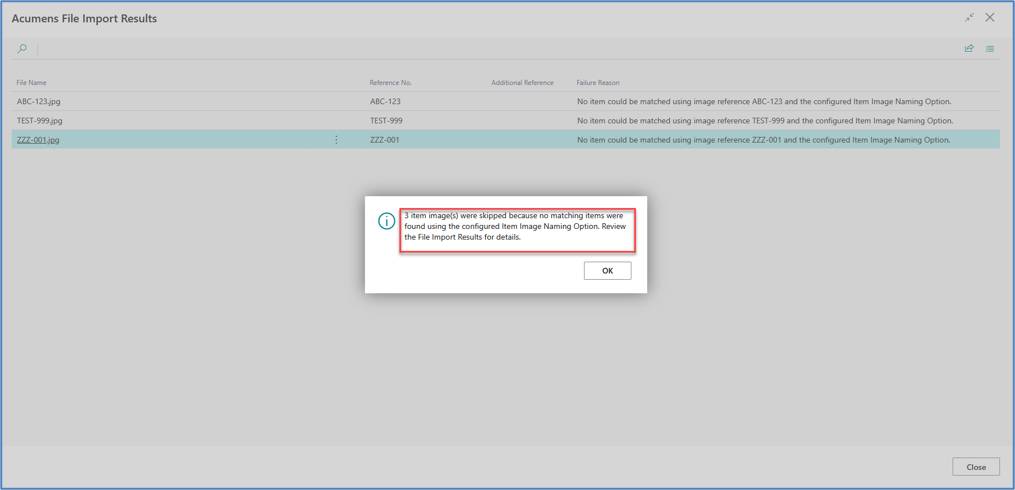
Figure 10. Import result notification highlighting images that could not be matched or processed.
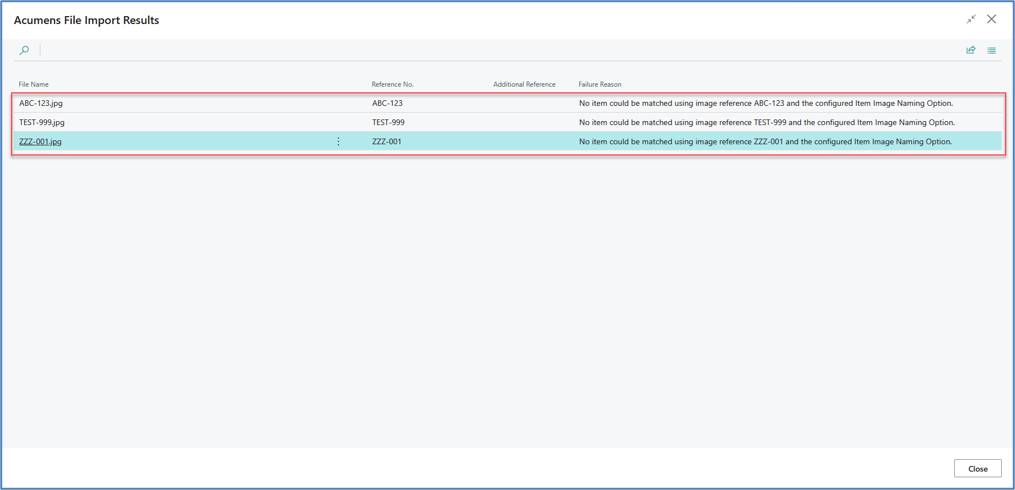
Figure 11. File Import Results identifies skipped image files and the corresponding processing reasons.
Consider a distributor preparing images for 500 new products. Suppose 480 images import successfully, but 20 cannot be matched or processed. Rather than starting again, the team reviews the 20 skipped files, corrects the issues, and imports just those images. The 480 successful imports do not need to be repeated.
This is an illustrative scenario, not a measured performance result.
Distributors, wholesalers, retailers, and other businesses with frequently changing product catalogs can benefit from this approach. It is particularly useful when introducing new products, refreshing catalog images, or moving product information between environments.
Yes. The Acumens Starter-Pack & Implementation Tools app supports importing multiple item images in a batch and uses configured matching rules to associate them with Business Central items.
Yes. Supported image transfer locations include Azure Blob Storage, Azure File Shares, SFTP, and local file storage.
The remaining images can continue processing. The temporary File Import Results page shows which file was skipped and the reason, so you can address the problem and try again.
Yes. You can export multiple item images to a configured storage destination instead of downloading each image separately.
Product image management should not require your team to repeat the same task hundreds of times. With Acumens Starter-Pack & Implementation Tools, you can import and export images in bulk, use familiar storage services, and deal with failed imports without starting over. Learn more about the app from SBC Dynamics ERP and how it can support your Business Central product catalog.