This functional walkthrough demonstrates how the Acumens solution manages customer deposits and special-order sales processes in Microsoft Dynamics 365 Business Central.
The main objective is to provide better control over special-order transactions by enforcing required deposits, automating deposit invoicing and notifications, tracking deposit balances and ensuring deposits are properly utilized as sales orders are fulfilled.
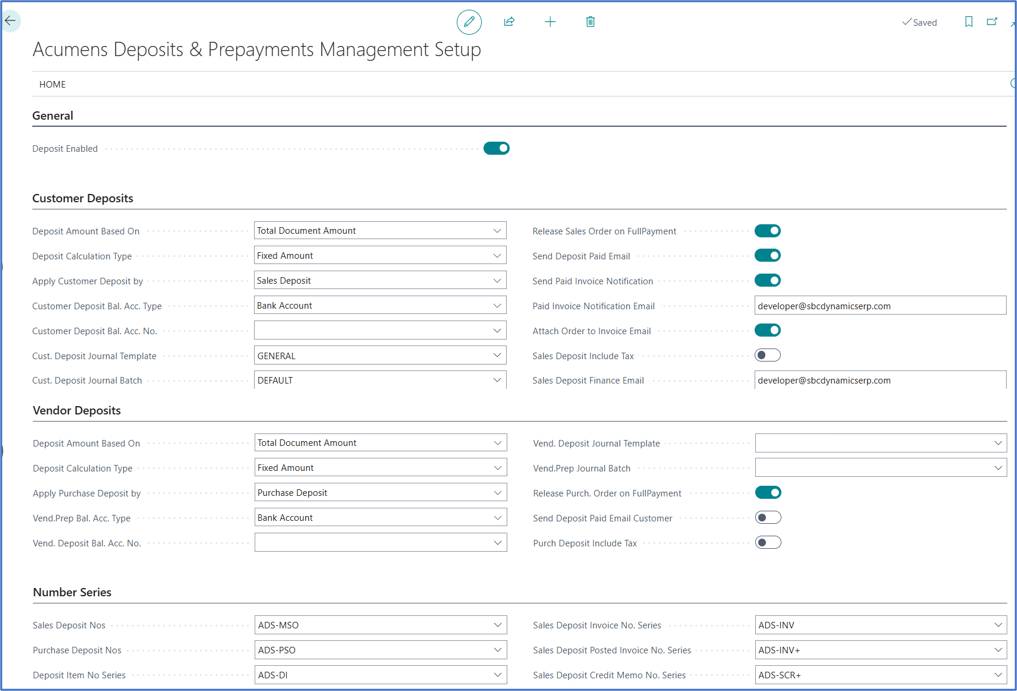
Below is the setup page for Acumens Deposits & Special-Order Management.
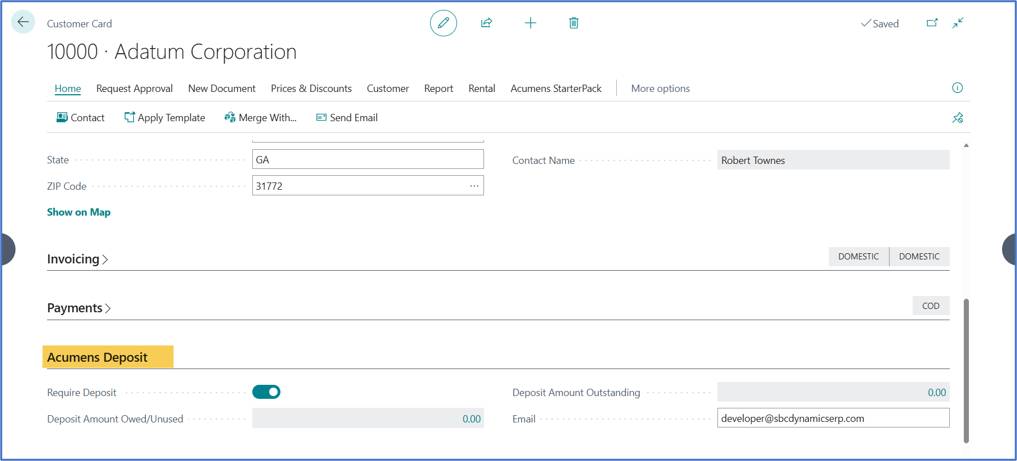
On the customer card you can specify whether a customer requires a deposit and it will be enforced on the sales order such that a sales order cannot be released or posted unless a deposit is made and paid.
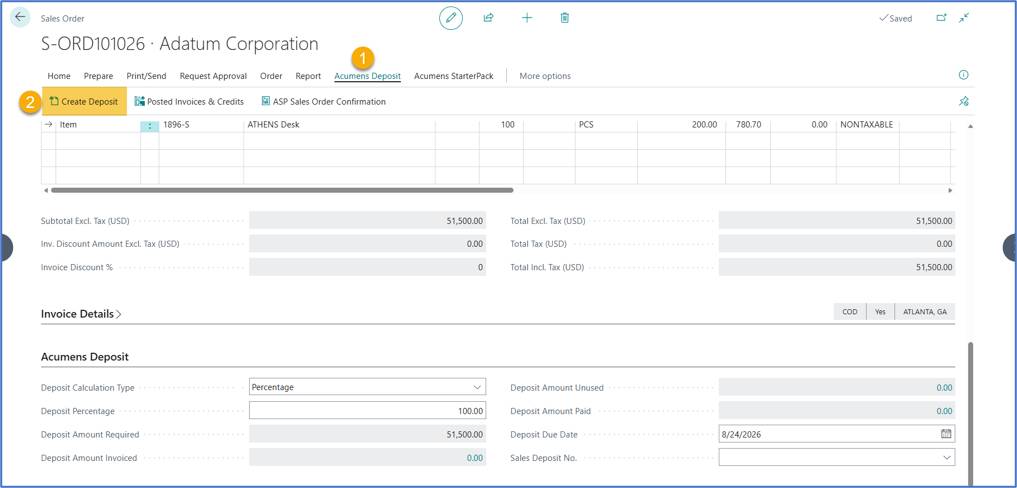
Create a sales order as seen below. For a deposit you will need to specify the deposit details as highlighted.
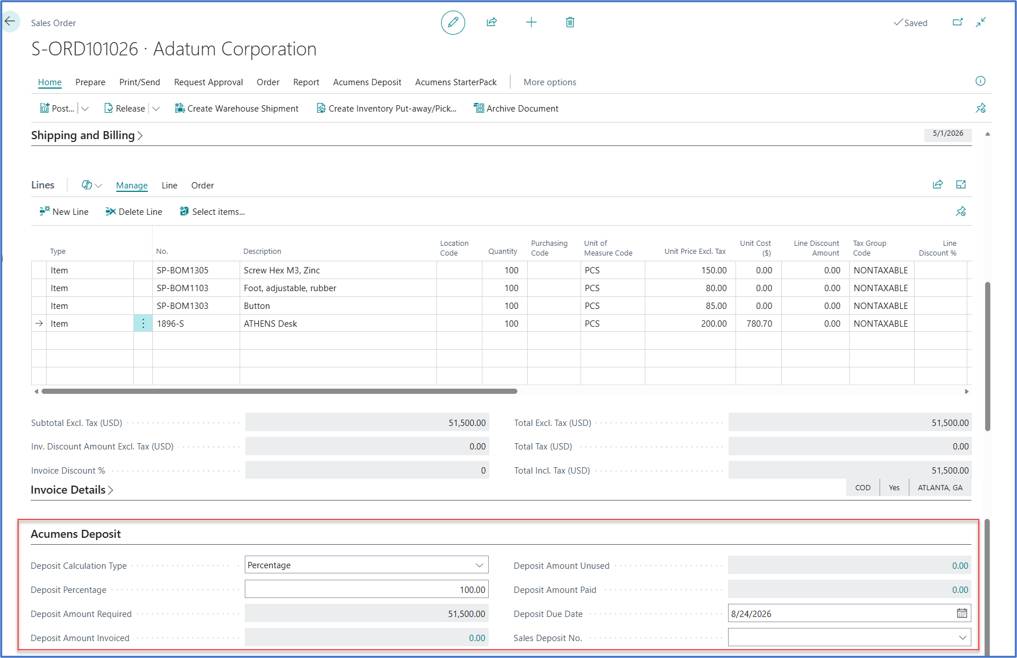
After filling in the deposit details, then create the deposit invoice using the page action seen below.
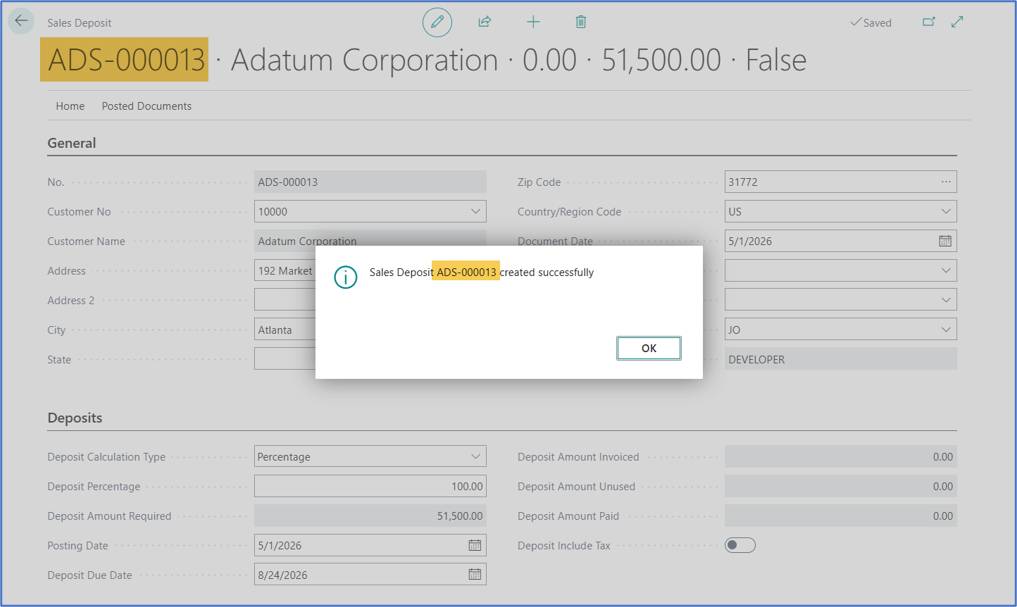
Successfully created as shown.
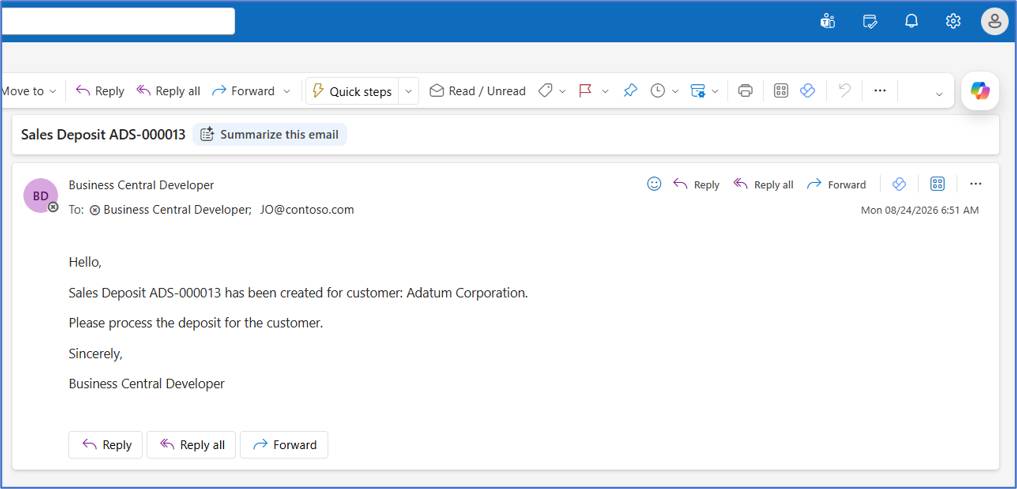
An email is sent to the customer’s salesperson when deposit request is created to notify them that there is a deposit that needs processing. This depends if sending emails is enabled on the app setup as shown above.
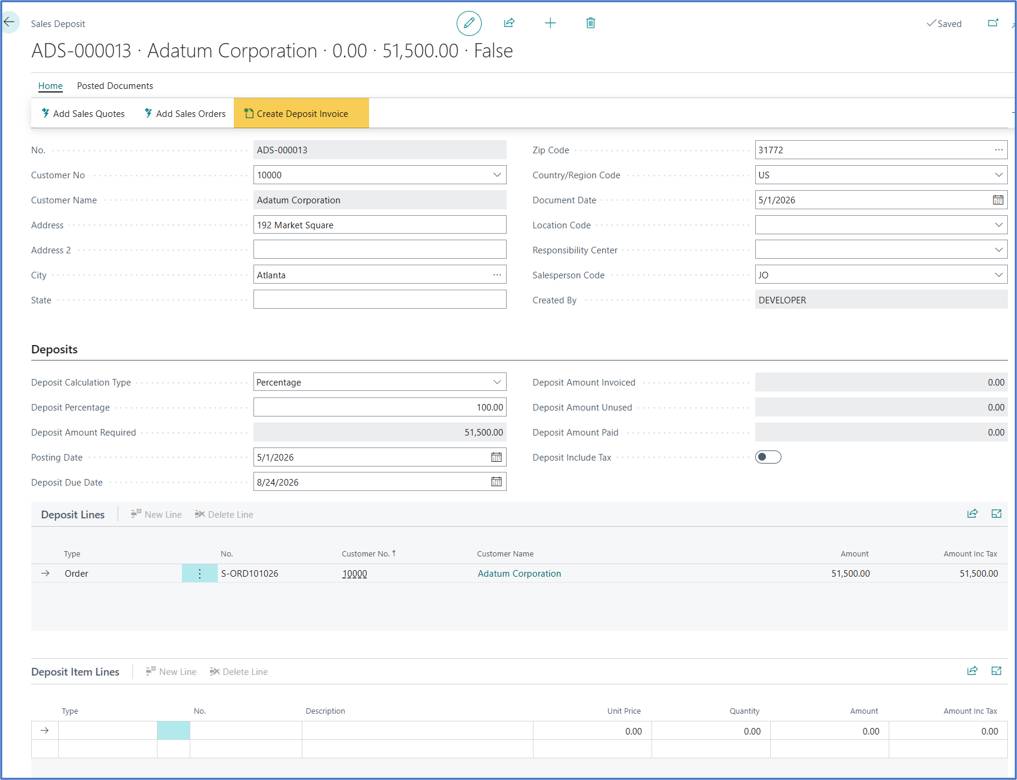
From the created deposit request, you can create the deposit invoice as seen below.
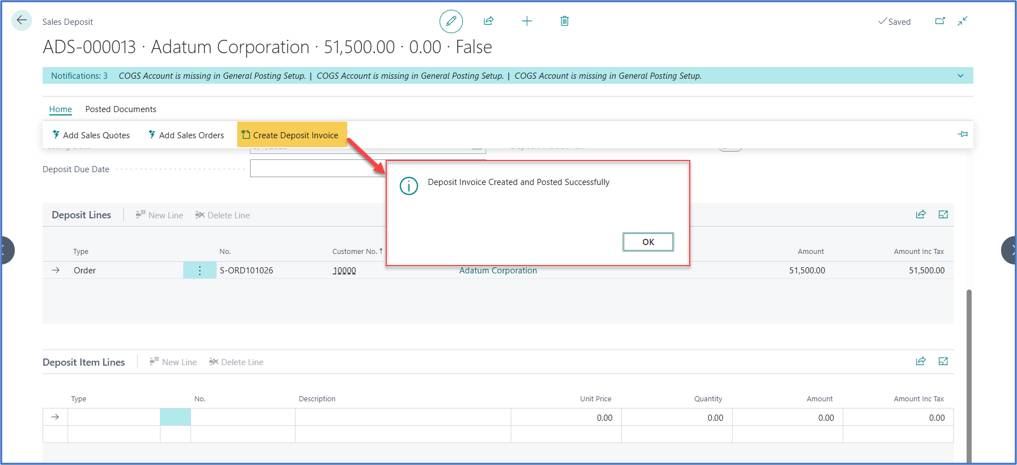
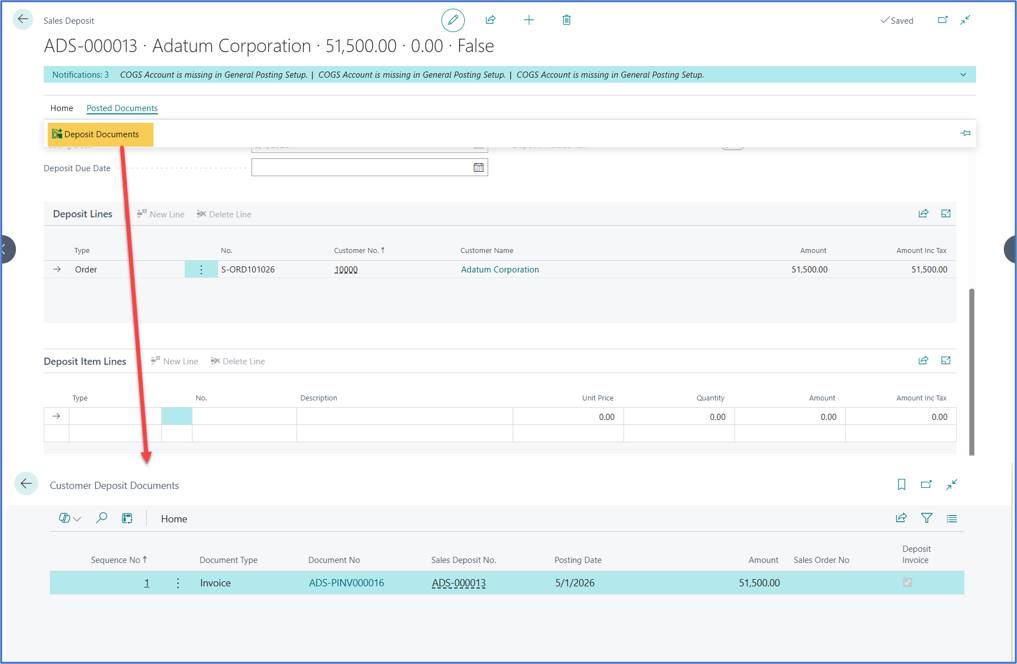
The deposit invoice is created and posted automatically, and you can view the created deposit invoice from the deposit card as seen below.
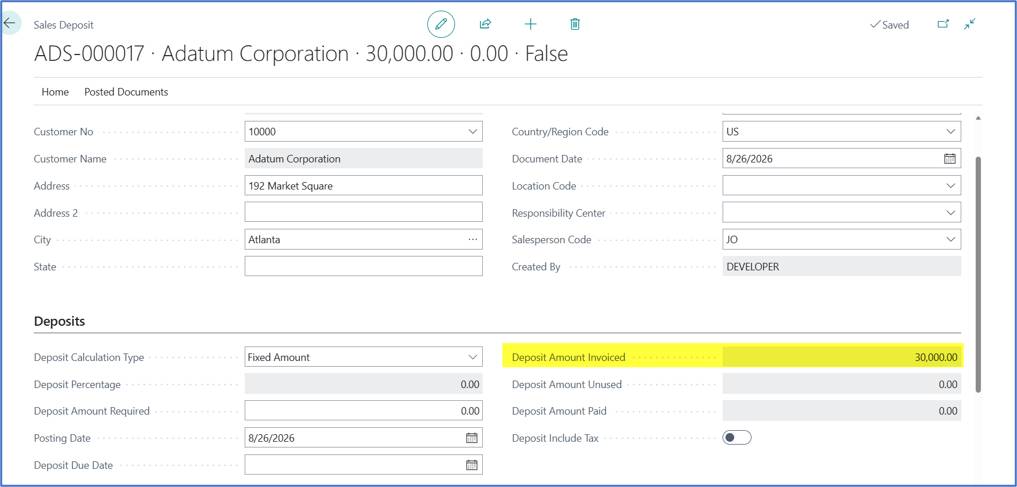
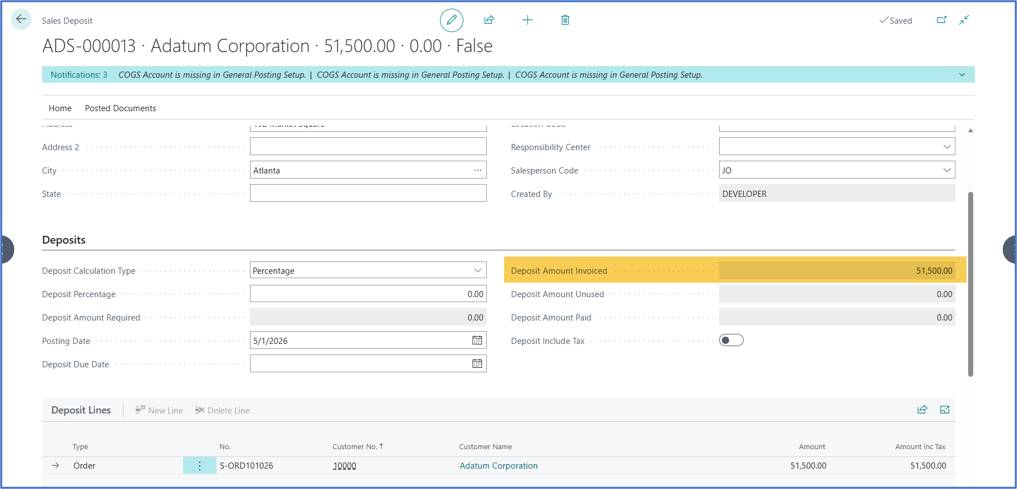
The invoiced deposit amount is updated on the Sales Deposit as seen below.
One of the seamless capabilities within the app is email functionality, which allows users to send deposit invoices directly to customers. Therefore, deposit invoice can be sent as an email to the customer as seen below.
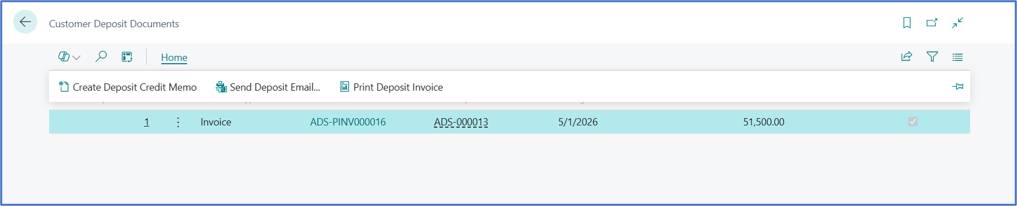
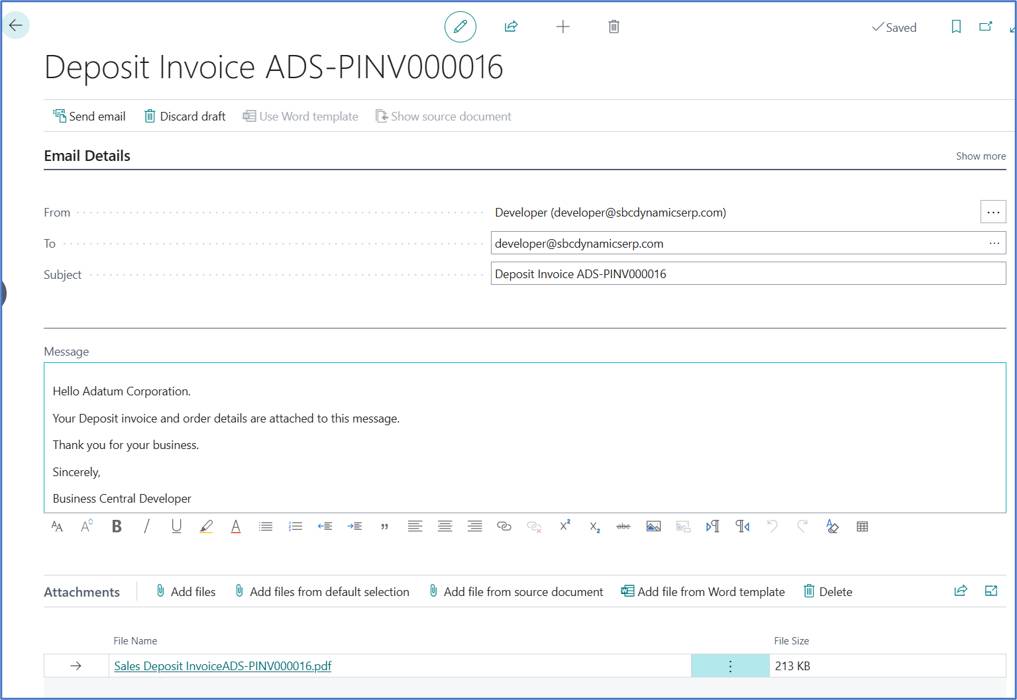
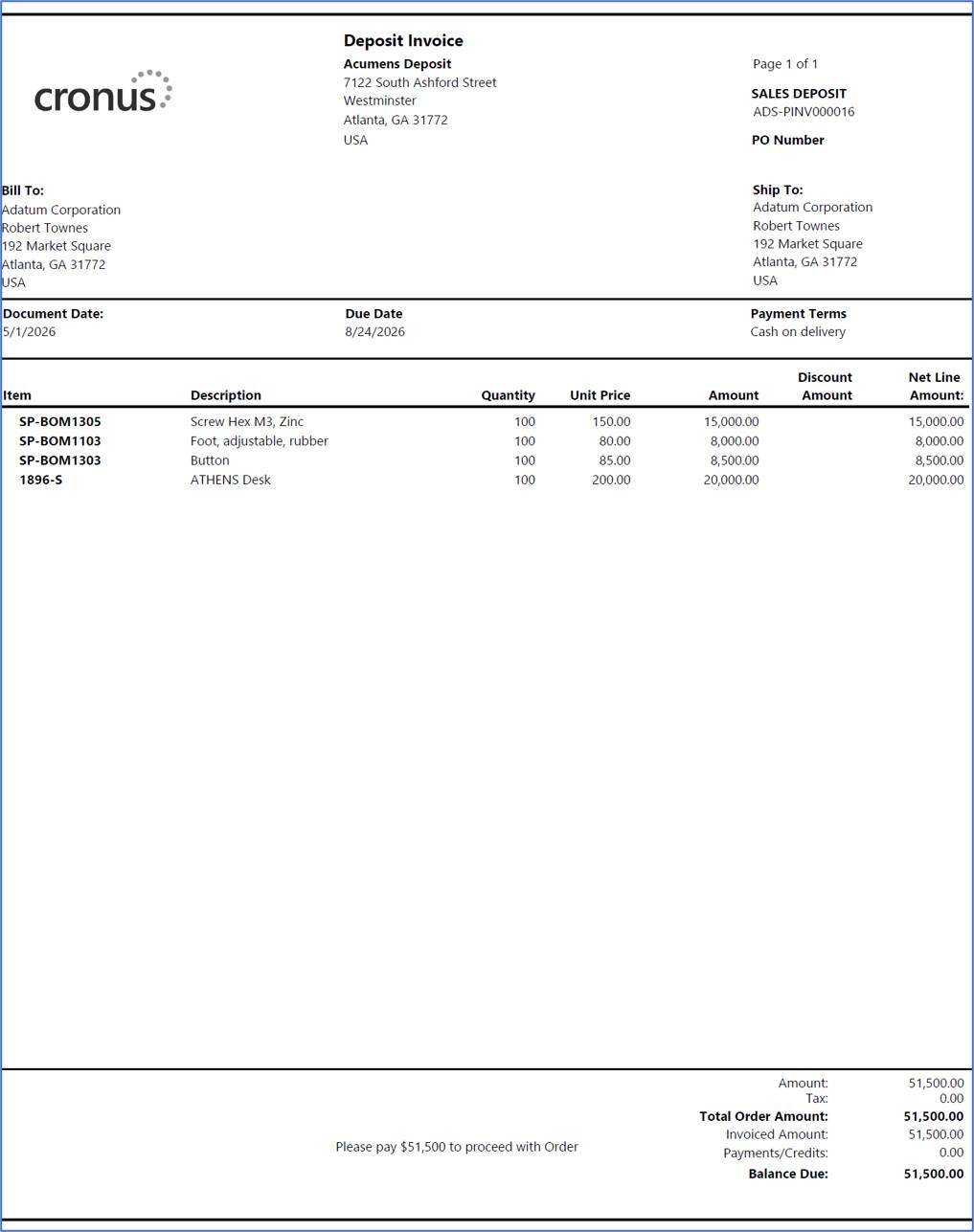
Below is deposit invoice attached to the email and can be printed
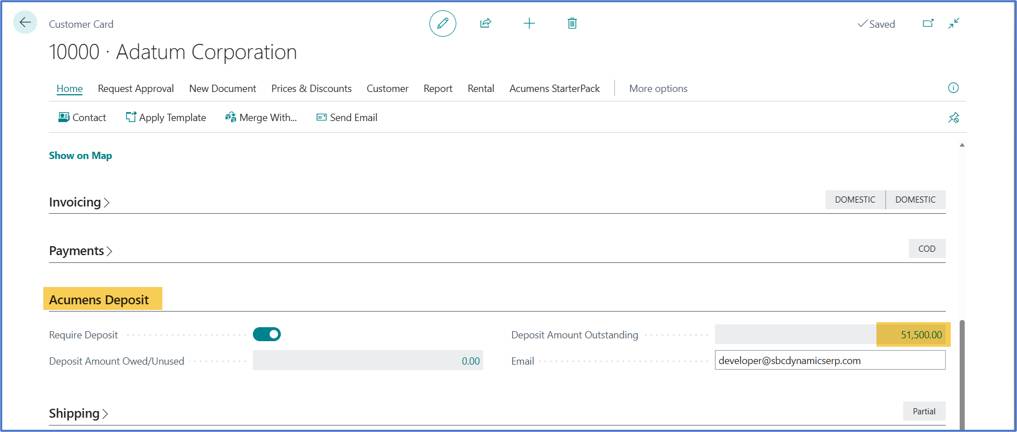
The Deposits fast tab on the customer card is updated as seen below.
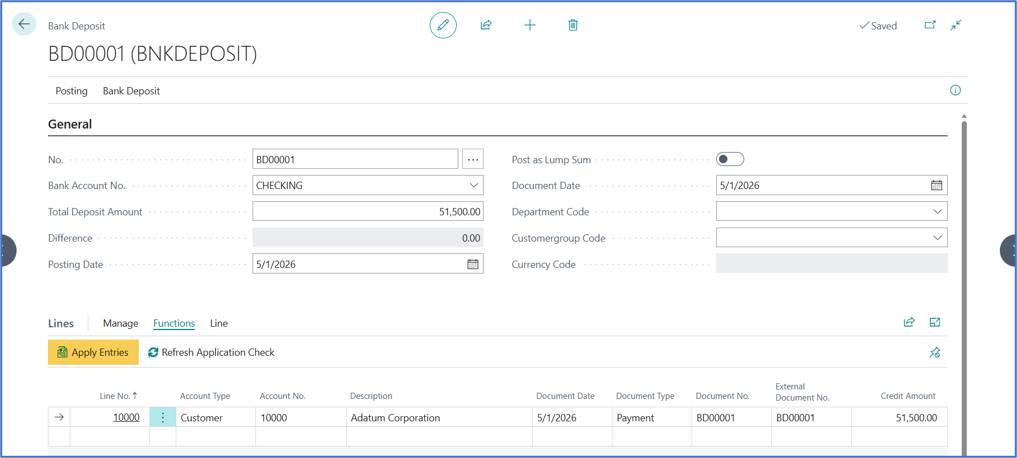
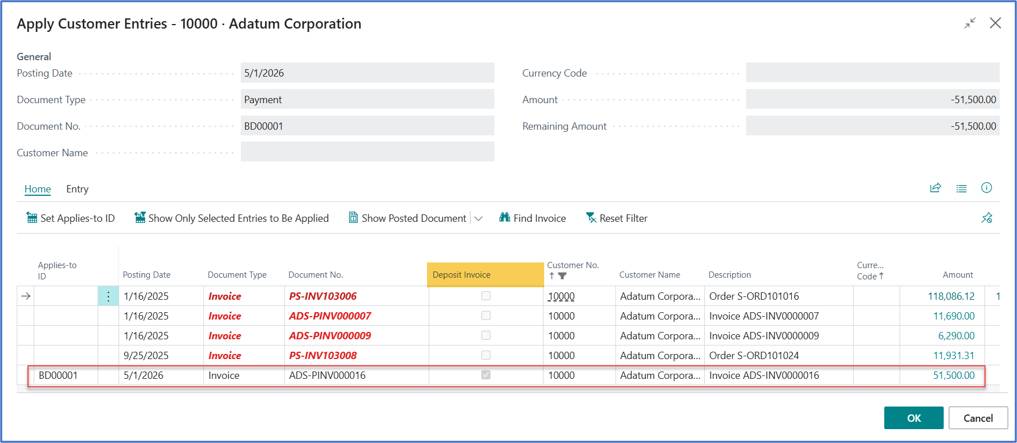
You can then receive the customer’s deposit using a bank deposit and apply it to the invoice as seen below.
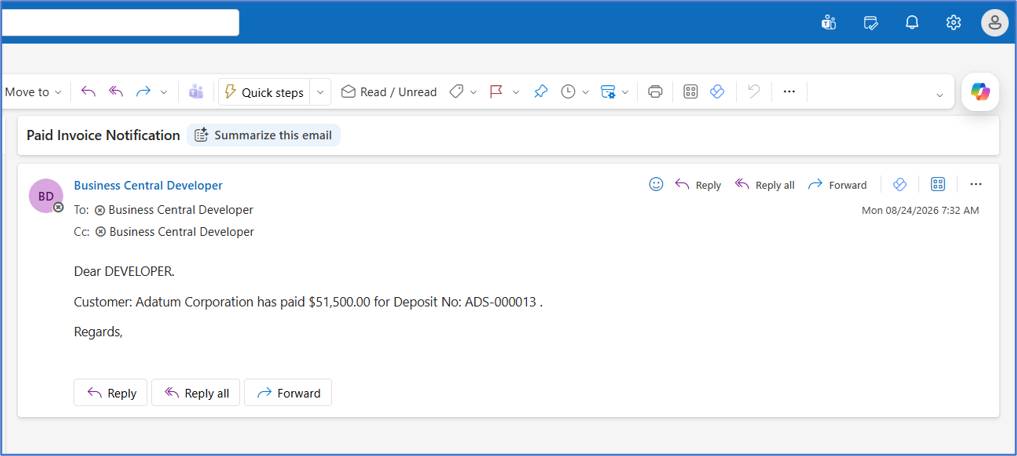
When the bank deposit is posted, the salesperson gets the email below.
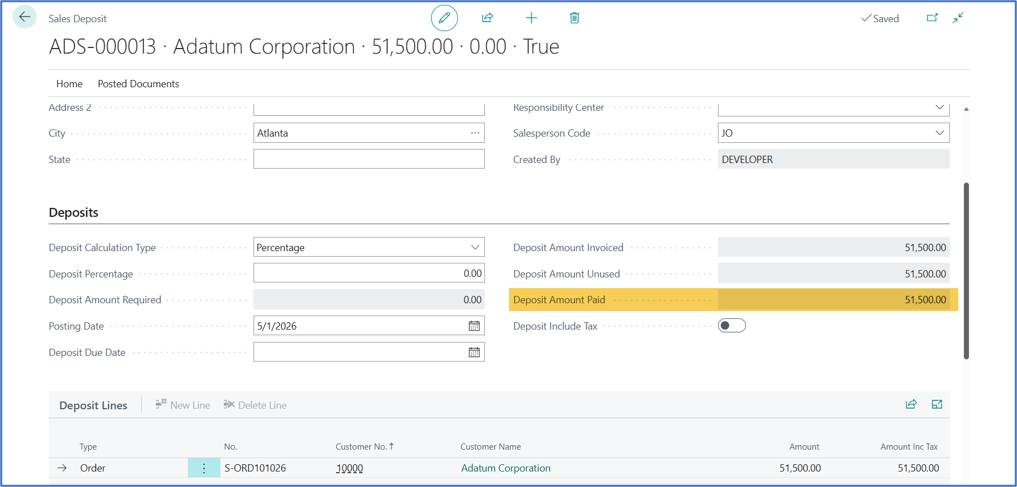
The sales deposit card is updated as seen below when the deposit is paid.
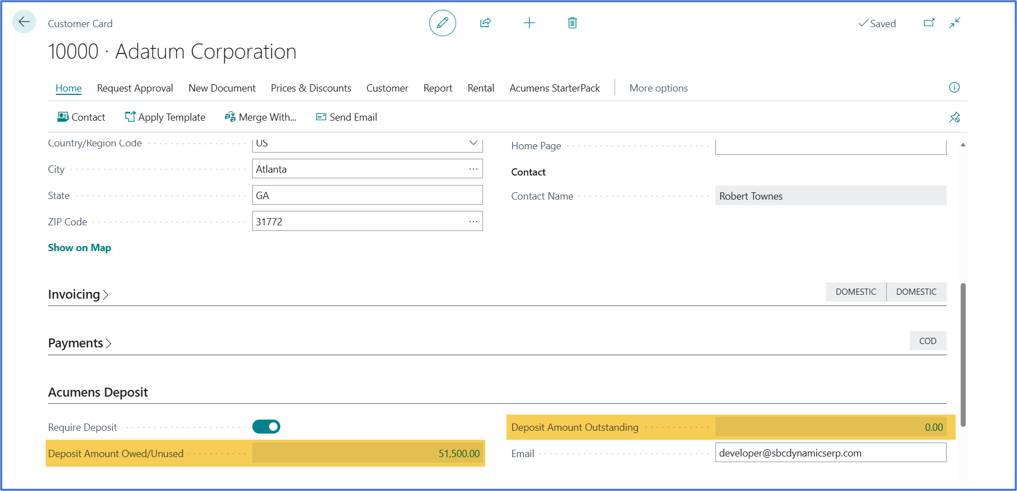
Deposit owed increases by the Deposited amount $51,500.00 seen below.
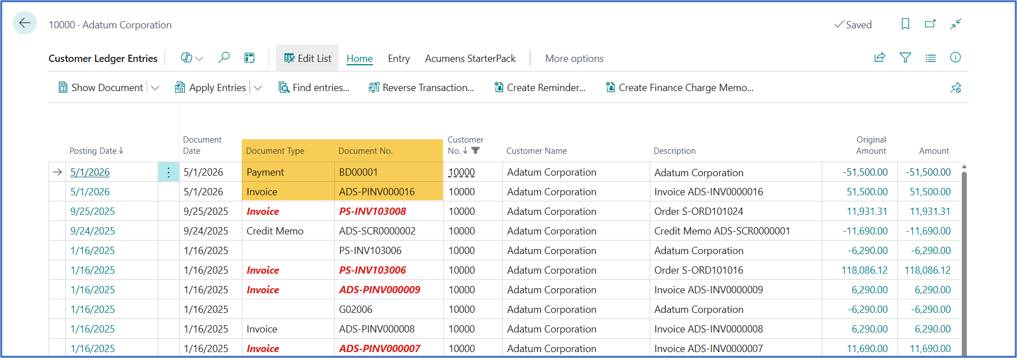
You can do a partial shipment to show deposit utilization as illustrated below.
a) Invoicing Line 1 partially
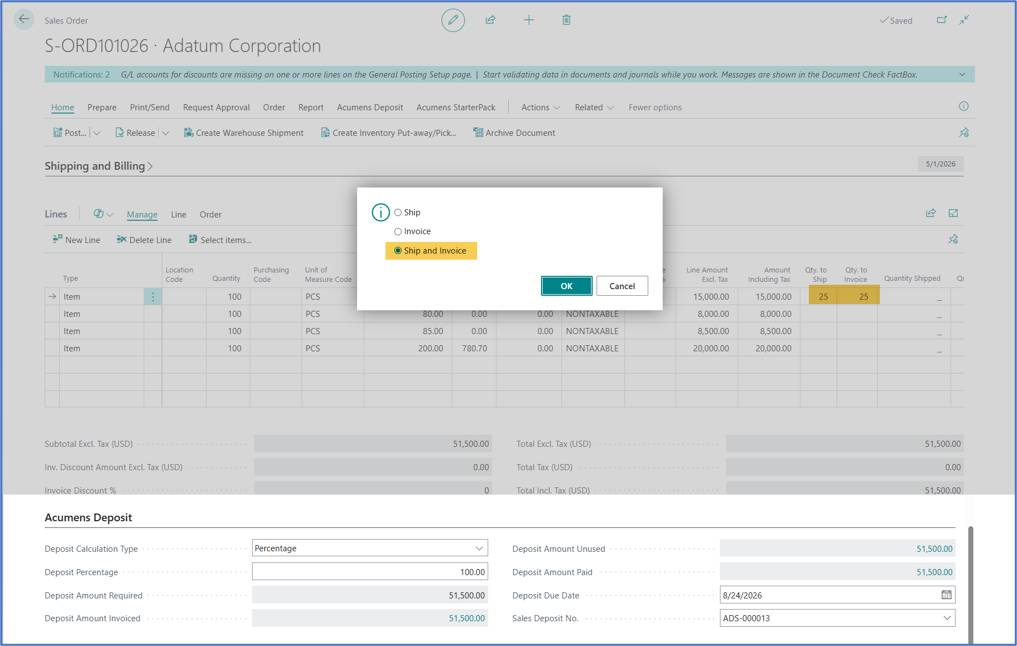
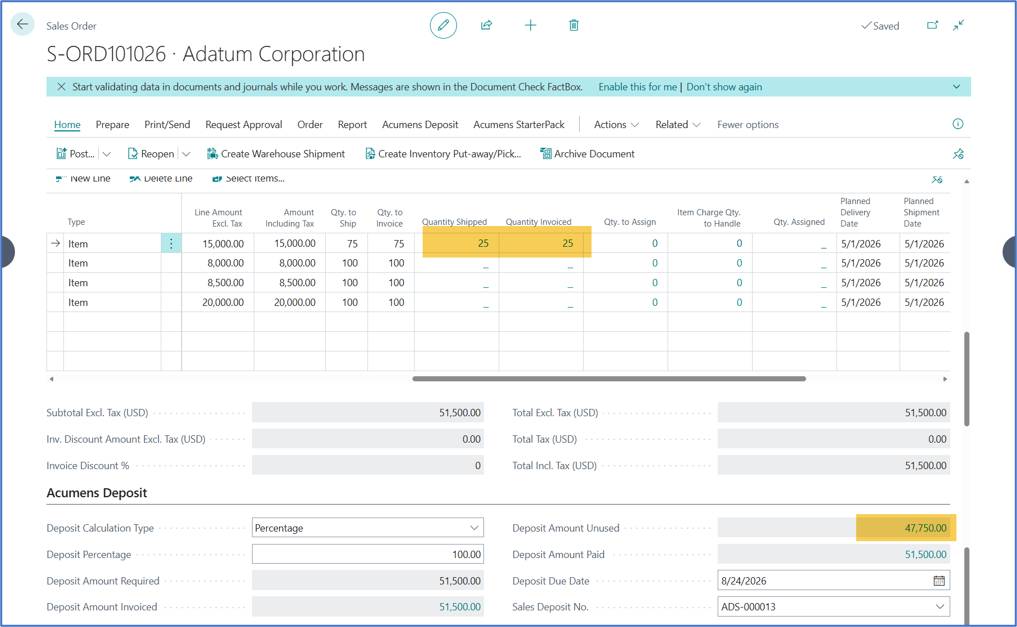
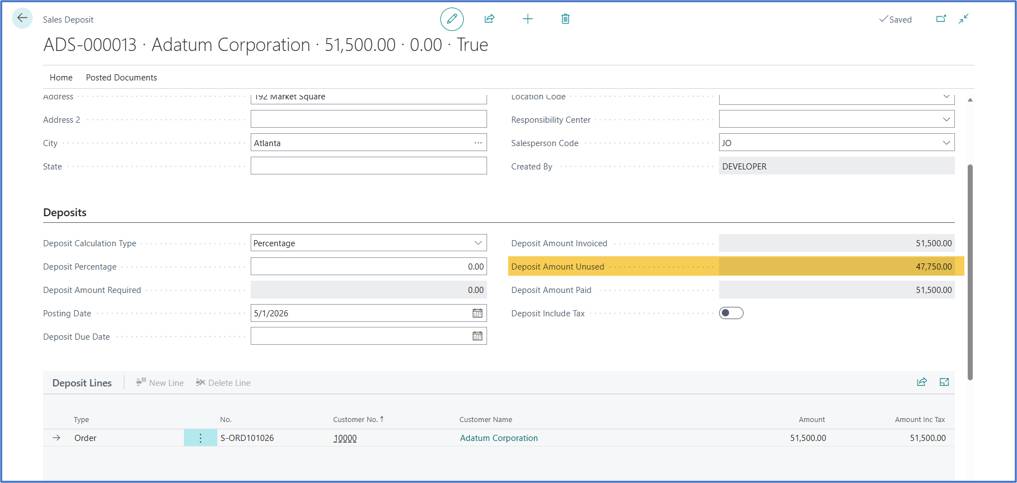
Sales Deposit Tracker Document.
Apply sales credit memo for Line 1 (25 Qty) to cancel posted sales invoice.
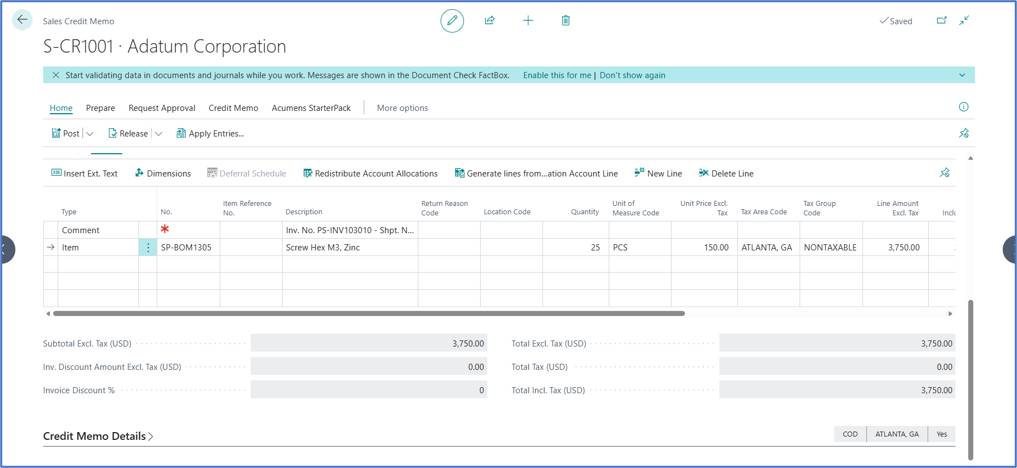
You can review posted invoices and credit related to the order using the page below. Here you can see the partially posted billing invoice.

b) Invoicing Line 1 partially again.
Since we applied for the sales credit memo to the initial 25 Qty, we will be repeating this process until Line 1 quantity is fully utilized.
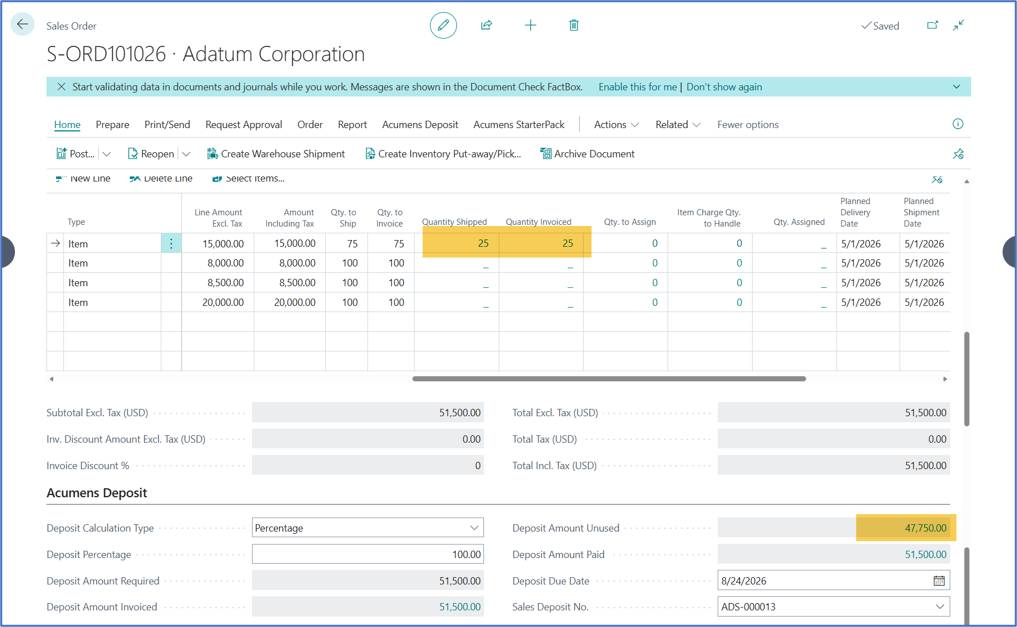
Apply 25 Qty as shown below.
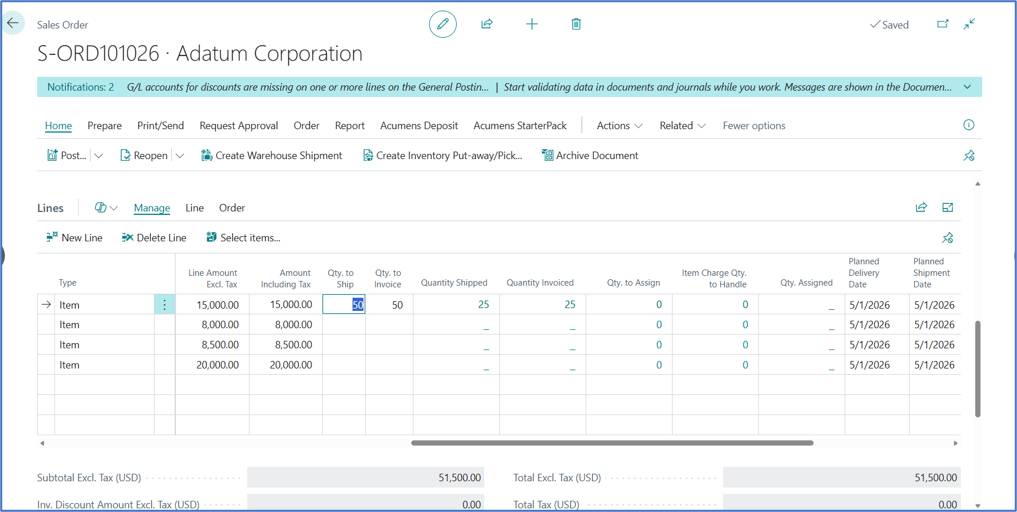
Apply 50 Qty as shown below.
Apply 25 Qty as shown below.
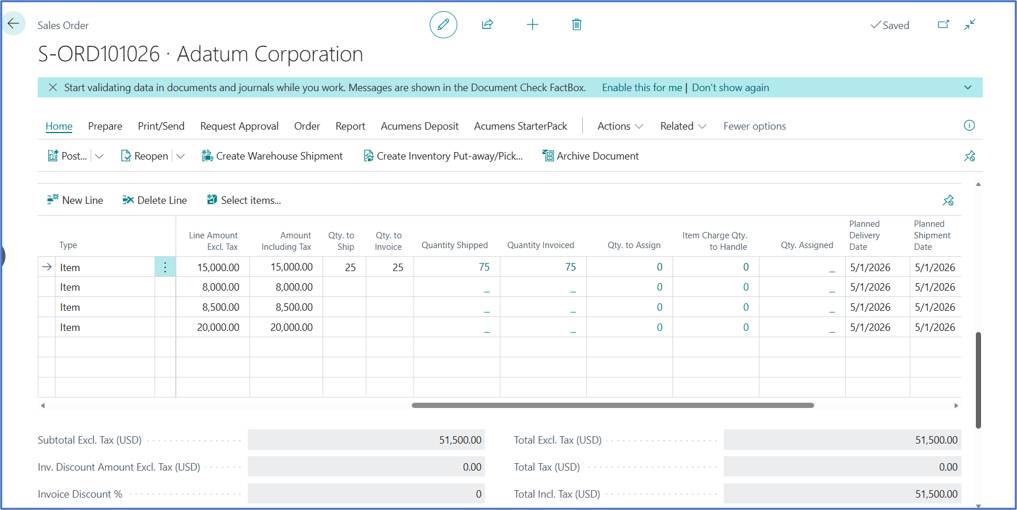
Invoicing Line 1 has been fully utilized and completed as shown below.
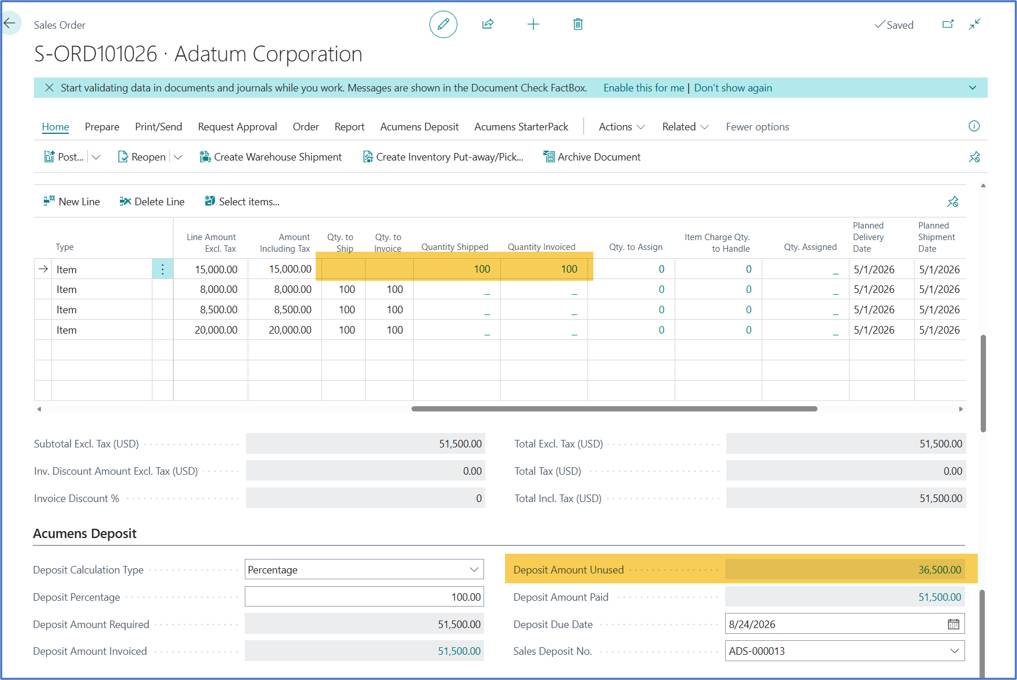
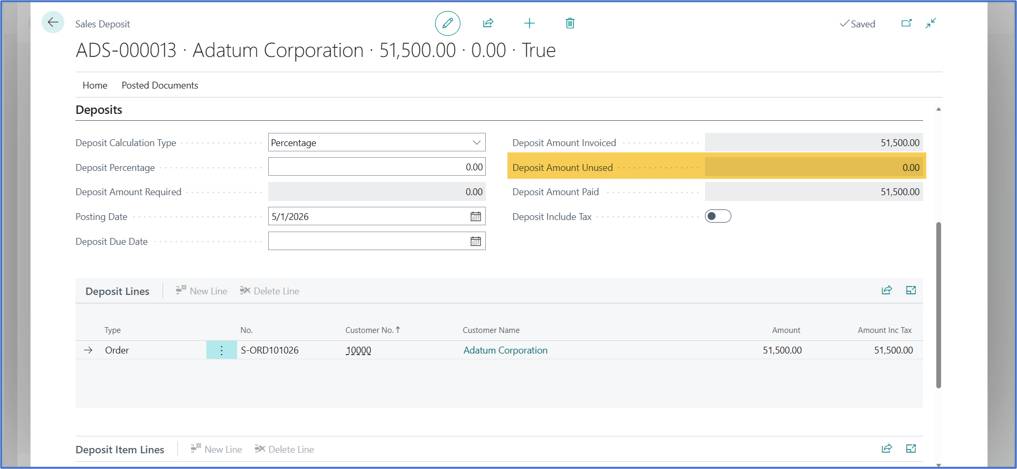
You can track the deposit usage using the Deposit unused field below. It shows the remaining deposit amount.
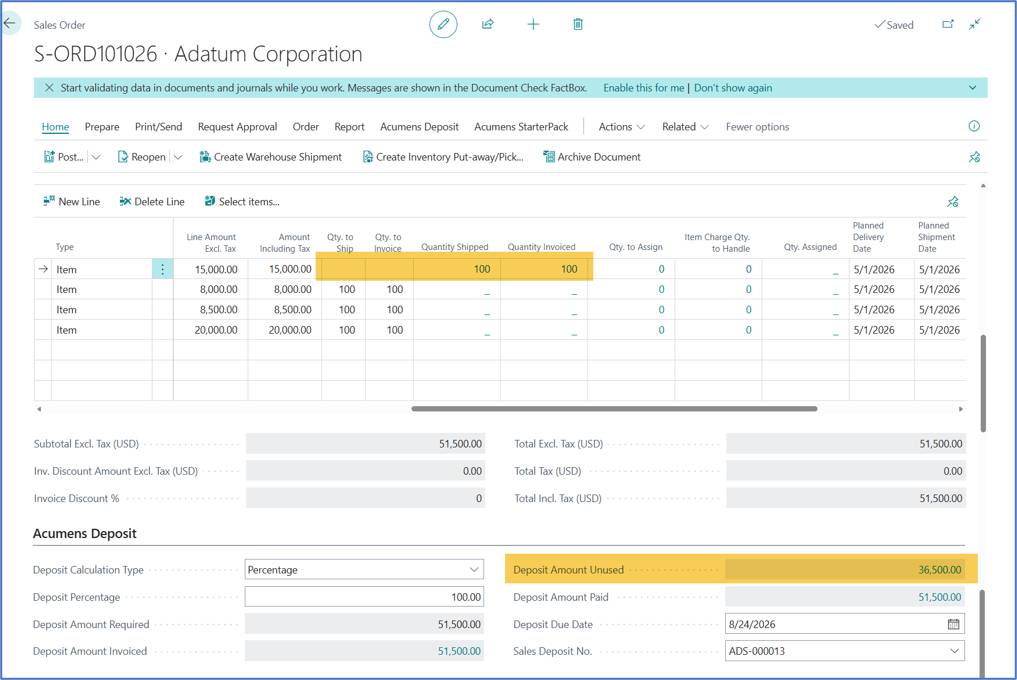
This list represents partial invoicing of Line 1 from 25 – 50 – 25 with sales credit memo in between.
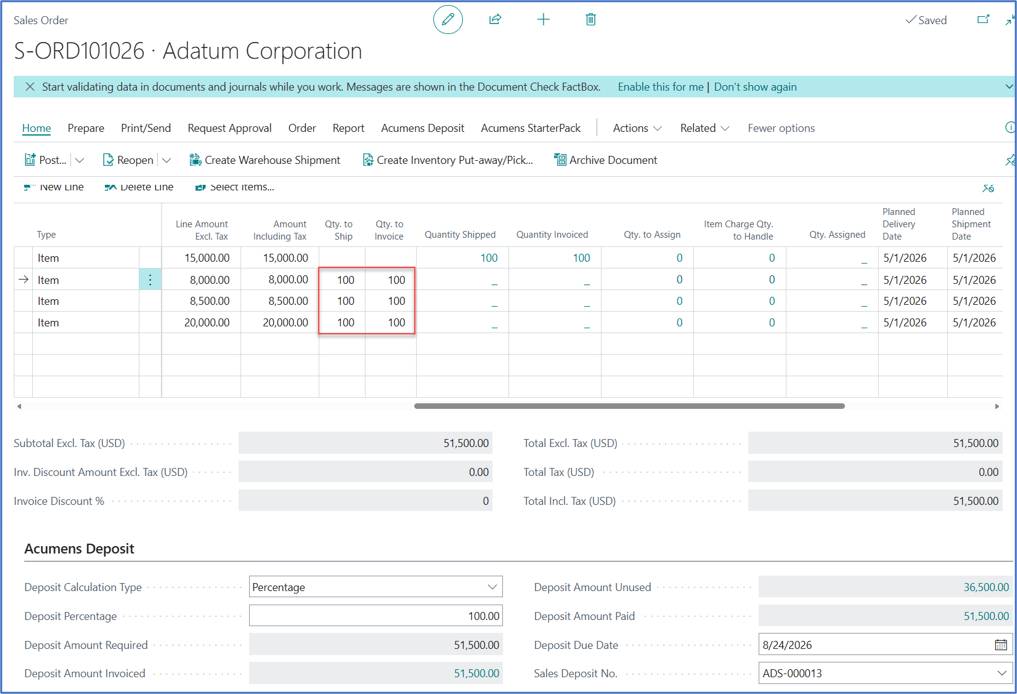
On full shipment the remaining deposit amount is updated as seen below.
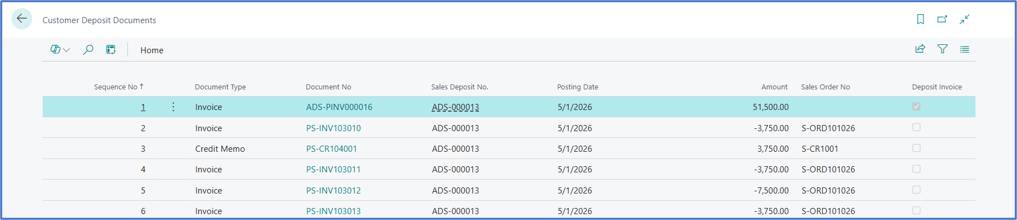
Customer Deposit Documents are summarized below.
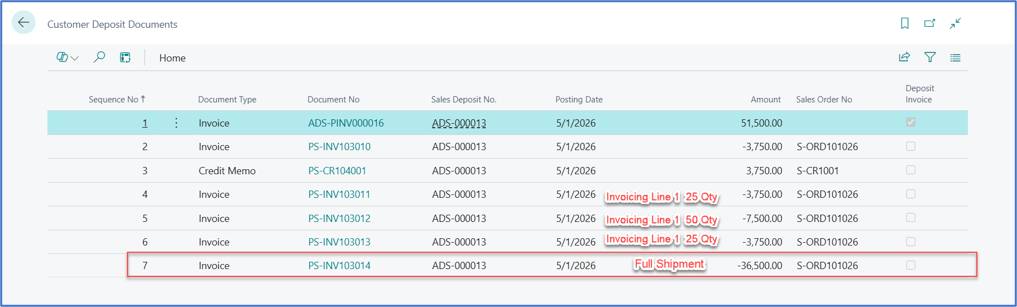
Here you can see the deposit fully utilized.
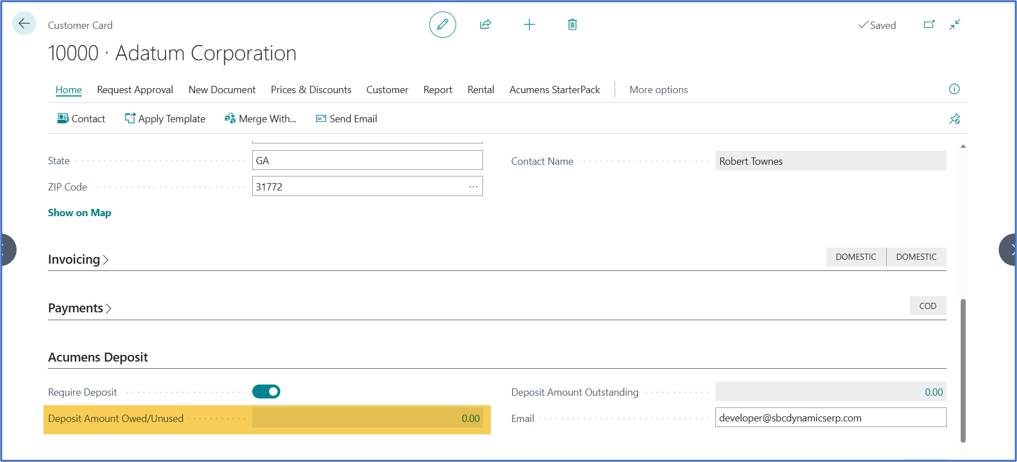
Deposit Fast tab on the customer card is restored to its original state.
Customer Ledger Entries
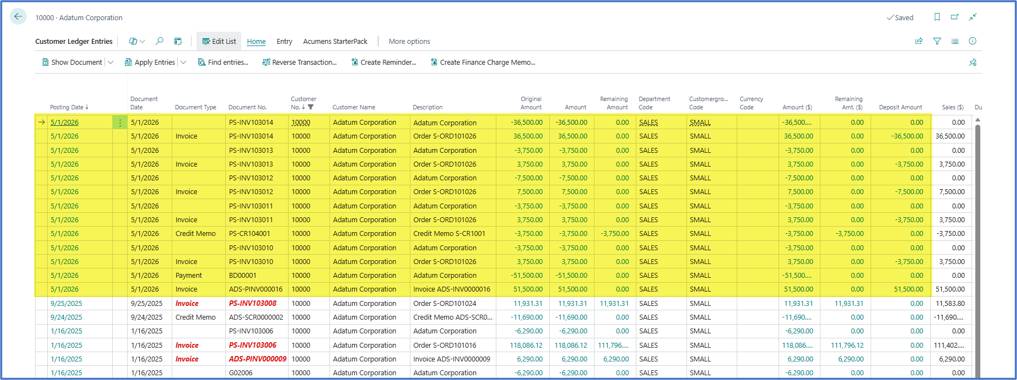
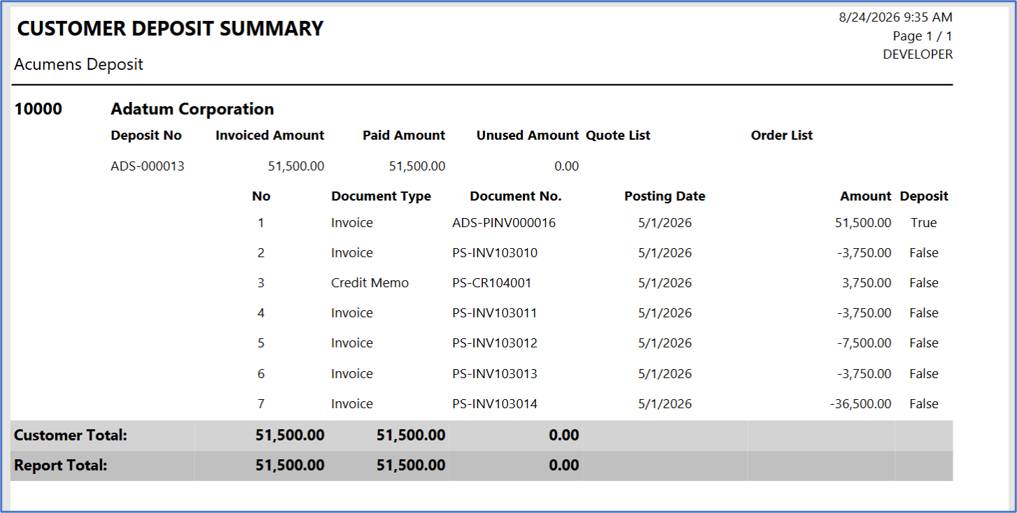
The report provides a detailed view of customer deposits and the transactions against which the deposit has been applied.
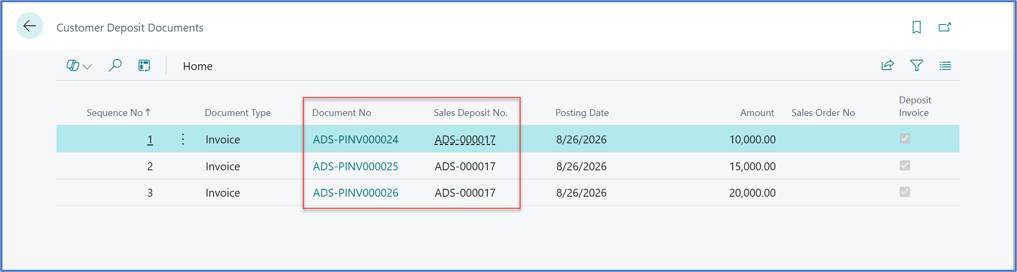
Assuming you have multiple prepayments invoices below, it is possible to post a credit note for one prepayment invoice.
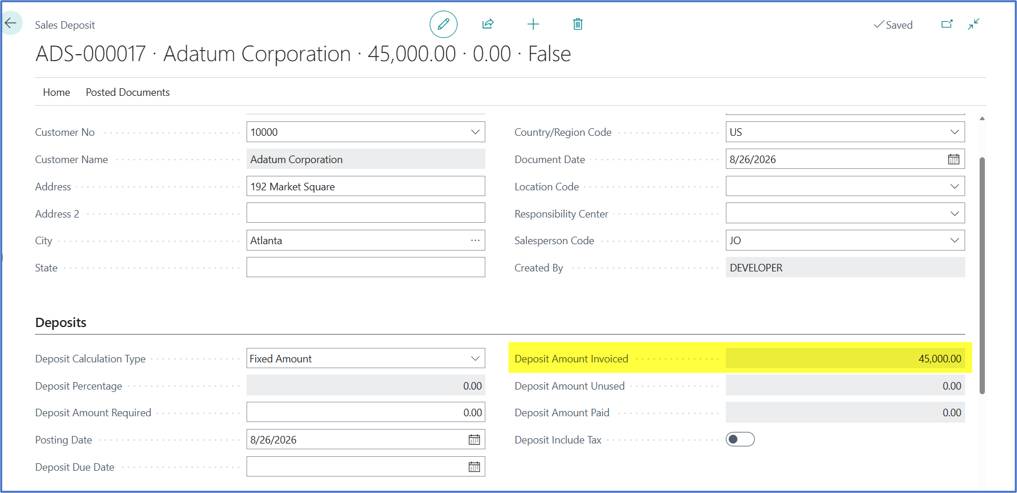
Deposit amount invoiced totals for the above prepayment invoices.
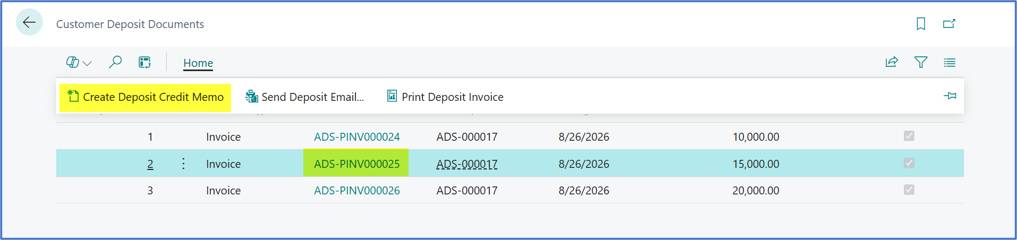
Create a credit note for one prepayment invoice.
Posted credit notes will be shown below.
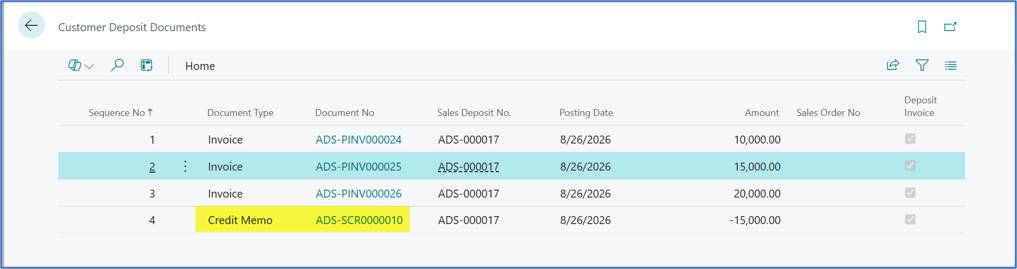
Credit note applied for one prepayment invoice is shown below.
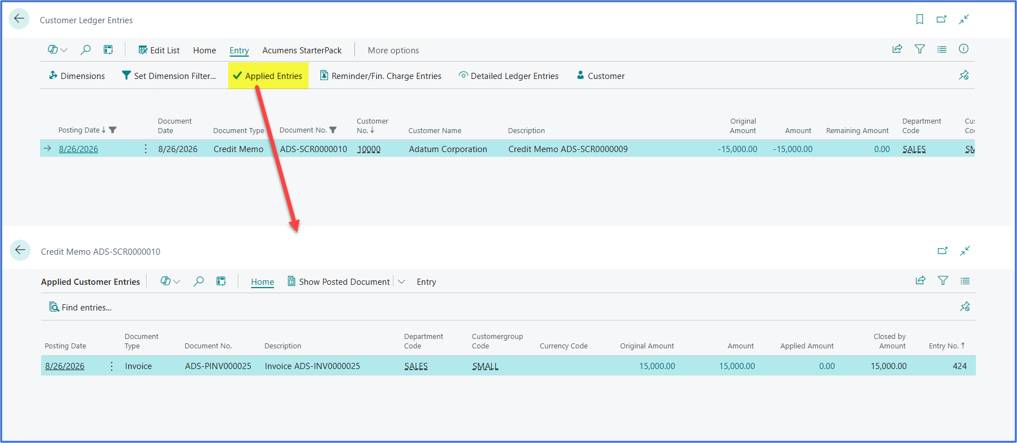
You can see that the prepayment document deposit amount invoiced changed to reflect the applicable credit note.