
Standard out-of-the-box operations within Business Central such as standard price worksheets—typically restrict batch modifications and price revisions to a single price list or agreement at a time. While effective for isolated updates, this limitation creates administrative overhead for organizations managing extensive pricing structures across numerous customer contracts.
To overcome these constraints and streamline large-scale maintenance, organizations can implement a centralized, scoped framework leveraging a combination of Business Central’s native bulk-update capabilities to update data. This methodology enables administrators and financial teams to execute simultaneous, synchronized updates across multiple active customer price lists in a single streamlined operation.
| Method | Best For | Technical Complexity |
| Edit in Excel | Ad-hoc updates, lower record volumes | Edit in Excel Ad-hoc updates, lower record volumes Low (Direct Office add-in integration) |
| Configuration Package | Mass data migration, large-scale price adjustments | Medium (Requires table schema mapping) |
| OneDrive & Web Integration | OneDrive & Web Integration Cloud-only workflows, browser-based management Low (Requires one-time admin setup) | Low (Requires one-time admin setup) |
| Customization | Complex automated routines, third-party integrations | High (Requires custom AL extension & maintenance) |
The Edit in Excel action enables real-time, bulk record updates by connecting Business Central to Microsoft Excel through the Microsoft Dynamics Office Add-in. The action is available on most lists and with the Edit in Excel action, you make changes to records in Excel and then publish the changes back to Business Central.
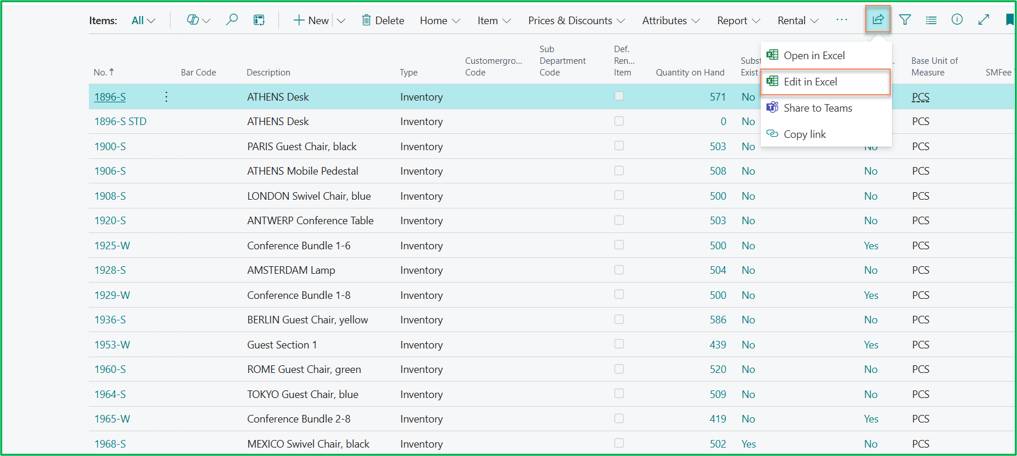
Access Edit in Excel: Open the Item List page in Business Central, click the share icon on the action bar, and select Edit in Excel.
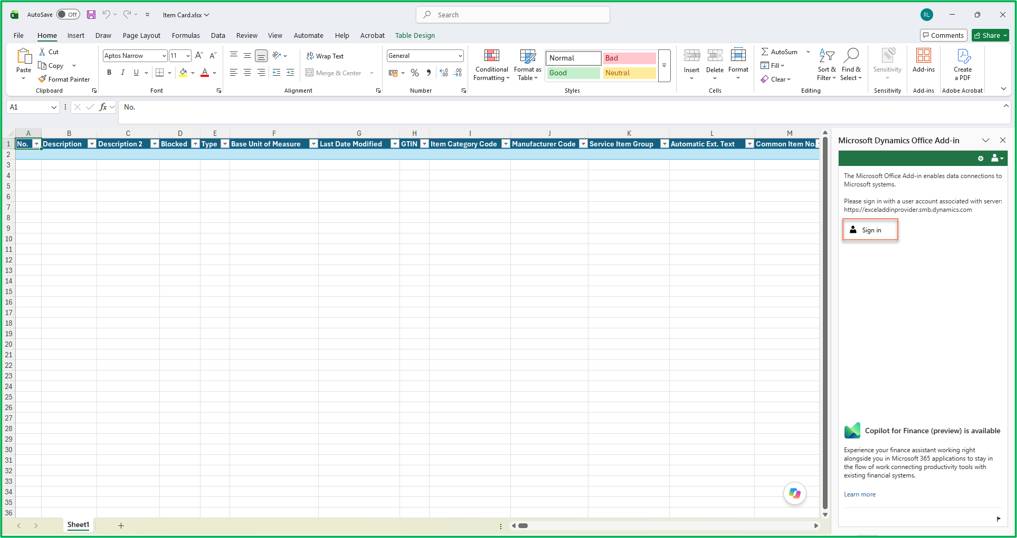
Sign In: When the file opens in Excel (or in the browser Excel Online), choose Sign in on the Microsoft Dynamics Office Add-in panel on the right.
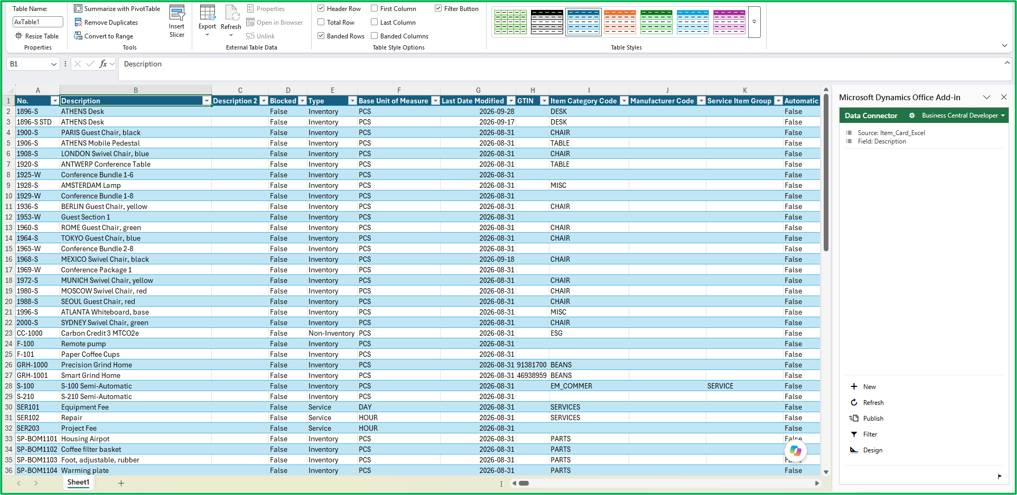
Data Retrieval: Once signed in, data from Business Central will be retrieved into the Excel spreadsheet (note: this may not include all fields).
Modify Records: Modify the required fields directly within the Excel table (e.g., Description, Blocked status, Unit Price).
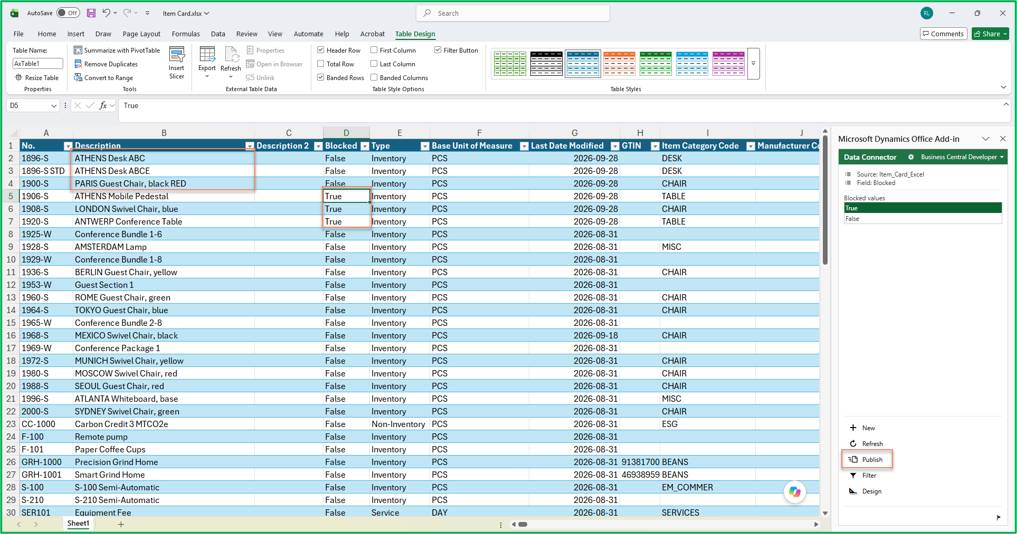
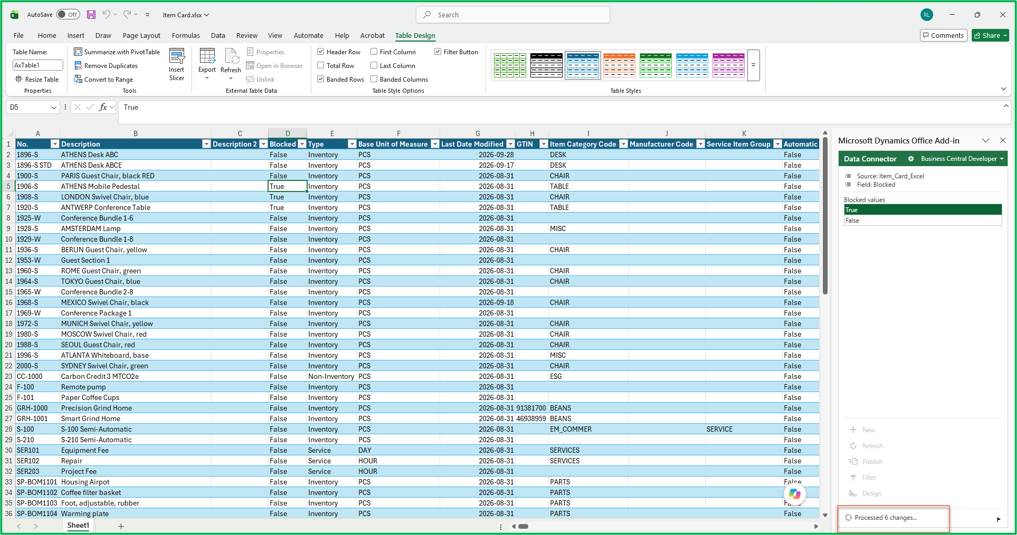
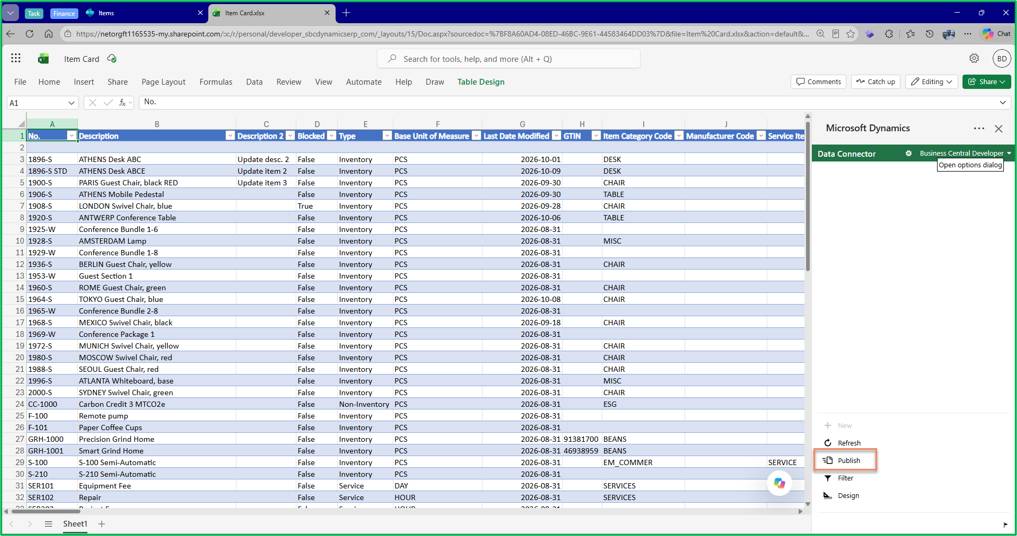
Publish Changes: Click Publish in the Microsoft Dynamics Office Add-in panel to send the changes back to Business Central.
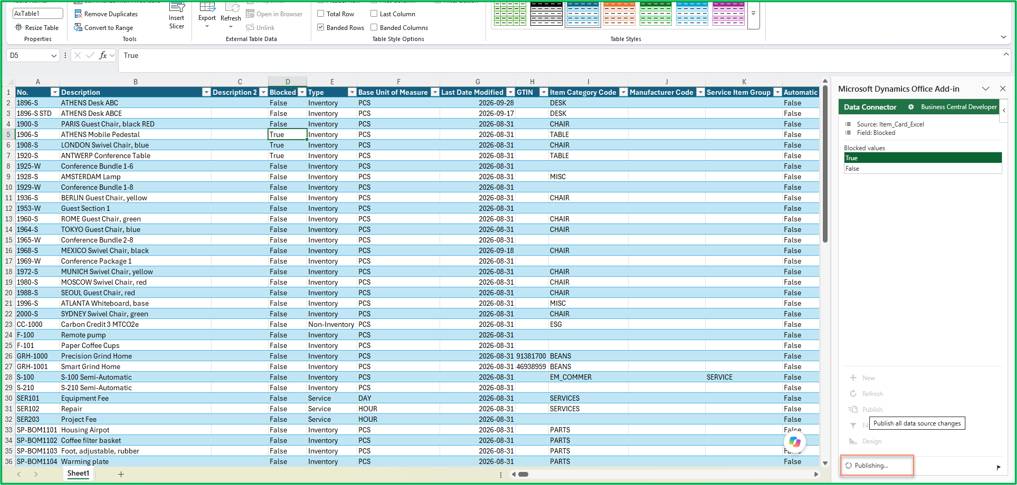
Publish successful
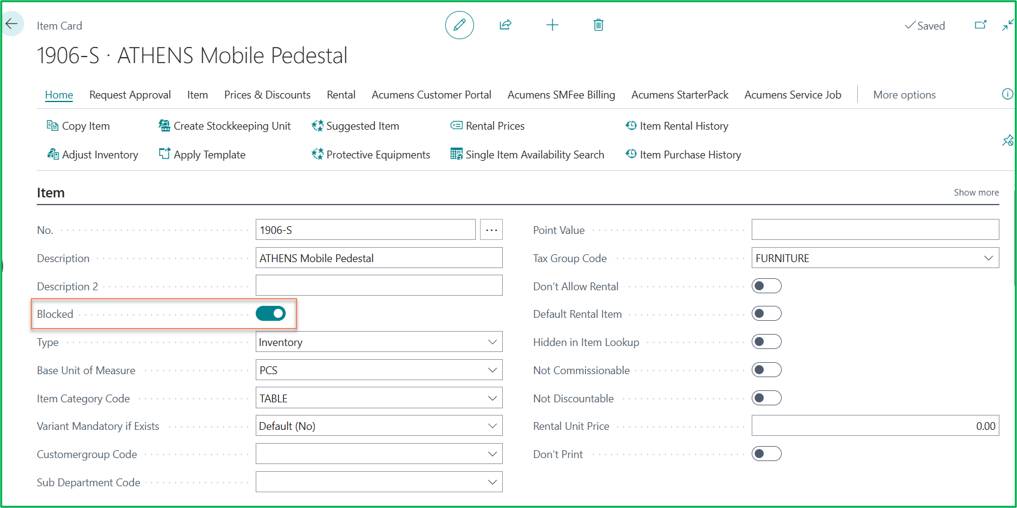
Verify Updates: Return to Business Central and press F5 (or refresh the page) to confirm that the updated data is reflected.
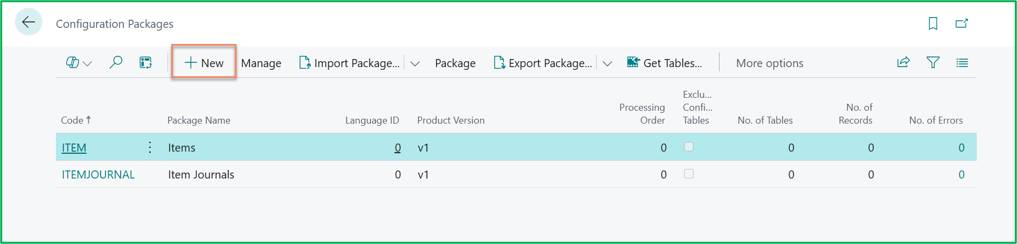
Configuration Packages is an alternative method to “Edit in Excel” to upload lots of data into Business Central.
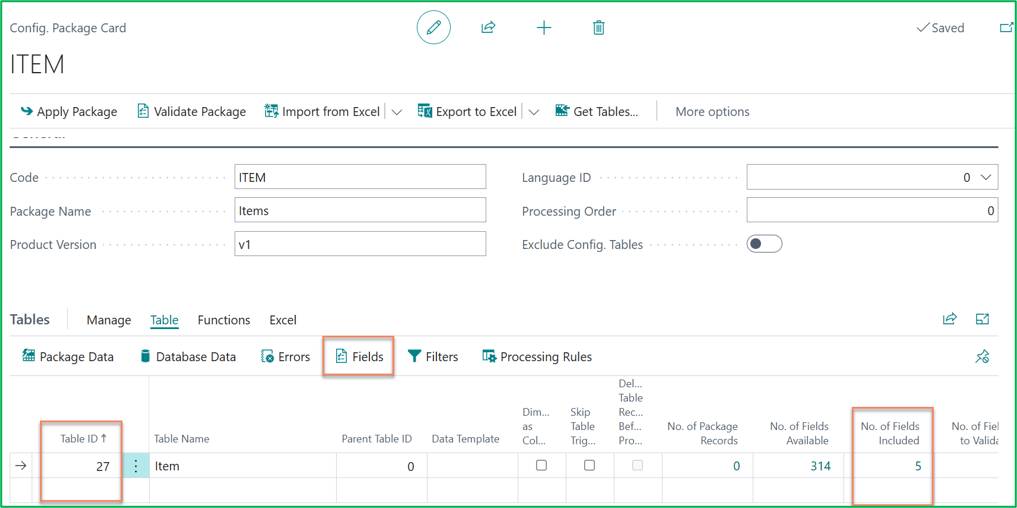
Create Package:
Add Table & Select Fields:
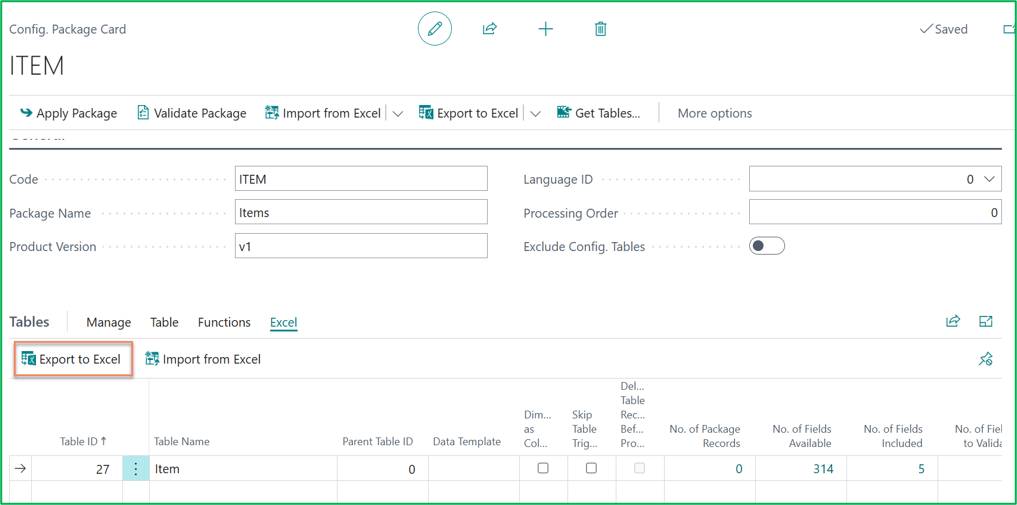
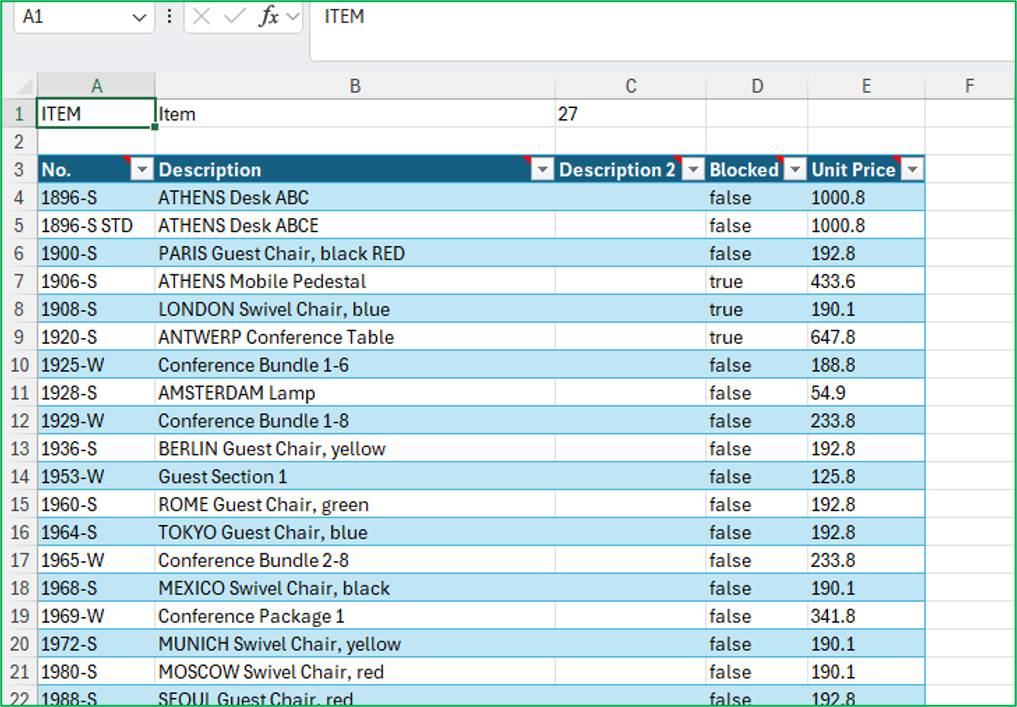
Export to Excel:
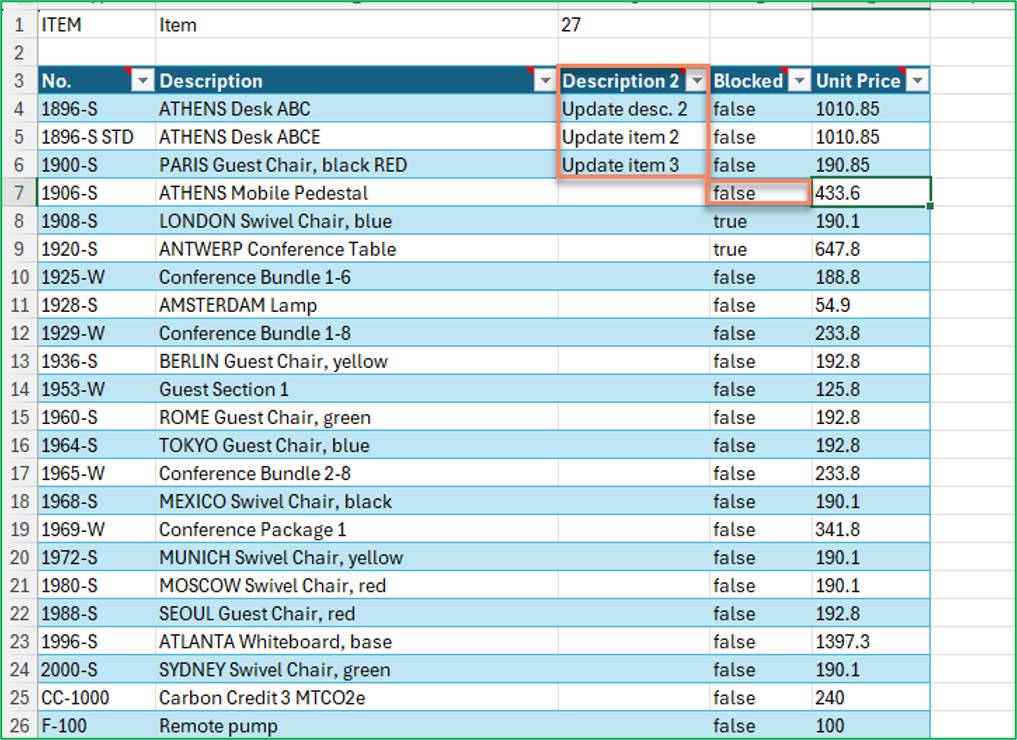
Update Values:
Import Excel file and apply configuration package.
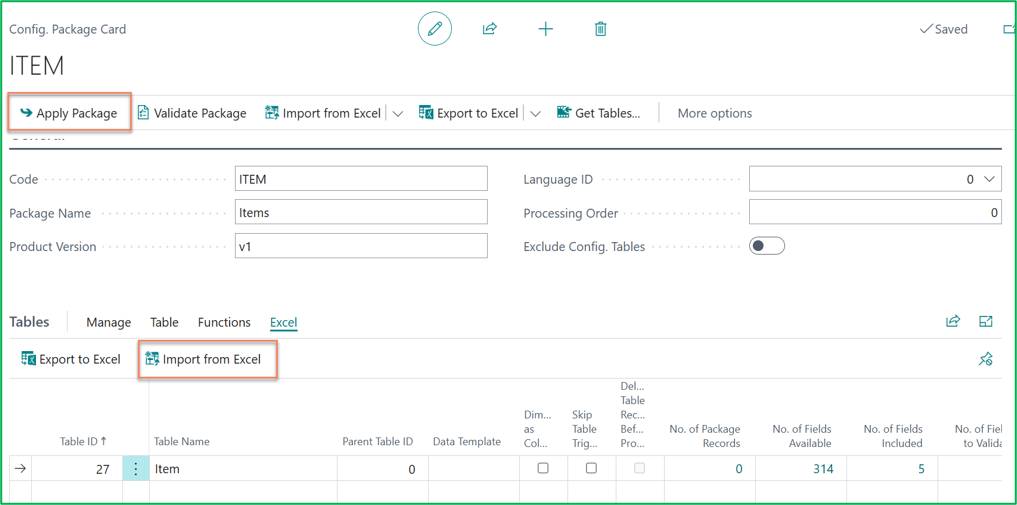
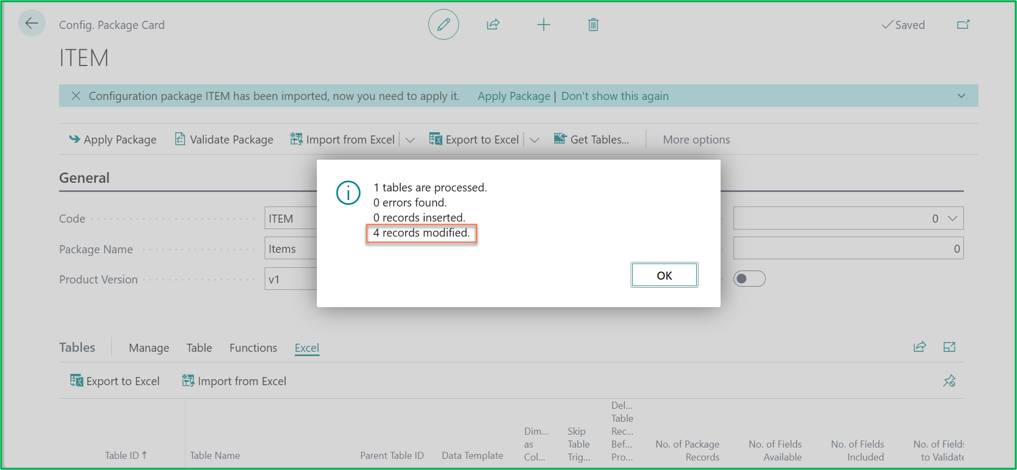
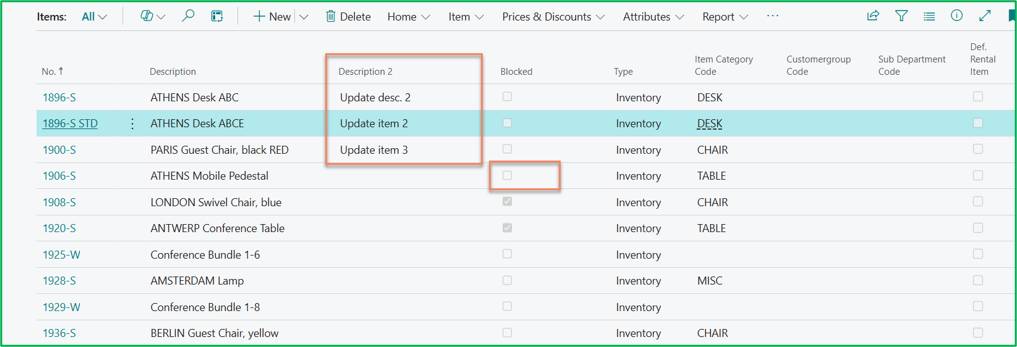
Go back to the business central, and refresh items page to see the data which has been updated.
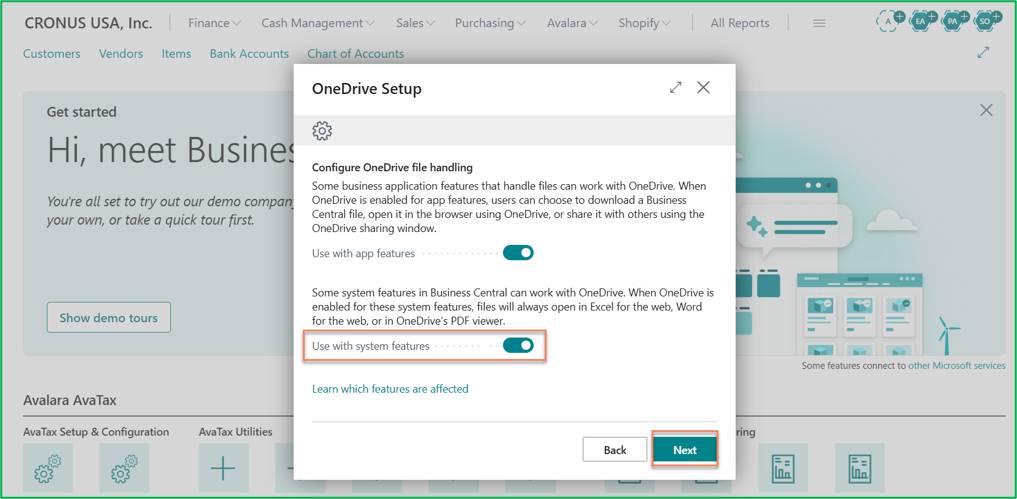
OneDrive integration allows seamless editing and management of Business Central files using Office for the Web without downloading local copies.
Configure OneDrive
Edit via OneDrive:
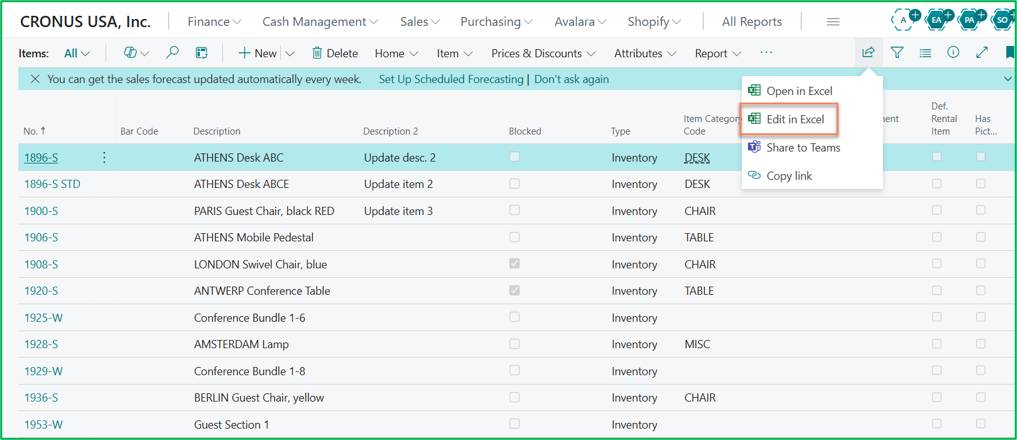
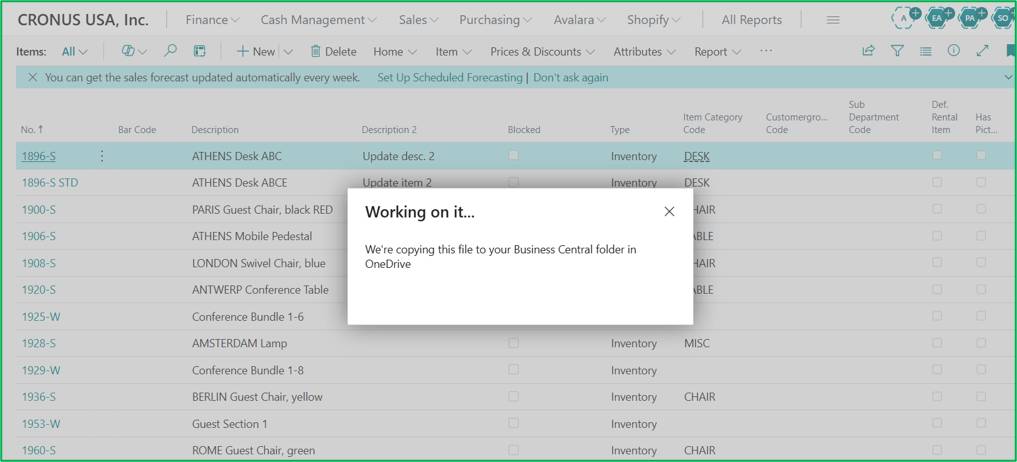
Business Central will copy the spreadsheet directly to your Business Central folder in OneDrive
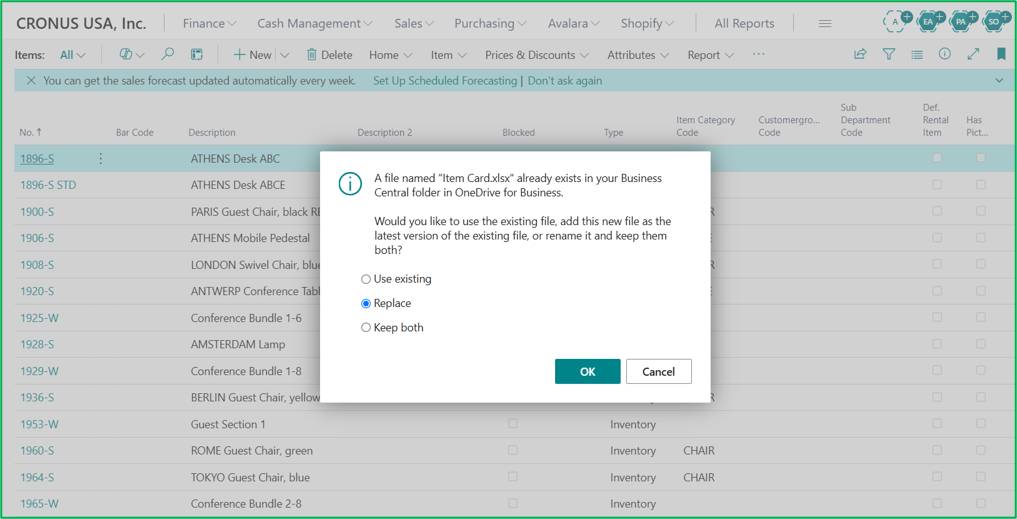
If a file with the same name already exists, choose whether to Use existing, Replace, or Keep both.
The file opens automatically in Excel Online.
Sign in through the Microsoft Dynamics add-in pane on the right.
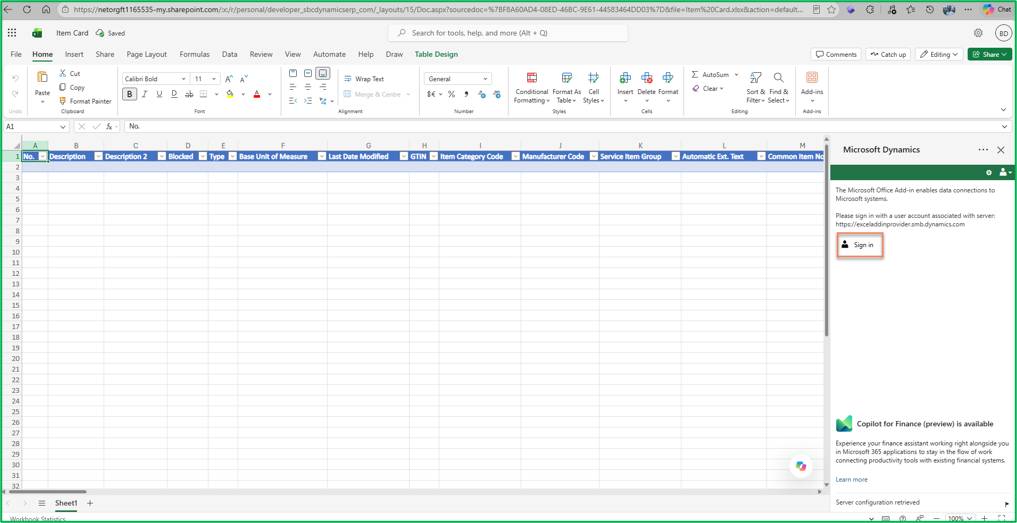
You can see that the data has all been retrieved.
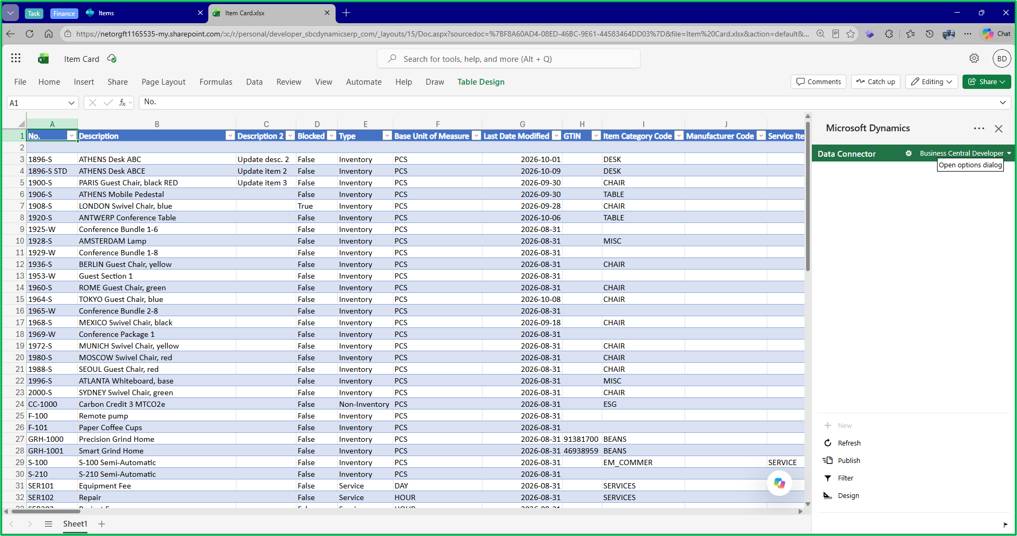
Edit the records and click Publish to sync changes live to Business Central.
Customization should always be considered a last resort. If a requirement can be fulfilled using standard, out-of-the-box features such as standard price worksheets, Edit in Excel, or Configuration Packages—it is strongly recommended to utilize those standard tools first.
While there are various technical pathways to implement custom AL code, extensions, or automated background processes in Business Central, custom developments add ongoing maintenance overhead and must be aligned with Microsoft’s standard update cycle.
If your organization's data update requirements cannot be met using standard Business Central functionality and custom extensions are required, please contact SBC Dynamics ERP for technical consulting and custom extension development.