
The legacy Dynamics NAV system used Easy PDF to create PDFs of reports and send them by e-mail, print or fax. The replacement for this add-on is acumens e-mailing and is now available in Business Central.
This document describes how to replace Easy PDF with Acumens e-Mailing, with the emphasis on moving the customer-level communication settings (the data upgrade) so users keep the same delivery behavior after go-live.
Scope of this document includes:
Business Central – Customer Communication Data Upgrade
| Document type | Upgrade guide |
| Source solution | Easy PDF (legacy Dynamics NAV, carried into Business Central through the NAV to BC upgrade) |
| Target solution | Acumens e-Mailing, Microsoft AppSource |
| Scope | Comparison, set-up upgrade, customer data upgrade, prerequisites, testing, go-live |
Easy PDF is an add-on that turns Dynamics NAV reports into PDF files and delivers them by e-mail, print or fax, singly or through batch queues. In the legacy environment it holds the global settings, extensions on the Customer Card (a ribbon group and a fast tab) that hold each customer’s delivery preferences, and Easy PDF actions on document pages such as Posted Sales Invoices, which e-mail, print or fax a document with its PDF attached. Each of these has to be replaced or migrated and they are described below.
| Area | What Easy PDF provides today |
| Easy PDF | Lists: Easy PDF Report List; Tasks: Easy PDF Batch Queues; Easy PDF Setup, Archive: Easy PDF History; Administration: Easy PDF User Setup |
| Customer Card ribbon (Easy PDF group) | Send Statement by E-Mail; Send Statement by E-Mail+Print; Send Statement by FAX; Send Statement by Preferred Method; Easy PDF Addresses |
| Customer Card fast tab "Easy PDF" | Preferred Communication Method (for example E-Mail or Print); Append Open Invoices to Statement (checkbox) |
| Customer e-mail address | Standard Email field on the card, which can hold several addresses separated by semicolons (for example two contacts with the same customer) |
| Document pages (for example Posted Sales Invoices) | Easy PDF ribbon group with Send by E-Mail, Send by E-Mail+Print, Send by FAX and Send Selected to Batch, used to e-mail a document with its PDF attached to the customer |
| Batch processing | Easy PDF Batch Queues for queued bulk sending |
| Audit trail | Easy PDF History archive |
Key customer-level data that drives behavior, and therefore must be upgraded:
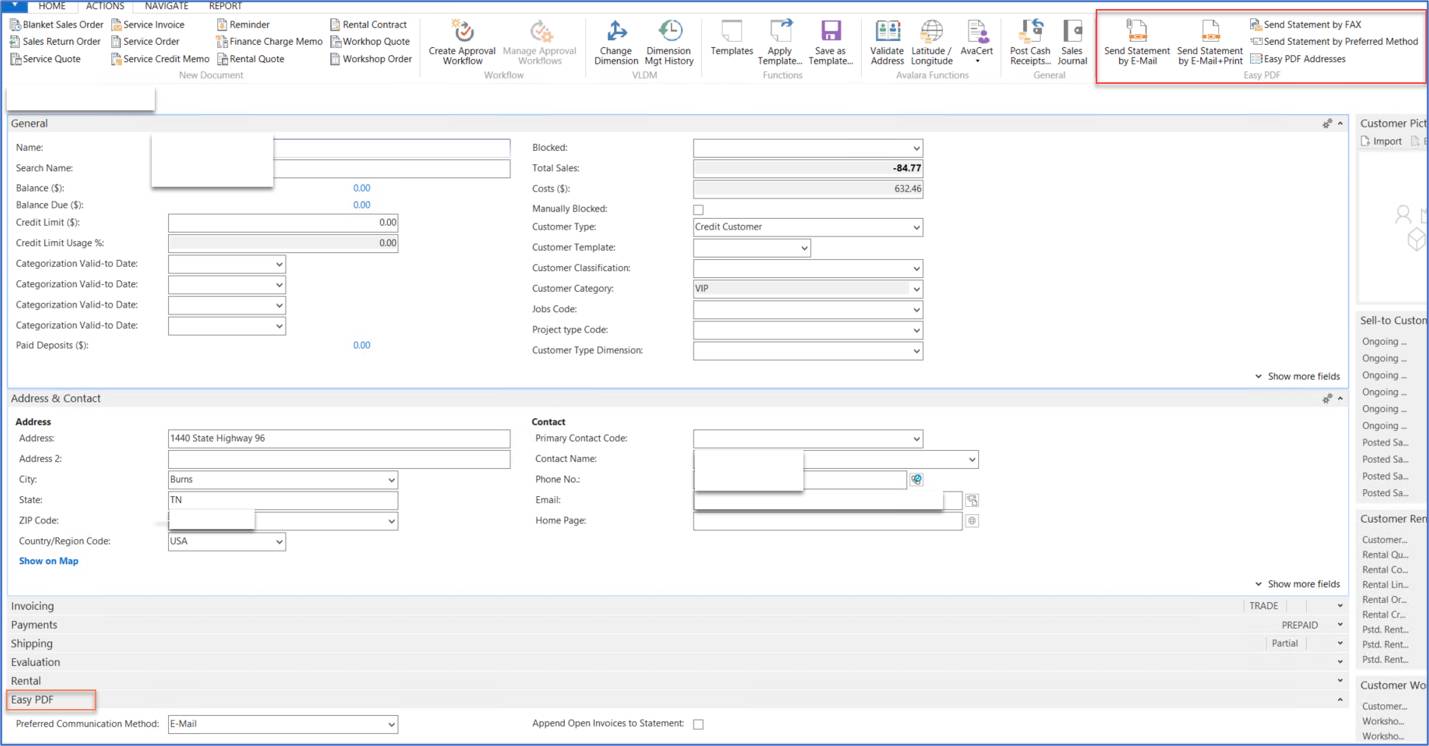
Figure 1: Customer Card & Easy PDF
Key setup-level data (Easy PDF Setup, DEFAULT user setup) that drives behavior, and therefore must be upgraded:
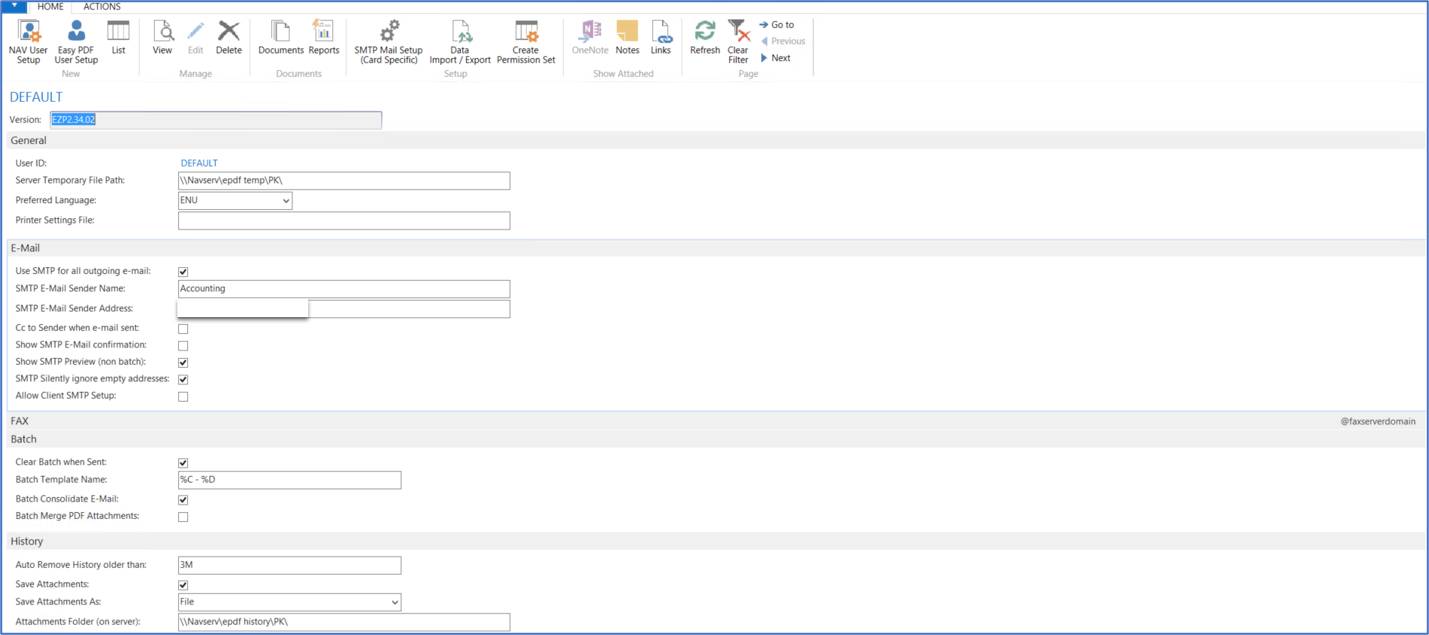
Figure 2: Easy PDF Setup
The Easy PDF Setup page holds the global settings that Acumens e-Mailing and Business Central must reproduce. The page also links to NAV User Setup, Easy PDF User Setup, SMTP Mail Setup (Card Specific), Data Import / Export and Create Permission Set, so check each of those for overrides before cut-over.
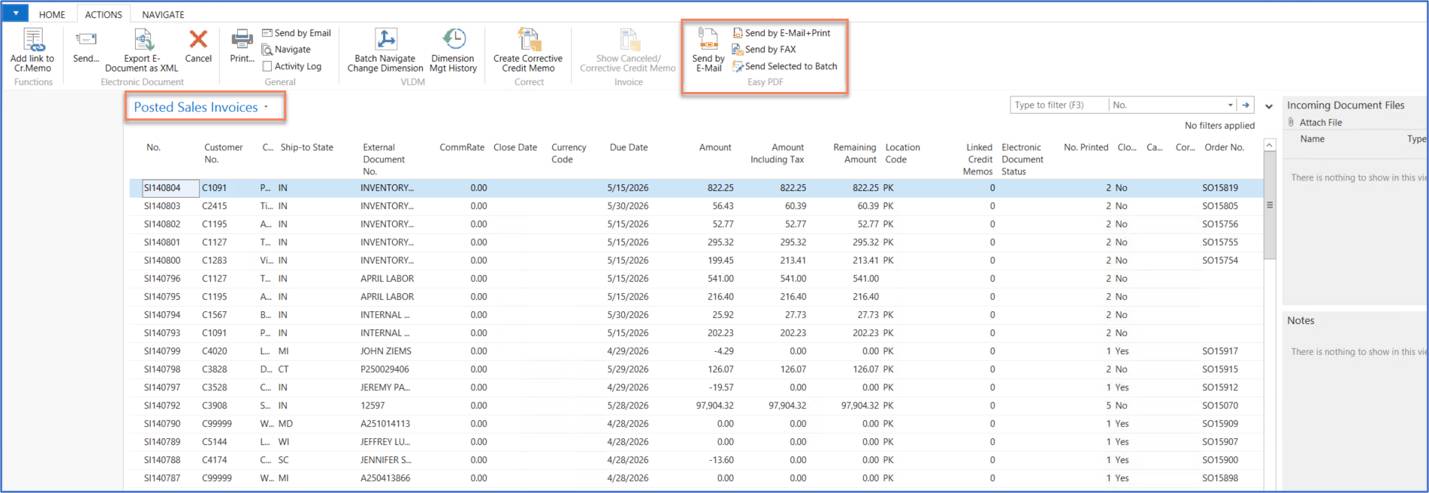
Figure 3: Posted Sales Invoices Easy PDF Menu Actions
The Posted Sales Invoices list in the legacy Dynamics NAV client has an Easy PDF group under the Actions tab. These actions follow the customer’s settings and the global Easy PDF Setup.
Acumens e-Mailing is an AppSource extension for Business Central, and Dynamics NAV which enables you to send emails using customizable templates tailored to various functional areas. This feature allows for efficient and targeted communication with customers, enhancing both operational efficiency and customer engagement.
its main capabilities are:
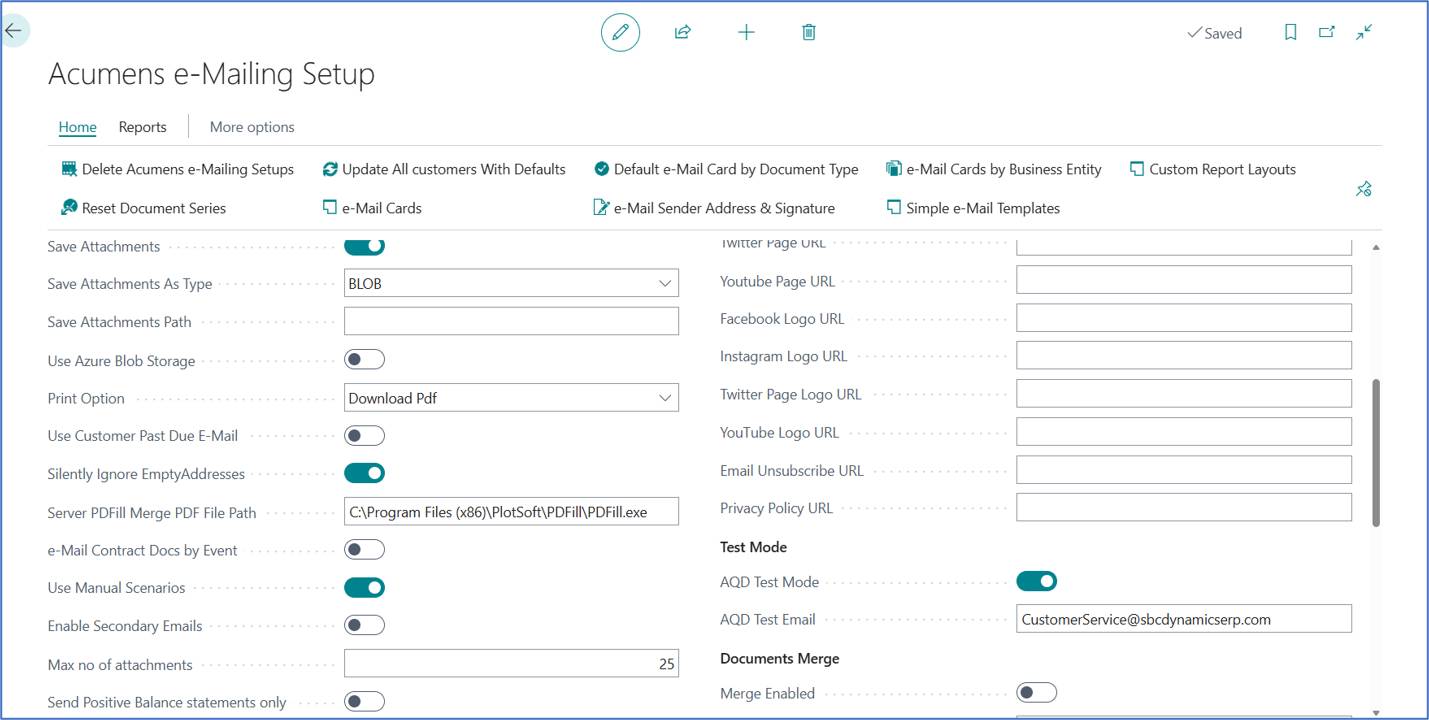
Figure 4: Acumens e-mailing Setup
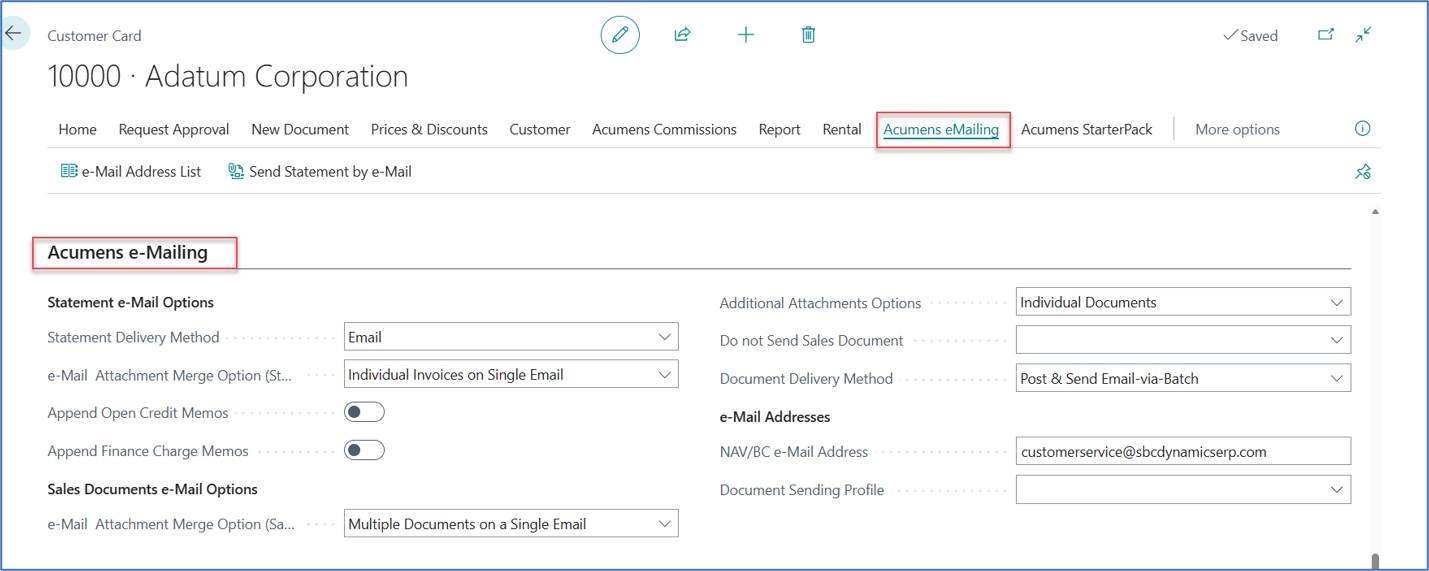
Figure 5: Customer Card & e-Mailing Setup
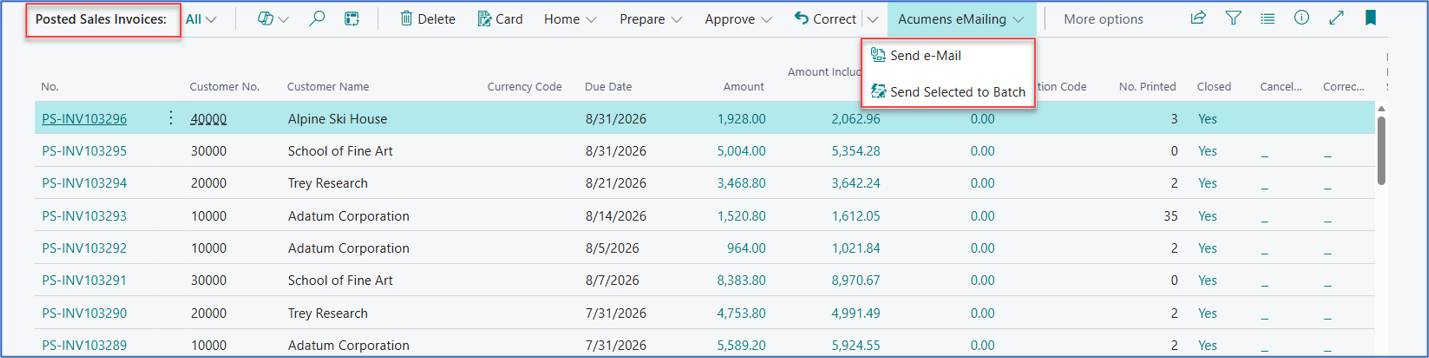
Figure 6: Posted Sales Invoices Acumens e-Mailing Menu Actions
The Posted Sales Invoices list in Business Central has an Acumens e-Mailing menu in the action bar. It offers This menu replaces the Easy PDF group, and users start from the same list page, so the daily steps stay familiar.
Easy PDF and Acumens e-Mailing do the same core job: they turn Business Central documents into PDFs and deliver them to customers by e-mail or print. They differ in where the behavior is controlled and how far it can be tailored.
In Easy PDF, behavior is controlled by one global setup page (SMTP sender, batch and history rules) and two customer fields. Users send from Easy PDF actions on the Customer Card and on document pages such as Posted Sales Invoices (Send by E-Mail, Send by E-Mail+Print, Send by FAX, Send Selected to Batch). The layouts follow the underlying reports, and bulk sending runs through batch queues.
In Acumens e-Mailing, behavior is controlled by e-Mail Cards, which define how each document type is e-mailed and which template it uses, together with customer-level options for statements and documents. Signatures and sender addresses can be set per user, department, location or company. The same functions cover sales, purchase and service documents, customer statements and cash receipts.
For users, the daily steps stay the same: pick a document or customer, send or print it, or add it to a batch. What changes is the setup behind each step. The table below compares the two solutions by capability and states what the upgrade has to change.
| Capability | Easy PDF (legacy) | Acumens e-Mailing | Upgrade implication |
| Platform | NAV classic client, carried into BC | Native BC extension (AppSource / on-prem) | Install the app in the BC environment; Easy PDF objects are retired |
| Delivery by customer preference | Preferred Communication Method on customer | Statement Options and Document Send/Print Options on customer | Data mapping required (section 5) |
| Statements | Send by e-mail, e-mail+print, fax, preferred method | Preconfigured statement templates, individual or batch, scheduled or ad hoc | Map statement behavior; fax has no documented equivalent |
| Append open invoices to statement | Customer checkbox | Statement attachment merge option (e-Mail Attachment Merge Option (Statements)) | Map checkbox to merge option; confirm exact behavior in test |
| Sales and purchase documents | Via report list and queues | All unposted and posted documents, singly or in batch | Configure e-Mail Cards per document type |
| Batch sending | Easy PDF Batch Queues | Batch sending (for example Post & Send Email-via-Batch, Post & Print-via-Batch) | Replace queue-based jobs with Acumens batch options; retrain users |
| Multiple documents per e-mail | Report-dependent | Merged options such as Individual Documents on Individual Emails | Choose merge defaults per customer |
| Recipient addresses | Easy PDF Addresses | Multiple recipients with To/CC/BCC | Migrate recipient data if Easy PDF Addresses are in use |
| Sender and signature | User setup | Per user, department, division, location, business unit or company | Configure sender and signature setup |
| Attachments | Report PDF | PDF plus external attachments, Azure Blob support, PDF merge | New capability; optional |
| Fax | Send Statement by FAX | Retired | Business decision: retire fax |
| Cash receipts | Not part of Easy PDF | Email or print receipts from the journal and ledger entries | New capability |
| Support model | Legacy add-on | Vendor support (acumens@sbcdynamicserp.com), online help, version history | Raise support contact for setup and training |
The upgrade follows five steps. Steps 3 and 4 are the data upgrade.
| Source (Easy PDF, Customer table) | Target (Acumens e-Mailing, Customer table) |
| Preferred Communication Method | Statement Options |
| Preferred Communication Method | Document Send/Print Options |
| Append Open Invoices to Statement | e-Mail Attachment Merge Option (Statements) |
| (no source, default value) | e-Mail Attachment Merge Option (Sales Documents) |
| Customer No. | Customer No. (key, unchanged) |
The mapping workbook contains three sheets: Customer (raw export), Customer Mapping (translation), and Import Customer into BC (final import layout).
The Customer Mapping sheet shows these rules:
| Easy PDF Preferred Communication Method | Statement Options | Document Send/Print Options |
| Post & Send Email-via-Batch | ||
| Post & Print-via-Batch |
Constant values applied to every customer in the sample:
The visible sample rows contain only E-Mail and Print. If other values exist in the full data set (for example E-Mail+Print, Fax, blank), each needs an explicit rule.
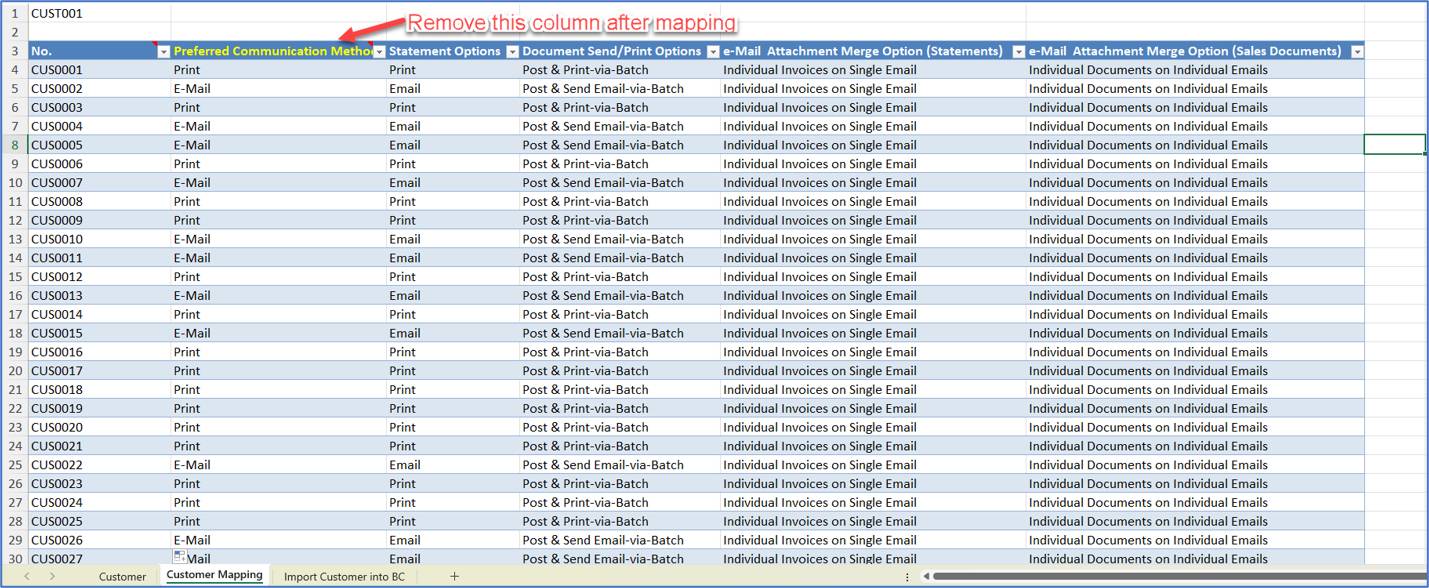
Figure 7: Customer Easy PDF to Acumens Mappings Data
| Topic | Question | Suggested default |
| Blank Preferred Communication Method | Which delivery option applies? | Print, or the customer's current actual behavior |
| E-Mail+Print or Fax in the data | No documented single-value equivalent | Map to E-Mail and flag for review; retire fax |
| Customers with no e-mail address but E-Mail preference | Send would fail | Report these before go-live and fix or switch to Print |
| Append Open Invoices to Statement checked | Exact merge value for statements | Confirm the option list in a sandbox, then map |
| Merge defaults | Individual vs combined e-mails | Keep the constant from the mapping workbook unless customers ask otherwise |
Easy PDF Addresses exports the Customer table. Check whether this table holds data. If it does:
Below snapshot shows the equivalent in business central
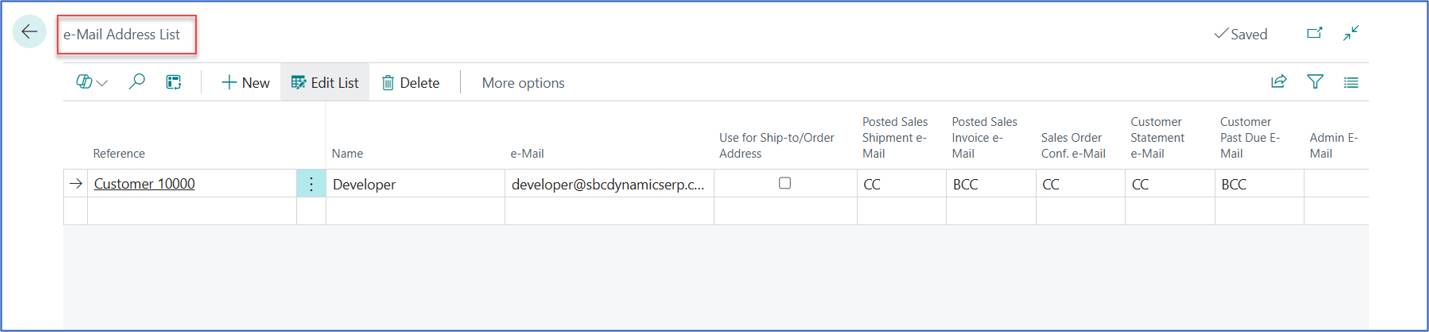
Figure 8: Customer e-Mail Address List
| Step | Activity | Owner |
| 1 | Install Acumens e-Mailing from AppSource in sandbox, then production; assign permission sets and license/user pack | BC administrator |
| 2 | Complete Acumens e-Mailing Setup, including test mode on for sandbox | Functional consultant |
| 3 | Configure the BC e-mail accounts used for sending (Microsoft 365 or SMTP) and the sender addresses, including shared mailboxes | IT / administrator |
| 4 | Define e-mail signatures at the required level (user, department, location, company) | Business owner |
| 5 | Create e-Mail Cards and assign the default card per document type | Functional consultant |
| 6 | Assign layouts in Report Selection (including posted and unposted cash receipts if used) | Functional consultant |
| 7 | Configure attachments and PDF merge API, and Azure Blob storage if external attachments are required | IT |
| 8 | Set up the statement run schedule (monthly, ad hoc) through job queue if required | Functional consultant |
| Role | Responsibility |
| Project lead | Plan, decisions, sign-off |
| Functional consultant | Setup, mapping rules, templates |
| Data owner (AR / finance) | Approve mapping and exceptions, review customer list and addresses |
| IT / administrator | Mail accounts, permissions, deployment |
Acumens e-Mailing is a suitable replacement for Easy PDF. It covers the functions the business relies on today:
The data upgrade is the critical path, and it is small and well defined. Two Easy PDF customer fields, Preferred Communication Method and Append Open Invoices to Statement, are translated into the Acumens customer fields through the Customer export package, the mapping workbook and an import package. The mapping already handles the E-Mail and Print values. Success depends on profiling all values in production, validating the import and piloting with a small customer group.
Check whether Easy PDF Addresses hold data that must be mapped to the Acumens recipient setup.
The recommended path is to configure Acumens e-Mailing in the sandbox, run the data upgrade and the tests, resolve the open items, pilot with a small customer group, and then release to all users and retire Easy PDF.