Acumens Loading

Acumens e-Mailing (NW) for Microsoft Dynamics NAV/BC

Email Automation in Dynamics 365 Business Central

Communicating efficiently with customers and vendors is essential for any organization. While Microsoft Dynamics 365 Business Central offers native emailing capabilities, many businesses find themselves needing more flexibility such as dynamic Word-based templates, batching statements and invoices, sending email workflows and merging additional documents like Terms & Conditions automatically.

In this blog, we will explore how advanced email solutions like the Acumens e-Mailing app streamline your document workflows and elevate customer communication across all sales and purchasing cycles.

1. Key Business Features

  • Cross-Functional Document Support: Dispatch emails natively across Sales (Quotes, Orders, Invoices), Purchasing (Purchase Orders), Service Management, AR (Issued Reminders, Finance Charges) and Monthly Customer Statements.
  • Automated Batch Emailing: Queue up and send bulk invoices or monthly customer statements on schedule eliminating manual document-by-document sending.
  • Customizable Word Layout Templates: Edit email body text, typography, corporate logos and signatures in Microsoft Word using dynamic fields.
  • Automated PDF Document Merging: Combine generated ERP PDFs such as Sales Invoices with static secondary files, for example Terms & Conditions or promotional flyers into a single, unified PDF via API integration prior to delivery.
  • Dynamic Recipient Routing (TO/CC/BCC): Automatically pull customer-specific secondary email contacts directly from the Customer Card into CC or BCC fields.
  • Safe Test Mode (Send Test e-Mail): Route emails to internal accounts during setup or testing to verify formatting without alerting external clients.
  • External Storage Integration: Connect directly to Azure Blob Storage, OneDrive, or SharePoint to pull and attach supplementary files without bloating your core Business Central database.

2. Powerful Configuration & Setup Options

To give businesses complete control over who sends what and how, comprehensive set-up pages allow you to manage:

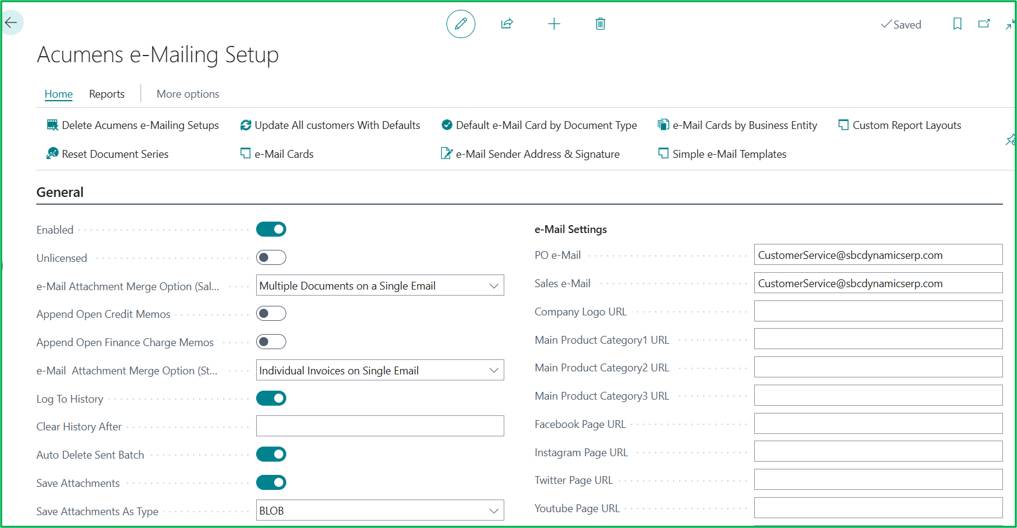
Main Configuration Setup

The main setup is used to activate the application and set up other configurations.
Email Automation in Dynamics 365 Business Central

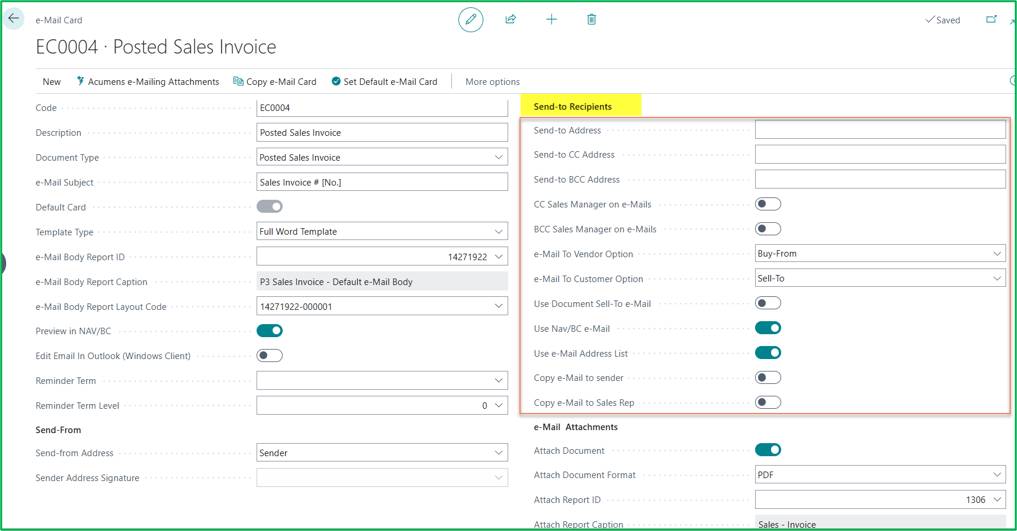
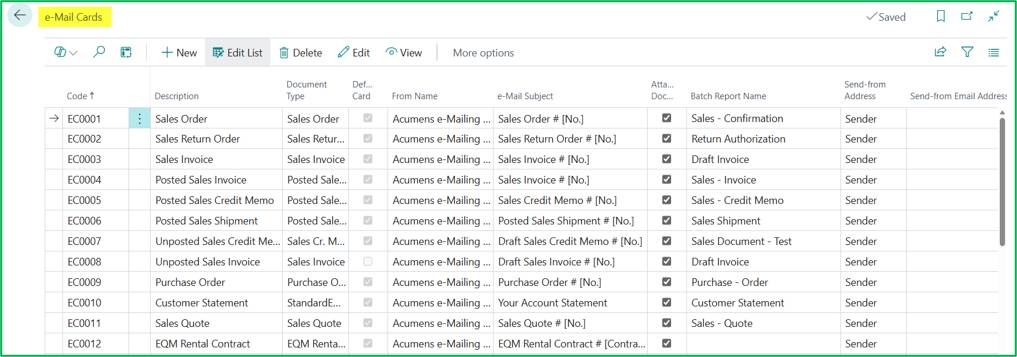
e-Mail Cards & Defaults

You can define email recipients and recipient rules such as (TO, CC, BCC) here among other configuration options. The Use e-mail address list is enabled here for purposes of demonstration.
Email Automation in Dynamics 365 Business Central

The e-Mail Cards setup list can be shown as below.
Email Automation in Dynamics 365 Business Central

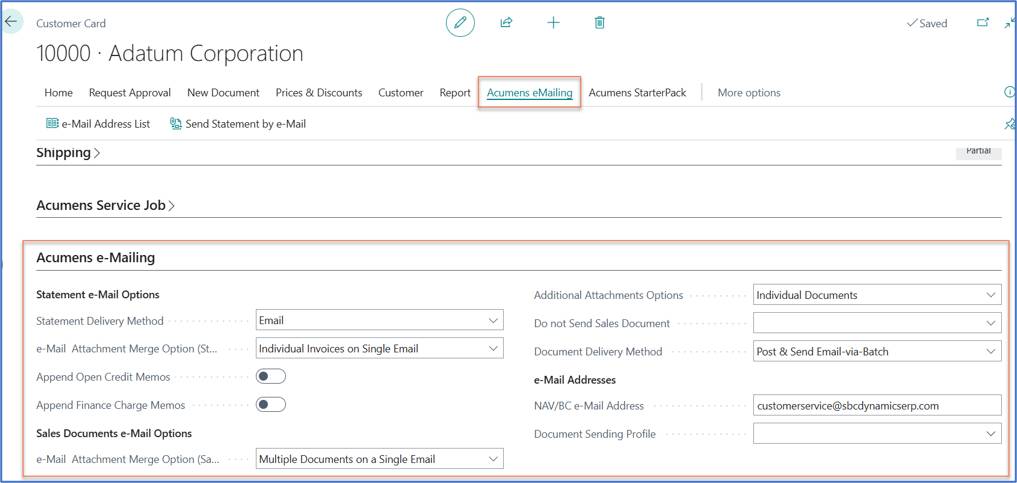
Customer Cards

The customer card fast tab highlights the custom configuration options available for managing automated document dispatch and email consolidation for a specific customer.
Email Automation in Dynamics 365 Business Central

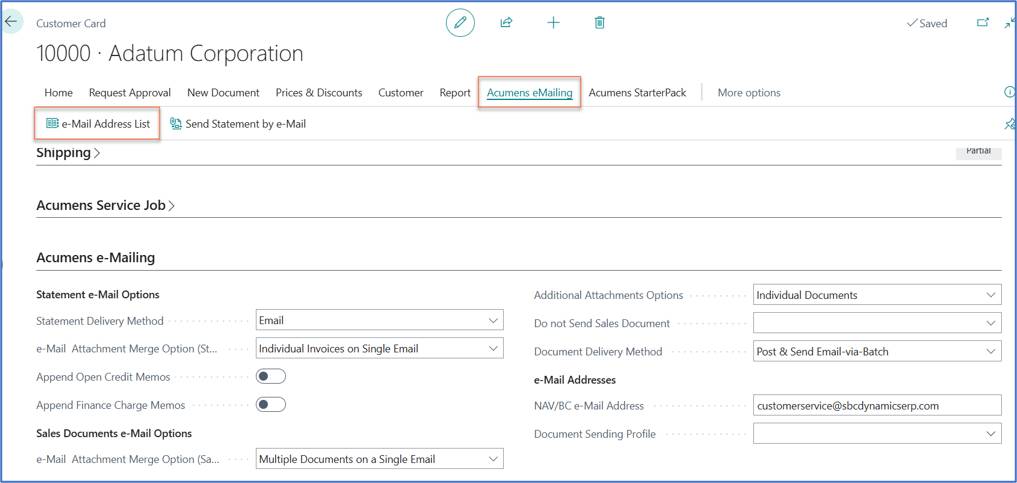
e-Mail Address List

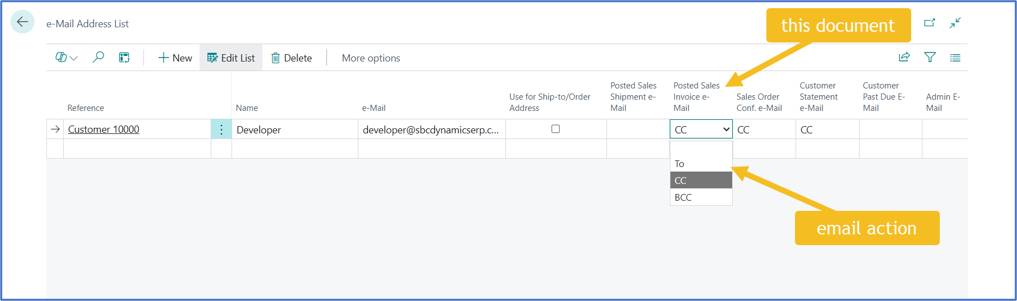
From the customer card e-Mail addresses can be set up for various documents. This allows different documents to be emailed to suitable recipients for a given customer.
Email Automation in Dynamics 365 Business Central Email Automation in Dynamics 365 Business Central

e-Mail Sender Address & Signature

This setup allows you to establish precise rules for outbound sender identities and digital sign-offs. The card enables dynamic sender mapping and multi-line email signatures.
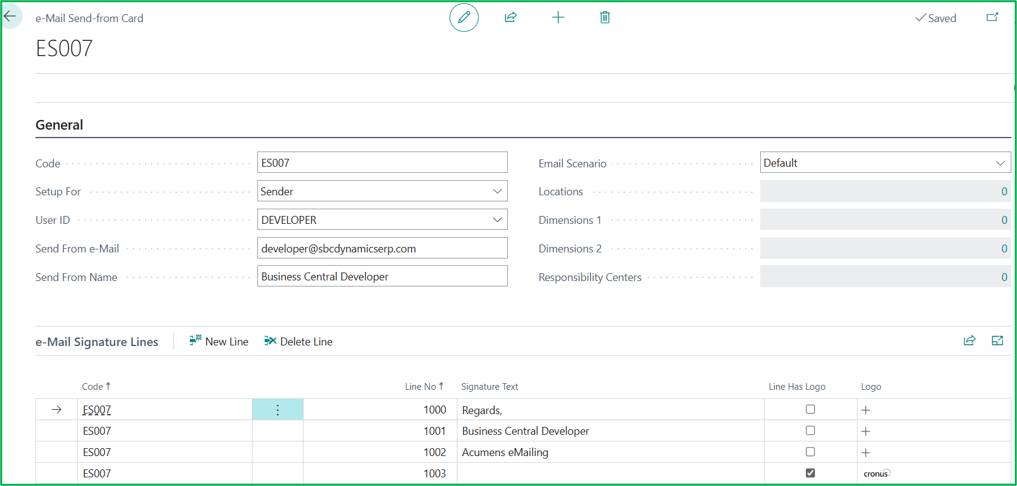
Email Automation in Dynamics 365 Business Central

3. Flexible Document Emailing Across All Areas

Whether you are acknowledging a sales order, issuing an invoice, or issuing past-due reminders, automated emailing should work seamlessly right from the document page.

With advanced e-Mailing for Business Central, you can process emails for virtually all standard documents:

  • Sales Documents: Sales Quotes, Sales Orders, Sales Invoices, Sales Credit Memos, and Sales Return Orders.
  • Posted Documents: Posted Sales Invoices, Posted Sales Shipments, and Posted Sales Credit Memos.
  • AR & Collections: Issued Reminders and Issued Finance Charge Memos.
  • Purchasing: Purchase Orders
  • Customer Statements & Ledger Entries

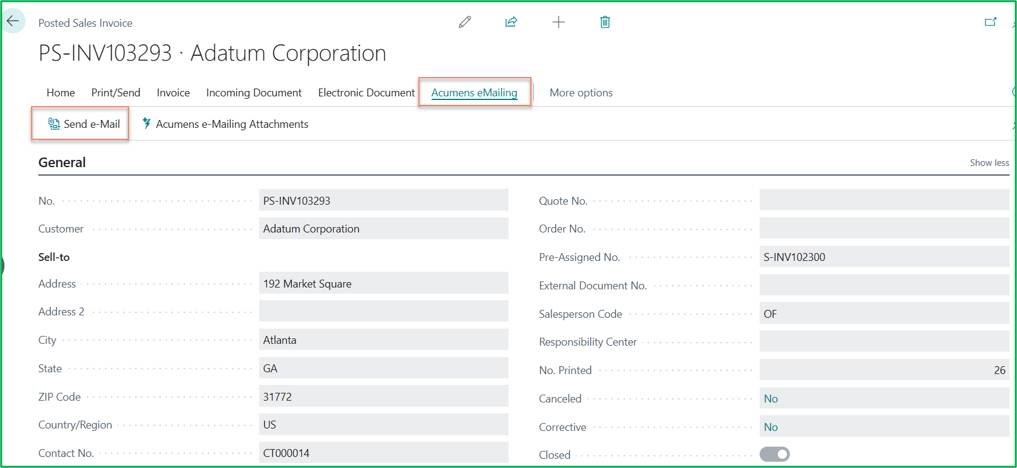
For example, On the posted sales invoice, you have a primary action for dispatching emails as highlighted and e-mailing attachments which allows you to attach additional documents.
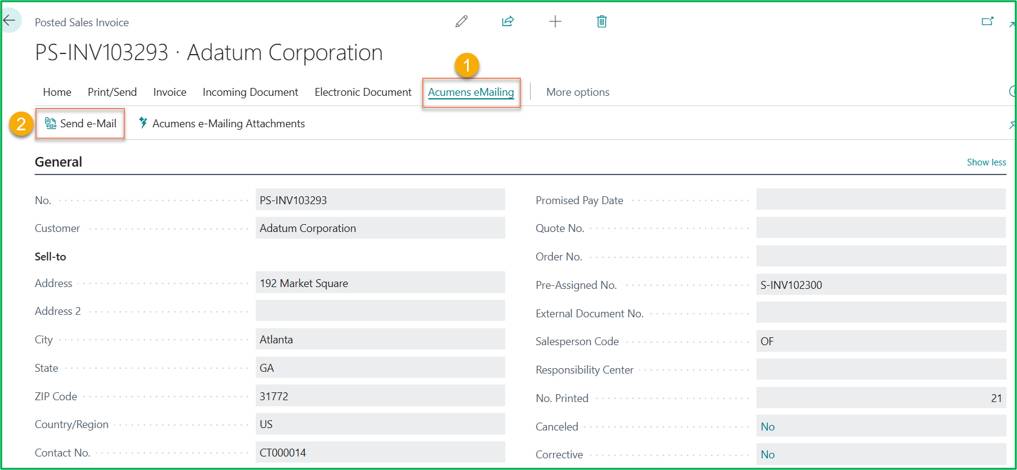
Email Automation in Dynamics 365 Business Central

When enabled in the emailing setup, the Email Details window opens a draft preview before message is dispatched. This pre-send preview allows you to verify message formatting, review attached documents and confirm all recipient email fields.
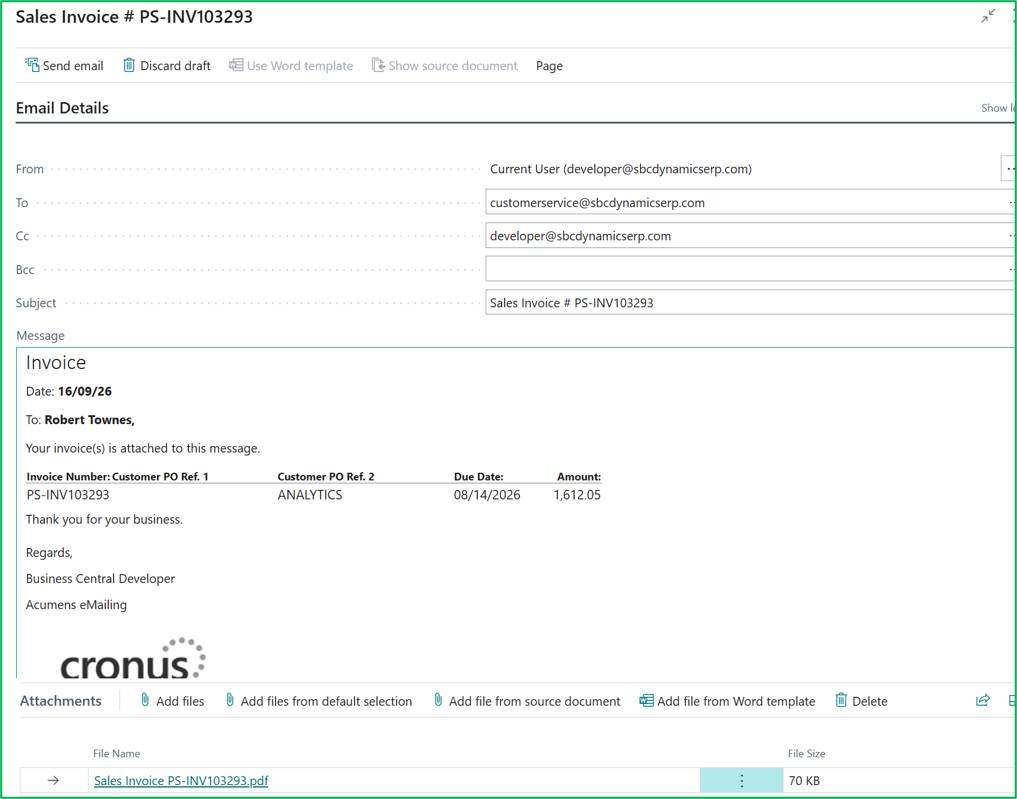
Email Automation in Dynamics 365 Business Central

The customer will receive the email and document attachment as shown below.
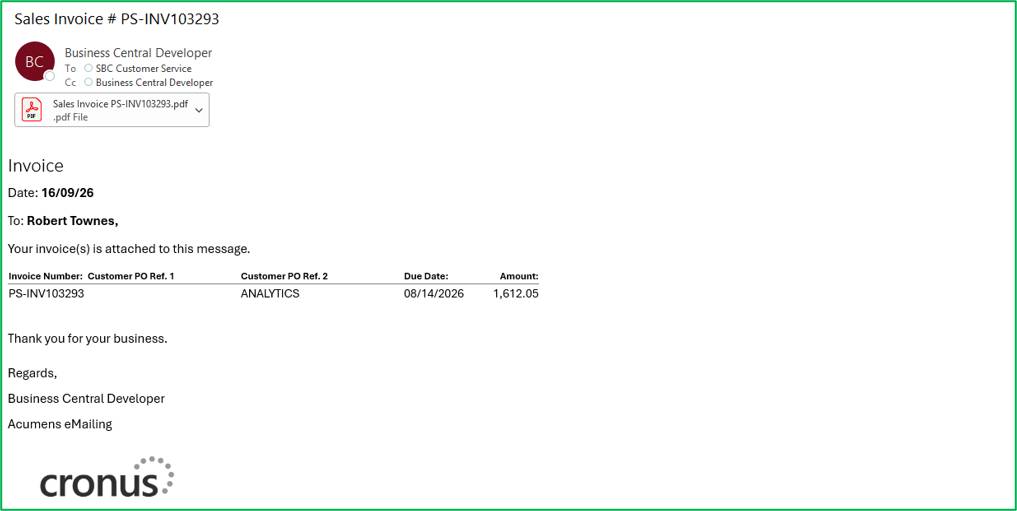
Email Automation in Dynamics 365 Business Central

4. Managing Additional Email Recipients (Dynamic TO / CC / BCC Routing)

In standard Dynamics 365 Business Central, routing secondary contacts such as copying Accounts Payable on invoices or notifying sales representatives often requires manual workarounds. This feature solves this by letting you define dynamic TO, CC, and BCC rules both globally at the document template level and specifically per customer entity.

Configuring Customer-Specific Email Lists

Different departments often handle different documents. You can map contacts to document actions directly from the Customer Card.

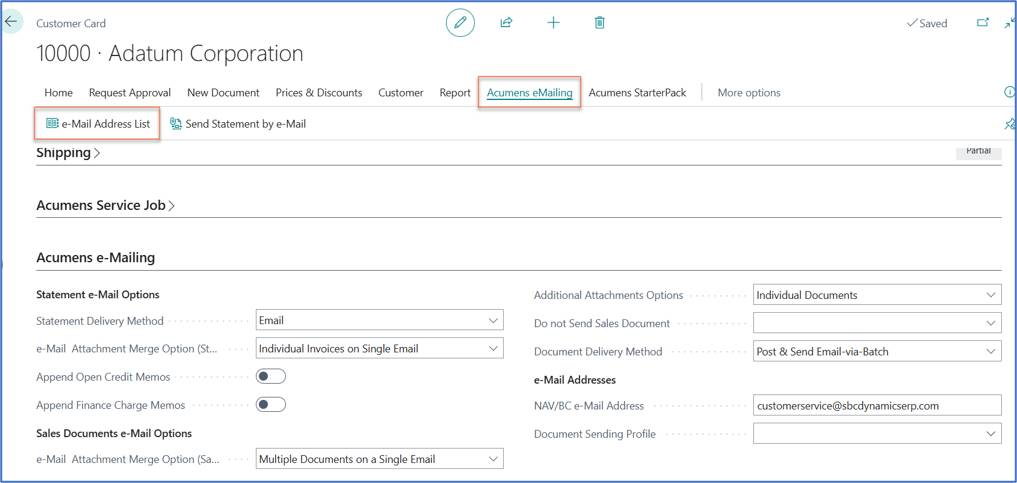
Open the Customer Card. From the action bar, select Acumens eMailing -> e-Mail Address List action.
Email Automation in Dynamics 365 Business Central

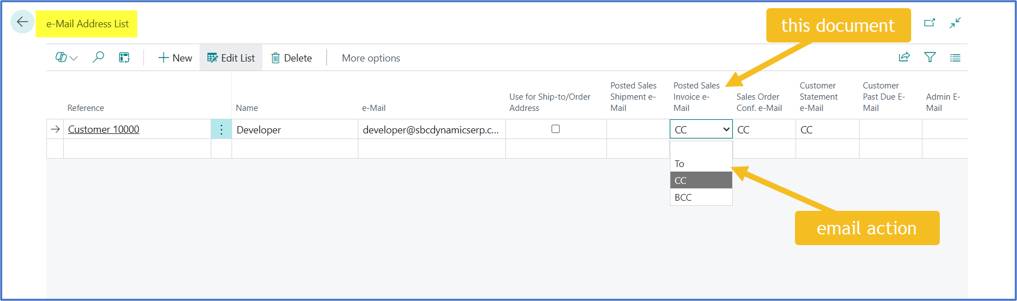
Add a line for each contact by entering their Name and target e-Mail address and assign the desired Email Action under the specific document column.
Email Automation in Dynamics 365 Business Central

Enabling Recipient Rules on the e-Mail Card

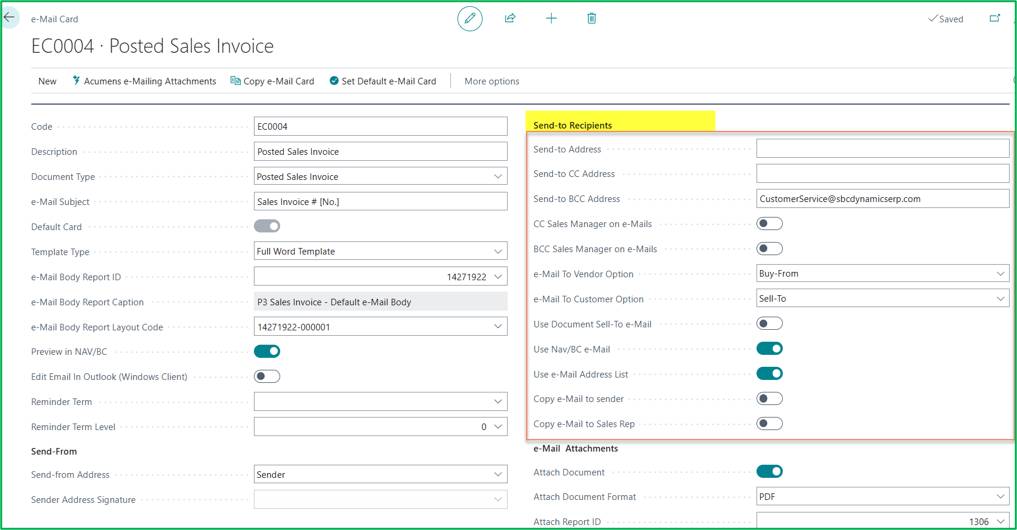
On the e-Mail Card setup for a specific document type such as Posted Sales Invoice, navigate to the Send-to Recipients FastTab:
Email Automation in Dynamics 365 Business Central
  • Default Recipients: Define static email addresses in Send-to Address, Send-to CC Address, or Send-to BCC Address if specific mailboxes must always be copied.
  • Automated Internal Routing: Enable switches like Copy e-Mail to Sales Rep, CC Sales Manager on e-Mails, or Copy e-Mail to Sender to include internal team members automatically based on document owner fields.
  • Customer Contact Resolution:Toggle on Use e-Mail Address List to instruct Business Central to pull secondary recipients defined directly on the Customer Card.

Send e-Mail from posted sales invoice or sales order as shown below.
Email Automation in Dynamics 365 Business Central

The CC and BCC email addresses will automatically be appended to pre-send preview window as shown. You can verify message formatting; review attached documents and confirm all recipient email fields.
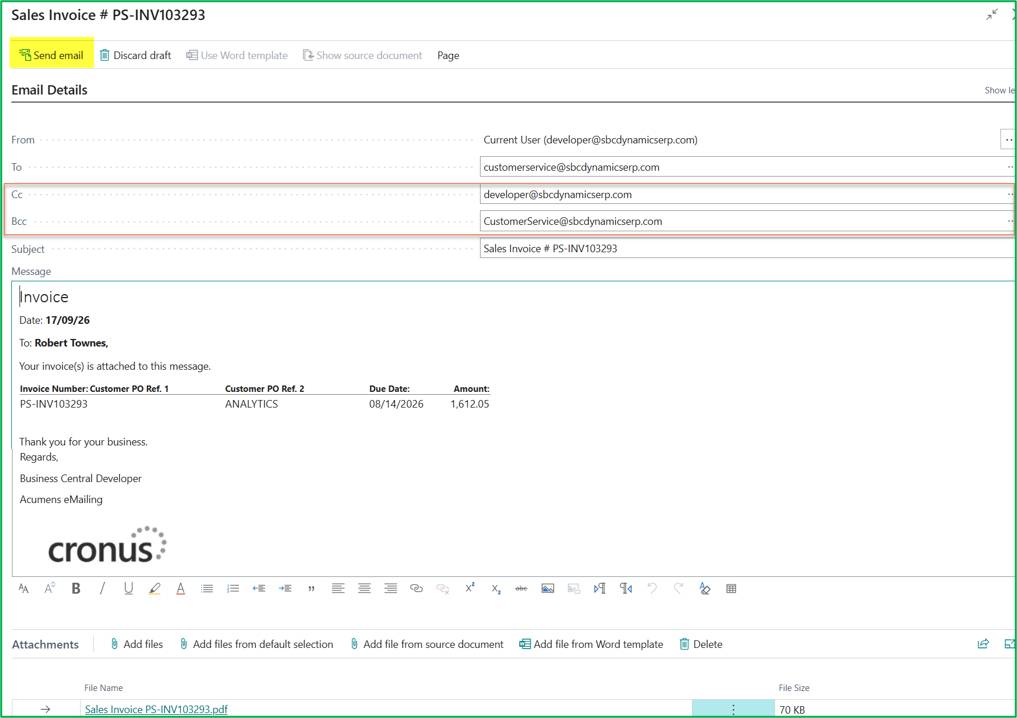
Email Automation in Dynamics 365 Business Central

The recipients will receive the email together with the document attachment, as shown below.
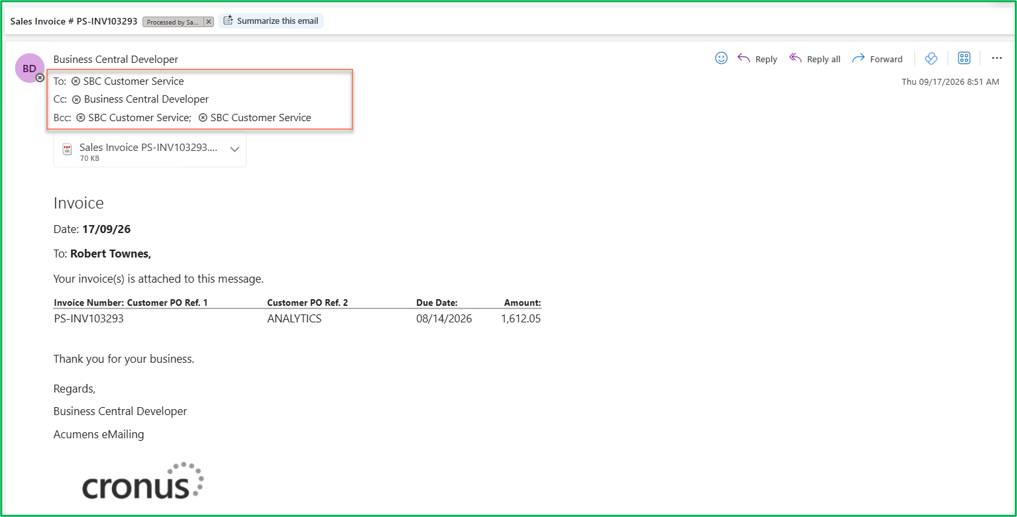
Email Automation in Dynamics 365 Business Central

5. Automated Batch Processing for Monthly Statements & Invoices

Batch email features simplify accounts receivable and billing operations
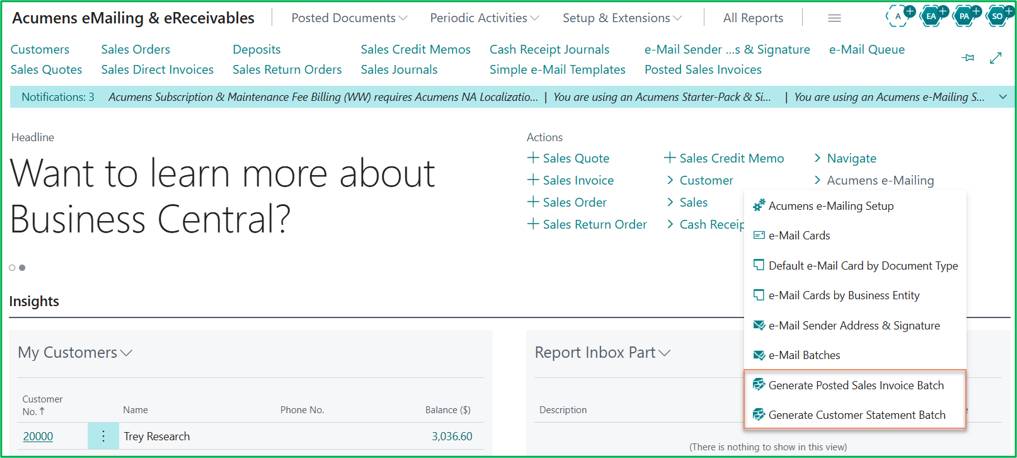
  • Monthly Batch Statements: Generate and send account statements along with supporting invoices and credit memos to selected or all customers on a monthly basis.
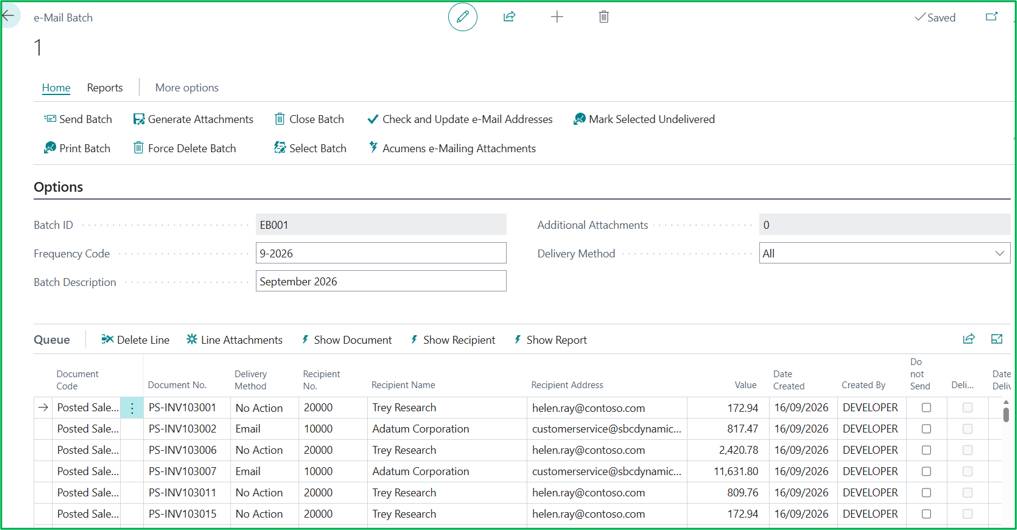
  • Send Invoice Batches: Generate invoice batches for all or selected customers and send them out automatically at your desired time.
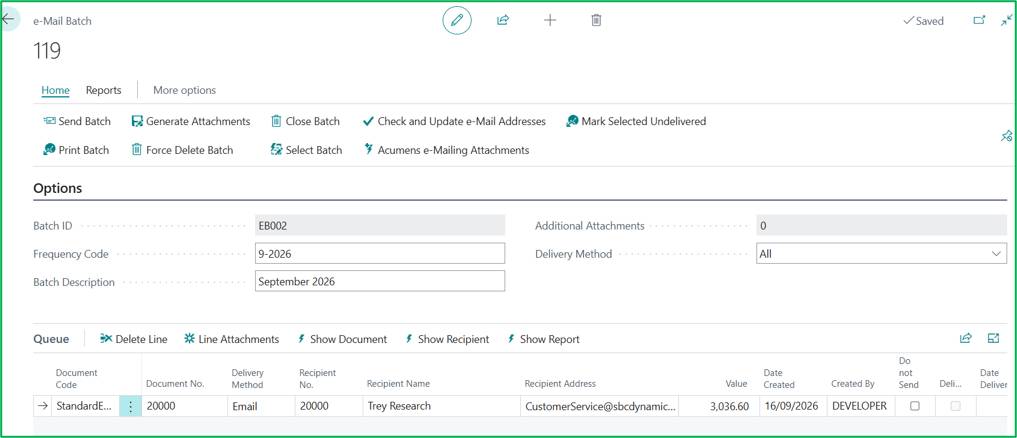
Email Automation in Dynamics 365 Business Central

Sample Monthly Batch Statement.

Email Automation in Dynamics 365 Business Central

Sample Sales Invoices Batch.

Email Automation in Dynamics 365 Business Central

Below is the sample email received by the customer.
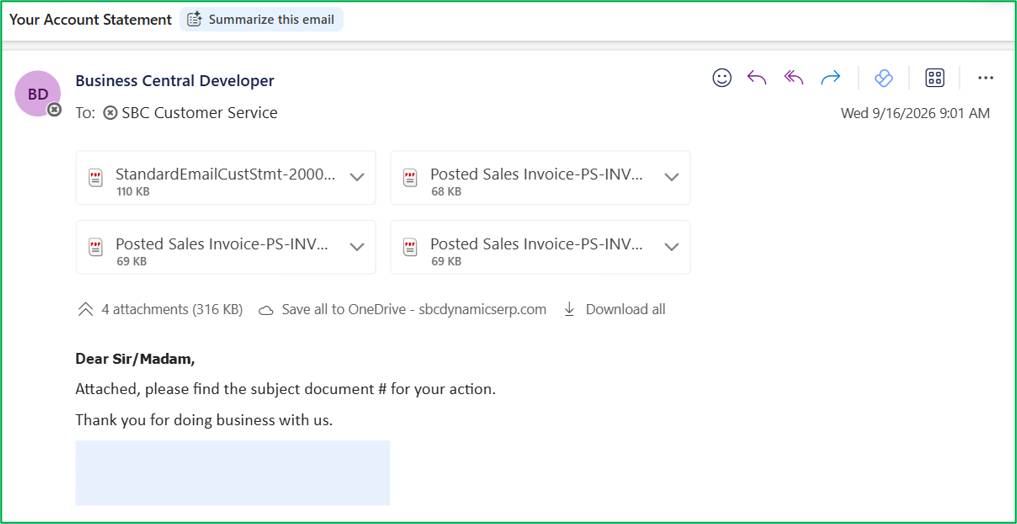
Email Automation in Dynamics 365 Business Central

6. Customizable Word Layouts & Email Bodies

The system uses Word layouts to define the email body, giving users the ability to design rich and branded messaging.
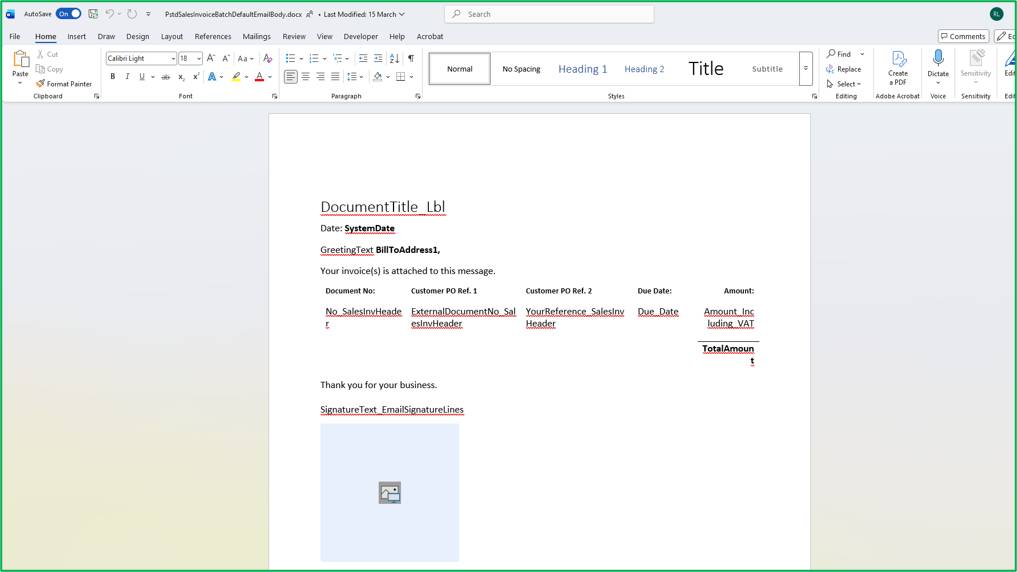
Email Automation in Dynamics 365 Business Central

In Conclusion

Upgrading your emailing workflow in Dynamics 365 Business Central turns standard transactional emails into polished, professional customer touchpoints while saving your finance and sales teams hours of manual effort.

Moving beyond standard out-of-the-box emailing opens up advanced possibilities for operational efficiency, auditability and targeted customer engagement.

Customer support team ready to assist you

Contact SupportContact

Contact Support for demo of the app or for assistance with setup and training

Sign UpSign Up

Sign up to receive updates on Acumens.com, new releases, and extension updates by filling in the form.