
When you set up Gmail through the SMTP Connector in Microsoft Dynamics 365 Business Central, you may see SMTP error 535 if Google rejects the sign-in details. In many cases, this can be resolved by using a Google App Password instead of the normal account password.
This guide walks through the setup from start to finish: enabling 2-Step Verification, creating an App Password, configuring Gmail SMTP in Business Central, and sending a test email.
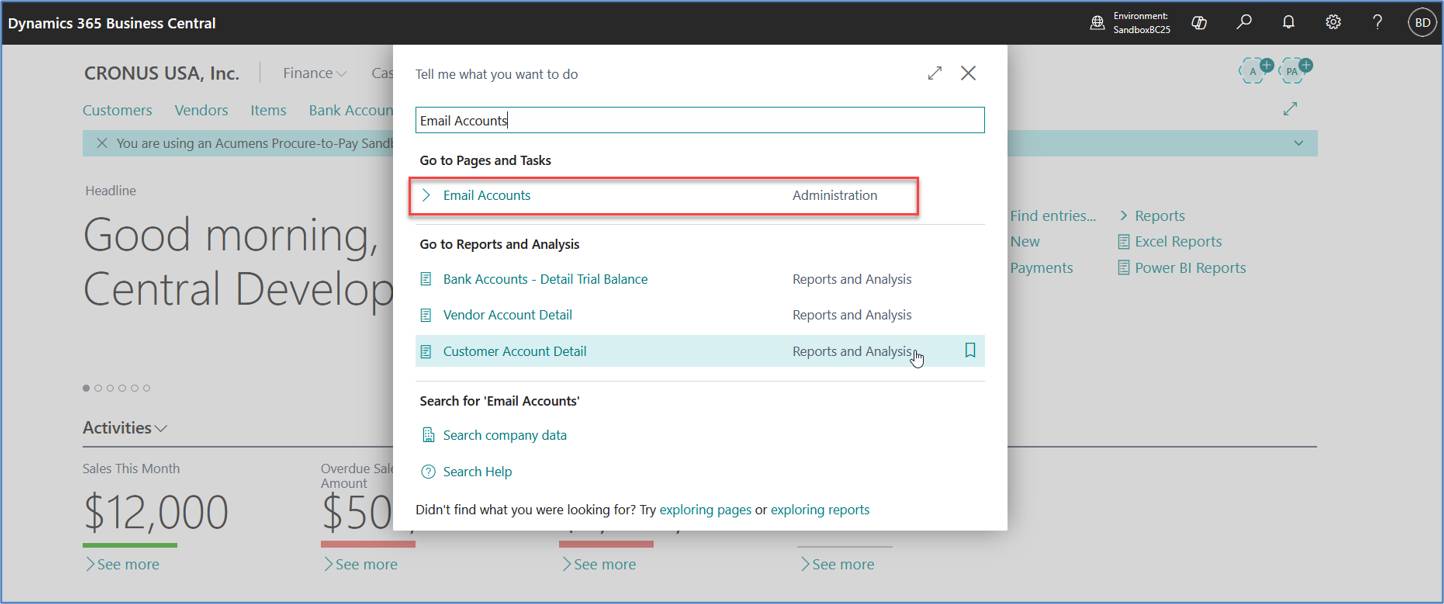
Figure 1. Search for Email Accounts in Business Central.
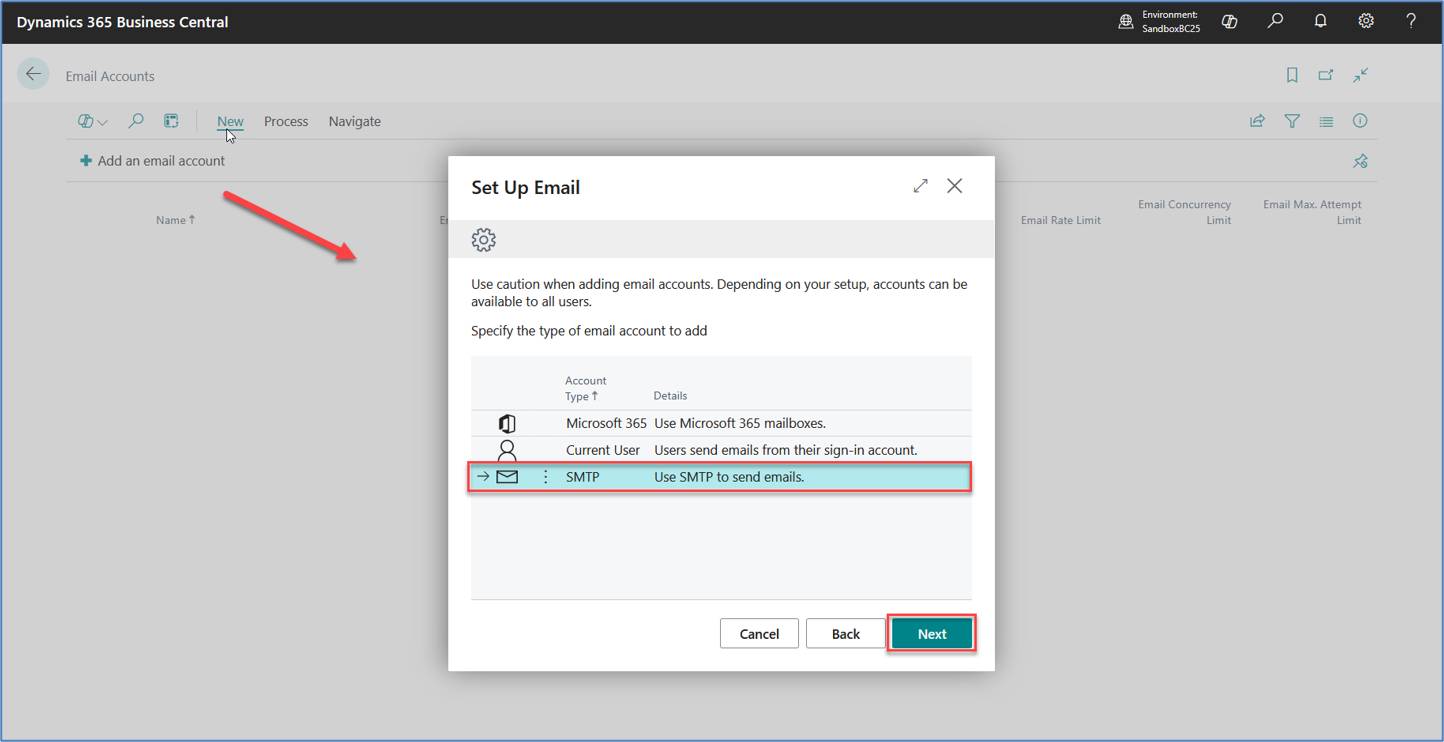
Figure 2. Select SMTP when adding a new email account in Business Central.
Sign in to the Google account you want to use for sending email. Open the Google Account Security page and go to How you sign in to Google.
If 2-Step Verification is already enabled, continue to the next step.
https://myaccount.google.com/security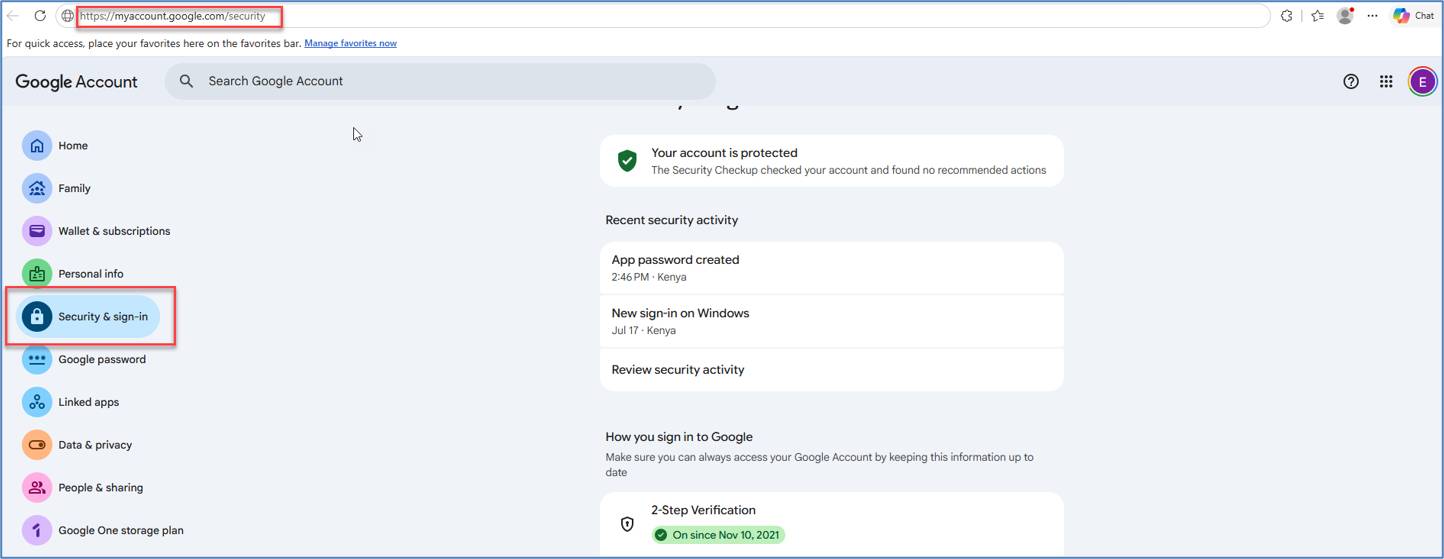
Figure 3. Open Security & sign-in in the Google Account settings.
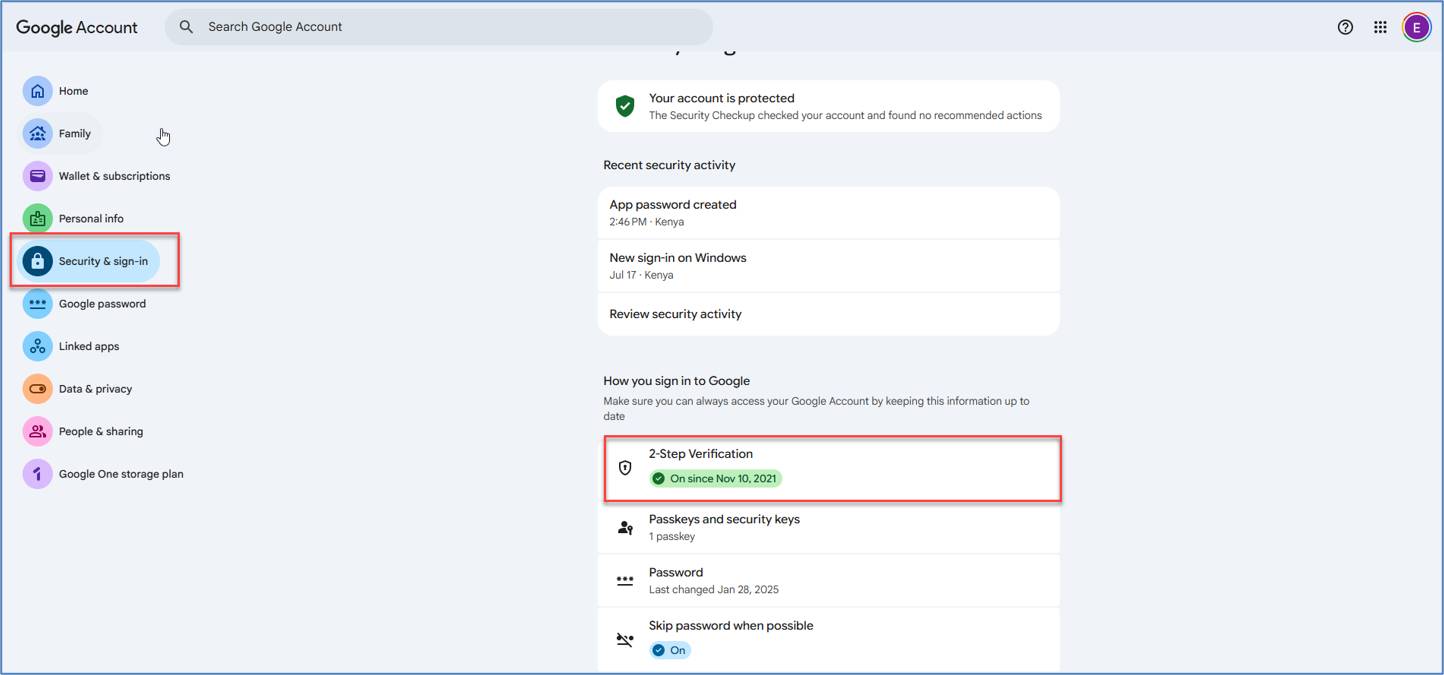
Figure 4. Confirm that 2-Step Verification is enabled for the Google account.
Once 2-Step Verification is enabled, open App Passwords. Google may ask you to sign in again.
Keep the App Password private. Mask it completely in any screenshots used for the blog.
https://myaccount.google.com/apppasswords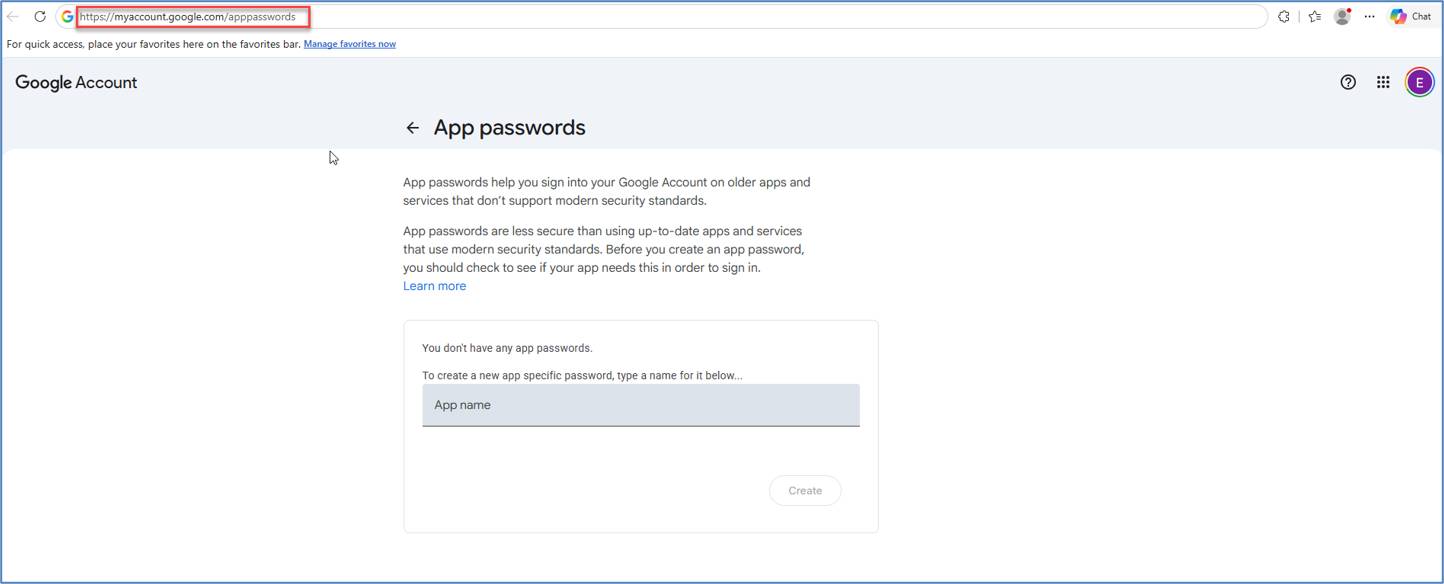
Figure 5. Open the Google App Passwords page.
Figure 6. Enter Business Central SMTP as the App Password name and select Create.
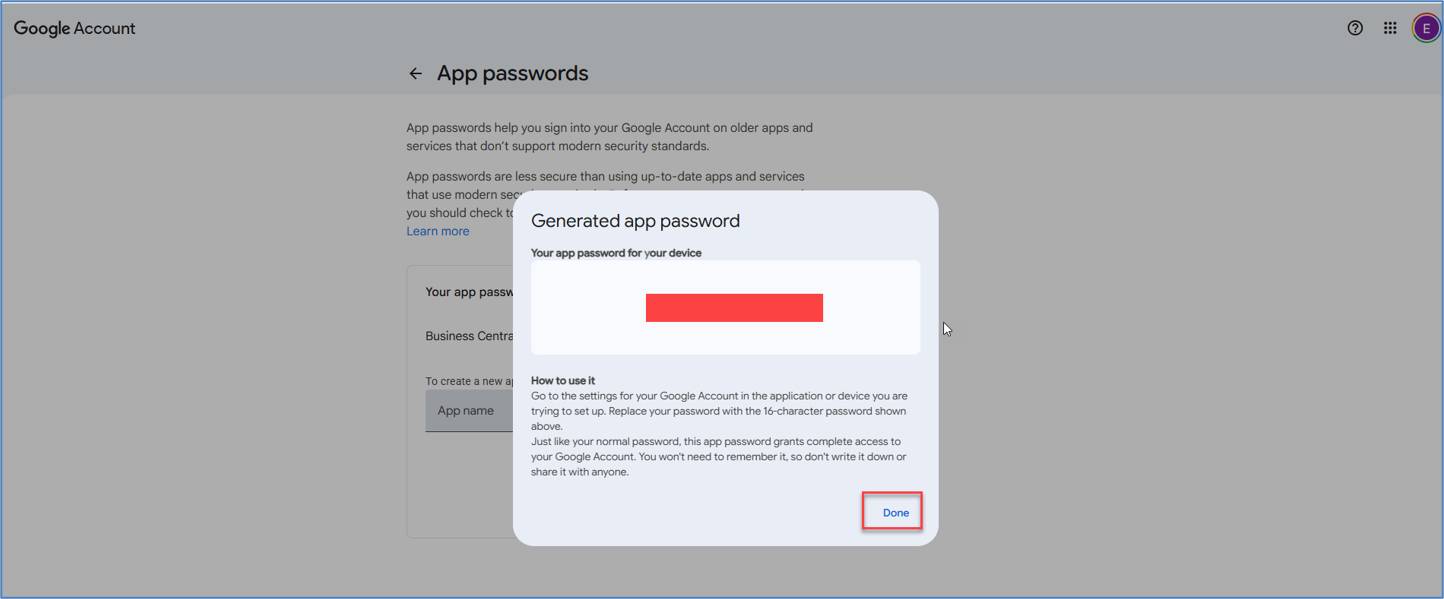
Figure 7. Copy the generated App Password and keep it private.
Return to Business Central and complete the SMTP account using the Gmail settings below.
| Setting | Value |
| Account Name | Notifications |
| Email Address | Your Gmail or Google Workspace email address |
| Server Address | smtp.gmail.com |
| Server Port | 587 |
| Authentication | Basic |
| User Name | Full Gmail or Google Workspace email address |
| Password | Google App Password |
| Secure Connection | Enabled |
For the Password field, use the App Password created in Google, not your normal Google account password.
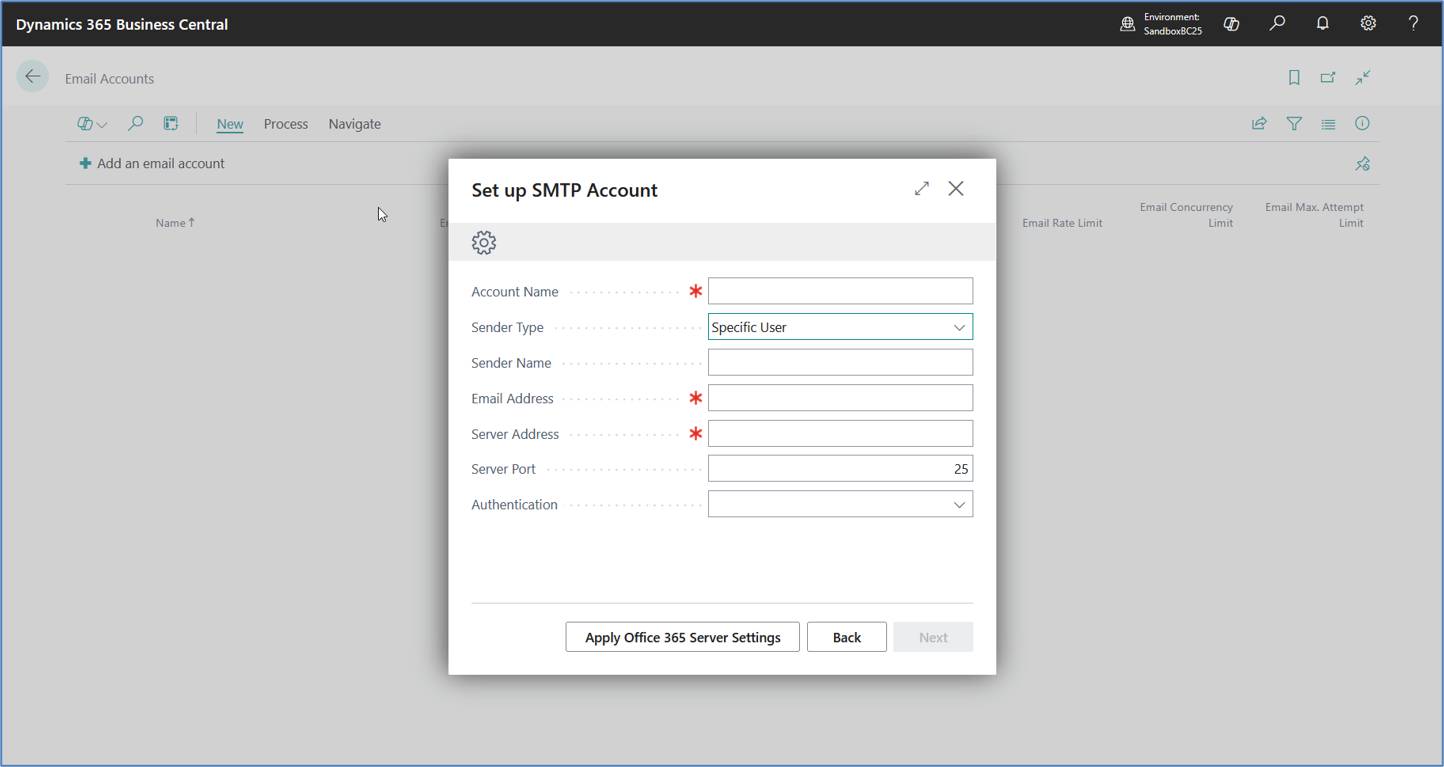
Figure 8. Start the SMTP account setup in Business Central.
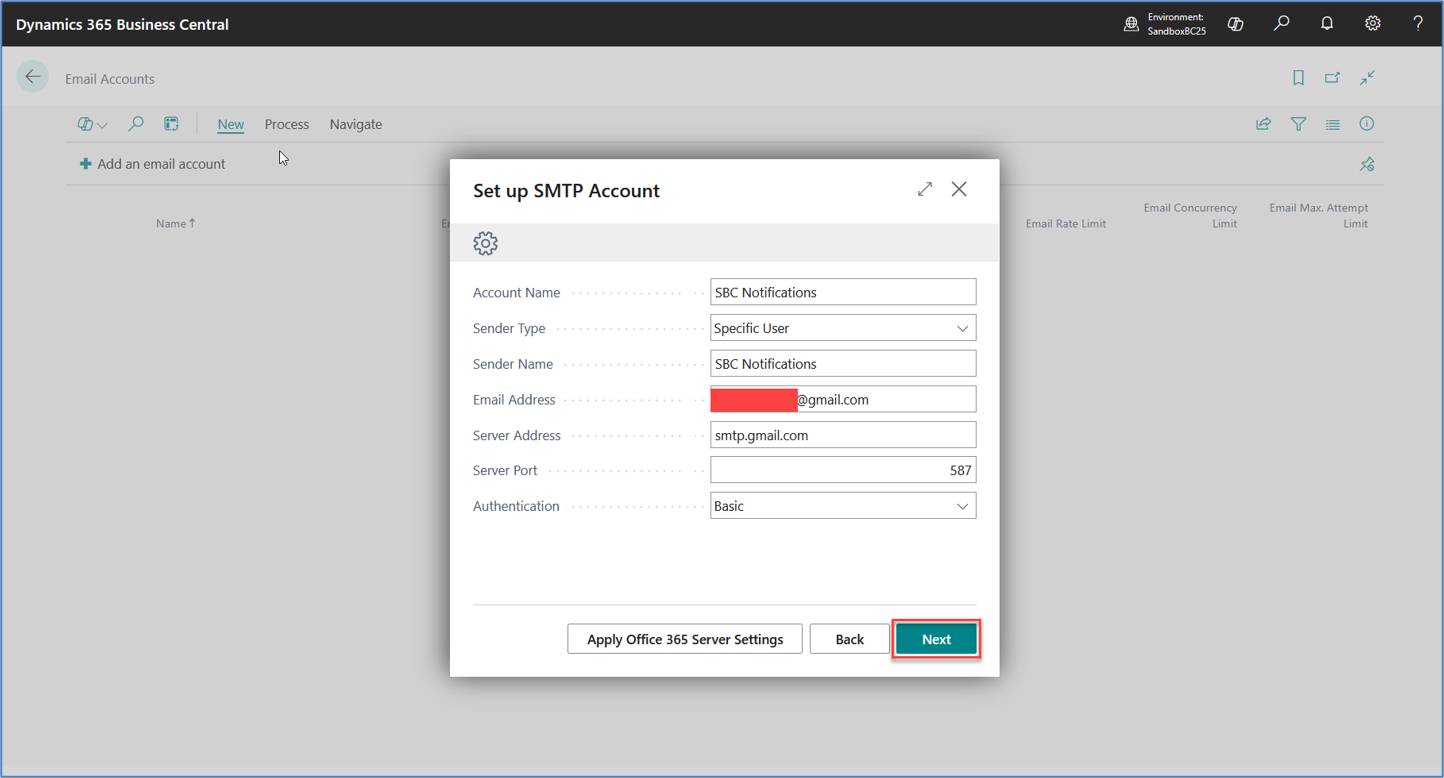
Figure 9. Enter the Gmail SMTP account details in Business Central.
Finish the SMTP setup, then send a test email from the Email Accounts page. Enter a recipient email address and select Send Test Email.
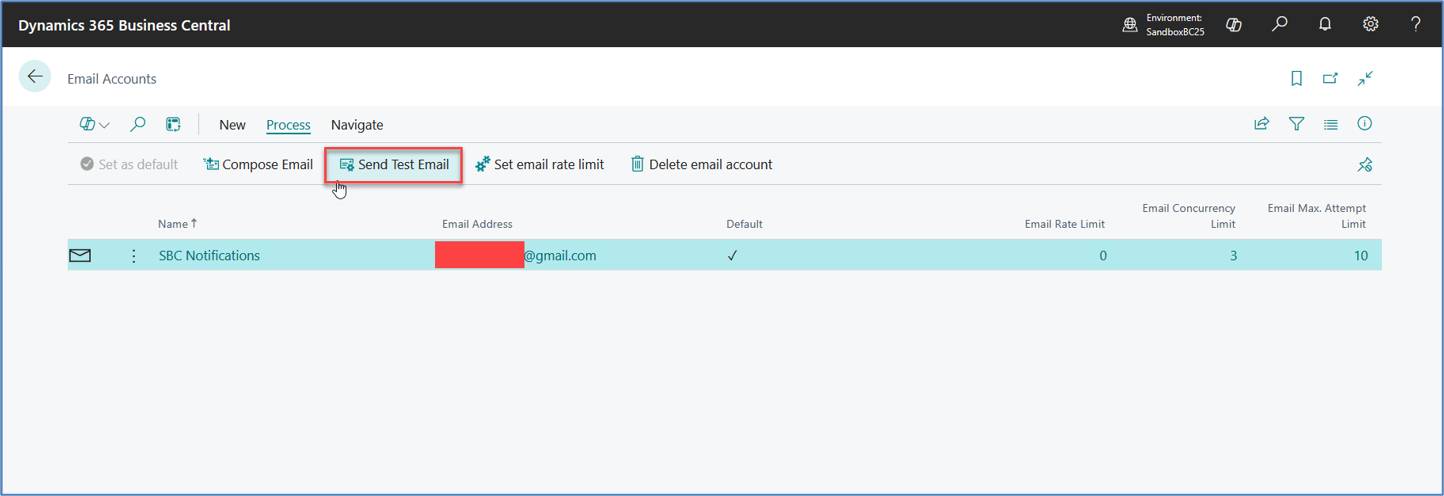
Figure 10. Select Send Test Email from the Email Accounts page.
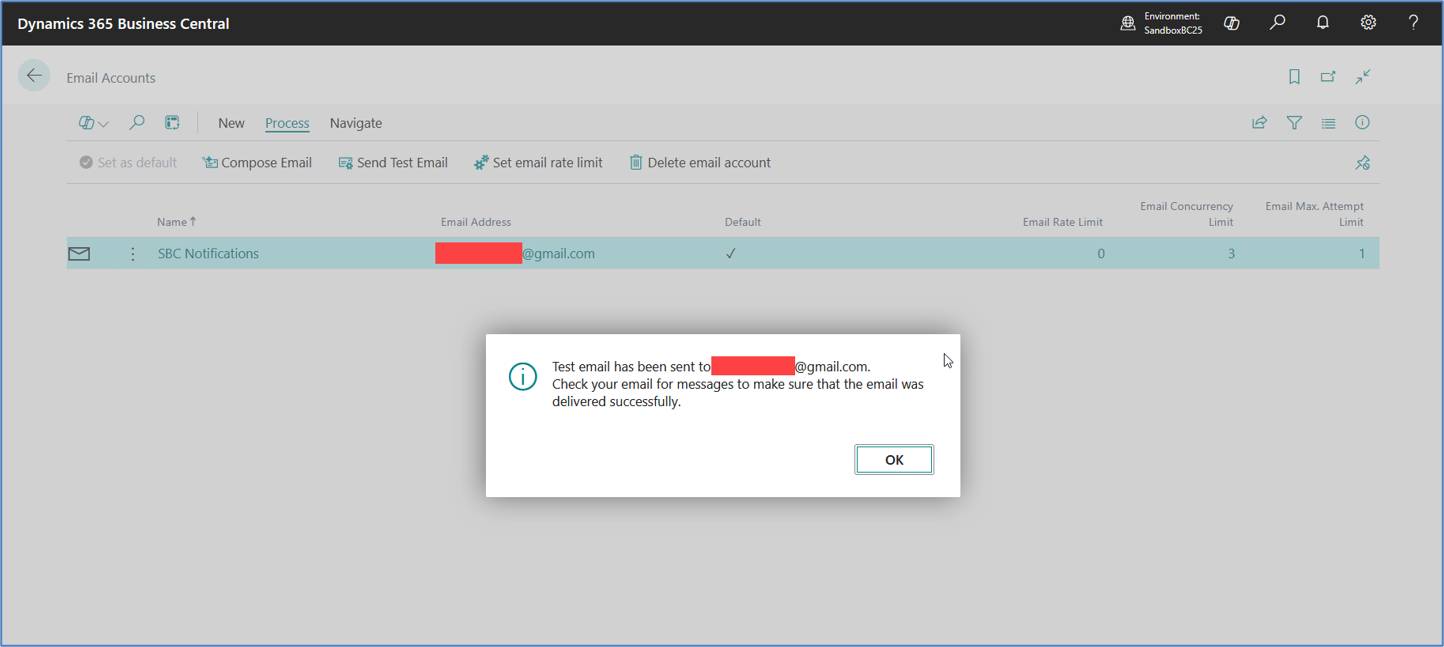
Figure 11. Business Central confirms that the test email was sent.
Check the recipient mailbox and confirm that the test message was received. This confirms that Business Central is successfully sending email through Gmail SMTP.
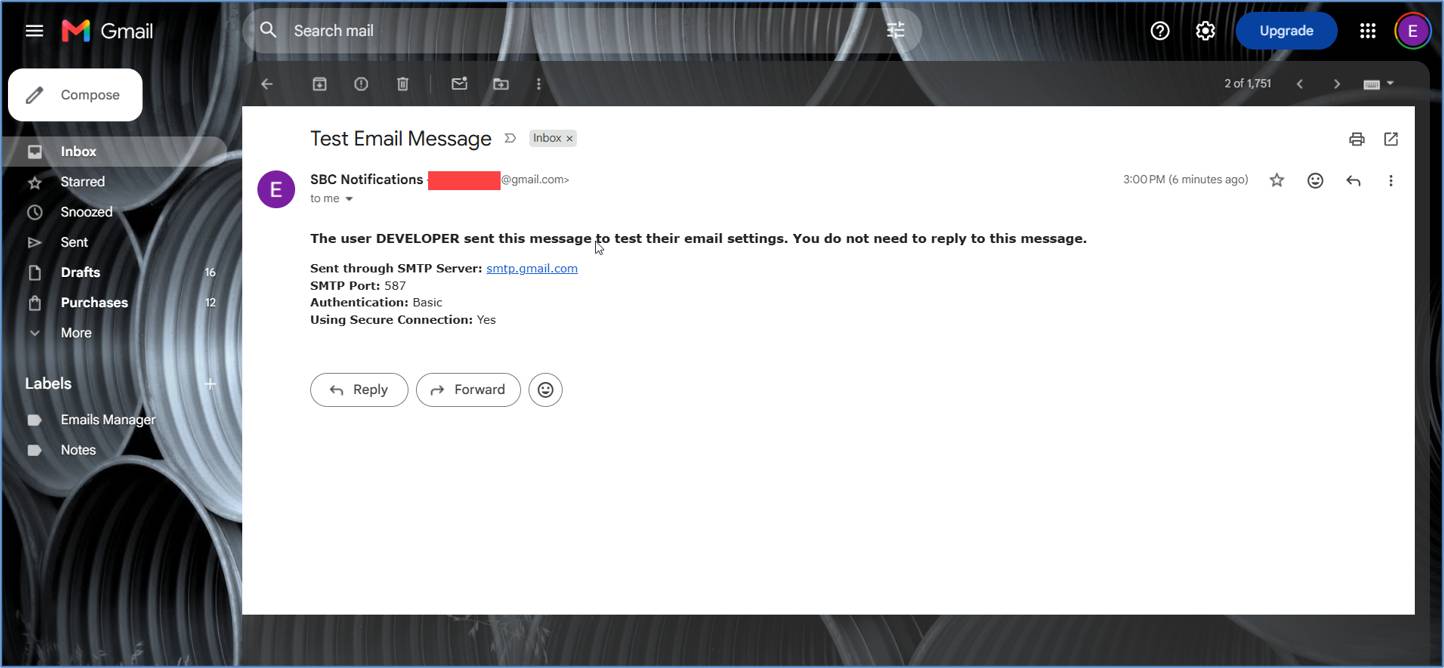
Figure 12. Test email received successfully through Gmail SMTP.
If SMTP error 535 still appears
Check the following:
If App Passwords are not available
App Passwords may not be available for every Google account or organization. If you are using a managed Google Workspace account and cannot see the option, check with your Google Workspace administrator.
SMTP error 535 usually means Gmail has rejected the credentials used by Business Central. If App Passwords are supported for the Google account, using an App Password instead of the normal account password can resolve the issue. Once the SMTP account is updated, send a test email to confirm everything is working correctly.
Microsoft Learn – Set Up Email in Business Central
https://learn.microsoft.com/en-us/dynamics365/business-central/admin-how-setup-email
Google Account Help – Sign in with app passwords