Acumens Sales Rebates & Claims is a Microsoft Dynamics 365 Business Central extension for calculating, accruing and posting customer rebates from everyday sales. Rebate rates are set per customer and product, with minimum quantities and amounts, so a customer earns a higher rebate as their purchases grow.
Rebates are calculated when sales are invoiced, either automatically or in a batch, and posted to the general ledger with a link back to the invoices and credit memos they were generated from. The same rules are used pay commissions to brokers and employees ; royalties to vendors, and customer rebates processed as credit memos on the customer accounts.
Contoso OptiClean Corp manufactures and distributes professional and commercial cleaning tools, janitorial equipment and pure-water cleaning systems. Its customers are rewarded with rebates that grow as their purchases grow, and its brokers, sales staff and vendors are paid commissions and royalties on the same sales.
This document covers the company's customer growth rebate requirements, together with commissions, royalties and customer claims, and how the Acumens Sales Rebates & Claims app resolves each of them.
2.1.1 A Workspace for Rebate Users
The rebate team wants one place to reach the rebate setup, the sales documents that earn rebates and the tasks for processing them.
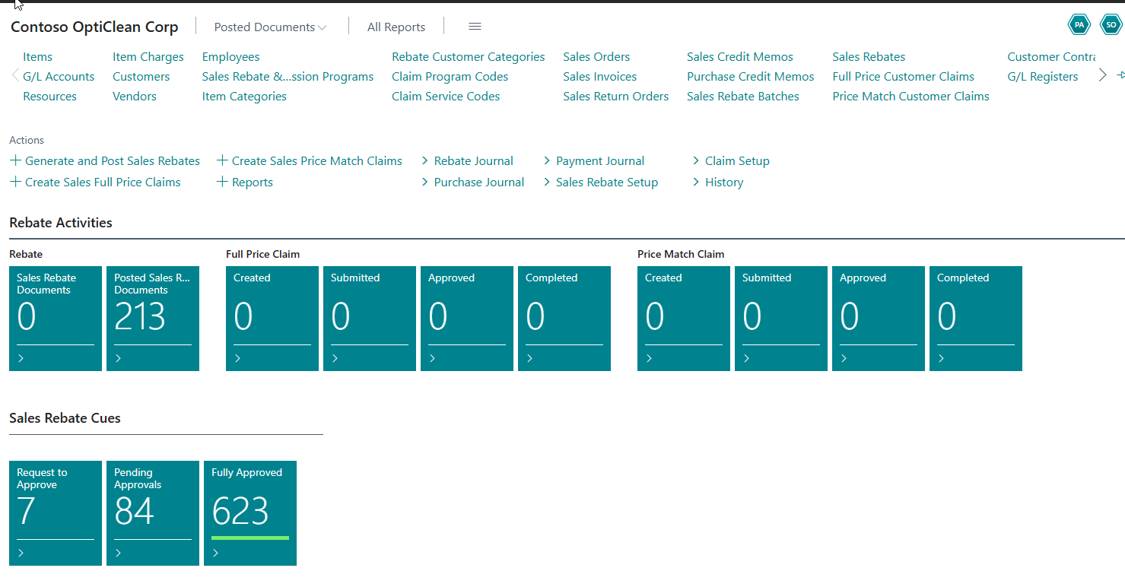
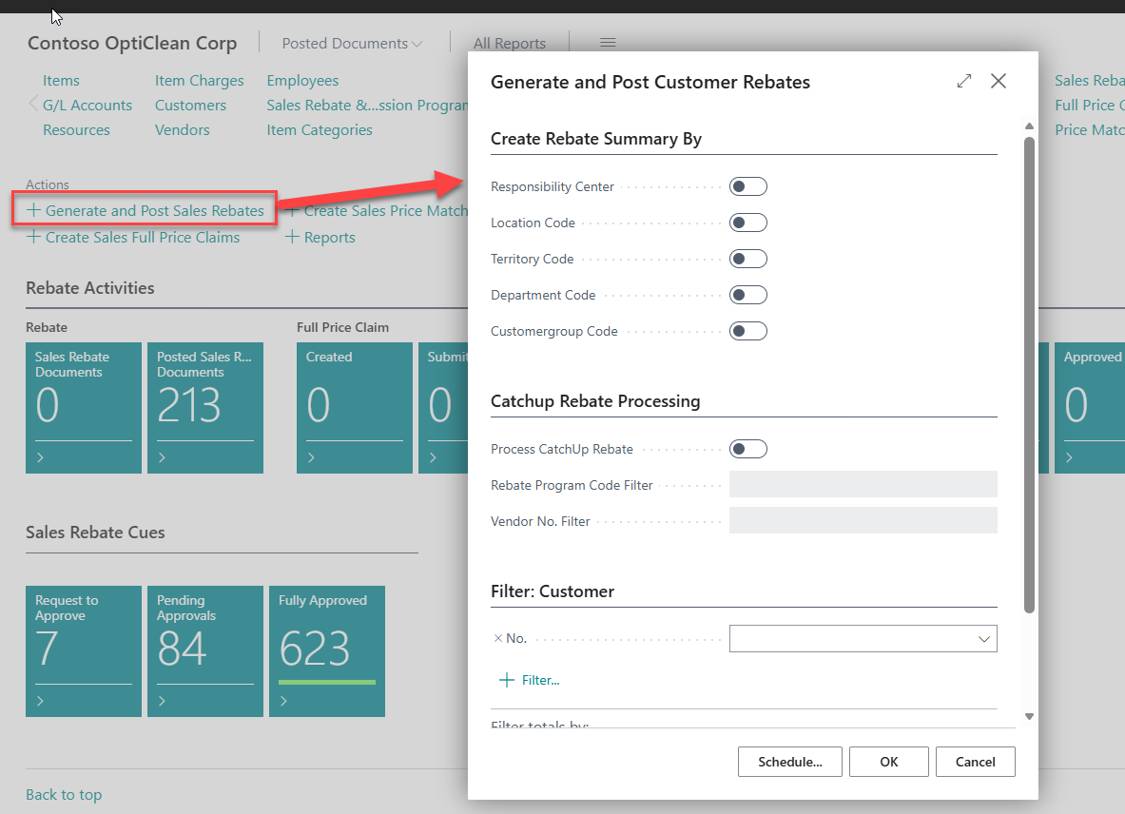
The Sales Rebate Role Center brings together links to the rebate setup screens, to sales orders, sales invoices, sales credit memos and sales return orders, and to Generate and Post Sales Rebates for processing rebates manually. Every user with a rebate role has a single starting point for their daily rebate work.
2.1.2 Controlling Who Sees and Approves Rebates
Contoso OptiClean wants salespeople to work only on their own customers' rebates, and only managers can approve them.
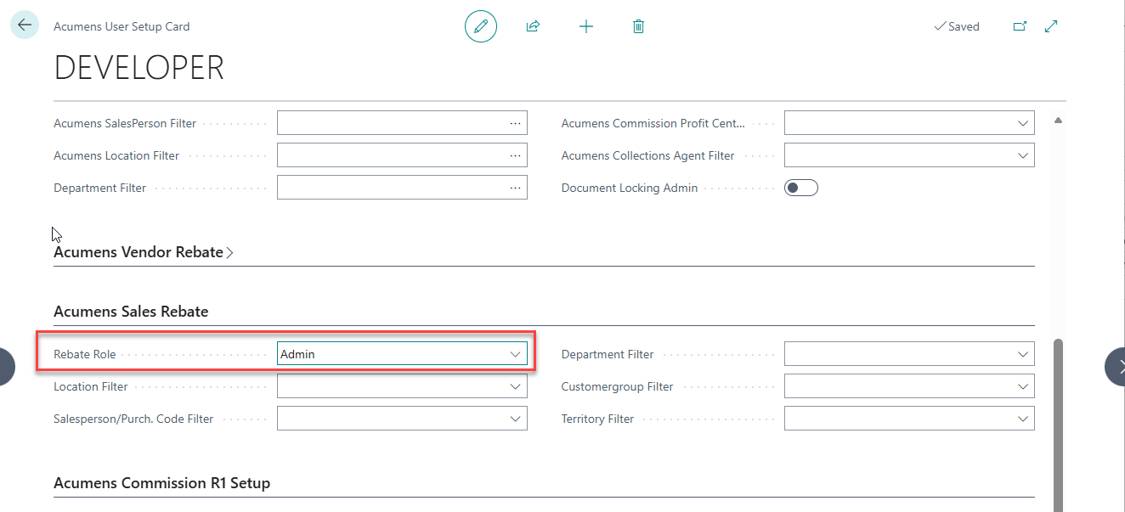
Each user is given a Rebate Role on the Acumens User Setup Card:
| Rebate Role | Can See Rebates | Can Create Rebates | Can Approve Rebates | Scope of Access |
| Salesperson | Yes | Yes | No | Only assigned customers |
| Sales Manager | Yes | Yes | Yes | All customers of the salespersons assigned to them |
| Admin | Yes | Yes | Yes | All customers |
Access can be narrowed further with filters for location, salesperson, department, customer group and territory, so rebates can be managed by branch, region or team.
2.2.1 Getting Started Quickly
The company wants to start using rebates without filling in every setting by hand.
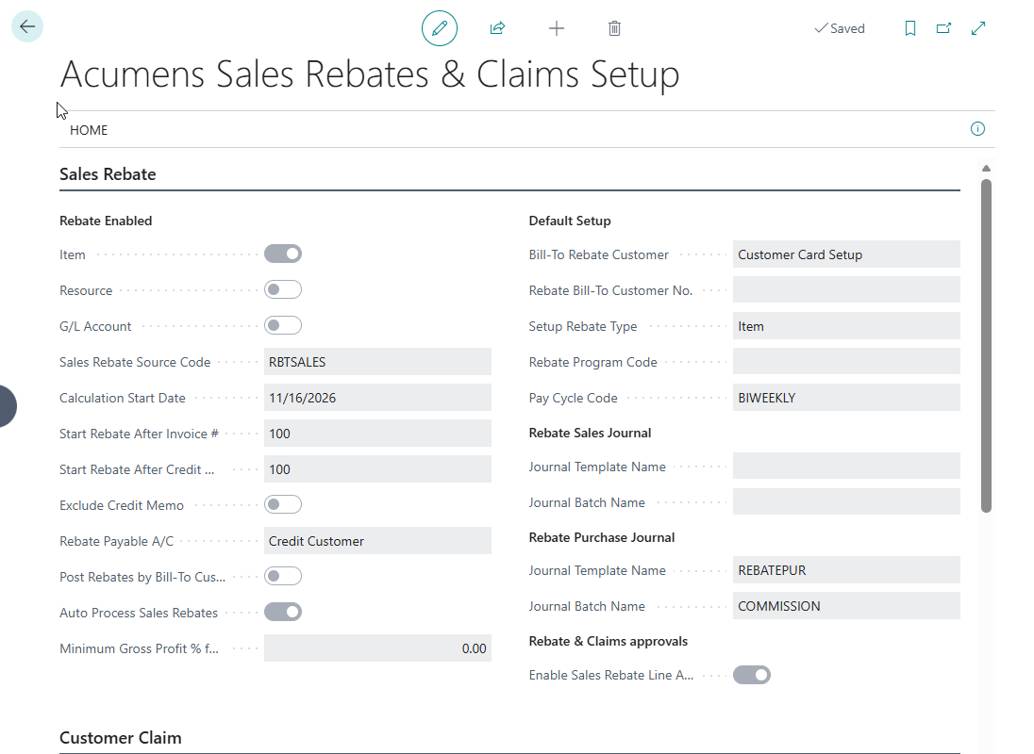
The first time Acumens Customer Claims and Rebate Setup is opened; the app offers to fill in default settings such as number series, source codes and a default program code. Selecting Yes fills them in; selecting No leaves them blank for manual entry. Every setting can be changed later.
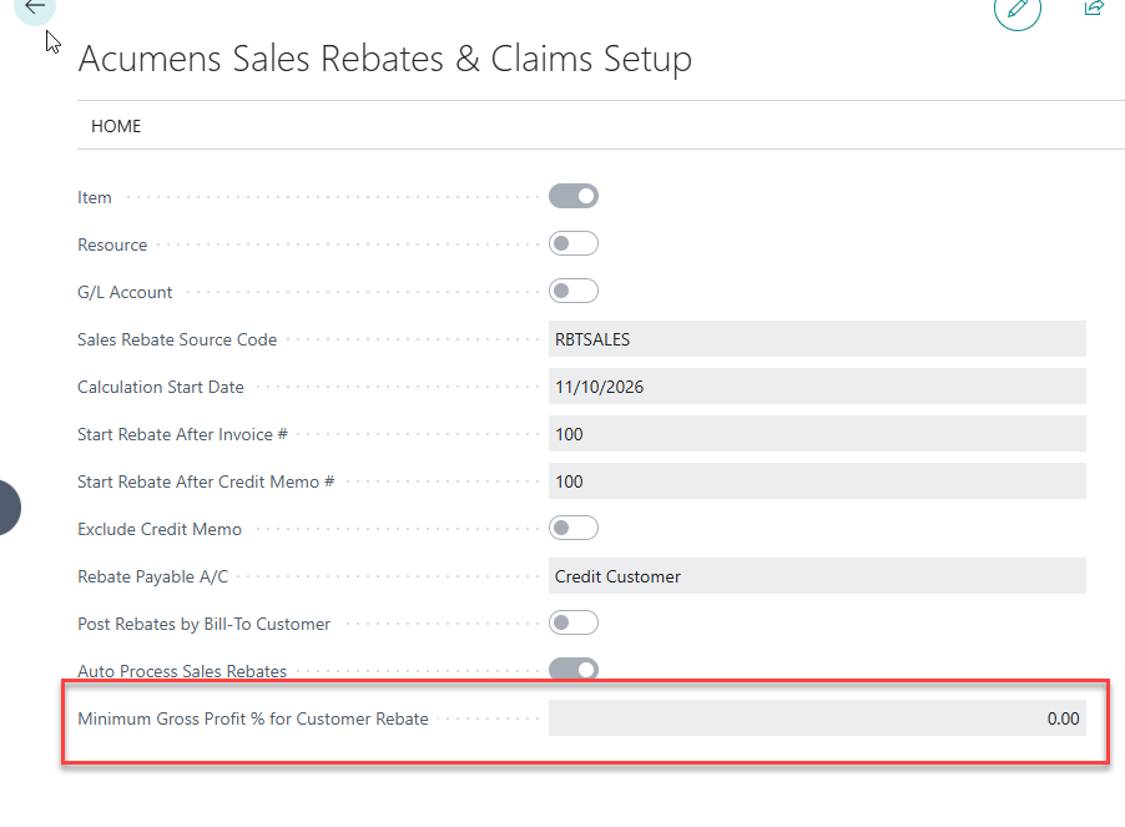
The setup also holds company-wide choices: which kinds of lines earn rebates (items, resources and G/L accounts), the date from which sales count, whether credit memos are left out, whether rebates are processed automatically and how they are posted.
2.2.2 Defining Rebate Programs
Contoso OptiClean runs several rebate programs, such as a loyalty program and a regular program, each calculated and posted in its own way.
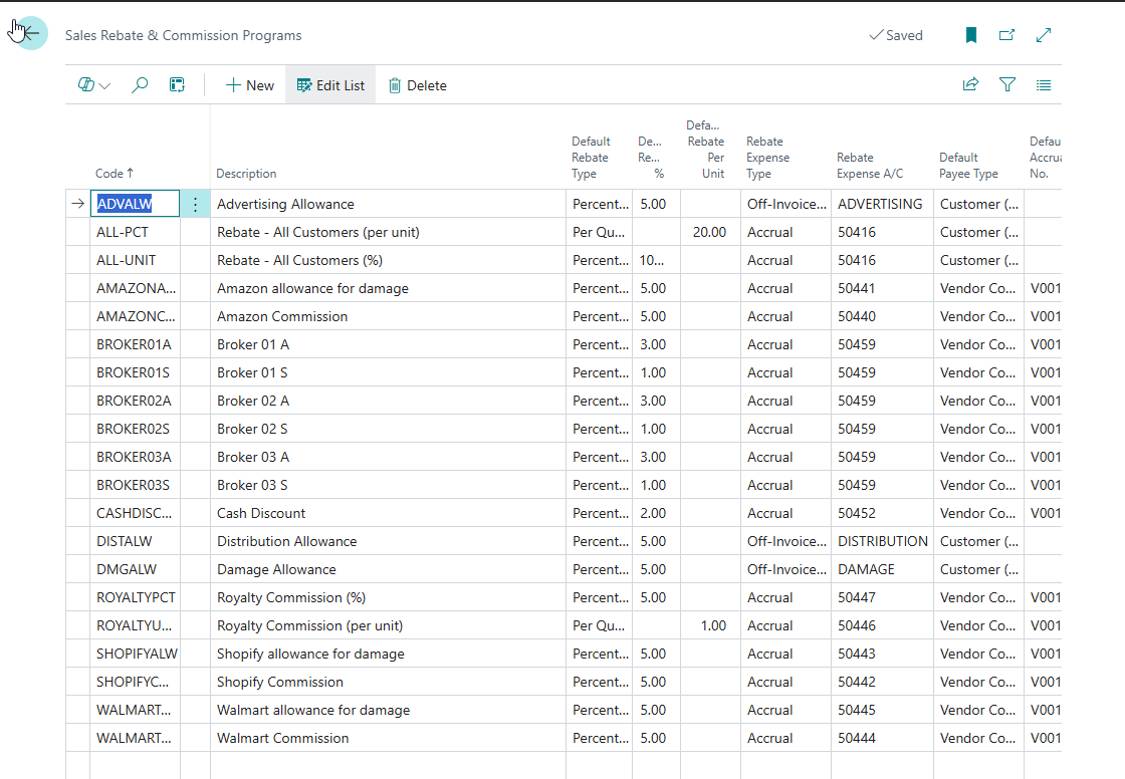
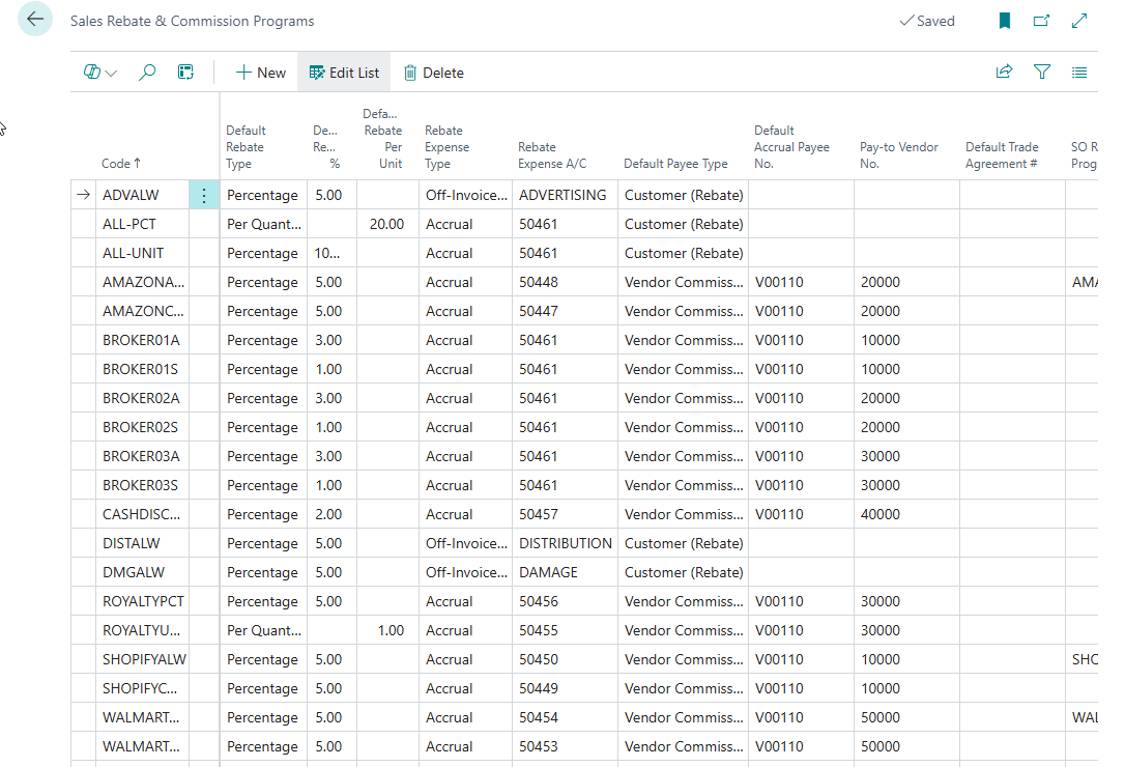
Each program is a Sales Rebate Program Code with a description, a default rebate type (a percentage of the sales amount or a fixed amount per unit), a default rate, and the expense and payable G/L accounts it posts to. A program can be for a customer, a vendor or an employee, so the same setup covers rebates, royalties and commissions.
2.2.3 Choosing Which Products Earn Rebates
Most products earn rebates, but some should be left out.
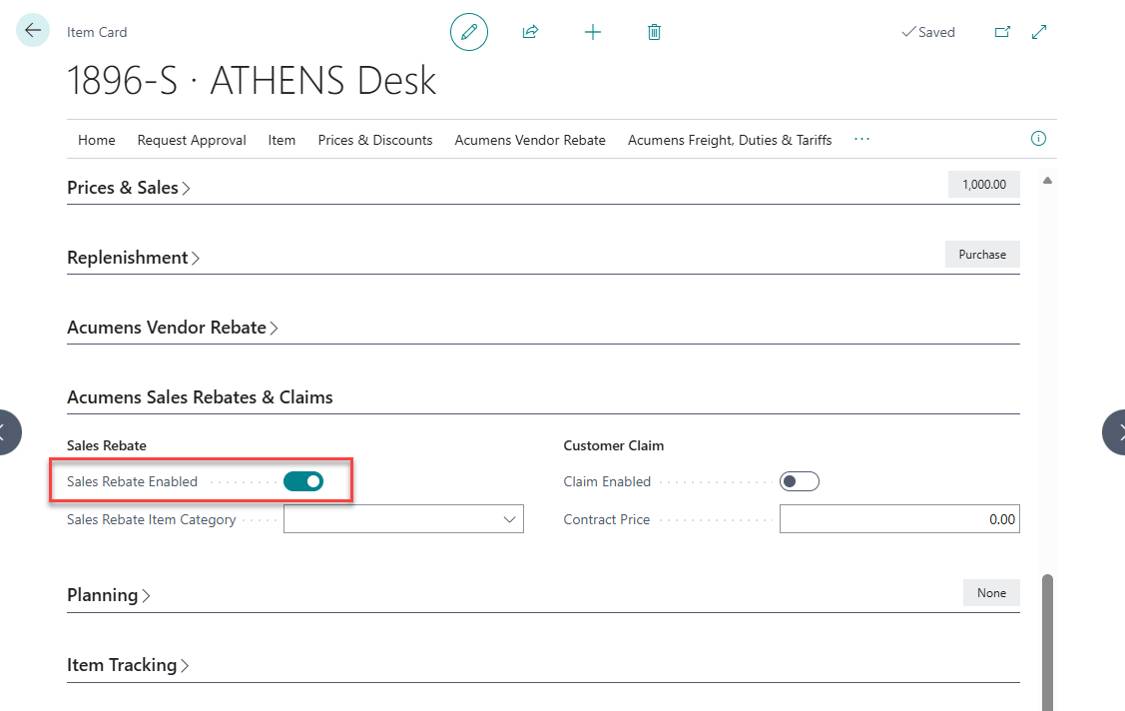
One switch in the setup, Item Rebate Enabled, makes all items eligible at once, and there are matching switches for resources and G/L accounts. Each Item, Resource and G/L Account card then has a Rebate Enabled field on its Acumens Customer Claims & Rebates Fast Tab, so individual products can be excluded. The setting on the card is the one used in the calculation.
Products can also be grouped into a Customer Item Rebate Category, so a rate can be given to a whole category rather than item by item.
2.2.4 Excluding Items within a Rebate Agreement
Most products earn rebates, but some should be left out.
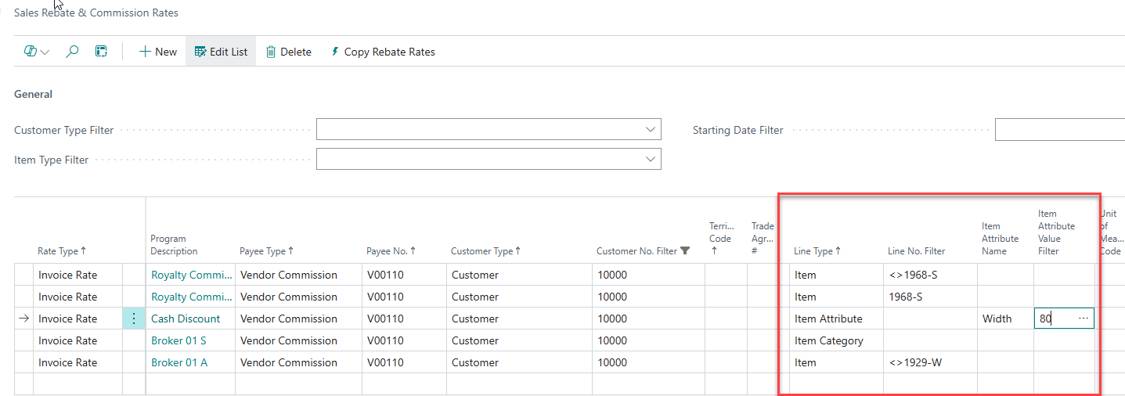
Each rate line states exactly what it covers. The Line Type can be Item, Item Category, Item Attribute, Resource or G/L Account, and Line No. Filter narrows it further. A rate for items can use a filter that leaves items out, for example < >ITEM-1001&< >ITEM-1002, so the exclusion applies to that agreement only. Rates can also be limited by Item Attribute Value Filter and Unit of Measure Code, and a rate for an item category also covers its child categories.
2.2.5 Running Several Rebate Agreements for One Customer
A customer can be in more than one rebate agreement at the same time, for example a loyalty program and a growth program, and each agreement must be tracked on its own.
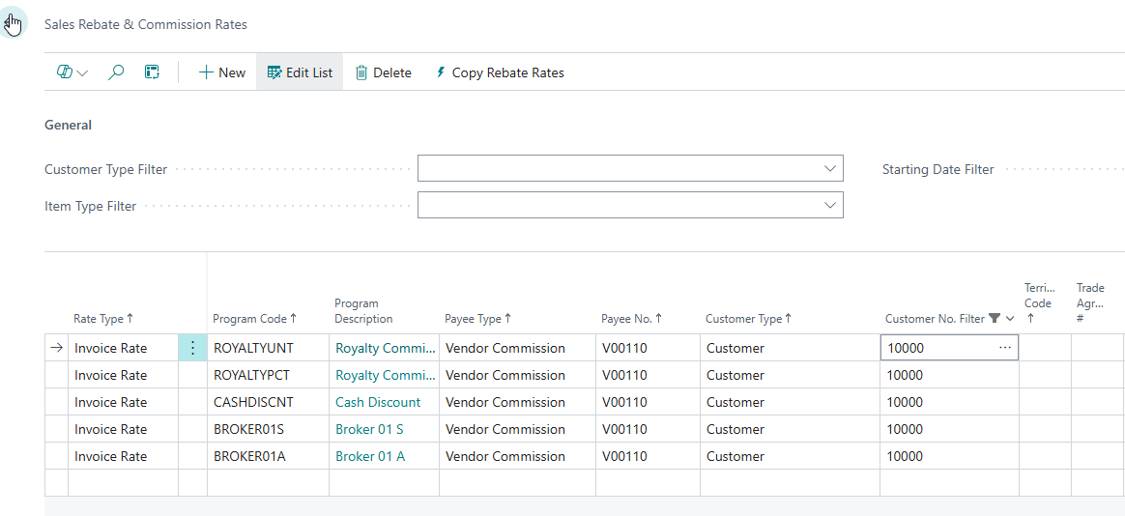
Each agreement is a program in Sales Rebate & Commission Programs, with its own rates, default rebate, expense account, payee and posting type. A customer can have rate lines under as many programs as needed.
2.2.6 Enrolling Customers and Grouping Them by Membership Level
Only customers in a rebate program should earn rebates, and customers at the same membership level, such as Gold or Platinum, should be treated the same way. Rebates for several accounts of the same customer should build up in one place.
On the Customer Card, the Acumens Sales Rebate Fast Tab has an Enroll for Rebate switch. If it is off, no rebates are tracked for that customer, whatever else is set up.
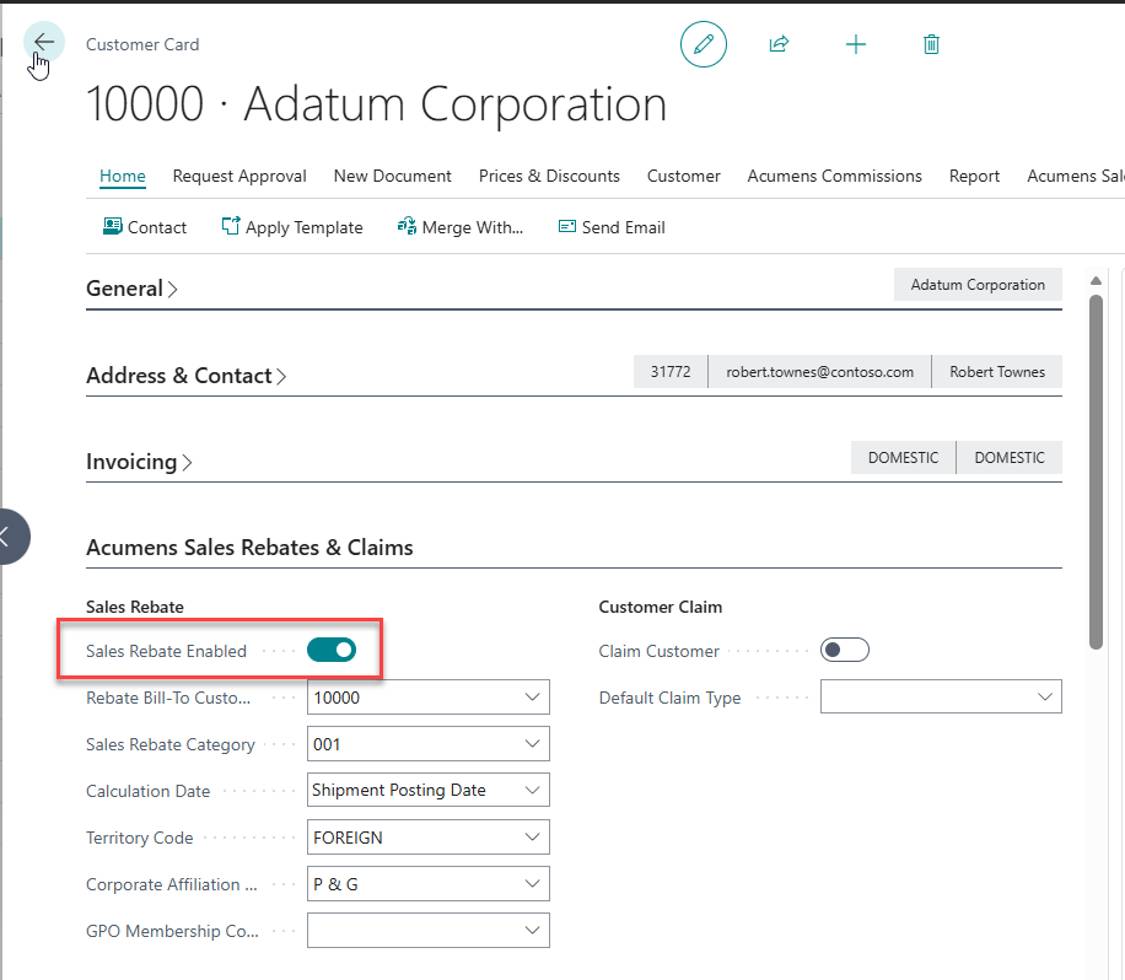
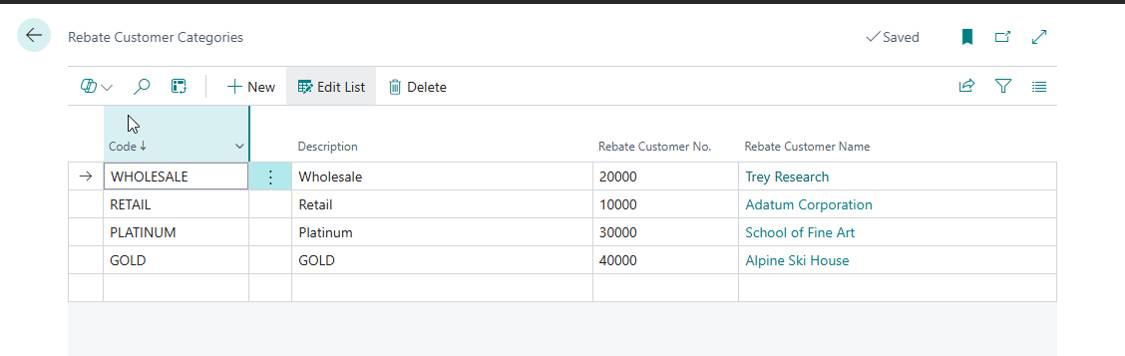
Each customer can be assigned a Sales Rebate Category Code, such as Ret GOLD or PLATINUM, defined under Rebate Customer Categories. "Rebate Customer No." decides which customer account the rebate is accrued to. It defaults to the customer's own number and can be changed, so several sell-to or bill-to customers can accrue to one rebate account. Rebates can also be created by bill-to customer.
2.2.7 Setting Rates for a Customer, Its Parent and Wider Groups
Some rates are agreed with a single customer account, some with a parent company for all of its accounts, and some with a wider group such as a corporate affiliation. The right rate should apply without being entered on every account.
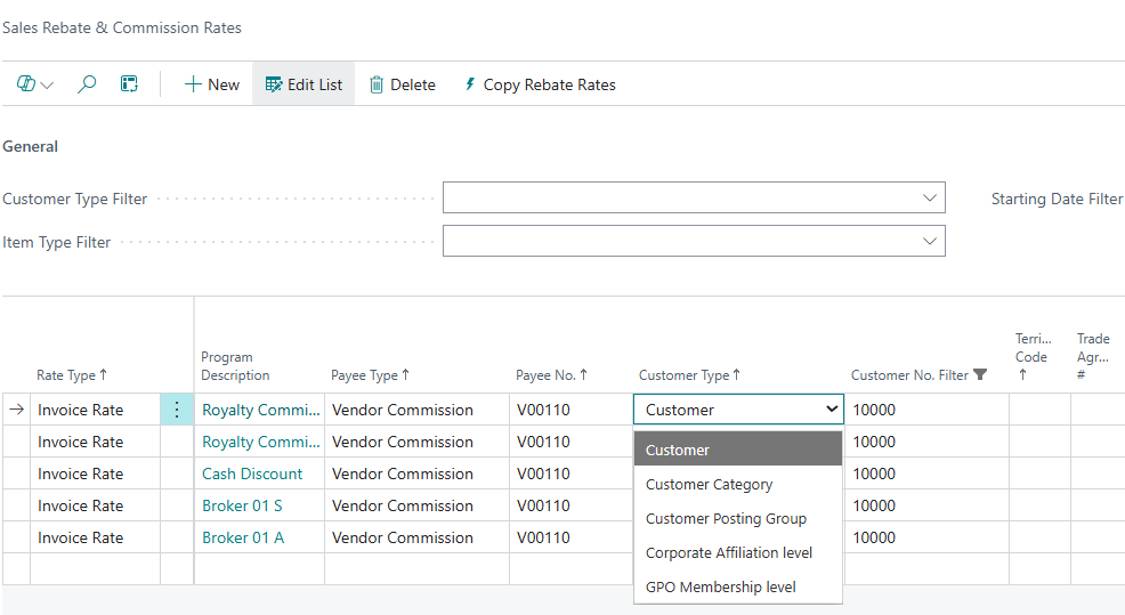
The Customer Type on each rate decides who it applies to: a single Customer, a Customer Category, a Customer Posting Group, Corporate Affiliation level or a GPO Membership level. The matching codes are entered in Customer No. Filter. A rate set for a customer also applies to every customer whose Parent Customer No. is that customer, so a rate agreed with the parent covers all its child accounts.
2.2.8 Buying Group Rebates
Many of Contoso OptiClean's customers buy through buying groups (GPOs). Members should earn the group's rebate rate, and the group may want the rebate paid to one account.
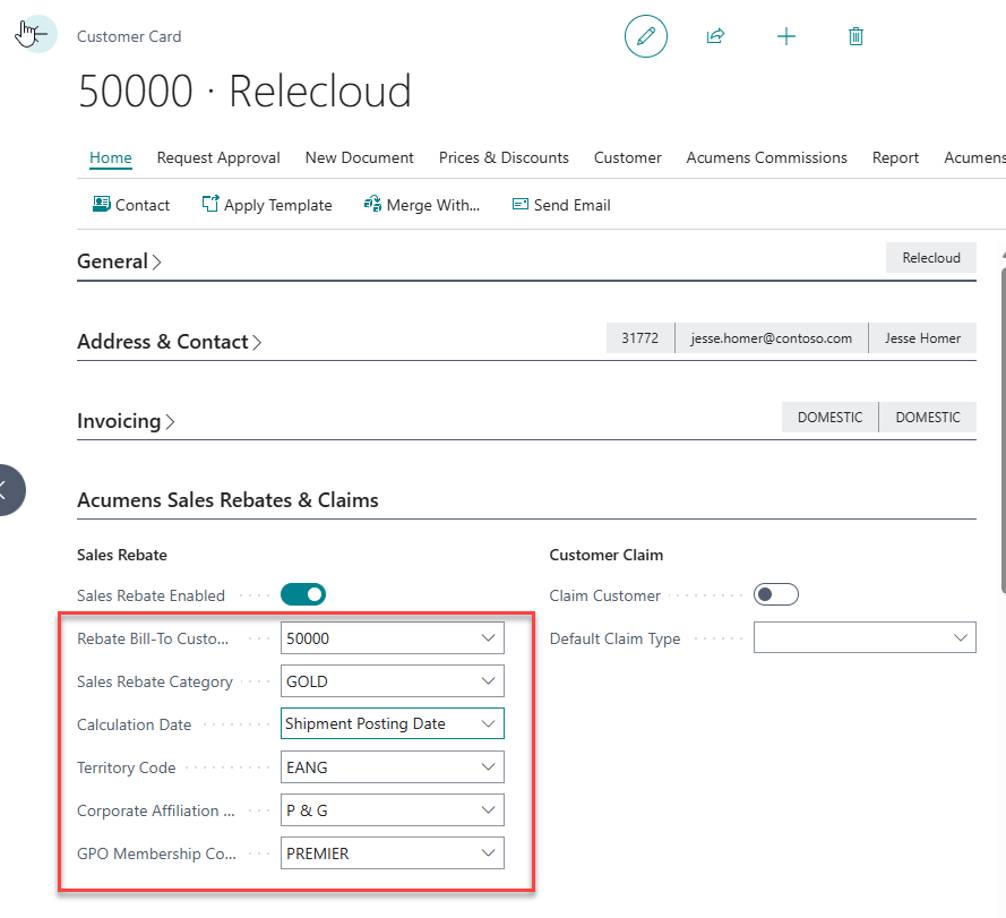
Each customer card holds a GPO Membership Code and a Corporate Affiliation Code. A rate with the Customer Type GPO Membership level applies to every member of the group, so the group's rate is set once. Members can also be grouped into a Sales Rebate Category for the same purpose.
2.3.1 Rewarding Customer Growth with Tiered Rates
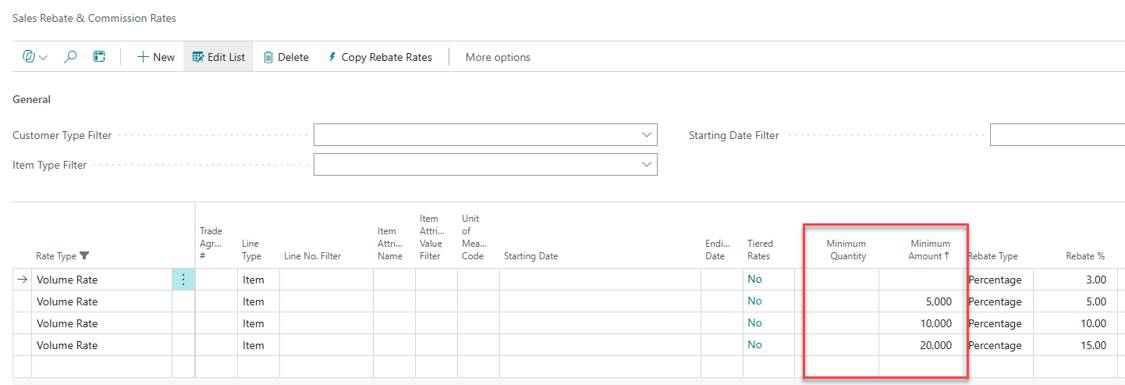
Contoso OptiClean wants to reward customers who buy more. A customer should earn nothing until their purchases reach a minimum, and then a higher rebate percentage at each higher level of purchases.
Sales Rebate Rates set the rebate for a customer and an item (or a resource, G/L account or rebate category) under a program code. Each rate line has a Minimum Quantity and a Minimum Amount, and several lines for the same item make up the tiers. The rebate is either a percentage of the sales amount or a fixed amount per unit of measure.
When a sale is posted, the app adds it to the customer's earlier sales of the item and applies the tier that the total has reached. The rebate is calculated on the new sale only.
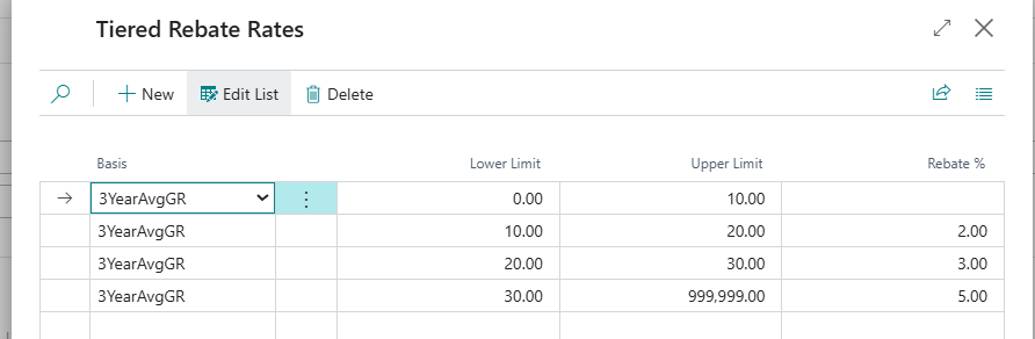
Tiered rebates can also be set based on a growth rebate
2.3.2 Rates for a Set Period
Rebate programs run for a set period, and a rate may need to stop or change part way through.
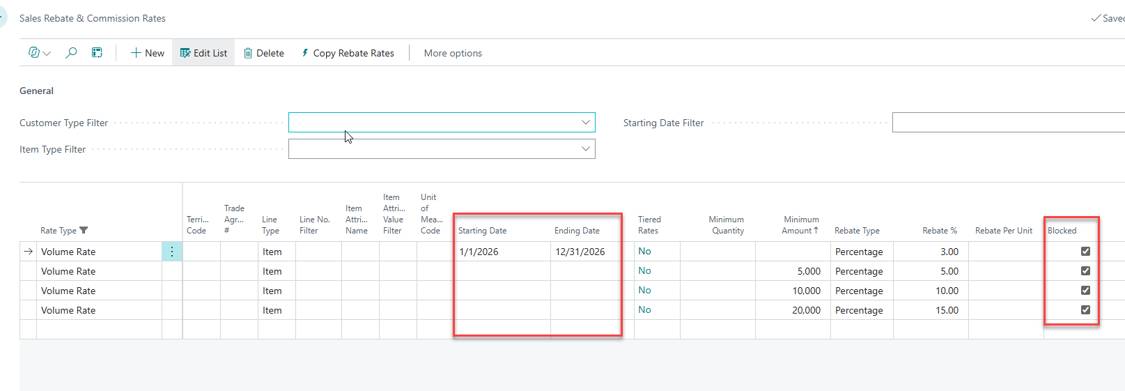
Each rate has a Starting Date and an Ending Date and applies only to sales within those dates. A tier can be ended by giving it an end date, a new rate can be added for the next period, and a line can be switched off with Blocked. The Start Date in the setup sets the date from which sales count for item rebates at all.
2.3.3 Previewing the Rebate Before Posting
Sales staff want to see what rebate an order will earn before it is invoiced.
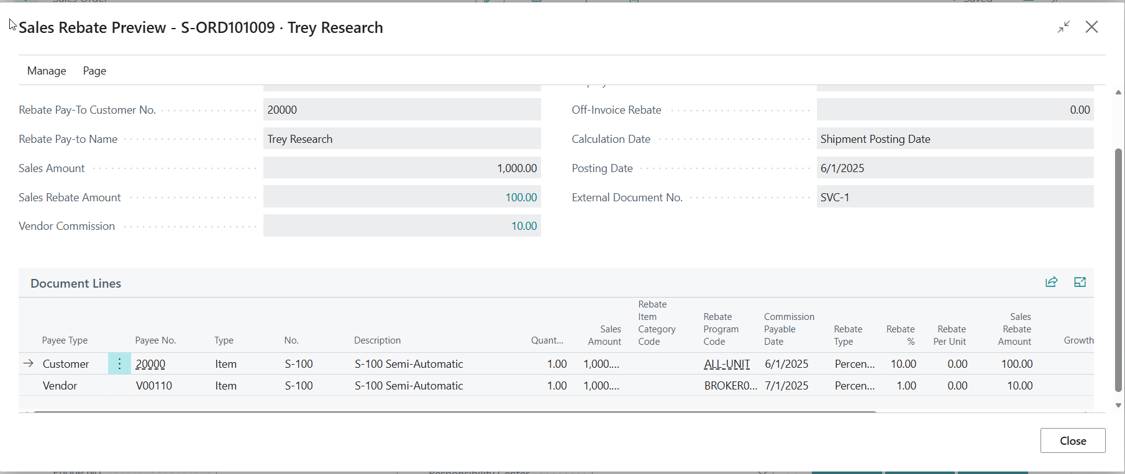
On the sales order, Preview Sales Rebate (under Acumens Sales Rebate) calculates the rebate the order would earn under the current rates, without posting anything, so the financial values can be checked before posting.
2.3.4 Protecting Gross Margin
A rebate must not reduce the margin on sales below an acceptable level.
Minimum Gross Profit % in the setup sets a threshold so that rebates do not take gross profit below the chosen percentage. It is zero by default.
2.4.1 Accruing Rebates Automatically
The finance team wants rebates accrued as sales are invoiced, without a separate step.
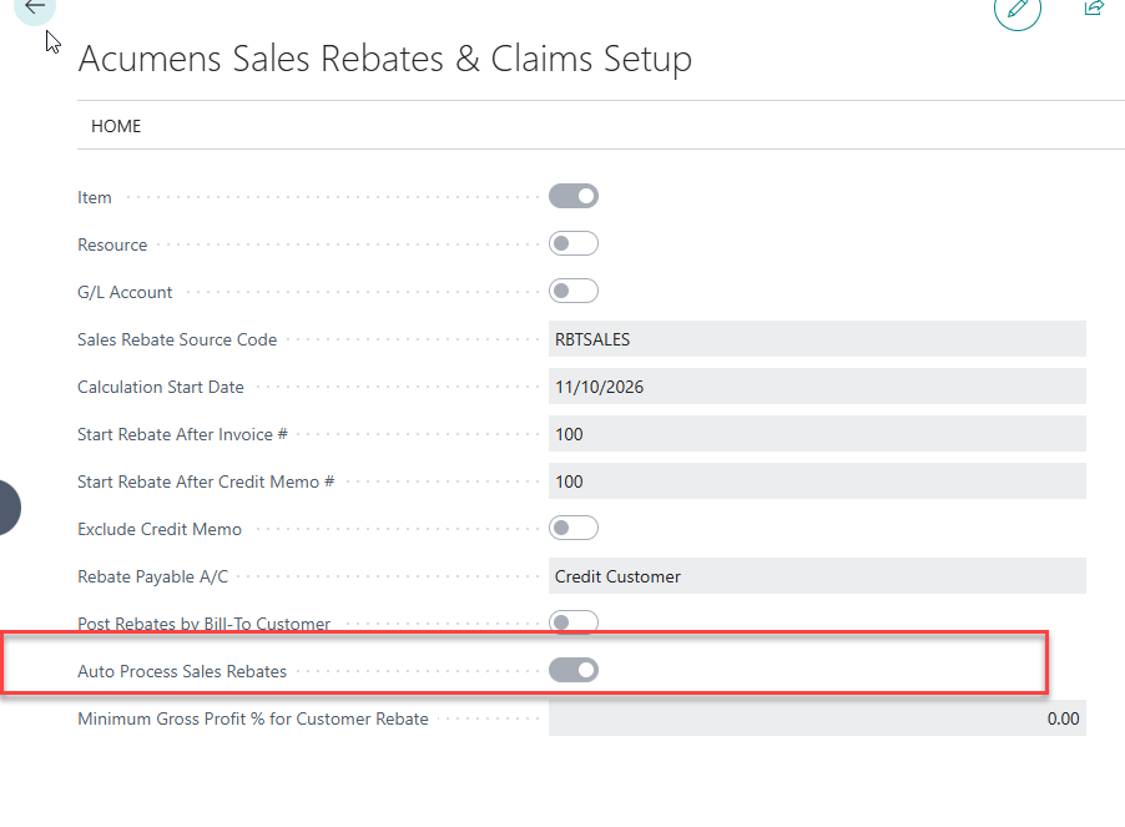
When Auto Process Sales Rebate is on, posting the shipment and invoice of a sales order creates and posts the rebate at the same time. The rebate is recorded in the item's value entries, and a Posted Sales Rebate document is created.
2.4.2 Processing Rebates in a Batch
Some companies prefer to review sales first and process rebates at set times, such as month end. At times rebates may have been missed and a catchup needs to be processed.
When Auto Process Sales Rebate is off, sales orders and return orders are posted as usual and rebates are not recorded straight away. The user runs Generate and Post Sales Rebates from the Role Center, which creates and posts the rebates for the posted invoices and credit memos in one run.
2.4.3 Returns and Credit Memos
When a customer returns goods, the rebate earned on them should be reversed.
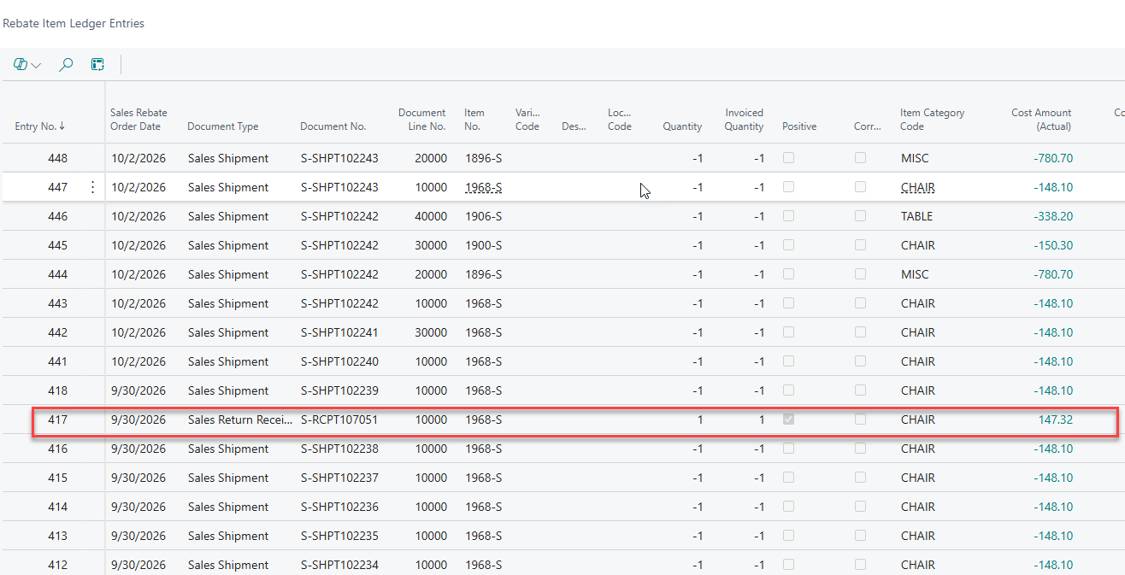
Posting a sales return order (return receipt and credit memo) reverses the rebate for the returned quantity, either straight away or at the next batch run. The reversal shows in the Rebate Item Ledger Entries. If the company prefers, Exclude Credit Memo leaves credit memos out of the calculation.
2.4.4 Choosing How Rebates Are Posted
Finance needs rebates posted to the right accounts, either as a balance owed to the customer or as a liability in a rebate payable account.
The setup decides whether rebates are posted to the Customer through a sales document, or to a Rebate Payable A/C through a sales journal. For journal posting, a default journal template and batch are set, and the batch is marked Sales Rebate on the General Journal Batches page. Every entry carries the Sales Rebate Source Code, and each program code supplies its own expense and payable accounts.
2.4.5 Posted Rebates and the Audit Trail
Contoso OptiClean needs to see every rebate it has paid and trace it back to the sales that earned it.
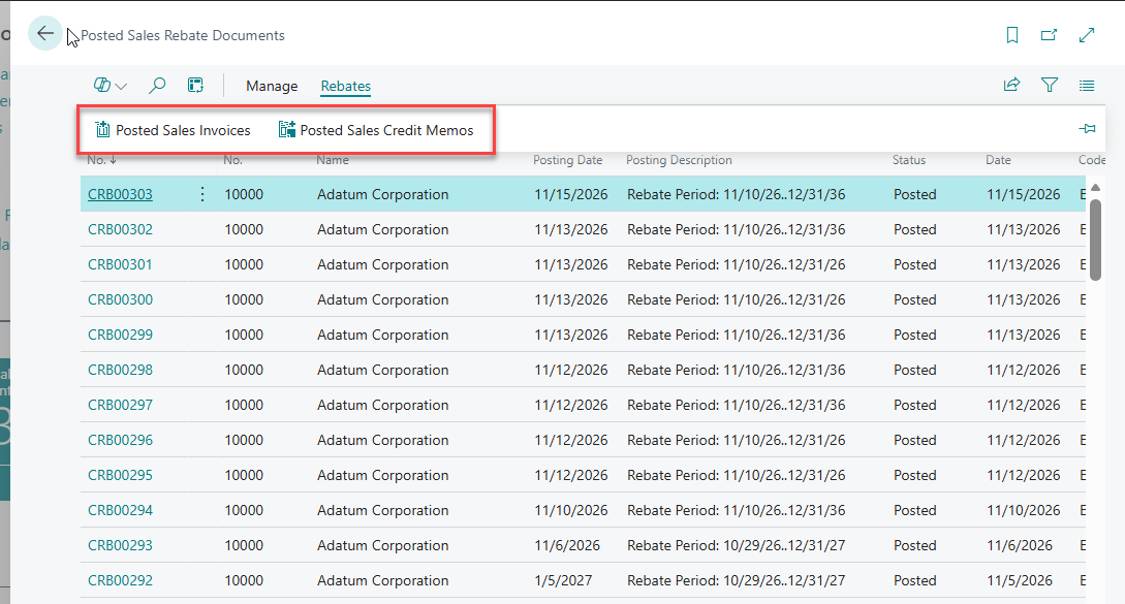
Each posted rebate is kept as a Posted Sales Rebate document with its own number from the Sales Rebate Nos. series. It links back to the posted sales invoices and credit memos that make up the rebate, and the amounts can be seen in the item's ledger and value entries and in the Rebate Item Ledger Entries.
2.5.1 Broker and Employee Commissions
Contoso OptiClean pays commissions to brokers on the sales they bring in, and wants these posted without manual journals.
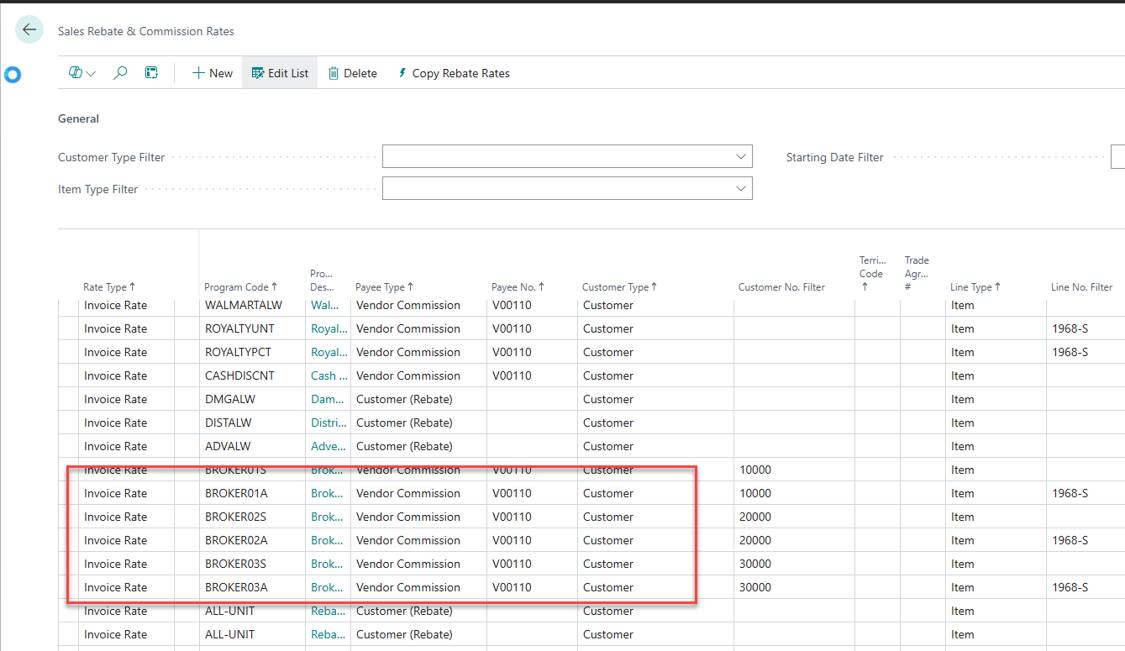
Brokers are set up as vendors and each set up for rebates on their card. Commission rates are entered in Sales Rebate Rates with the entity type Vendor, in the same way as customer rebates, and the rebate preview on the sales order shows the commission.
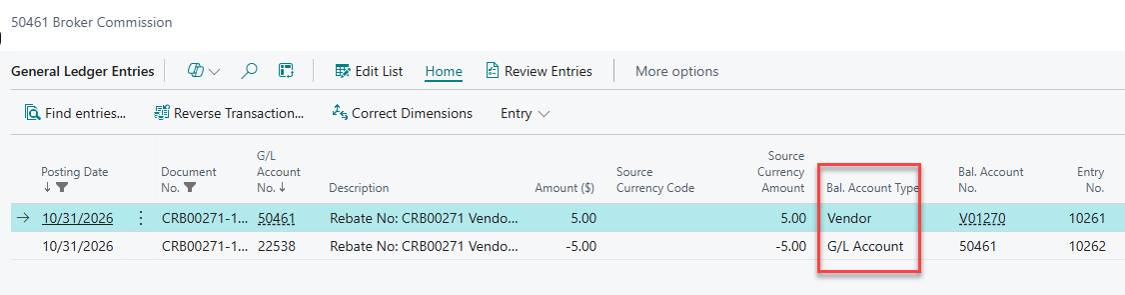
When the order is posted, the commissions are posted automatically through a sales journal, to the G/L account and balancing account set.
2.5.2 Royalties Paid to Vendors
The company pays royalties to vendors on sales of certain products, as a percentage or as a fixed amount, and needs them accrued as the sales happen.
Royalty programs are set up as Sales Rebate Program Codes, based on a percentage or an amount. Each program is linked to an accrual account through a vendor and its vendor posting group, and royalty rates are linked to the item in Sales Rebate Rates.
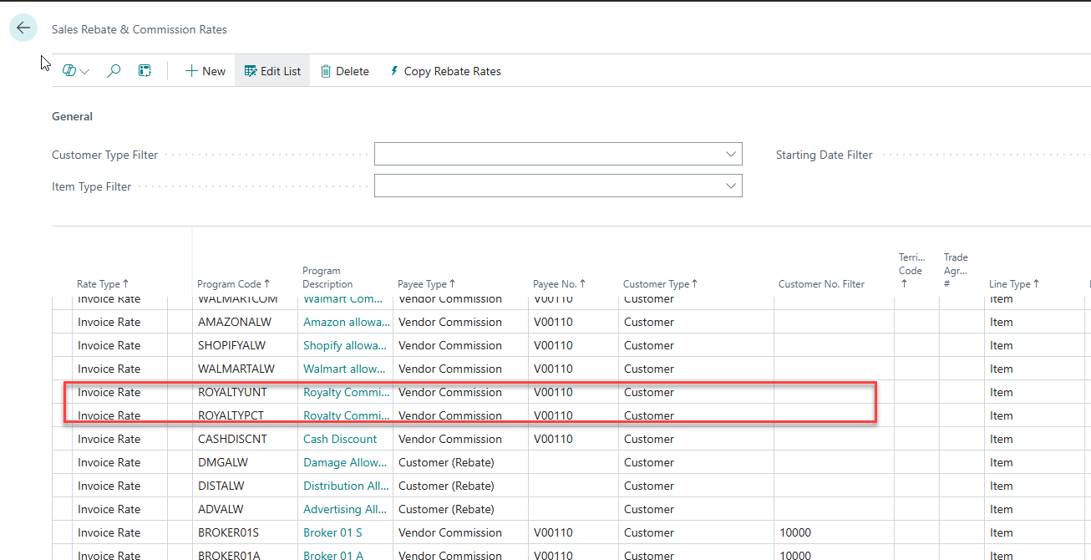
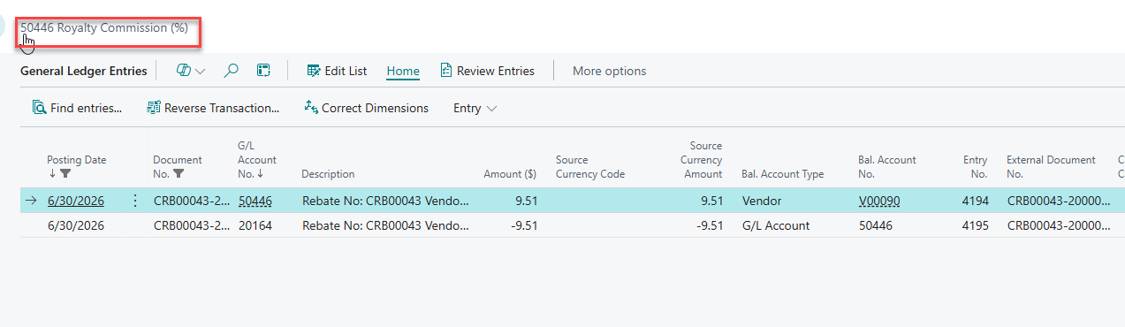
When the sales order is posted, the royalty is posted automatically through a sales journal to the program's vendor and expense account. Each royalty shows in the G/L register, the general ledger entries and the vendor ledger entries.